NS - Knowledgebase
Find the answers you need. More articles every week.
| ID | Title | Module | Category | ||||||||||||
|---|---|---|---|---|---|---|---|---|---|---|---|---|---|---|---|
| 62 |
Why a User Cannot Log InWhy a User Cannot Log InProblem A member of staff cannot sign in. The password is refused, the account says it is locked, or they are asked for a code they cannot produce. Background Signing in has two steps, and they fail differently. First the practice is identified, then the person is. Several separate controls sit on the second step - the password, the account lock, multi-factor authentication and, if the practice uses it, IP restriction. Working out which one has stopped them is most of the job. Resolution Work through these in order.
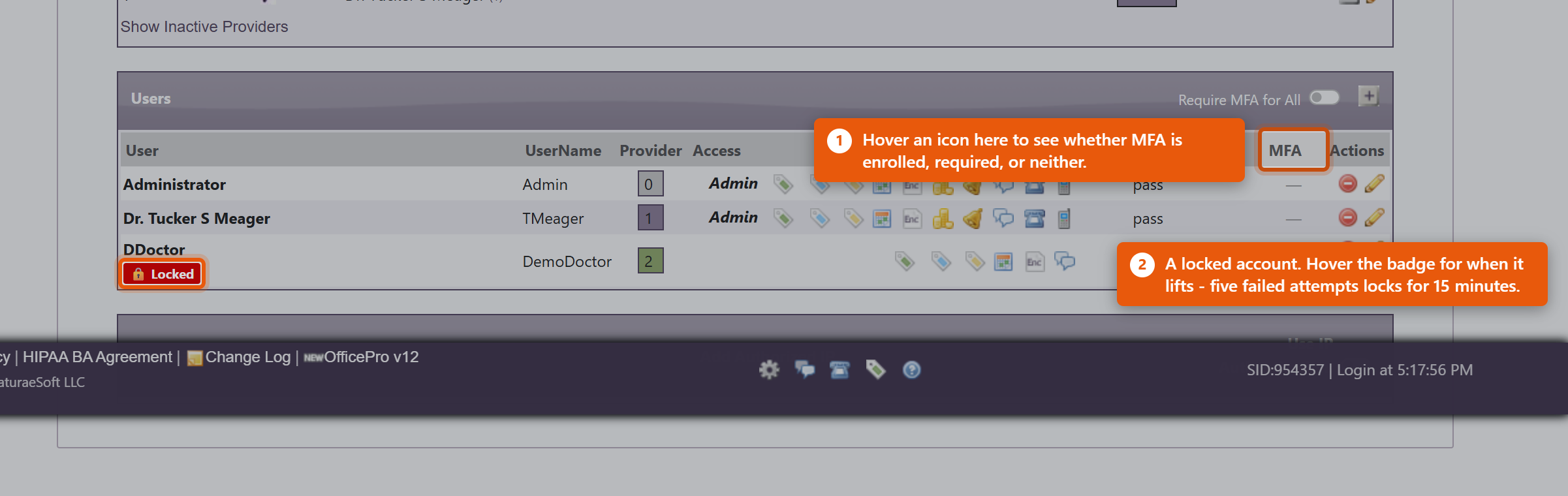 If the whole practice is locked out and IP authentication is on, the practice address has most likely changed - after a power cut or a router restart. Nobody inside can correct it, because the Admin page sits behind the same check. Contact NaturaeSoft support. A note on shared logins. If the answer keeps being that several people use one account, fix that instead. Each person needs their own login: shared accounts make the audit trail meaningless, and one person changing the password locks out everyone else. |
 |
|||||||||||||
| 66 |
Sales Tax on an Order Looks WrongSales Tax on an Order Looks WrongProblem A line was taxed at a rate nobody expected - too much, too little, or nothing at all - or two similar orders came out taxed differently. Background The rate on a line is not read live from your settings. When the line is created, OfficePro works out the rate from the order's tax group and the product's class, and saves that figure onto the line. The line keeps it from then on. That is deliberate - it is what stops a rate change from silently rewriting last quarter's takings - but it means an old line can legitimately carry a rate that no longer matches your current settings. Two orders taxed differently is often two orders raised either side of a change, not a fault. Resolution Work from the line outwards.
If the Group Rate column disagrees with what was chargedThe Group Rate shown against a group is a stored summary, refreshed only when somebody opens that group and saves it. Charges are always calculated from the jurisdictions in the group, so if the two disagree, the charge is right and the summary is stale. Open the group and save it to bring the display back in line. Correcting a line that really is wrongFix the configuration first, or the next order repeats the error. Existing lines keep their stored rate, so any already-wrong line has to be corrected on the encounter itself. If the period is closed or the return is filed, talk to your accountant before altering it - the fix for a filed period is usually an adjustment, not an edit. |
|
|||||||||||||
| 69 |
A Gift Card Will Not RedeemA Gift Card Will Not RedeemProblem A card is refused at the point of redemption, shows a balance the customer disputes, or reads as zero when it should hold value. Background A card carries three things that can each stop a redemption: its Status, its Balance, and whether the sale that funded it was ever actually paid. Selling a card adds it to a visit as a charge - if that visit was never settled, the card exists but was never paid for. Resolution
Refunding or cancelling a cardUse Cancel / Refund Gift Card and then Cancel Card. Cancelling stops the card being spent; refunding returns the money to the purchaser. Record why in the Note - a cancelled card with no explanation is impossible to account for later. Cancel a card that was sold in error, or one reported lost after you have confirmed who bought it. Because anyone holding the UID can spend the balance, a card reported lost should be cancelled promptly rather than watched. The balance looks wrong in the accounts, not on the cardIf the card itself is right but your figures look wrong, this is usually not a fault. Gift card revenue is recorded when the card is sold, not when it is spent - so a day of heavy redemption shows activity without matching takings, because that money came in when the cards were bought. See Selling and Redeeming Gift Cards. |
|
|||||||||||||
| 71 |
A Report Is Missing or Will Not OpenA Report Is Missing or Will Not OpenProblem A report you used to run is not in the list, a saved link no longer works, or opening one returns a message instead of figures. Background The reports section was rebuilt in August 2026. A registry now decides which reports exist and who may see each one, and roughly 250 old pages were retired down to a registered set. A report can therefore be absent for four quite different reasons, and OfficePro tells you which - read the message rather than the fact that it failed, because the fix is different each time. Resolution "That report does not exist. It may have been renamed or retired." The report is gone, and this is almost always an old bookmark or a link in a document. Most retired reports were duplicates of one that survived, so look for the current equivalent in the list on the left and bookmark that instead. Search the Find a report... box for a word from the old title - the replacement is often named slightly differently. "Your account does not have access to this report." The report exists and your user account is not permitted to open it. Most financial reports need financial access; the Data Error Review needs administrator access. An administrator can grant it from Edit User on the Admin page. Note that an access box left blank counts as not granted, so a newer account can reach the reports list and still see very little in it. "This report belongs to a module this practice does not currently license." The report is part of a module the practice does not subscribe to - the product and refill reports need ProductPro, the Billing Report needs BillPro. No permission change will open it; the practice would need to add the module. Contact NaturaeSoft if you think you already have it. "This report is not included in your plan." The report exists and is licensed but sits outside your current plan. Again, not a permission - contact NaturaeSoft to discuss the plan. The report opens but is emptyCheck the period before anything else. Most reports open on the current month, so early in the month they can be legitimately near-empty. Widen it to last month or this year and see whether the figures appear. If a report has no period bar, it is a point-in-time report - Patients with a Balance Due, Subscription Health and the duplicate-finding reports describe how things stand now. Empty means there is genuinely nothing to show, which is usually good news. A provider cannot see other providersThat is intended. A provider is restricted to their own figures; selecting a different provider requires financial or administrator access. Two people see different report listsAlso intended. A group only appears when the account has access to something within it, so the list reflects permissions. Compare the two accounts under Edit User. The numbers look wrong rather than missingFollow the figure to its source rather than comparing totals between reports. Click through from the Practice Dashboard, step down through the Master Reports from Summary to Detailed, or open Sales Tax - Line Detail from the Sales Tax report to see every line behind the total. Two reports disagreeing usually means they are counting different things over different periods, and the drill-down is what shows you which. |
|
|||||||||||||
| 73 |
A Payment Is Not Allocated CorrectlyA Payment Is Not Allocated CorrectlyProblem A patient who has paid still shows a balance, a payment shows as over allocated, or a credit has disappeared. Background Taking a payment and applying it to a visit are separate steps. Money can be correctly recorded and still not attached to anything, in which case the patient looks like they owe it. Most allocation problems are this, not a lost payment. Resolution
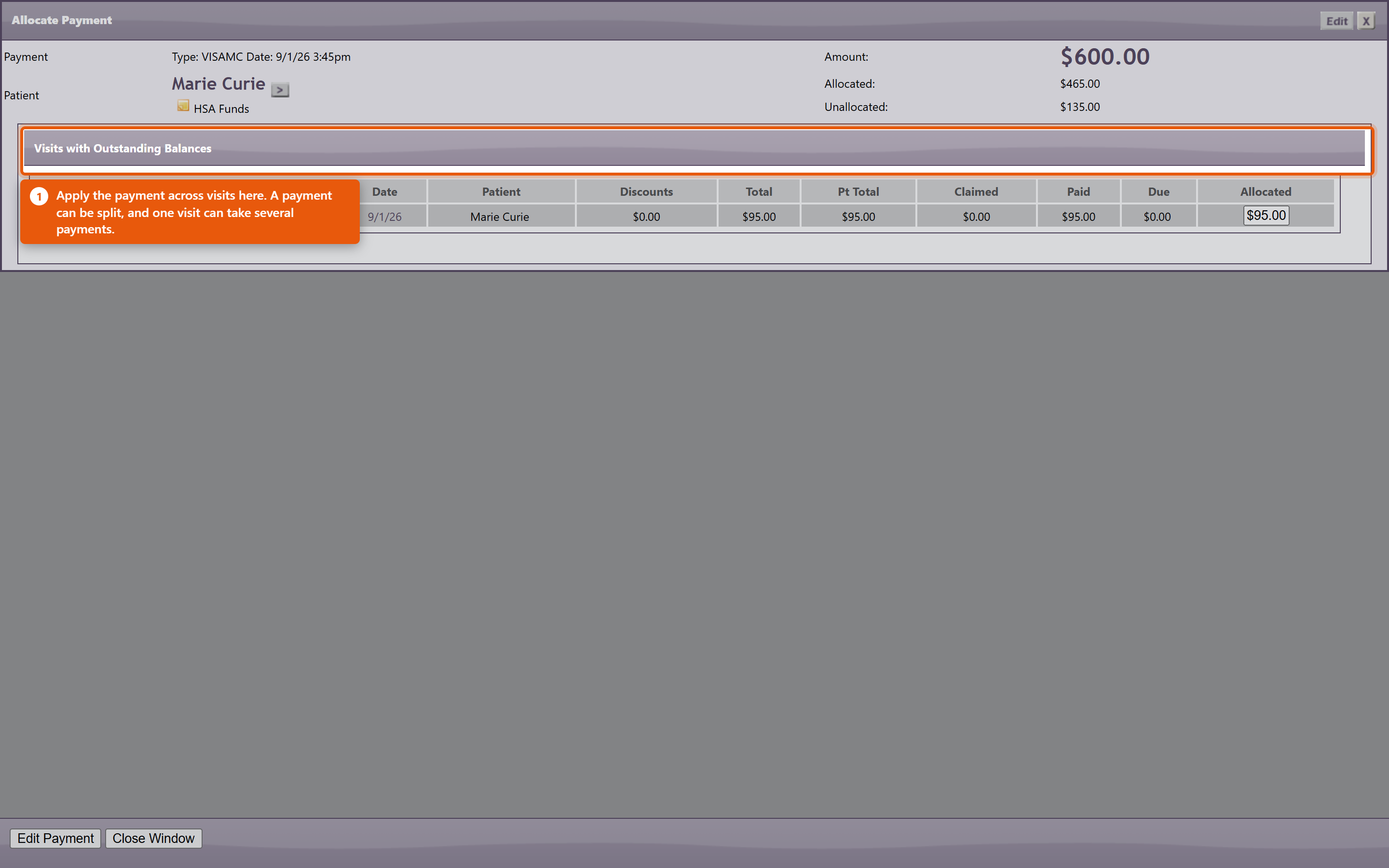 The patient says they paid and there is no record at allSearch the patient's payments before assuming it was missed - a payment entered against the wrong patient or the wrong visit is far more common than one that was never entered. Check the same day's takings for an amount that matches. If it was taken by card, the approval or auth number on the terminal receipt is what ties it to the entry, which is why recording it at the time matters. Preventing most of this
|
|
|||||||||||||
| 80 |
A Bulk Message Has Not Gone OutA Bulk Message Has Not Gone OutProblem A campaign was sent and nothing has arrived, progress is stuck at zero, or it reached far fewer people than expected. Background Campaigns are queued rather than sent as you press the button, and a background process drains that queue only during the practice's send window. So a campaign that has not gone out is usually waiting rather than broken - and the screen looks identical either way. Resolution
It went to the wrong peopleNothing can be recalled once sent. Work out which tag produced the audience before sending anything else, or the correction repeats the mistake. Then fix the tagging rather than remembering to work around it next time. A patient asks to stop receiving theseAct on it immediately and remove them from the tags that put them in marketing audiences. This is a legal obligation in most places, not a courtesy, and the software will send exactly what it is told to. Nothing sends at all, for any campaignCheck that bulk sending is enabled for the practice at all, and that the window is not set to a range that never occurs. A window with a start later than its end is the usual culprit. |
|
|||||||||||||
| 10 |
Problems connecting to OfficePro, browser keeps spinning...Problems connecting to OfficePro, browser keeps spinning...You are not able to connect with OfficePro.NaturaeSoft.com or Secure.NaturaeSoft.com.BackgroundThere are many reasons why you may not be able to connect to NaturaeSoft services. It could be the browser, the computer, the firewall, the router, the ISP, or NaturaeSofts, firewall or servers. In order to better address the issue trouble shooting needs to be done to determine the underlying cause of the error. SolutionWhen the servers go down the NaturaeSoft support team is allerted to this through a monitoring service and our teams goes swiftly to work to identify and treat the issue to get your services back running as fast as possible. In most circumstances issues with connectivity to the service are local and do not have to do with NaturaeSoft server / service performance. In most cases of the issue being server related NaturaeSoft's team of engineers can get the the services back up within 15-30 minutes. Most of the time that a NaturaeSoft service does go down it still may be available through an alternative domain. You can access the NaturaeSoft service through either : or In order to troubleshoot the issues with connecting to our servers please follow the path outlined below:
In the event that you cannot connect to the service please try the following things in order:
If the page has an error on it then...
If the page has no error on it, but is just spinning or says cant connect then... (
If you still cannot connect then....
If you can reach another site but still cannot connect to either URL then....
If support confirms our services are down, then...
If NaturaeSoft Servers are up and their status looks good Then (
)
If you still cannot connect
If you still cannot connect
|
|
|||||||||||||
| 21 |
File Uploading LimitationsFile Uploading LimitationsThe OfficePro service allows for the upload of files but there are limitations about the upload service, that you will need to keep in mind. The NaturaeSoft service has 2 limitations. First, we limit all files to 10MB or less, also we only allow 10 minutes per upload of each file this means that you will need to have a certain speed of the internet to achieve the upload of your files upload time depends on two things:
Once you have this info, use the table below to approximate your upload time.
|
|
|||||||||||||
| 36 |
Merging Patient'sMerging Patient'sAccessing the Merge Function:
Selecting the Duplicate Patient:
Reviewing the Merge Preview:
Finding Duplicates in Reports:
Important Note:
|
|
|||||||||||||
| 46 |
Troubleshooting Connectivity Issues with NaturaeSoft ServicesTroubleshooting Connectivity Issues with NaturaeSoft ServicesProblem: You are unable to connect with OfficePro.NaturaeSoft.com or Secure.NaturaeSoft.com. BackgroundThere are several potential reasons for connectivity issues with NaturaeSoft services, including problems with your browser, computer, firewall, router, ISP, or NaturaeSoft’s servers. To effectively address the issue, we need to conduct a systematic troubleshooting process to identify the underlying cause. SolutionWhen our servers experience downtime, the NaturaeSoft support team is alerted through a monitoring service. Our engineers work swiftly to identify and resolve the issue, usually restoring services within 15-30 minutes. Most connectivity issues are often local rather than server-related. Steps to Troubleshoot Connectivity IssuesRefresh the Page:
If the Page Displays an Error:
If the Page is Just Spinning or Indicates It Cannot Connect:
If You Still Cannot Connect:
Check NaturaeSoft Server Status:
If NaturaeSoft Servers Are Up:
If You Still Cannot Connect:
If You Still Cannot Connect:
ConclusionBy following these steps, you can systematically troubleshoot connectivity issues with NaturaeSoft services. If problems persist, please reach out to our support team for further assistance. Thank you for your patience and understanding. |
|
|||||||||||||
| 98 |
Patients Cannot Book OnlinePatients Cannot Book OnlineWork these in order. The first one accounts for most reports and looks identical to a broken feature. 1. No visit type is offered onlineOnline Scheduling Enabled turns the feature on for the practice. It does not make any appointment bookable - each type needs its own Offer Online toggle. With the practice switch on and no type switched on, the booking page loads and offers nothing. This is genuinely common: of the practices with online scheduling switched on and appointment types set up, a substantial minority have no type offered online at all - including one with more than thirty active types and none of them bookable. Open the visit type list and confirm at least one shows Offer Online switched on. 2. No appointments are availableThe types are offered but nothing is bookable. Patients see an empty calendar, which reads as broken.
3. The link is wrong or out of dateUse Test the Button and Test your Portal URL. A link published before a website rebuild, or pointing at a visit type you no longer offer online, fails in a way patients never report - they just stop. 4. It works for you and not for themTest as a patient would: a phone, on mobile data rather than your clinic wifi, in a private window. Most "it does not work" reports are an embed that has not been checked on a small screen. The wrong appointments are being bookedUsually the offered types rather than the booking system:
Narrow what you offer rather than accepting bookings you have to move. A patient booked with the wrong providerA General Link lets them choose. If you want them with a particular practitioner, send a Provider Link instead - and check which link is on the page they actually used. Portal messages are going unansweredAsk the Doctor creates messages somebody has to answer. If nobody owns that, switch the feature off rather than leaving patients writing into silence - an unanswered message damages more than a missing feature. The portal looks wrong on our siteCheck the Dimensions under Portal Style, and check it on a phone. Colours and fonts are there too, so it can be made to match your site rather than sitting awkwardly inside it. What to have ready for supportThe exact link the patient used, what they saw, the device and browser, and whether any visit type shows Offer Online switched on. That last one resolves it more often than anything else. |
 |
|||||||||||||
| 51 |
Granting Microphone & Speaker Access in Your ApptPro Telehealth SessionGranting Microphone & Speaker Access in Your ApptPro Telehealth SessionWelcome to ApptPro, the secure and easy-to-use telehealth platform built into your NaturaeSoft OfficePro system. If you’re joining an online session and your microphone or speakers aren’t working, it’s often due to permission settings in your browser. Follow the steps below to make sure your provider can see and hear you clearly. Why Permissions MatterApptPro uses Whereby to power your video calls. When you enter a meeting room for the first time, your browser will ask for access to your microphone and speakers. If access is not granted, you may not be heard or hear others during the session. ✅ How to Allow Mic & Speaker Access by BrowserGoogle Chrome
Mozilla Firefox
Microsoft Edge
Safari (Mac Only)
Changing Devices Mid-CallIf you need to switch to a different mic or speaker during a session:
Tips if You Still Have Issues
Still Not Working?If you've followed the steps above and still can’t connect your mic or hear sound, please contact NaturaeSoft Support at support@naturaesoft.com or through your OfficePro support chat. |
|
|||||||||||||
| 90 |
A Claim Is Rejected or Stuck in ProcessingA Claim Is Rejected or Stuck in ProcessingStart on the claims list and set the status filter, which has three values: Processing, Rejected and Accepted. Every claim is in exactly one of them, so between the three you are seeing your whole book. What the three actually mean
A claim was rejectedOpen it. The rejection text is recorded on the claim, and it is specific - a payer will name the field it did not like. Read it before changing anything, because most rejections are one wrong value rather than a broken claim. The usual causes, roughly in order:
Correct the underlying record rather than the claim where you can - a wrong member ID will reject the next claim too. Then use Re-Create Claim Document so the claim is rebuilt from the corrected data, and send it again. If every claim to one payer rejects the same way, stop fixing them one at a time. That is an enrolment or a payer ID problem, and it will keep happening. A claim has been Processing for weeksFirst check whether it was actually sent. A claim that was created and never submitted sits in Processing indefinitely and no one is waiting on it but you. Then use the age filter. Current is the first 30 days since submission; the older buckets are where genuine problems live. Anything past 30 days with a balance deserves a call to the payer - quote the claim and, if you have one, the ERA ID. Note the age is counted from the date the claim was sent, not the date of service. A claim submitted late looks young here even when the visit is months old. A claim's history says Late import of an earlier ClaimMD responseSome replies from ClaimMD to claims sent from BillPro reached BillPro late, most of them for claims sent between late June and early October. They have been added to each claim's History. A note that begins Late import of an earlier ClaimMD response: is one of them. ClaimMD sent it earlier than the date shown beside it, which is the day it reached BillPro. Read it like any other reply. If it is a rejection, the claim still needs correcting and sending again. A claim that was still Processing and had been sent once now shows the status from that reply. A claim that has been sent again since, was marked Sent Manually, or already showed a result keeps its status, because the late reply may answer an earlier send. I cannot find a claim in any aged viewThe aged views only show claims with a balance outstanding. A claim paid in full drops out of all of them - so a claim that seems to have vanished has usually been settled. Clear the age filter, or search for it directly, before concluding anything is missing. The claims list is emptyNo records found nearly always means the filters, not the data. Status, age range and date range all apply at once, and Current plus a narrow date range excludes most of a practice's claims. Use Clear and start again with one filter. The insurer paid but the claim still shows a balance
Judge the claim by Claim Balance on the claim itself. It is calculated from the services and the payments actually recorded, and it is what the aged views use. Nothing arrives when I check for ERAsAlmost always ERA enrolment for that payer has not completed. Sending claims and receiving remittances are separate enrolments, and payers can take weeks over the second one. Until it is live, that payer's payments arrive on paper and are posted with Process Payer Payment. What to have ready before contacting supportThe claim, the payer, the date of service, the rejection text as written, and the ERA ID if a remittance is involved. The rejection text is the part that shortens the conversation most - a paraphrase usually loses the field name that identifies the cause. |
 |
|||||||||||||
| 102 |
Auto Chart Did Not Produce a NoteAuto Chart Did Not Produce a NoteWork through these in order. Most cases are the microphone or the room rather than the AI. The recorder will not startThe browser has to be allowed to use the microphone, and it asks once per site. If the permission was refused - or dismissed, which counts as refused - the recorder cannot start and will not ask again on its own. Clear that in the browser's site settings and reload. On a shared machine check you are in the profile you think you are. There is a companion article on granting microphone access for telehealth sessions; the browser side of it is the same problem. It recorded, but no note came backIf the review screen shows No AI note was generated for this encounter., the audio arrived and no note came out of it. Usually the recording had nothing usable in it - a microphone pointed at the wrong side of the room, or a session ended before anything was said. Open the encounter and read the Transcript. That tells you immediately whether the problem was the audio or the note: an empty or garbled transcript is a microphone problem, and a good transcript with no note is one to report. The note came back wrong or incompleteCheck the transcript first, for the same reason. If the transcript missed what was said, no amount of retrying will fix the note - change how you record:
If the transcript was good and the note was not, that is worth reporting: rate it and say what was wrong in the Comments. That feedback is read, and very little of it comes in. An error message on the review screen
The note went onto the wrong visitThe AI is given the visit you started from, so a note started on the wrong visit produces a note about the wrong context. Check the Patient, Visit Type and Date of Service in the preview before accepting it - that is what the header is for. If one has already been saved to the wrong chart, treat it as you would any misfiled note, and deal with it straight away. We are over 40 for the monthNothing happens. The counter is per provider per calendar month and it is an indicator, not a limit - the bar changes appearance and dictation carries on working. It resets at the start of the next month. The buttons are not there at allAuto Chart appears for ChartPro practices, on the chart note screen. If it is missing, check you are on a chart note rather than another screen, and that your practice has ChartPro. What to send supportThe Encounter # from the review screen, the date, the provider, and whether the transcript looked right. The encounter number is the one thing that makes an AI problem quick to look into. |
 |
|||||||||||||
| 58 |
IV Treatment Will Not Post or ActivateIV Treatment Will Not Post or ActivateProblem An IV protocol cannot be set to active, a treatment will not post to the encounter, or components are missing from the bill after administering. Background Most of these come from one of four things: the protocol has not been signed, a component is not mapped to a product, a component has no billing code, or the module has not been switched on for the practice. Each fails in a different place and each says something different on screen. Resolution
If none of these apply, note the exact message on screen and the encounter number and raise a support ticket. |
|
|||||||||||||
| 113 |
Acupuncture Treatment Will Not PostAcupuncture Treatment Will Not PostProblemPosting a treatment is refused, or it posts but fewer charges appear on the encounter than expected. BackgroundThe module refuses only where the figures are impossible or where somebody needs to take responsibility in writing. Everything else is reported as a warning and left to your judgement. Resolution“Hands-on time exceeds the time the needles were in”You cannot have spent 40 minutes hands-on inside a 25-minute retention window, so one of the two figures is wrong. Check Needles in and Needles out against the contact intervals and correct whichever is mistaken. “The needle count does not balance”The treatment has needles that have not been accounted for. Check the patient first. If the count is right — a tack left in deliberately, for instance — type a short reason when asked. The reason is stored on the treatment and recorded in the log. A contraindicated pointSame again: the treatment is not blocked and never was, but the charge waits until somebody types why. Points like LI4 and SP6 in a term pregnancy are used deliberately by practitioners intending to encourage labour, so refusing them outright would be wrong; recording the decision is not. Fewer charges than expectedThe response lists every line that was skipped and why. The usual reasons:
“Hands-on time is longer than the whole appointment”No timed code is suggested, because the contact time recorded is longer than the appointment was booked for. Correct the contact intervals. The treatment is already postedA posted treatment cannot be edited or posted again. Reverse the posting first: its charges come off the encounter and the clinical record stays exactly as charted, because reversing a charge does not un-needle a patient. Warnings that do not stop a postingThese are reported after the charges are written, because they are coding judgements that depend on payer policy:
The module never adds a modifier by itself. Where one is needed there is a button that writes it, and the write is recorded against your name. |
|
|||||||||||||
| 94 |
A Lab Result Has Not ArrivedA Lab Result Has Not ArrivedAlmost always the result has arrived and is not attached to the patient. Check that before ringing the lab. 1. Look for it unassignedA result is matched to a patient on the demographics the lab returns. When those do not match your record - a hyphenated surname, a middle name included, a date of birth keyed differently at the lab - the report arrives with no patient attached. It is not on anyone's chart, and nothing tells anyone it is there. This is common. Practices using LabPro are carrying thousands of unassigned reports between them, and they accumulate quietly because nothing chases them. Look for the report in the practice-wide Lab Pro Reports list rather than on the patient. If it is there, use Select Patient to Assign Lab Report - Search for the patient and choose them, and the report attaches to their chart. If the mismatch was your record rather than the lab's, correct the patient too. Otherwise their next result arrives unassigned as well. 2. Check the date range on the listLab Pro Reports is filtered by period. A result older than the selected range is not missing, it is outside the window - Clear the filter or widen Show before concluding anything. 3. Check the order was actually placedOrders live in LabCorp Link, not in OfficePro, so confirm it there - that it was submitted, and under the right account. An order left unsubmitted has no result coming and nothing in OfficePro will show that. While you are there, check it was placed against the patient you found through the MRN search rather than one keyed by hand. A hand-keyed patient is the usual reason a result comes back and matches nobody. 4. Check with the lab, with the accessionIf it is genuinely not here, the lab can say whether the specimen arrived and was resulted. Have the accession number, the patient, the date of the draw and the tests ordered. Without the accession the call takes a great deal longer. Only some of the tests came backNormal. Labs report in batches as each test completes, and a panel with a longer-running test in it arrives in parts. The status on each line tells you whether it is final. Give the slower tests their stated turnaround before chasing. A result is on the wrong patientDeal with it immediately - a result on the wrong chart is a clinical risk, not an administrative tidy-up. Reassign it to the correct patient, and check whether anything was acted on in the meantime. If two patients have similar names, expect it to happen again and fix whichever record is ambiguous. An abnormal result was not highlightedWorking as designed, and worth understanding. Only HH, LL, CH, CL, > and < are shown as Critical Result. A plain H or L, or the generic A, is shown in bold with no highlight - and those are the vast majority of abnormal results. The absence of a highlight is not clinical reassurance. Read the flag and the reference range on every line. The patient lookup in LabCorp Link returns nothingThe demographic bridge authenticates by IP address. If it has stopped finding anyone, the most likely cause is that your clinic's IP has changed - a new connection, a new router, or working from somewhere else - and it needs re-registering with support. If it finds some patients and not others, that is a data problem rather than a connection one: check the patient is active in OfficePro and that you are searching the MRN it holds. Fullscript labs are not appearingFor almost every practice that is expected. Receiving Fullscript lab results in LabPro is in a limited pilot with a single practice and is not generally available yet, so Fullscript labs do not come into LabPro unless it has been switched on for you. If you would like to take part - or your practice is in the pilot and a result is missing - contact support. Nothing at all is coming inOne result missing is a matching problem. Nothing arriving for a day or more is a connection problem - raise it with support rather than working through individual patients, and say when the last result you did receive came in. Worth doing weeklyReview unassigned reports on a schedule. Every one is a result nobody has seen, and the list only grows. A few minutes weekly prevents the backlog that makes this article necessary. |
 |
|||||||||||||
| 83 |
The Kiosk Is Not WorkingThe Kiosk Is Not WorkingProblem The kiosk is locked and nobody can unlock it, patients cannot identify themselves, the card reader does nothing, or the screen sits empty. Background The kiosk is a tablet running the patient portal, held in a locked mode that only an authenticator code releases. Most problems are one of three things: the lock, the patient's own details not matching, or the local card-reader helper not running. Resolution
Insurance captured at the kiosk looks wrongCheck which option the patient chose. Add as Secondary, Keep Both Active and Deactivate Old do different things, and a patient guessing at that question can leave two active primaries or deactivate cover that was still valid. Correct it on the patient record; it will otherwise surface as a rejected claim weeks later. Preventing most of it
|
 |
|||||||||||||
| 50 |
My Mic and Speakers aren't working in the telehealth meeting room.My Mic and Speakers aren't working in the telehealth meeting room.If you’re having trouble with your camera or microphone during a virtual meeting on the NaturaeSoft platform, don’t worry—here are a few troubleshooting steps that can usually resolve the issue quickly. ✅ Quick Fix: Check Device SelectionClick the room name button inside your meeting room, then go to the Device tab to confirm or change which camera and microphone you’d like to use. If your devices don’t appear, aren’t saving, or are blocked, follow the steps below. ? Step 1: Make Sure Everything is Updated? Update Your BrowserWe support the two most recent versions of the following browsers. Make sure your browser is up-to-date using the links below: Google Chrome Opera Microsoft Edge – updated automatically with Windows updates ? On iOS DevicesIf you’re using an iPhone or iPad and having issues with your microphone, make sure your device is updated to the latest version of iOS. ? Step 2: Undo a Blocked PermissionIf you accidentally selected "Block" when the browser asked to access your camera or microphone, follow these steps: Click the camera icon in your browser's address bar (usually on the right). Select "Allow" for camera and microphone access. Reload the page or click “Try Again.” Example Icons: Chrome: Camera icon on the right side of the address bar Firefox: Crossed-out camera icon on the left ? Step 3: Clear Cache and CookiesSometimes outdated permissions or cached settings cause problems. To reset: Clear your browser cache and cookies Restart your browser Restart your computer Instructions for clearing your cache: Chrome Opera ?️ Step 4: Check System Privacy SettingsmacOS (MacBooks and iMacs)Click the Apple logo → System Settings Go to Privacy & Security Click Camera, and ensure your browser has access Repeat for Microphone Restart your browser after changes WindowsEnsure your browser has permission to access your mic and camera: Camera Settings: chrome://settings/content/camera Microphone Settings: chrome://settings/content/microphone Make sure your video platform is listed under “Allow”. ? Still Not Working? Try This...? Firewall and Network RestrictionsStrict firewalls or corporate networks can block access. If you’re on a restricted network: Switch to a less strict network if possible Use Google Chrome or Opera for best compatibility (especially if Firefox is failing) ? Disable Browser ExtensionsSome browser extensions can interfere with audio/video devices. Try: Opening the platform in an Incognito or Private window If it works, disable extensions one-by-one to identify the issue If you’ve tried all of the above and are still experiencing problems, feel free to contact NaturaeSoft Support for personalized assistance. |
|
|||||||||||||
| 76 |
Fullscript Products or Plans Are Not AppearingFullscript Products or Plans Are Not AppearingProblem The Fullscript catalogue returns nothing, a provider cannot create a plan, or imported products look wrong once they arrive. Background Fullscript has three separate requirements, and failing any one of them looks much the same from the outside: the practice must be connected, the individual provider must be linked, and the practice must have ProductPro. Working out which is missing is most of the job. Resolution
Products imported, but the Type box is blankDefault Product Type in ProductPro settings was set to something that is not one of the supplied values. Only the values in that list are valid; anything else gives imported products a type nothing recognises, and the Type box on the product form renders empty. Open ProductPro Settings and look under Fullscript Import. A value that is not valid is shown in the Default Product Type list with (not a valid product type) after it, so you can see what is stored. Choose a type from the list, or -- none -- to import without one, and click Save Settings. Then fix the products already imported. An invalid type is never saved. Leaving it selected and saving the other settings keeps the old value rather than replacing it with a blank, and a value that is not in the list cannot be stored over a good one. The same product appears twiceRe-importing does not cause this - each Fullscript variant is recorded and a second import of the same one is skipped. Two entries almost always mean the product existed in your catalogue already and was imported instead of linked. Use Link to Fullscript before bulk importing, and make one of the pair inactive rather than deleting it, so the sales history against it survives. The Duplicate Products report under Reports finds these. Prices are not what you chargeImported products arrive at the Fullscript catalogue price. That is the starting point, not a decision about your pricing - review anything where you set your own margin. See Adding and Editing Products. Everything disappeared after disconnectingProducts already imported stay in your catalogue and are still yours to sell. What stops is the link to Fullscript: they no longer refresh, and new plans cannot be written until the practice reconnects. |
 |
|||||||||||||
| 86 |
An Auto-Order Did Not GenerateAn Auto-Order Did Not GenerateWork down this list in order. The first three causes account for nearly everything, and all three look identical on screen - a plan that appears perfectly configured. 1. The practice is not on BackOfficeProThe nightly job only runs for practices subscribed to BackOfficePro. Without it, plans can be created and edited exactly as normal and nothing ever generates from them. There is no warning and no error. If no auto-order has ever generated for anyone, start here rather than examining the plan. Contact support to confirm. 2. The quantity is zeroA plan needs both an Interval: and a Qty: greater than zero. A plan with an interval and no quantity is skipped silently, and on screen it is indistinguishable from a working one. Check Quantity on the By Patient view. A blank or zero there is your answer. 3. It is not due yetThe job runs once a day, late in the evening Pacific time, and works ahead of each due date by your Auto Order Lead Time (Days). An order will not appear the moment you save a plan, and it will not appear during the working day. Set a plan up on Tuesday afternoon and check on Wednesday morning. Check the Next date on the By Date view. If it is in the future, nothing is wrong. 4. The plan endedAn End: date in the past stops the plan. So does an Interval: that has been set back to None - which is easy to do by accident while editing something else on the same screen. A patient who subscribes to the product again in the portal restarts an ended plan. Refill limits stop it too. A product set to Constrict Refills ( with none remaining, or Blocked - No refills, will not refill however the plan is configured. 5. Nobody was toldSometimes the order did generate and nobody saw it. The summary message after each run goes to the Order Message User in ProductPro settings; if that is still on -- Select User -- it goes to no one in particular. Before concluding an order is missing, look in your patient orders queue for a Pending order dated overnight. Other things that come upThe refill went out with no directionsDirections come from the plan, and only from the plan. A plan saved without dosing produces a line with nothing on it - the product default is deliberately not substituted, because a guessed dose is worse than an obvious blank. Fix the dosing on the plan itself, not on the order. Correcting the order sends this month out right and next month out wrong again. Until October 2026, a patient subscribing in the portal cleared the dosing on their plan. If a plan the patient set up or changed in the portal has no dosing, re-enter it on the plan. A pickup patient was charged shippingDelivery comes from the plan's Method:, not from the patient's usual preference. Check the Method column on the By Patient view and correct the plan, or every cycle repeats the charge. The discount is missing, or looks wrongThe ongoing Subscribe & Save discount appears as a discount on the order line. It is not a credit on the account, and there will not be a separate credit entry to find. Do not add an account credit to make up for it. The system used to apply the discount twice - once on the line and again as a credit - and that was corrected. Adding a credit by hand recreates the old fault one patient at a time, and it will not be obvious later that it was done manually. Also worth knowing: the welcome discount is a portal-only offer on a patient's first Subscribe & Save. Refills are discounted at the ongoing percentage, which is normally lower. A refill that costs more than the first order is working as intended. An overdue plan only produced one orderThat is deliberate. A plan that has been due for months generates a single order and its next date jumps to the next future cycle. There is no catch-up run, and you will not be billed for the months in between. Two orders arrived for the same patient on the same nightAlso expected, if that patient has both pickup and shipped plans due. Refills are grouped by delivery method so each order's header matches its contents. One order cannot be half collected and half posted. The product went out of stockOrders are created whether or not you have stock. The On Hand and On Order columns on Patient Auto Orders exist so you can see this coming - check the By Date view weekly rather than finding out while packing. My purchase orders to a supplier stoppedDifferent feature. Vendor auto-orders are configured on the vendor's contact record under Auto Order and raise a purchase order to your supplier. Nothing on the patient side affects them. |
|