Knowledgebase Article
Why a User Cannot Log In
Category: Troubleshooting | Module: OfficePro | Created: 9/5/2026 | Last Updated: 9/6/2026
Problem
A member of staff cannot sign in. The password is refused, the account says it is locked, or they are asked for a code they cannot produce.
Background
Signing in has two steps, and they fail differently. First the practice is identified, then the person is. Several separate controls sit on the second step - the password, the account lock, multi-factor authentication and, if the practice uses it, IP restriction. Working out which one has stopped them is most of the job.
Resolution
Work through these in order.
- Check they are past the practice step. The first screen asks for the practice, the second for the person. Staff often type their own username into the practice screen. If they never reach a screen asking for a password, they are stuck on the first step and need the practice name and PracticePass, not their own details.
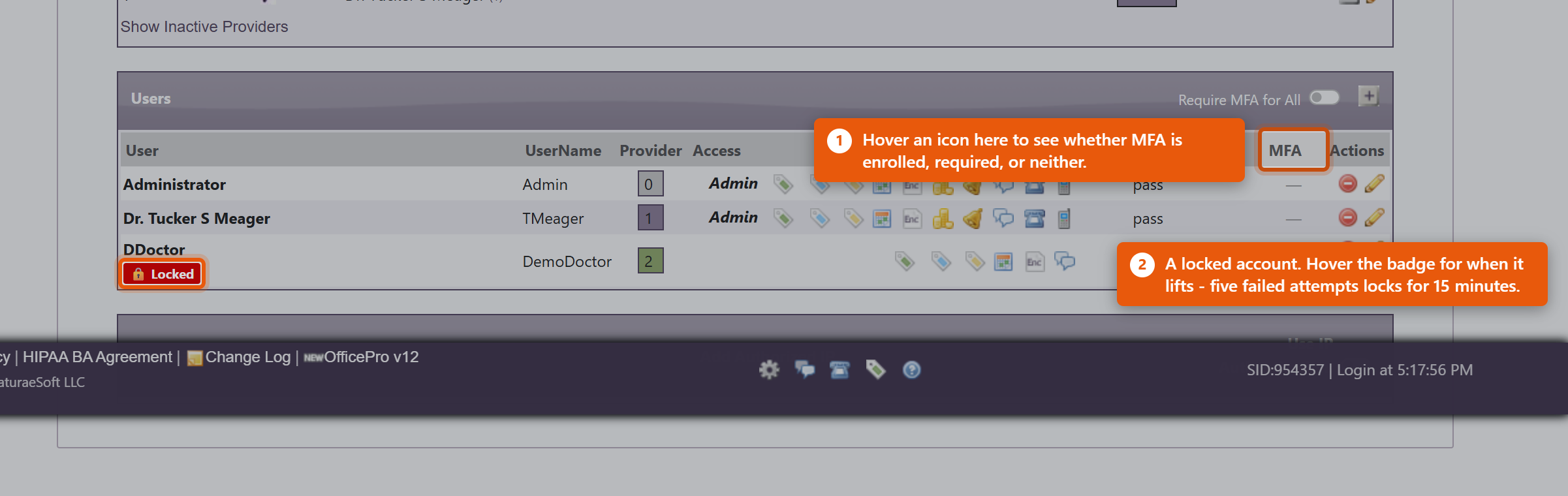
- Look for the lock. Open the Admin page and find them in the Users list. A locked account carries a red Locked badge; hover it to see when the lock lifts and how many failed attempts caused it. Five failed attempts locks the account for 15 minutes. Waiting is enough, or an administrator can clear it now: click Unlock Account on the row, or open Edit User and use Unlock Account beside Account Locked:.
- Check whether MFA is the obstacle. Read the MFA column. MFA Required - Not Enrolled means they must finish setting up a second factor before they can go further - that is working as intended, and they complete it from their own Account page. See Setting Up Multi-Factor Authentication.
- If they have a new phone, their authenticator no longer holds the enrolment and the codes will never be accepted. An administrator opens Edit User and clicks Reset TOTP beside Authenticator App:; the user then enrols again.
- If codes are rejected but the phone is the same, the phone clock has probably drifted. These codes are time-based, so a phone a minute out produces codes the server will not accept. Set the phone to update date and time automatically, then try again.
- If they are working somewhere new, check whether Use IP Authentication: is on in the Authorized IPs section. If it is, their connection must be on the list. Their attempt will be sitting there as a request - click Authorize on the row once you are satisfied it is really them. Mobile data counts as a different connection from clinic wifi.
- If the password is simply wrong, an administrator can reset it from Edit User. A user who knows their current password can change it themselves from Account using Current Password, New Password, Confirm New Password and Update Password.
If the whole practice is locked out and IP authentication is on, the practice address has most likely changed - after a power cut or a router restart. Nobody inside can correct it, because the Admin page sits behind the same check. Contact NaturaeSoft support.
A note on shared logins. If the answer keeps being that several people use one account, fix that instead. Each person needs their own login: shared accounts make the audit trail meaningless, and one person changing the password locks out everyone else.