NS - Knowledgebase
Find the answers you need. More articles every week.
| ID | Title | Module | Category |
|---|---|---|---|
| 42 |
Adding and Editing ProductsAdding and Editing ProductsProducts are managed from Product Administration. Open the Admin menu and choose Product Admin from the list on the left. Finding a productTwo tools sit at the top of the page. Search Products takes part of a name or product code - type a few letters and click Go. Filter By Vendor narrows the list to one supplier, which is the quicker route when you are working through a delivery or reviewing one vendor's pricing. The Product List also offers Select by First Letter for browsing, and Clear to drop the current filter and start again. Adding a productClick Add a Product. The form needs a Product Code, a Brand, a Product Name and a Retail Price; click Save > Next to save it and carry on with the rest of the record. Start by typing the product name. After three letters, a list opens under Product Name showing matching products from the Fullscript catalogue and from vendor catalogs that you do not already stock, with the brand, pack size and catalogue price of each. A vendor's product shows its name followed by direct, and fills in your cost as well. Click one, or use the arrow keys and Enter, and the form fills itself in:
The product is also linked to its Fullscript catalogue entry. When you save, any picture, description and barcode it is missing are filled in from the catalogue, it goes into your Fullscript Default Category if it has no category, and it picks up default dosing if you have set some for that product. Anything you have already typed is kept - the catalogue only fills gaps. Two notes can appear while you do this:
If nothing in the list is right, keep typing and fill the form in by hand as before. To bring in many products at once, use Product Catalog instead - see Importing Products from Fullscript and Vendor Catalogs. 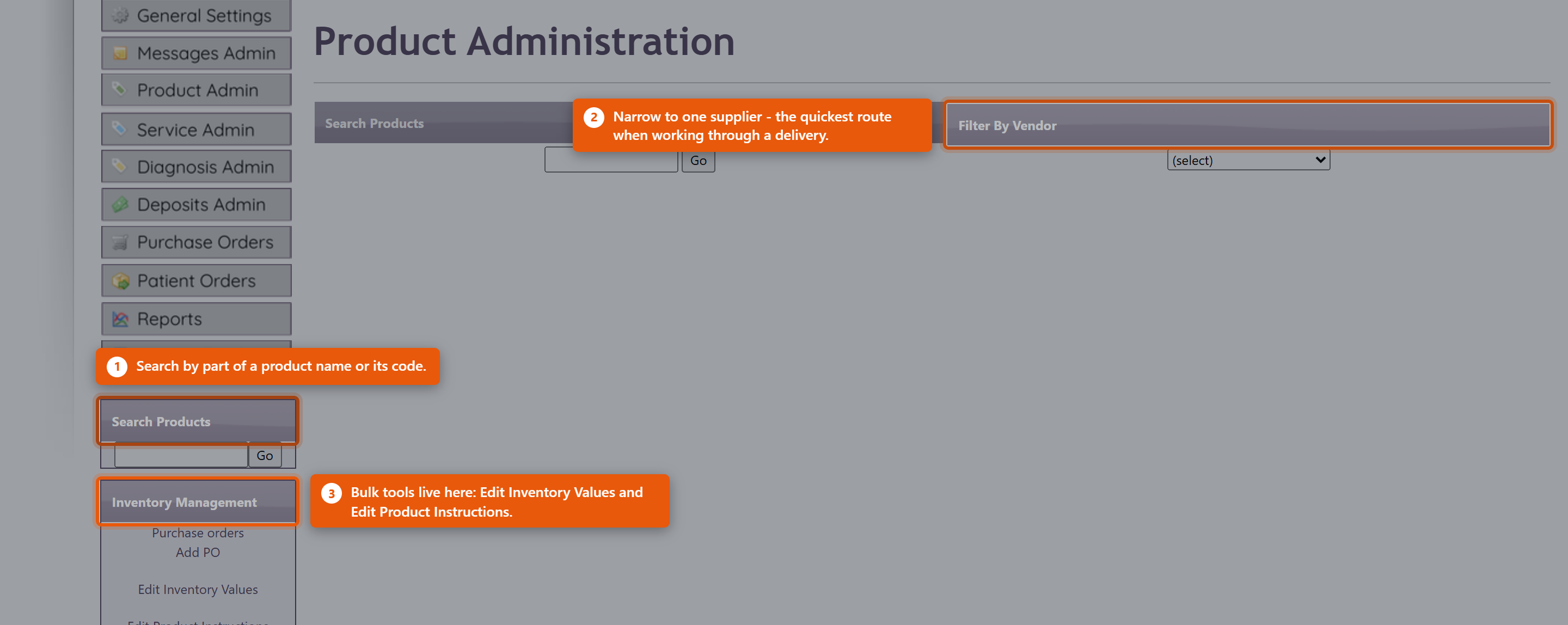 What a product record holdsOpening a product shows it in sections, and you do not need to complete all of them. Only the name, type and price are needed to sell something; the rest earns its keep in specific situations.
The clinical detailThe product record also carries Dosing Information, Recommended intake, Features and Benefits, Contra-indications and Inactive Ingredients. These are worth filling in for anything you dispense regularly. Contra-indications and Inactive Ingredients in particular are what a provider checks before recommending something to a patient with an allergy or an interacting medication - an empty field there is not neutral, it just means nobody can check. PricingThe Pricing section holds the Cost you pay and the Price you charge, and works out Margin and Markup from them. Average Cost is what the stock you are actually holding cost, which drifts from the current cost as you buy at different prices - it is the figure to use when valuing inventory. StockInventory Details shows On Hand and the Location the stock is kept in. Inventory Transactions lists every movement - what was purchased, received, sold and adjusted, and when. When a count is wrong, read the transactions before adjusting. The history usually shows what happened, and an adjustment made without understanding the cause hides the problem rather than fixing it. Set a Reorder Level on anything you keep in stock. The reorder tools use it to tell you what is running low, and a product with no reorder level simply never appears in those lists. Editing several products at onceThe Inventory Management panel on the left of Product Administration handles the jobs that span many products: Edit Inventory Values for counts and costs, and Edit Product Instructions for dosing text. Both are far quicker than opening products one at a time. Purchase orders and Add PO are in the same panel. Receive new stock through a purchase order rather than by adjusting counts - the PO records what you paid, which is what keeps Average Cost and your inventory value honest. Retiring a productMake a product you no longer sell inactive rather than deleting it. Deleting breaks the history of everything already sold; making it inactive takes it out of the lists while leaving past orders, invoices and reports intact. If patients still have the product in their cart or on an auto-order, unticking Active on Edit Product opens a screen for telling them and cancelling those auto-orders. See When a Product Is Discontinued. |
 |
|
| 30 |
Organising Your Product CatalogueOrganising Your Product CatalogueA catalogue of a few hundred products only stays usable if it is organised. Four things do most of that work: categories, vendors, shelf locations and keeping retired products out of the way. All of it lives under Product Admin on the Admin menu. CategoriesCategories group products for browsing - both for your own staff and for patients in the portal, where they are the main way anyone finds anything. Each category carries a sort order, so the ones you sell most can sit at the top rather than falling alphabetically. Keep them broad. A category holding two products is not helping anyone find anything, and a catalogue with forty categories is harder to navigate than one with eight. 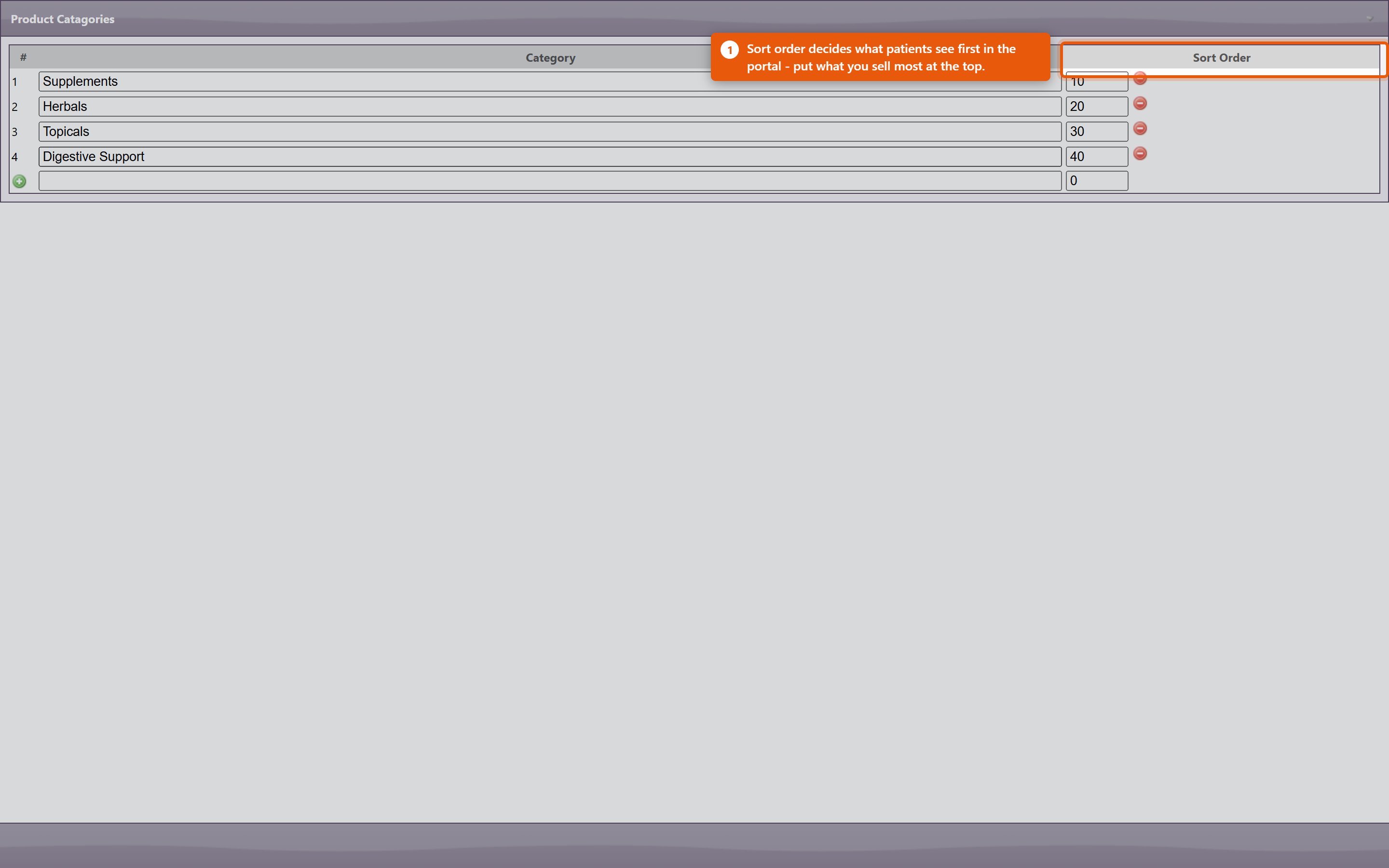 VendorsRecording the vendor on a product is what makes Filter By Vendor useful on the Product Administration page. That filter is how you work through a delivery, review one supplier's pricing, or find everything affected when a supplier discontinues a line. It also drives purchase orders: a product with no vendor cannot be ordered through the normal PO process. Shelf locationsA location records where a product's stock is kept - a shelf, a cabinet, a room. It shows as Location on the product, and it is what lets someone new find a bottle without asking. Administrators manage the list from Settings on Product Administration: in ProductPro Settings, click Edit Locations. The Product Locations window lists every location with its Description, Sort order, whether it is Active, and how many products use it.
To set a product's location, open it in Edit Product and choose from Location on the Inventory tab.
Finding things
Product codesProduct codes identify a product across orders, inventory and reports. Keep them consistent and do not reuse a code from a retired product - reports covering both periods will silently merge the two. DuplicatesDuplicates appear naturally: the same supplement gets added twice under slightly different names, or an import creates a second copy. They split your stock figures and your sales history, so the same product looks like two half-selling ones. The Duplicate Products report under Reports lists catalogue entries that look like duplicates. Work through it occasionally rather than waiting for the figures to confuse someone - and when you find a pair, make one inactive rather than deleting it, so the sales already recorded against it survive. Retired productsMake products you no longer sell inactive. They come out of the lists and out of the portal while everything already sold keeps its history. Deleting a product breaks that history, which is why it is almost never the right choice. When patients still have the product in their cart or on an auto-order, making it inactive opens a screen for telling them. See When a Product Is Discontinued. Keeping it tidyA quarterly pass costs very little and prevents most catalogue problems:
|
|
|
| 74 |
Connecting Fullscript to OfficeProConnecting Fullscript to OfficeProConnecting Fullscript lets you pull their catalogue into your own product list and send patients a Fullscript plan without leaving OfficePro. It is set up once by an administrator, and then each prescribing provider is linked to their own Fullscript account. Fullscript needs ProductPro. Without that module none of these screens are reachable. 1. Connect the practice
When it has worked the section reads Your account is connected to Fullscript. Sign in with the account that owns your clinic's Fullscript dispensary, not a personal one - the connection determines whose catalogue and whose commissions you are working with. 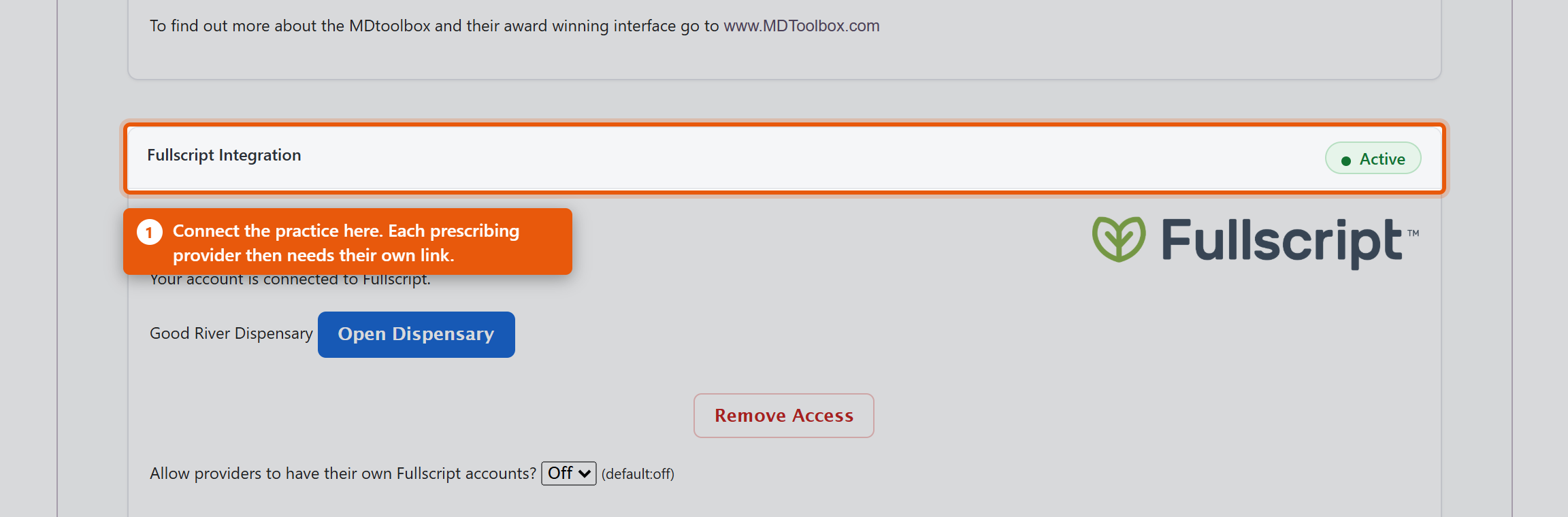 2. Link each providerConnecting the practice is not enough on its own. Fullscript plans are written by a named prescriber, so each provider needs their own link. Under Associate Providers with Fullscript you will see each OfficePro Provider against their Fullscript ID. Use Add to Fullscript for anyone not yet linked. A provider showing Assigned under another account has a Fullscript account already tied to a different dispensary - often their own from a previous practice. That has to be resolved with Fullscript directly; OfficePro cannot move it. 3. Decide how imported products should lookBefore importing anything, set the defaults in ProductPro settings. They apply only to products added from the Fullscript catalogue and never change products you already have.
DisconnectingRemove Access ends the connection, and the section then reads Your Fullscript access was removed. Products already imported stay in your catalogue - they are your products now - but they stop being refreshed from Fullscript and new plans cannot be written until you reconnect. Check it worked
|
|
|
| 84 |
Setting Up Auto-Orders and Subscribe & SaveSetting Up Auto-Orders and Subscribe & SaveAn auto-order is a standing arrangement to reorder a product for a patient on a fixed cycle. Each night OfficePro looks for plans that are due, creates the orders, and applies a recurring discount if you offer one. It bills patients on a schedule with nobody watching, so it is worth setting up deliberately rather than discovering how it behaves from a phone call. Before anything else: is it switched on?Auto-orders run for practices on BackOfficePro. This is part of your subscription, not a setting inside OfficePro - you cannot enable it yourself. If you are not on BackOfficePro you can still record auto-order plans, and nothing will ever generate from them. If you are unsure, ask support before you set expectations with a patient. Set your discountsIn ProductPro settings there are two:
Both are set in 5% steps up to 30%. Leave either at 0% to offer no discount. Work the ongoing percentage out before you set it. On a monthly subscription, 10% off is 10% off twelve times a year, on a product you have already discounted to a dispensary price. Set the shipping and the notification
When the orders appearThe job runs once a day, late in the evening Pacific time. Orders created overnight are waiting the next morning as Pending, alongside everything else in your patient orders queue - they are ordinary orders from that point on, and are picked, packed and completed the same way. It works ahead of each due date by your Auto Order Lead Time (Days), set in ProductPro settings - 7 days if you have never set it. A plan due on the 29th with an 8-day lead time is ordered overnight on the 21st, so there is time to pick, ship or arrange pickup. Each auto-order shows Due and its due date in the patient orders list, on the order and in the patient's cart, and the summary message gives each order's due date, in red once it is due. Fill it when it suits your workflow: the patient does not need it before then. The next refill is always counted from the date the last one was due, not from the day its order was created or completed, so the cycle never drifts. A plan that is overdue produces one order, not one for every cycle it missed. Decide your refill policyEach product on a patient can carry a refill constraint:
For anything a provider wants to review before it keeps going out, set a refill count or an end date on the plan. An auto-order with no end runs until somebody stops it. A different feature with the same nameVendors have auto-orders too. On a vendor's contact record, Auto Order raises a purchase order to your supplier on a cycle - the record will say This vendor is set to auto order every so many days. It restocks your shelves; it has nothing to do with patient subscriptions and no patient is billed by it. Check it before you rely on it
|
|
|
| 31 |
Managing Product Inventory in OfficeProManaging Product Inventory in OfficeProTo effectively manage your product inventory, utilize the Product Admin area in OfficePro. Accessing Product Admin
1. Inventory ManagementThe Inventory Management view assists with conducting periodic physical inventory counts and offers ongoing access similar to the initial setup with the Add Starting Inventory list.
2. Reorder ListThe Reorder List highlights products that have reached an inventory level requiring reordering.
Additional ResourcesTo learn more about setting up your products in OfficePro, refer to the Knowledge Base articles on Adding and Editing Products, Product Lists, and Inventory Setup. |
|
|
| 43 |
Setting Up Your Inventory in OfficeProSetting Up Your Inventory in OfficeProAccurate inventory management is crucial for ensuring you have the right products available for patient encounters. Here’s how to set up and manage your inventory effectively. Importance of Inventory Setup
Adding Starting InventoryAccess the Add Starting Inventory Feature:
Initial Inventory Setup:
Entering Opening Counts:
Review and Save:
Ongoing Inventory ManagementAfter the initial two-month setup period, you can continue to manage your inventory using the Inventory Management view. This view allows for periodic adjustments and helps you maintain accurate stock levels over time. ConclusionSetting up your inventory accurately in OfficePro is essential for ensuring smooth operations and effective patient encounters. By utilizing the Add Starting Inventory feature and making sure your counts are correct, you’ll reduce the likelihood of stock discrepancies and enhance your practice's efficiency. If you have any questions or need further assistance with inventory management, feel free to ask! |
|