NS - Knowledgebase
Find the answers you need. More articles every week.
| ID | Title | Module | Category |
|---|---|---|---|
| 7 |
Configuring your ChartPro ServiceConfiguring your ChartPro ServiceChartPro is set up once and then largely left alone. The work is deciding what your chart notes should contain and in what order, which is done from ChartPro Administration. How a note is put togetherThree things stack up:
The Sections panel shows the five tabs with their segments beneath. Each segment has a short code and a number setting its position, and an Edit to open it. Add a Segment to this section adds a new one. 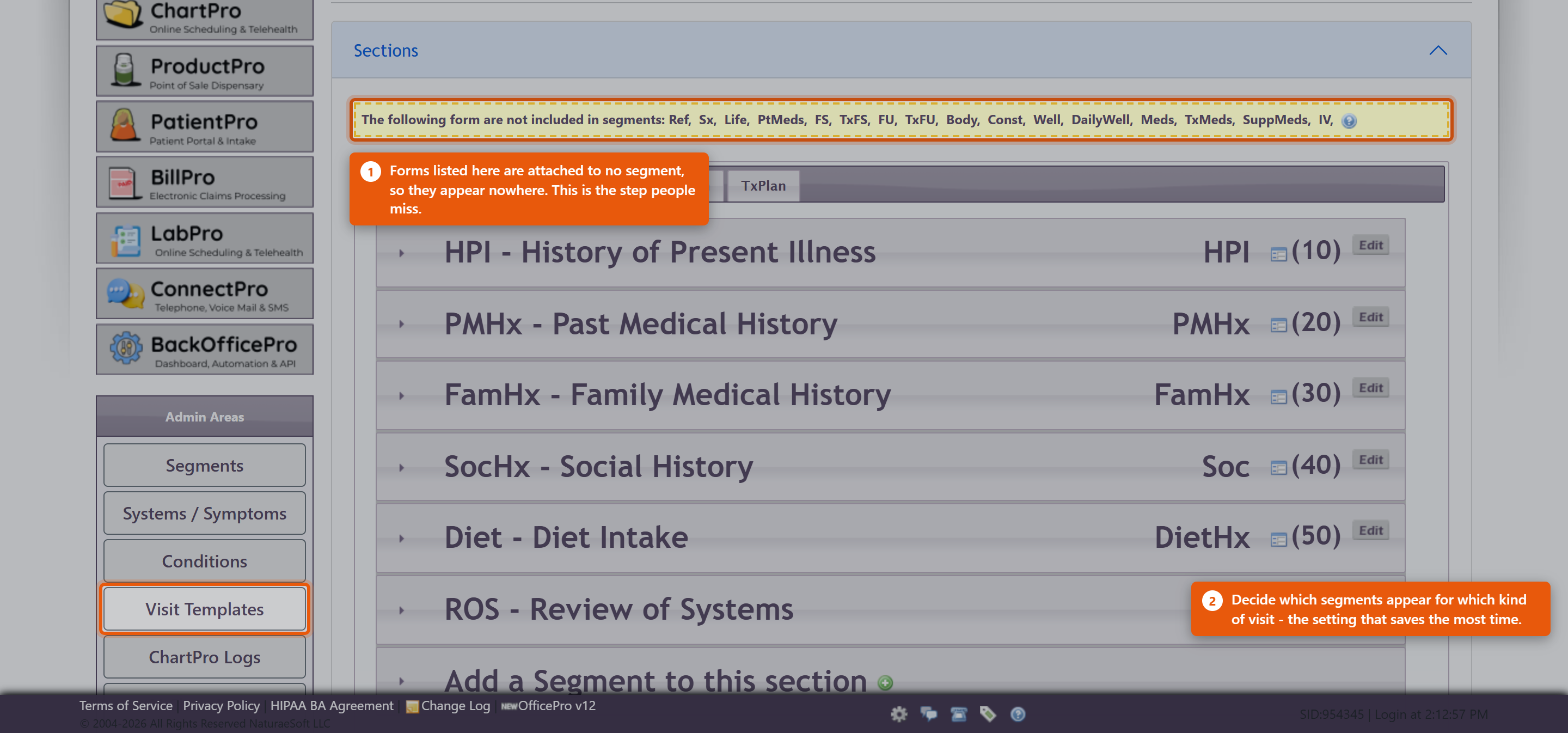 Setting up a segmentEdit Segment Details holds the name and description. Two settings matter more than they look:
Add to Templates puts the segment into your visit templates. The other admin areas
Getting startedDo not redesign everything before seeing patients. The supplied sections and segments are a working note for most practices.
A note designed in the abstract is almost always longer than the one you end up wanting. Practices giving IV therapyThe IV form is attached in exactly this way, and it is a common reason the IV panel appears to be missing. Enabling IV therapy in ProductPro settings is only the first step - the form still has to be attached to a segment here. See Setting Up IV Therapy Products. |
 |
|
| 100 |
Introducing ChartPro AI to Your PracticeIntroducing ChartPro AI to Your PracticeChartPro AI listens to a consultation and drafts the chart note from it. The provider then reads the draft and decides whether it goes into the record. There is nothing to install and no switch to turn on - it is available to every ChartPro practice, and it is marked BETA on screen. What there is to do is decide how your practice will use it, before a provider uses it in front of a patient. Decide about consent firstThis records a conversation with a patient. What you must tell them, and whether you need their agreement, depends on where you practise and is not something this article can answer for you. Settle it with whoever advises you on such matters, write down what your providers should say, and do that before the first recording - not after a patient asks what the phone on the desk is doing. The draft is a draftThe note is generated from a transcript of a spoken conversation. It can mishear, and it can be confidently wrong about a number or a name. The provider signing the note owns everything in it, exactly as if they had typed it. Make that explicit when you introduce it. The failure worth guarding against is not a bad draft - it is a good-looking draft accepted without being read. Start with a few willing providersIt suits some consultations far better than others. A structured follow-up transcribes well; a long, discursive intake with three people in the room is harder. Let a couple of providers try it on their own patients for a fortnight and report back before you roll it out. Watch the usage counterThe Auto Chart button shows each provider's use for the current calendar month against 40 - as a badge on the button and a bar on the recorder. It turns amber as it approaches and changes again past it. Going over does not stop anything. The counter is an indicator, not a gate: dictation keeps working. It is there so a provider can see their own pace, and so you can see who has actually adopted it. Review what it is writingReview past ChartPro AI encounters opens ChartPro AI - Encounter Review, which lists every encounter with its Date, Encounter # and Note Quality, and shows both the Transcript and the ChartPro AI Note side by side. Look through it a few times in the first month. Reading a transcript against the note it produced is the fastest way to calibrate how much your providers should trust it, and it is the only place you can see that. Ask your providers to rate notesEvery note can be rated, and almost none are - across all practices using it, a handful of ratings against hundreds of encounters. A rating on a note that came out wrong is worth far more than one on a note that came out fine, so ask specifically for those. |
|
|
| 37 |
Managing ChartPro Note SegmentsManaging ChartPro Note SegmentsAccess the ChartPro Admin Page:
View Existing Segments:
Add a New Segment:
Configure the New Segment: When adding a segment, you will need to fill in the following fields:
Save Changes:
Adjusting Segment Order
ConclusionThis process allows you to customize the charting experience in OfficePro by managing segments within the ChartPro admin page. Tailoring the segments to fit your practice's specific needs can enhance the efficiency and effectiveness of your documentation. |
|