Knowledgebase Article
Adding and Editing Products
Category: Configuration | Module: ProductPro | Created: 10/11/2024 | Last Updated: 10/29/2026
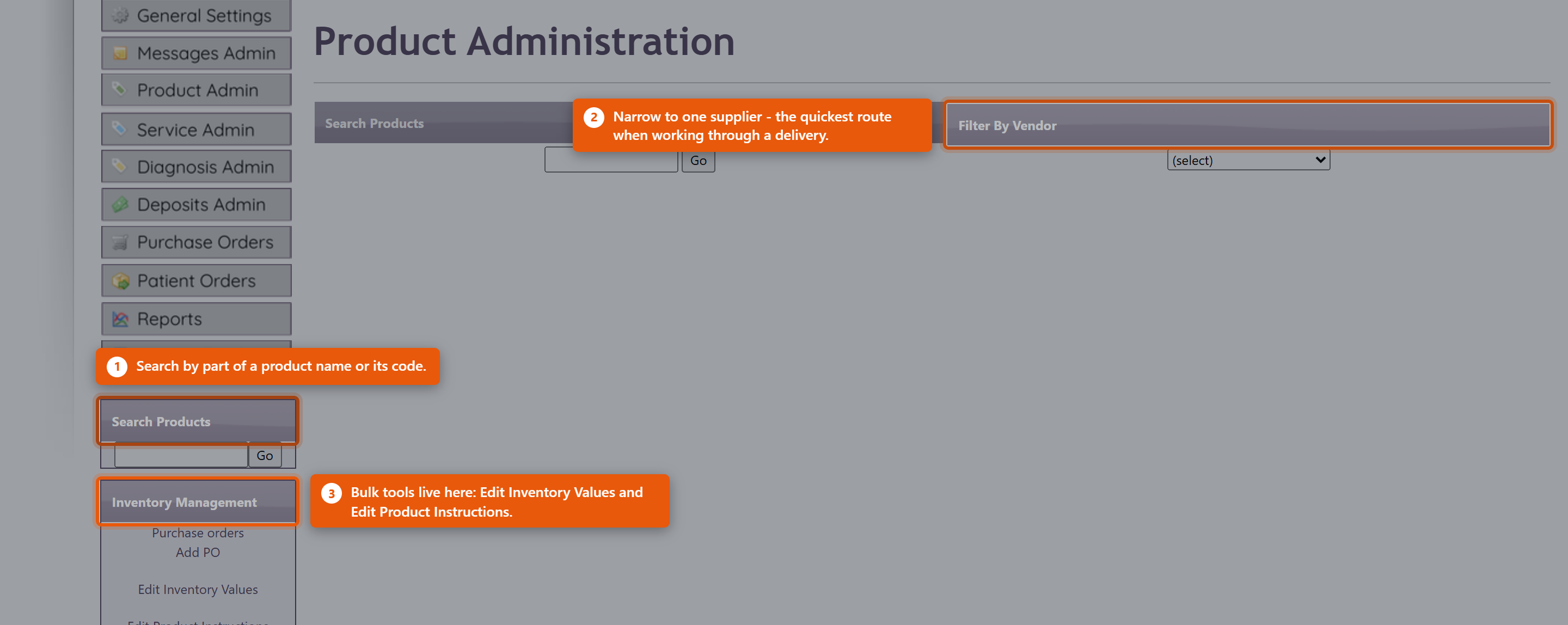
Products are managed from Product Administration. Open the Admin menu and choose Product Admin from the list on the left.
Finding a product
Two tools sit at the top of the page. Search Products takes part of a name or product code - type a few letters and click Go. Filter By Vendor narrows the list to one supplier, which is the quicker route when you are working through a delivery or reviewing one vendor's pricing.
The Product List also offers Select by First Letter for browsing, and Clear to drop the current filter and start again.
Adding a product
Click Add a Product. The form needs a Product Code, a Brand, a Product Name and a Retail Price; click Save > Next to save it and carry on with the rest of the record.
Start by typing the product name. After three letters, a list opens under Product Name showing matching products from the Fullscript catalogue and from vendor catalogs that you do not already stock, with the brand, pack size and catalogue price of each. A vendor's product shows its name followed by direct, and fills in your cost as well. Click one, or use the arrow keys and Enter, and the form fills itself in:
- Product Name and a Product Code that is guaranteed not to clash with one you already use.
- The pack size - Type (capsules, tablets, powder and so on) and Quantity.
- Retail Price, at the Fullscript catalogue price. The cursor lands here, because this is the one thing you should decide for yourself.
- Brand, where the brand is already in your vendor list.
- Taxable, following Mark Imported Products Taxable in ProductPro settings.
The product is also linked to its Fullscript catalogue entry. When you save, any picture, description and barcode it is missing are filled in from the catalogue, it goes into your Fullscript Default Category if it has no category, and it picks up default dosing if you have set some for that product. Anything you have already typed is kept - the catalogue only fills gaps.
Two notes can appear while you do this:
- you may already have this, followed by the name of one of your products. The suggestion looks close to something already in your catalogue. Check it before adding - it is usually the same product under a slightly different name, and adding it again gives you a duplicate.
- Brand ... is not in your vendor list yet. The form will not save until a Brand is chosen, so pick the right vendor from the list or add it with the + button beside it.
If nothing in the list is right, keep typing and fill the form in by hand as before. To bring in many products at once, use Product Catalog instead - see Importing Products from Fullscript and Vendor Catalogs.
What a product record holds
Opening a product shows it in sections, and you do not need to complete all of them. Only the name, type and price are needed to sell something; the rest earns its keep in specific situations.
- Product Information - the name, the Type (capsules, liquid, cream, tincture and so on) and the Price. The type sets how quantities read on an order, so a product sold in capsules should say so.
- Product Description - what the patient sees. Formatting Hints beside the box explains the light formatting available.
- TxPlan Description - the wording used on a treatment plan, where that should differ from the general description.
- Product Image - shown in the patient portal. Products with a picture sell noticeably better than products without one.
- Categories - how the product is grouped for browsing, in the portal and in your own lists.
The clinical detail
The product record also carries Dosing Information, Recommended intake, Features and Benefits, Contra-indications and Inactive Ingredients.
These are worth filling in for anything you dispense regularly. Contra-indications and Inactive Ingredients in particular are what a provider checks before recommending something to a patient with an allergy or an interacting medication - an empty field there is not neutral, it just means nobody can check.
Pricing
The Pricing section holds the Cost you pay and the Price you charge, and works out Margin and Markup from them. Average Cost is what the stock you are actually holding cost, which drifts from the current cost as you buy at different prices - it is the figure to use when valuing inventory.
Stock
Inventory Details shows On Hand and the Location the stock is kept in. Inventory Transactions lists every movement - what was purchased, received, sold and adjusted, and when.
When a count is wrong, read the transactions before adjusting. The history usually shows what happened, and an adjustment made without understanding the cause hides the problem rather than fixing it.
Set a Reorder Level on anything you keep in stock. The reorder tools use it to tell you what is running low, and a product with no reorder level simply never appears in those lists.
Editing several products at once
The Inventory Management panel on the left of Product Administration handles the jobs that span many products: Edit Inventory Values for counts and costs, and Edit Product Instructions for dosing text. Both are far quicker than opening products one at a time.
Purchase orders and Add PO are in the same panel. Receive new stock through a purchase order rather than by adjusting counts - the PO records what you paid, which is what keeps Average Cost and your inventory value honest.
Retiring a product
Make a product you no longer sell inactive rather than deleting it. Deleting breaks the history of everything already sold; making it inactive takes it out of the lists while leaving past orders, invoices and reports intact.
If patients still have the product in their cart or on an auto-order, unticking Active on Edit Product opens a screen for telling them and cancelling those auto-orders. See When a Product Is Discontinued.