Knowledgebase Article
Organising Your Product Catalogue
Category: Configuration | Module: ProductPro | Created: 10/11/2024 | Last Updated: 9/23/2026
A catalogue of a few hundred products only stays usable if it is organised. Four things do most of that work: categories, vendors, shelf locations and keeping retired products out of the way.
All of it lives under Product Admin on the Admin menu.
Categories
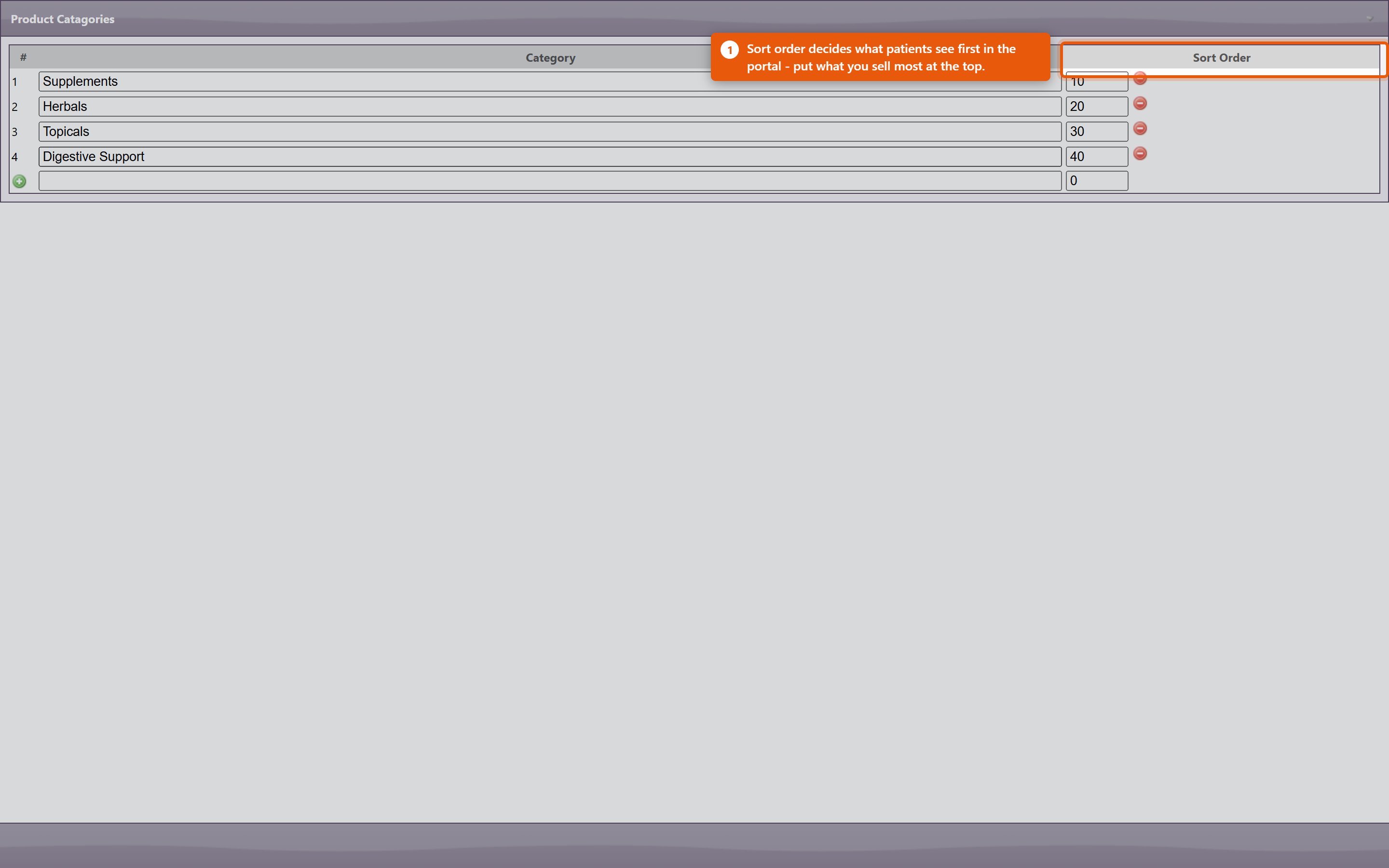
Categories group products for browsing - both for your own staff and for patients in the portal, where they are the main way anyone finds anything. Each category carries a sort order, so the ones you sell most can sit at the top rather than falling alphabetically.
Keep them broad. A category holding two products is not helping anyone find anything, and a catalogue with forty categories is harder to navigate than one with eight.
Vendors
Recording the vendor on a product is what makes Filter By Vendor useful on the Product Administration page. That filter is how you work through a delivery, review one supplier's pricing, or find everything affected when a supplier discontinues a line.
It also drives purchase orders: a product with no vendor cannot be ordered through the normal PO process.
Shelf locations
A location records where a product's stock is kept - a shelf, a cabinet, a room. It shows as Location on the product, and it is what lets someone new find a bottle without asking.
Administrators manage the list from Settings on Product Administration: in ProductPro Settings, click Edit Locations. The Product Locations window lists every location with its Description, Sort order, whether it is Active, and how many products use it.
- Add - type a name in the New location row, optionally a description and sort number, and click Add. Two locations cannot share a name.
- Rename or reorder - edit the name, description or Sort number in place, then click Save Changes. A rename updates every product already using that location. Use Sort to put the list in the order your shelves are actually arranged - that is the order the product form offers them in.
- Retire - clear Active and click Save Changes. A retired location stays on the products that already have it, but is no longer offered when you set a location on any other product. Tick it again to bring it back.
- Find - filters a long list as you type.
To set a product's location, open it in Edit Product and choose from Location on the Inventory tab.
Retire rather than delete. The delete button beside a location removes it for good and leaves every product using it with no location at all. It also discards any other unsaved changes in the window. Clearing Active does the same job without losing anything.
Finding things
- Search Products - part of a name or product code, then Go. Quickest when you know roughly what you want.
- Filter By Vendor - everything from one supplier.
- Select by First Letter - for browsing rather than searching.
- Clear - drops the current filter. Worth knowing, because a filter left on is the usual reason a product appears to have vanished.
Product codes
Product codes identify a product across orders, inventory and reports. Keep them consistent and do not reuse a code from a retired product - reports covering both periods will silently merge the two.
Duplicates
Duplicates appear naturally: the same supplement gets added twice under slightly different names, or an import creates a second copy. They split your stock figures and your sales history, so the same product looks like two half-selling ones.
The Duplicate Products report under Reports lists catalogue entries that look like duplicates. Work through it occasionally rather than waiting for the figures to confuse someone - and when you find a pair, make one inactive rather than deleting it, so the sales already recorded against it survive.
Retired products
Make products you no longer sell inactive. They come out of the lists and out of the portal while everything already sold keeps its history. Deleting a product breaks that history, which is why it is almost never the right choice.
When patients still have the product in their cart or on an auto-order, making it inactive opens a screen for telling them. See When a Product Is Discontinued.
Keeping it tidy
A quarterly pass costs very little and prevents most catalogue problems:
- Run Duplicate Products and resolve anything it finds.
- Make inactive anything you have not sold in a year and do not intend to restock.
- Check that products you keep in stock have a Reorder Level - without one they never appear in the reorder lists.
- Check that anything sold through the portal has an image and a description worth reading.
- Retire any shelf location you no longer use, so it stops being offered on the product form.