NS - Knowledgebase
Find the answers you need. More articles every week.
| ID | Title | Module | Category | |||||||||||||||||||
|---|---|---|---|---|---|---|---|---|---|---|---|---|---|---|---|---|---|---|---|---|---|---|
| 7 |
Configuring your ChartPro ServiceConfiguring your ChartPro ServiceChartPro is set up once and then largely left alone. The work is deciding what your chart notes should contain and in what order, which is done from ChartPro Administration. How a note is put togetherThree things stack up:
The Sections panel shows the five tabs with their segments beneath. Each segment has a short code and a number setting its position, and an Edit to open it. Add a Segment to this section adds a new one. 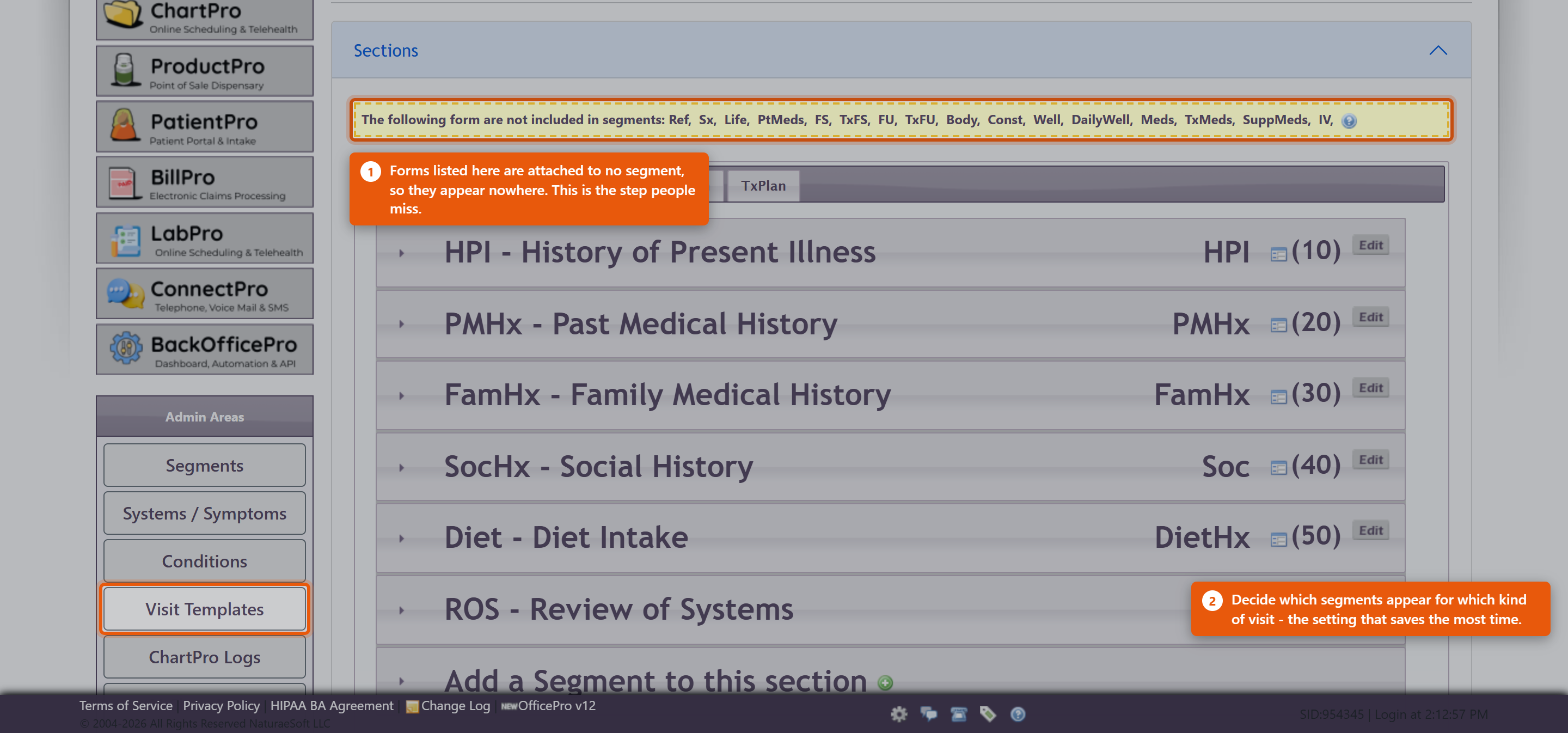 Setting up a segmentEdit Segment Details holds the name and description. Two settings matter more than they look:
Add to Templates puts the segment into your visit templates. The other admin areas
Getting startedDo not redesign everything before seeing patients. The supplied sections and segments are a working note for most practices.
A note designed in the abstract is almost always longer than the one you end up wanting. Practices giving IV therapyThe IV form is attached in exactly this way, and it is a common reason the IV panel appears to be missing. Enabling IV therapy in ProductPro settings is only the first step - the form still has to be attached to a segment here. See Setting Up IV Therapy Products. |
 |
||||||||||||||||||||
| 100 |
Introducing ChartPro AI to Your PracticeIntroducing ChartPro AI to Your PracticeChartPro AI listens to a consultation and drafts the chart note from it. The provider then reads the draft and decides whether it goes into the record. There is nothing to install and no switch to turn on - it is available to every ChartPro practice, and it is marked BETA on screen. What there is to do is decide how your practice will use it, before a provider uses it in front of a patient. Decide about consent firstThis records a conversation with a patient. What you must tell them, and whether you need their agreement, depends on where you practise and is not something this article can answer for you. Settle it with whoever advises you on such matters, write down what your providers should say, and do that before the first recording - not after a patient asks what the phone on the desk is doing. The draft is a draftThe note is generated from a transcript of a spoken conversation. It can mishear, and it can be confidently wrong about a number or a name. The provider signing the note owns everything in it, exactly as if they had typed it. Make that explicit when you introduce it. The failure worth guarding against is not a bad draft - it is a good-looking draft accepted without being read. Start with a few willing providersIt suits some consultations far better than others. A structured follow-up transcribes well; a long, discursive intake with three people in the room is harder. Let a couple of providers try it on their own patients for a fortnight and report back before you roll it out. Watch the usage counterThe Auto Chart button shows each provider's use for the current calendar month against 40 - as a badge on the button and a bar on the recorder. It turns amber as it approaches and changes again past it. Going over does not stop anything. The counter is an indicator, not a gate: dictation keeps working. It is there so a provider can see their own pace, and so you can see who has actually adopted it. Review what it is writingReview past ChartPro AI encounters opens ChartPro AI - Encounter Review, which lists every encounter with its Date, Encounter # and Note Quality, and shows both the Transcript and the ChartPro AI Note side by side. Look through it a few times in the first month. Reading a transcript against the note it produced is the fastest way to calibrate how much your providers should trust it, and it is the only place you can see that. Ask your providers to rate notesEvery note can be rated, and almost none are - across all practices using it, a handful of ratings against hundreds of encounters. A rating on a note that came out wrong is worth far more than one on a note that came out fine, so ask specifically for those. |
|
||||||||||||||||||||
| 56 |
IV Protocols and Prescriber Sign-OffIV Protocols and Prescriber Sign-OffA protocol is a reusable formulation - a diluent, a set of components and their doses - that can be applied to a bag in one click. Protocols are built once and then used every day, so they carry a deliberate safeguard: a protocol cannot be made active until a prescriber signs it. Open the protocol library:
Import a protocol: use Import IV Protocols to copy a published formulation into the practice. Importing also creates any component products and service codes the practice does not already have, and never overwrites something you have already set up. An imported protocol arrives inactive and is not chartable yet. Map every component to a product: open the protocol and check each row has a product selected. A row left unmapped is shown highlighted and marked bills nothing, moves no stock - it will still appear in the note as documentation, but it produces no charge and no inventory movement. Sign the formulation: at the top of the protocol is a Prescriber sign-off panel. A provider reads the statement, ticks the box and clicks Sign this formulation. Until that happens, the Active field offers only No - not chartable and shows needs sign-off.
What withdraws a signature: the signature covers the formulation - the components, their doses and the diluent. Changing any of those withdraws it, and the protocol is deactivated on save with a message saying why. It has to be reviewed and signed again. Renaming a protocol, editing its description, reordering the rows or changing its notes does not void the signature. This is intentional: the sign-off is about what goes into the patient, not about the paperwork around it. Where library protocols come from: protocols supplied with the software are proposals, not recommendations. Only formulations with a named clinical author can be published to practices, and adopting one is a clinical decision made by the prescriber who signs it. Review the components and doses against your own standards before signing - do not assume a supplied number is correct for your patients. Building one from scratch: click + Add component to add rows, set the diluent and its volume, and watch the Preview panel update the osmolarity and total volume as you type. A protocol you author yourself follows exactly the same sign-off rule. |
|
||||||||||||||||||||
| 55 |
Setting Up IV Therapy ProductsSetting Up IV Therapy ProductsBefore anyone can chart an IV treatment, the practice has to switch the module on and describe every substance that can go into a bag. This is a one-time setup, done by an administrator. Turn on the IV module:
Mark a product as an IV component: every diluent, additive and flush is an ordinary ProductPro product with extra IV details. Open the product, then tick Use in IV admixtures to reveal the IV fields.
Why osmolarity data matters more than it looks: osmolarity is the number that decides whether a bag can safely go through a peripheral line. The builder adds up what you have told it and bands the result:
A component with no osmolarity figure still charts normally, but it contributes nothing to that total. The bag is then marked osmolarity incomplete and the number shown is a lower bound, not the real value. A blank field is treated as unknown rather than as zero, deliberately - but it does mean an incompletely configured catalogue produces a safety figure that reads lower than the truth. Fill these in before the first patient. Billing: IV components reach the encounter as services, not products. A service line can carry a HCPCS or J-code and reach an insurance claim; a product line cannot. Set Billing service on every component the practice charges for, and One billing unit = so a dose converts to the right number of units. Cash-only practices can still price components this way. Components with no billing service are documented in the note and moved in inventory, but never billed. Check your work: from ChartPro admin open IV Protocols, then Product setup. That worksheet lists every IV component with its osmolarity, container volume and billing code, and highlights what is still missing. |
|
||||||||||||||||||||
| 110 |
Setting Up AcupunctureSetting Up AcupunctureAcupuncture is an optional ChartPro module. Switching it on takes three steps: enable it for the practice, import the point catalog, and attach the form to a note segment. Enable the module
The Acupuncture button appears on the ChartPro admin page once the setting is on. Until then the module is invisible, even though every practice has the tables. Import the point catalog
The import brings in the channels, the classical points and the safety cautions, and reports what it did in a single line, for example “409 points imported, 409 with identification, 177 with safety data”.
What gets imported, and what does not
Check the billing codesAcupuncture bills on 97810, 97811, 97813 and 97814, and dry needling on 20560 and 20561. Most practices already carry the first four from the standard service catalog, and the module reuses whatever is already there rather than creating duplicates — your prices, modifiers and titles are kept exactly as you have them. Open Service Codes and confirm the prices are what you intend to charge before anybody posts a treatment. Attach the form to a note segment
Open an encounter on that segment and the acupuncture panel appears in the sidebar. |
|
||||||||||||||||||||
| 111 |
Acupuncture Protocols and TraditionsAcupuncture Protocols and TraditionsA protocol is a saved point prescription with its billing lines attached. Applying one is usually most of the charting for a visit. Build a protocol
TraditionsEach protocol carries a Tradition — TCM, Japanese meridian therapy, Five Element, Tung’s points, Balance method, auricular, or Western and dry needling. It is a label, not a restriction: it tells your practitioners which school a prescription comes from so they are not offered point combinations that do not match how they were trained. The tradition on the protocol is copied onto the treatment when it is applied, and appears in the note. Both an e-stim and a non-e-stim billing lineYou can safely put both a 97810 line and a 97813 line on the same protocol. You do not have to know in advance whether electrical stimulation will be used: only one of them can ever earn a unit, and the other is switched off automatically with a note saying why. Neither ends up on a claim by accident. A point that has been retiredIf a point is deactivated in the catalog after a protocol was built, applying that protocol adds everything else and tells you which point was skipped, by name. Either reinstate the point in Point catalog or edit the protocol. Applying the same protocol twiceNothing is duplicated. Points already on the treatment at the same side are reported as already charted rather than added again, and the billing lines are not repeated. |
|
||||||||||||||||||||
| 37 |
Managing ChartPro Note SegmentsManaging ChartPro Note SegmentsAccess the ChartPro Admin Page:
View Existing Segments:
Add a New Segment:
Configure the New Segment: When adding a segment, you will need to fill in the following fields:
Save Changes:
Adjusting Segment Order
ConclusionThis process allows you to customize the charting experience in OfficePro by managing segments within the ChartPro admin page. Tailoring the segments to fit your practice's specific needs can enhance the efficiency and effectiveness of your documentation. |
|
||||||||||||||||||||
| 103 |
Questions About ChartPro AIQuestions About ChartPro AIWhat does it actually do?It records the consultation, transcribes it, and drafts a chart note from the transcript. You read the draft and decide whether to keep it. Do we have to turn it on?No. It is there for every ChartPro practice, marked BETA, and there is no per-practice switch. What you do need is a decision about how your providers will use it. Is the note automatically added to the chart?No. Nothing is written until you accept the draft in AI Note Preview. Cancel discards it. Who is responsible for what it writes?The provider who accepts and signs it, exactly as with a typed note. Read the draft before accepting it - a draft that reads well is not the same as a draft that is right. Do we need to tell patients?You are recording a conversation with them, so treat that as you would any recording. What is required varies by where you practise - settle it with whoever advises you, and agree the words your providers will use before the first recording. What is the 40 on the button?Your notes for the current calendar month, per provider, shown against 40. The bar changes as you approach and pass it. What happens if we go over?Nothing stops. It is an indicator, not a cap - dictation keeps working and the count resets next month. Can we see what it wrote before?Yes. Review past ChartPro AI encounters opens ChartPro AI - Encounter Review, which lists them by Date and Encounter # and shows the Transcript beside the ChartPro AI Note. How do we tell whether it misheard or invented something?Read the transcript next to the note. If the transcript is wrong it is a recording problem; if the transcript is right and the note is not, report it. How do we get better results?Microphone nearer the patient, numbers and doses said clearly and in full, medicine names not abbreviated, the plan stated aloud at the end, and less background noise. Does rating a note do anything?Yes, and hardly anyone does it - a handful of ratings against hundreds of encounters. Rate the notes that came out badly and say why in the Comments; those are the ones worth reporting. Can we re-record?Yes - Go back and re-record from the preview, before you accept anything. It says no note was generated. Is it broken?Usually the audio had nothing usable in it. Check the transcript on the review screen first - that separates a microphone problem from an AI one. Which appointments suit it?Structured consultations transcribe well. A long discursive intake with several people in the room is harder. Try it on your own patients for a fortnight before deciding. |
|
||||||||||||||||||||
| 59 |
Common Questions About IV TherapyCommon Questions About IV TherapyDo IV components bill as products or as services? As services. A service line can carry a HCPCS or J-code and reach an insurance claim; a product line cannot. Each billable component becomes its own service line with its code and unit count, which is what makes IV therapy billable for practices that submit claims. Cash practices can price components the same way. Does the stock still come down if a component is billed? Yes. Stock is decremented for every component mapped to a product, whether or not it is billed. Components with no billing code are documented and moved in inventory but never charged. What is the difference between osmolarity, osmolality and tonicity? Osmolarity is milliosmoles per litre of solution. It is calculated from what was added, and it is what this module reports, because it is the figure that decides peripheral versus central access. Osmolality is milliosmoles per kilogram of solvent and is measured with an osmometer - it cannot be derived from a compounding record, so the module never claims to produce it. Tonicity is the effective osmolarity, counting only solutes that stay outside the cell. The bands shown are osmolarity bands and are labelled as such: a bag at 280 mOsm/L is not therefore isotonic, because dextrose counts fully toward osmolarity and is then metabolised. Why is my bag showing "osmolarity incomplete"? At least one component has no osmolarity recorded on its product. That component contributes nothing to the total, so the figure shown is a lower bound rather than the real value. A blank field means unknown and is never treated as zero. Who is allowed to sign a protocol? Only a user account linked to an active provider record. Any staff member with ChartPro access can build and edit a protocol; only a prescriber can authorise it for use. Why did my protocol deactivate itself? A component or a dose changed, which withdraws the prescriber's signature. Review the formulation and sign it again. Renaming, reordering or editing the description does not do this. Where do the supplied protocols come from, and are they recommendations? They are proposals, not recommendations. A protocol supplied with the software is a starting point for review; only formulations with a named clinical author can be published, and NaturaeSoft does not represent that any dose is appropriate for your patients. The components and doses on a protocol your practice uses are the clinical responsibility of the prescriber who signs it. Review them against your own standards before adopting anything. Can I change a protocol for one patient without changing it for everyone? Yes. Applying a protocol copies it onto that bag; anything you then change affects only that treatment. The protocol itself is untouched. What is a beyond-use date, and how is it different from an expiration date? An expiration date is the manufacturer's date on a vial or bag as supplied, and is recorded per lot. A beyond-use date is how long the compounded admixture stays usable once it has been prepared. A compounded bag has a beyond-use date, never an expiration date. Will enabling the IV module change anything for practices that do not use it? No. It is off by default and everything IV-related stays hidden until it is switched on in ProductPro settings. |
|
||||||||||||||||||||
| 114 |
Common Questions About AcupunctureCommon Questions About AcupunctureWhich time do I bill on?Hands-on contact time, never retention. Retention is how long the needles were in; contact is time you spent personally with the patient. The software derives retention from the needle times and will not let it reach the units. How are the units worked out?On the 8-minute midpoint rule, from contact time only: under 8 minutes is no unit, 8 to 22 minutes is one, 23 to 37 is two, 38 to 52 is three, and so on in 15-minute steps. The first unit is the initial code and the rest go to the additional code. What decides 97810 against 97813?Whether electrical stimulation was recorded — either on the treatment as a whole or on any single needle. The panel shows which code was chosen and why. Can I override the units?Yes. Set the line’s rule to FIXED and type the units you want. The software stops deriving that line and bills what you tell it. Does the module track needle stock?No. Acupuncture charts and bills only; nothing is taken off inventory. Why can I not see acupuncture points in the product list?Points are a separate catalog, not products. A point has no cost, vendor, lot or stock level, and putting several hundred of them into the product catalog would clutter every product search, count sheet and reorder report in the system. Are the safety cautions clinically reviewed?The cautions that ship with the catalog are drawn from published safety consensus and are marked as provisional pending licensed review. They are shown because having the warnings is better than not having them, but they do not replace your own training and judgement. Your practice can edit any of them. Does a caution stop me needling a point?Never. Nothing in the module blocks a point. A contraindication asks you to record a reason before the treatment is billed, and that is all. Why did my press tack make the count look wrong?It should not. Tick Retained on that row and it is subtracted from what has to come out. A retained needle only counts as unaccounted for when nobody has said it was left in on purpose. Can I chart acupuncture and an office visit on the same encounter?Yes. Posting will point out if the evaluation and management code has no modifier 25, which most payers need when it is billed alongside acupuncture. The module tells you and offers to add it; it will not add one on its own. Can I bill dry needling as well?Yes, on 20560 and 20561. Dry needling is counted by muscle groups and never by time — one or two groups is 20560, three or more is 20561. Billing it on the same date as the timed acupuncture codes usually needs a distinct-procedure modifier, and some states restrict who may bill it at all. Check with your biller. I changed a point in the catalog. Did it change my old notes?No. Every charted needle keeps its own copy of the point name, channel and maximum depth as they were on the day. Correcting the catalog never rewrites a past encounter. |
|
||||||||||||||||||||
| 20 |
Why can't I sign my chart note? The Sign and Document button is disabled.Why can't I sign my chart note? The Sign and Document button is disabled.Problem I am unable to sign my charts because the Sign and Document Chart Note button is disabled. Background Only when you are signed in to the Service as the Provider on record for the visit can you sign the chart. This means that you will not be able to sign the chart if:
Resolution
Further Assistance If you need more help with this issue please create a ticket contact support through live chat or by emailing Support@NaturaeSoft.com. |
|
||||||||||||||||||||
| 6 |
Creating a Treatment PlanCreating a Treatment PlanA treatment plan is the document the patient takes away - what to do, what to take, and how. It is built from the encounter, and it prints as a clean patient-facing page rather than as a copy of your clinical note. Open the planOpen the plan from the encounter you are working in. It opens showing the document as the patient will receive it, with the patient's name, the date, you as provider, and a DRAFT watermark across it until it is finished. The list on the left, headed T:// TXPLAN, shows the sections the plan is made of. Which sections exist is set up once for the practice - see Configuring your ChartPro Service. 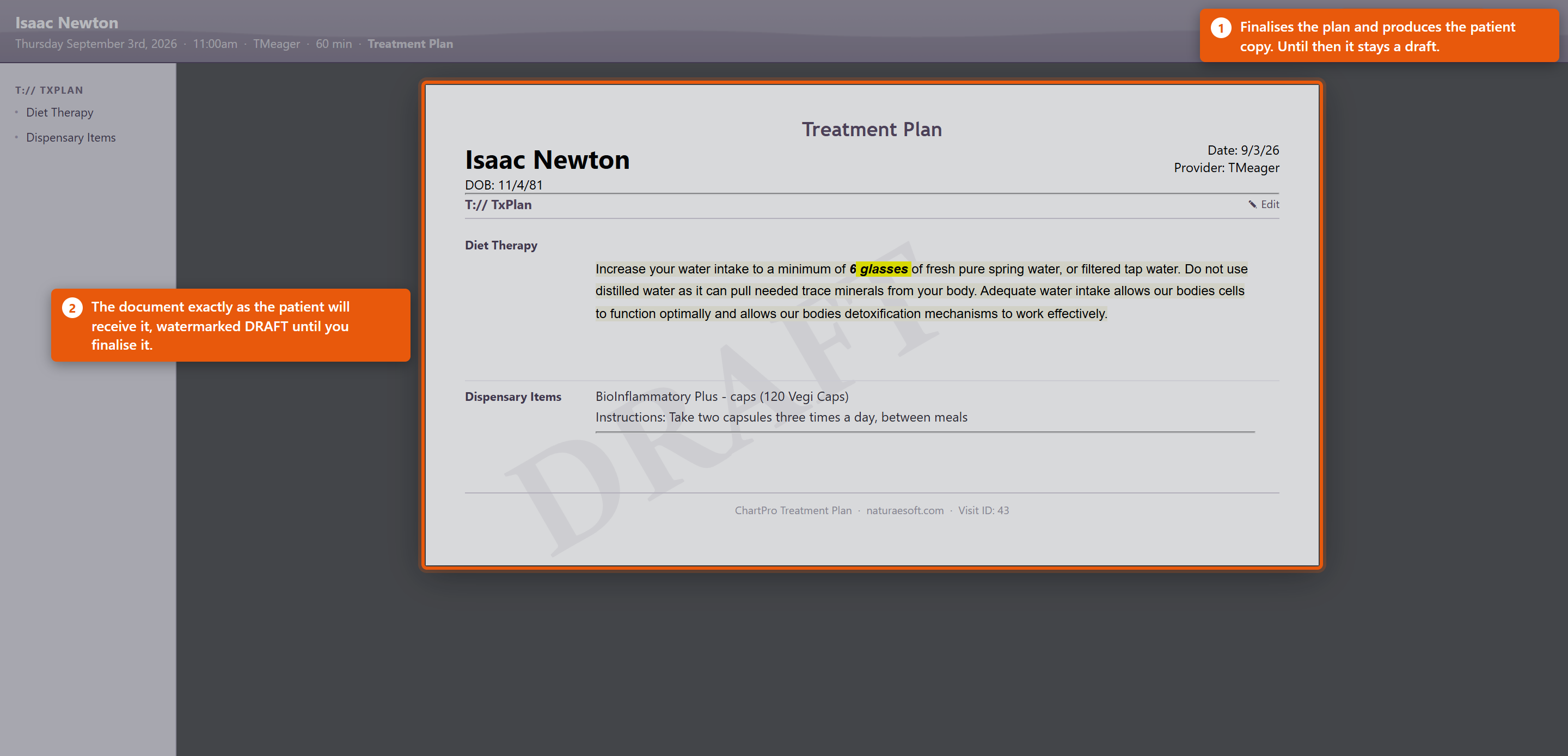 Fill it inEach section has an Edit pencil beside it. Click it, write the content, and it appears in the document straight away, so you are always looking at what the patient will see. Two kinds of section behave differently:
Finish itSave & Document finalises the plan and produces the patient copy. Close leaves it as a draft to come back to. A plan left in draft is not lost, but the patient has nothing - so finish it before the patient leaves rather than intending to come back to it. Making it useful
Dispensary items on the plan are the same products as in your catalogue, so the instructions can come from the product record rather than being typed each time. See Adding and Editing Products. |
|
||||||||||||||||||||
| 101 |
Dictating a Note with Auto ChartDictating a Note with Auto ChartAuto Chart records a consultation, transcribes it and drafts the chart note. You read the draft and decide whether it goes in. Before you startOpen the note on the right visit - the AI is given that visit's Patient, Provider, Visit Type and Date of Service, and it uses them. Starting from the wrong visit produces a plausible note about the wrong context. Tell the patient what you are doing, in whatever words your practice has agreed. RecordingAuto Chart opens the listener and starts recording; you will hear a tone. The panel shows your use for the month against 40. Things that make the difference between a good draft and a poor one:
Reading the draftWhen it finishes you get AI Note Preview - Review the AI-generated chart note below. Read it properly. Check the numbers against what you remember, check nothing has been attributed to the patient that they did not say, and check nothing has been invented that sounds reasonable. A draft that reads well is not the same as a draft that is right, and once you accept it, it is your note.
Edit the note afterwards exactly as you would any other. The draft is a starting point, not a finished document. Rating a noteRate This Note asks about Transcription Accuracy, AI Note Quality and an Overall score from Poor to Excellent, with Comments, then Submit Rating. It genuinely is read - Your rating helps us improve ChartPro AI. Rate the ones that came out badly and say what was wrong in the comments. Almost nobody rates anything, so a specific complaint carries real weight. Looking back at what it wroteThe review link beside the button opens ChartPro AI - Encounter Review, listing your encounters by Date and Encounter # with their Note Quality, or Not rated. Opening one shows the Transcript next to the ChartPro AI Note. If you ever want to know whether it misheard something or invented it, this is where you find out. |
|
||||||||||||||||||||
| 57 |
Charting an IV TreatmentCharting an IV TreatmentThe IV builder records what actually went into the bag: the diluent, every component with its dose and lot, the calculated osmolarity, and the administration details. When the treatment is administered it posts the charges, moves the stock and writes the record into the chart note. Open the panel:
Build the bag:
Read the osmolarity: the summary updates as you type and bands the result - under 500 mOsm/L is within the range routinely given peripherally, 500 to 900 is peripheral with caution, and above 900 indicates central access. If any component has no osmolarity on file the figure is marked as a lower bound rather than a final number. These are osmolarity bands, not tonicity. A bag at 280 mOsm/L is not therefore "isotonic": dextrose counts fully toward osmolarity and is then metabolised, so D5W is iso-osmolar and hypotonic. The module reports the number it can calculate and does not infer tonicity from it. Administer: this is the only step that cannot simply be undone, and it confirms first. It stamps the start time, marks the treatment administered, posts the charges, decrements stock and inserts the record into the note. If the calculated osmolarity indicates central access but peripheral access is selected, you are asked to acknowledge that explicitly and the reason is recorded. What reaches the encounter: each billable component becomes its own service line carrying its billing code and the correct number of units, alongside any administration lines the protocol defines. Stock is decremented for every mapped component. Clicking Administer twice does not double-post - the second click does nothing. The note: the inserted block is the full compounding and administration record - components with doses, lots and expirations, total volume, osmolarity with its band, beyond-use date, route, access, site, rate, start and stop times, and who administered it. A compounded bag has a beyond-use date, which is how long the mixture stays usable after it was prepared. That is a different thing from the expiration date printed on a vial as supplied, and both are recorded. |
|
||||||||||||||||||||
| 112 |
Charting an Acupuncture TreatmentCharting an Acupuncture TreatmentThe acupuncture panel sits in the encounter sidebar. It is a launcher and a summary; the charting happens in the window it opens. Start a treatment
Cloning copies the prescription — the points, sides, depths and techniques. It deliberately does not copy what happened: times, needle counts, de qi, pain scores and contact time all start clean, because they are a record of a different session. Add points
A point carrying a caution shows a marker in the search results. Hover it to read the caution. Nothing is ever blocked — the cautions are there to inform your judgement, not to overrule it. Tick show every field for direction, gauge, length, e-stim pairing and the rest. Record the time — the part that matters for billingThere are two different durations and they are not interchangeable.
Use Start timer when you are with the patient and Stop timer when you leave them, or type minutes into Or add and choose what you were doing. The timer uses the server clock, not the clock on the computer you are working at.
Count the needles outThe Needle count chip at the top of the window tracks whether everything that went in has come out.
Post the charges and write the noteNothing you do in the charting window reaches the patient’s ledger. Saving is safe and automatic. When the session is finished, post the treatment to put the charges on the encounter, and click to note in the sidebar to add the write-up to the chart. A treatment can only be added to the note once. If you genuinely want it twice, the software asks first. |
|
||||||||||||||||||||
| 2 |
Creating your first Chart NoteCreating your first Chart NoteWelcome to ChartPro where you can easily and competently document your encounters with patients with ease. To get started, click on the [C] button in the visit icons area on any visit. The [C] button allows you to access the chart note for a particular visit. To learn more about visit icons and visit workflow click here.
Establish a Patient Visit:
Access the Chart Note:
Navigate to the ChartPro EMR Interface:
The ChartPro interface will load for this visit in a popup window and will put you right into the primary segment of the chart (usually, Subjective > HPI). The charting interface is organized in a compact but robust way to help you document your visits easily, accurately, rapidly, and effectively. To make the most of your charting experience familiarize yourself with the charting environment. Let's start with a description of the interface: Adding Content:
Incorporate Preformatted Content:
Complete Other Segments:
Save Your Note:
Additional Tips:
This guide should help you get started with creating chart notes effectively in OfficePro. |
|
||||||||||||||||||||
| 102 |
Auto Chart Did Not Produce a NoteAuto Chart Did Not Produce a NoteWork through these in order. Most cases are the microphone or the room rather than the AI. The recorder will not startThe browser has to be allowed to use the microphone, and it asks once per site. If the permission was refused - or dismissed, which counts as refused - the recorder cannot start and will not ask again on its own. Clear that in the browser's site settings and reload. On a shared machine check you are in the profile you think you are. There is a companion article on granting microphone access for telehealth sessions; the browser side of it is the same problem. It recorded, but no note came backIf the review screen shows No AI note was generated for this encounter., the audio arrived and no note came out of it. Usually the recording had nothing usable in it - a microphone pointed at the wrong side of the room, or a session ended before anything was said. Open the encounter and read the Transcript. That tells you immediately whether the problem was the audio or the note: an empty or garbled transcript is a microphone problem, and a good transcript with no note is one to report. The note came back wrong or incompleteCheck the transcript first, for the same reason. If the transcript missed what was said, no amount of retrying will fix the note - change how you record:
If the transcript was good and the note was not, that is worth reporting: rate it and say what was wrong in the Comments. That feedback is read, and very little of it comes in. An error message on the review screen
The note went onto the wrong visitThe AI is given the visit you started from, so a note started on the wrong visit produces a note about the wrong context. Check the Patient, Visit Type and Date of Service in the preview before accepting it - that is what the header is for. If one has already been saved to the wrong chart, treat it as you would any misfiled note, and deal with it straight away. We are over 40 for the monthNothing happens. The counter is per provider per calendar month and it is an indicator, not a limit - the bar changes appearance and dictation carries on working. It resets at the start of the next month. The buttons are not there at allAuto Chart appears for ChartPro practices, on the chart note screen. If it is missing, check you are on a chart note rather than another screen, and that your practice has ChartPro. What to send supportThe Encounter # from the review screen, the date, the provider, and whether the transcript looked right. The encounter number is the one thing that makes an AI problem quick to look into. |
|
||||||||||||||||||||
| 58 |
IV Treatment Will Not Post or ActivateIV Treatment Will Not Post or ActivateProblem An IV protocol cannot be set to active, a treatment will not post to the encounter, or components are missing from the bill after administering. Background Most of these come from one of four things: the protocol has not been signed, a component is not mapped to a product, a component has no billing code, or the module has not been switched on for the practice. Each fails in a different place and each says something different on screen. Resolution
If none of these apply, note the exact message on screen and the encounter number and raise a support ticket. |
|
||||||||||||||||||||
| 113 |
Acupuncture Treatment Will Not PostAcupuncture Treatment Will Not PostProblemPosting a treatment is refused, or it posts but fewer charges appear on the encounter than expected. BackgroundThe module refuses only where the figures are impossible or where somebody needs to take responsibility in writing. Everything else is reported as a warning and left to your judgement. Resolution“Hands-on time exceeds the time the needles were in”You cannot have spent 40 minutes hands-on inside a 25-minute retention window, so one of the two figures is wrong. Check Needles in and Needles out against the contact intervals and correct whichever is mistaken. “The needle count does not balance”The treatment has needles that have not been accounted for. Check the patient first. If the count is right — a tack left in deliberately, for instance — type a short reason when asked. The reason is stored on the treatment and recorded in the log. A contraindicated pointSame again: the treatment is not blocked and never was, but the charge waits until somebody types why. Points like LI4 and SP6 in a term pregnancy are used deliberately by practitioners intending to encourage labour, so refusing them outright would be wrong; recording the decision is not. Fewer charges than expectedThe response lists every line that was skipped and why. The usual reasons:
“Hands-on time is longer than the whole appointment”No timed code is suggested, because the contact time recorded is longer than the appointment was booked for. Correct the contact intervals. The treatment is already postedA posted treatment cannot be edited or posted again. Reverse the posting first: its charges come off the encounter and the clinical record stays exactly as charted, because reversing a charge does not un-needle a patient. Warnings that do not stop a postingThese are reported after the charges are written, because they are coding judgements that depend on payer policy:
The module never adds a modifier by itself. Where one is needed there is a button that writes it, and the write is recorded against your name. |
|