NS - Knowledgebase
Find the answers you need. More articles every week.
| ID | Title | Module | Category | ||||||||||||
|---|---|---|---|---|---|---|---|---|---|---|---|---|---|---|---|
| 14 |
Getting Started with OfficeProGetting Started with OfficePro Welcome to NaturaeSoftYour solution for success! The OfficePro suite gives your practice the benefits of increased efficiency, an enhanced professional image, and an integration of all of the major systems inherent to successful practices. We are excited to be able to support the success of your practice! Thank you for choosing NaturaeSoft! Getting StartedTo begin taking advantage of this powerful tool you will need to configure the system to match the specifics of how you practice. Use the following configuration outline to help you get your service set up. Once these steps are complete you can feel comfortable starting to use your service as your system will be configured to meet the specific needs of your unique practice. Configuration TrainingNaturaeSoft offers new customers a one-time configuration training that will help you to get your practice set up. We walk you through all facets of the Admin > General Settings page and help you get oriented to adding and managing, products, services, and diagnosis codes. This training can be scheduled by contacting Support @ NaturaeSoft.com and suggesting a couple of times during the week that would work well for your team. Once this meeting is scheduled we will send you a link with information about accessing the training session at the predesignated time.  Accessing your ServiceYour NaturaeSoft services are accessible from any computer anywhere on the Internet. That’s right! Macs and PCs can use our system and even UNIX-based workstations. All that you need is an Internet browser and an authorized account with our servers. OfficePro is a hosted service provided by NaturaeSoft. As a hosted service you do not need to maintain expensive hardware internally to access and manage your practice software. To set up a workstation with your OfficePro service, open your browser and go to: https://secure.naturaesoft.com. NaturaeSoft services are accessible through your Internet browser (Chrome, Safari, etc.). To log into your account, open your browser (Chrome or Safari are recommended) and go to: https://secure.naturaesoft.com or our alternative version accessed at https://officepro.naturaesoft.com.  Login to your practice accountWhen you first access OfficePro, you will be asked to log in with your Practice Name and Practice Pass. The Practice Name and Practice Pass were sent with your welcome email from your NaturaeSoft account representative. (Your Practice Pass is often “Dr” and your last name with no spaces). The Practice is of course the name of your practice. Since spelling and grammar matter in these fields, it is best that you reference the exact practice and practice pass sent to you in your welcome email. Once you have successfully logged on to the service your Practice Name and Practice Pass will be saved locally and you will only need your username and user password when logging in from this same device. While your practice pass should be kept fairly secure it will be given out to anyone who needs to access the system so keep it easy to remember and make sure it has nothing in common with your User Password for access to the system. Note: You can access your service from multiple workstations with multiple users simultaneously. Login with User Name and PasswordIf this is your first time logging in as a system administrator you can use the username Admin and the password OfficePro to log in and set up other user accounts. If you are a provider and your account was preset by NaturaeSoft your user name will likely be your first initial and last name (e.g. Sam Smith → SSmith). The default password for all accounts at the onset is “OfficePro”. When you log in with the password of “OfficePro” the service will prompt you to update your password information. For your security please choose a strong and secure password. If you want o change your password you can do so from the “Account” link off of the user bar at the top of every page. Once logged in you will see “your name” or “Admin” in the Admin bar in the color for your user account. Click on the “Account” button to change your password easily from here. Passwords are case-sensitive. All OfficePro customers are given the same Admin username and password, so please change the password for the Admin user to secure your account. Want to watch a tutorial on this. Click here for our Academy video tutorial on "Logging into OfficePro for the first time" |
 |
|||||||||||||
| 13 |
Configuration Walk ThroughConfiguration Walk ThroughThe OfficePro service includes a configuration walk-through that shows you how to get your service set up and ready for use in your practice. The Configuration WizardOfficePro 11.0 comes equipped with a configuration wizard to help you get your system configured faster than ever. The configuration wizard is accessible on the footer of your service from the grey gear cog icon. When you mouse over this icon the configuration progress window will pop up showing you the steps to completion of your services configuration. When you click on the configuration steps the configuration window pops up giving you access to manage and complete the configuration steps right from the window. The configuration window is also accessible by clicking the configuration details link at the bottom of the configuration progress bar. The Configuration WindowThe configuration window welcomes you to NaturaeSoft and provides details on the configuration of your service. Each section of the configuration wizard orients you and gives access to the settings for your practice. Please walk through and complete as many of these steps as possible before beginning to use your OfficePro service. These steps covered in the configuration wizard are congruent to the steps outlined in the next section of the manual. Each will be covered in detail but from outside of the context of the wizard itself. To access the configuration wizard click on the grey gear icon on the bottom of the service and then choose configuration details. Configuration Outline
|
|
|||||||||||||
| 15 |
Admin General Settings PageAdmin General Settings PageAll general settings for your OfficePro services can be administered from the Admin > General Settings menu option. This takes you to the General Administrative Settings page where you will have access to configuring all facets of the setup of your service. Only users with designated Administrative rights will be able to access the general settings page. Users with access to the settings can change a wide array of critical settings and this access level should only be given to those that you trust with the management of the service. On the General Settings page there are several tabs that give access to each facet of the services settings. They include:
|
|
|||||||||||||
| 16 |
Managing ProvidersManaging ProvidersProvider AdministrationProviders (health care professionals) are the core of OfficePro, with the scheduling and reporting systems built around them. Editing Provider SettingsTo get started, you’ll need to configure the settings for each scheduled provider at your clinic. Your OfficePro account includes a limited number of providers based on your service agreement. If you need to add more providers, please contact your NaturaeSoft Customer Service Coordinator.
Setting Provider SchedulesYou can set a provider’s weekly schedule in the Schedule tab within the Edit Provider window. Changes are automatically saved in the background, and you’ll see a status update at the bottom of the tab when the save is complete. After editing the provider's details, you can set the provider’s daily schedule by clicking the button next to their name. This will open a window where you can adjust their regular daily availability.
Provider Account ManagementTo add another provider, go to the Practice Tab under Admin > General Settings. Click the Add Provider button. You can add as many active providers as your account allows. If you need more providers than your current limit, contact your NaturaeSoft Customer Service Coordinator. Managing ProvidersOnce a provider has been added and visits are scheduled, all visit data is linked to that provider’s account. If a provider leaves your practice, do not delete their account, as it will erase their visit history. Instead, OfficePro allows you to deactivate providers while retaining their records.
Deactivating a ProviderTo deactivate a provider, click the button next to their name and confirm the action. The system will refresh, and the checkmark next to the provider's name will indicate that they are deactivated. Reactivating a ProviderTo reactivate a deactivated provider, click the button next to their name. Confirm the action. Note: If you’ve reached the limit of active providers, you will need to contact your NaturaeSoft Customer Service Coordinator to activate additional providers. |
|
|||||||||||||
| 17 |
User AdministrationUser AdministrationUser accounts allow access to your system. You will want to set up a user account for each of the staff members whom you wish to have access. You are allowed as many users as you like to assist you in the management of your practice. Each user can have personalized access to the features you choose. A User account is automatically created for the new provider when you are added to the service. Add User AccountsWhen adding or editing User Accounts, you can decide what information you allow each user to access. Please review each of these functions carefully to protect your information. At the top of the Security tab is a field marked User Access. If you check the box marked Administrator a user will have access to all areas of OfficePro. If you want to limit the user’s access to certain areas of OfficePro, this box should remain unchecked. The following list explains each access area. Change your Password
|
|
|||||||||||||
| 60 |
Setting Up Multi-Factor AuthenticationSetting Up Multi-Factor AuthenticationMulti-factor authentication (MFA) asks for a second piece of proof after the password, so a stolen or guessed password is not enough on its own to reach patient records. OfficePro offers two methods, and each user sets up their own. The two methods
A user can set up both. If both are enrolled, the authenticator app is offered first and the text message is available as a fallback. Set up your own account
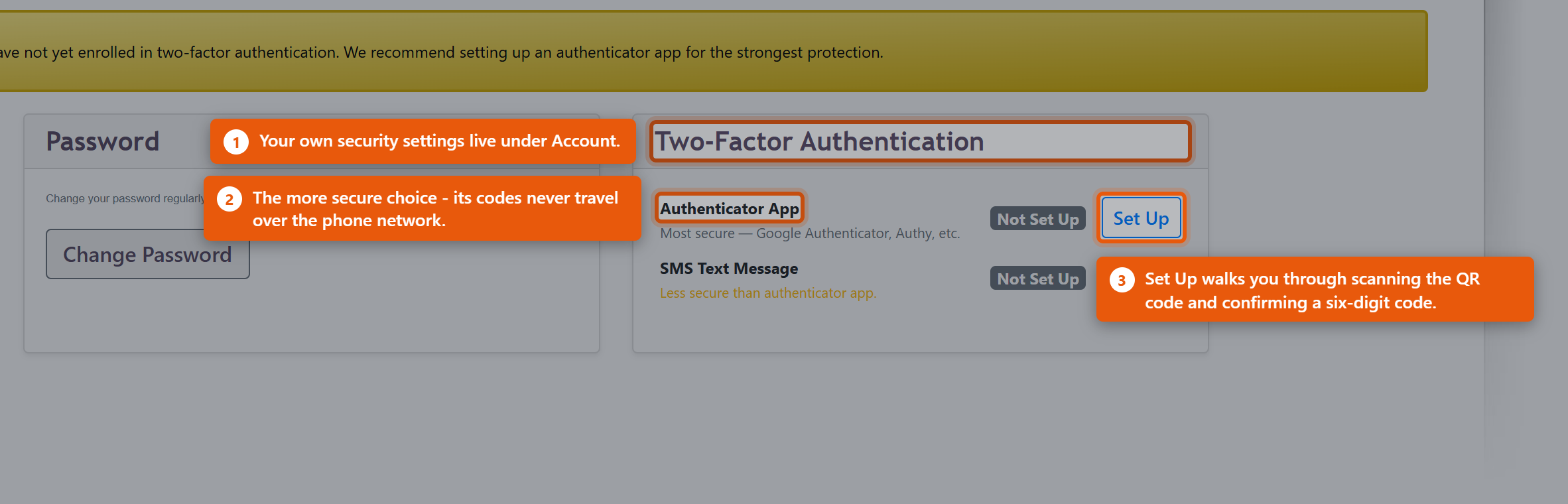 The method then reads Enrolled. To use a text message instead, click Set Up beside SMS Text Message, enter the number under Mobile Phone Number - Include country code (e.g. +1 for US) - and click Send Verification Code, then enter the code that arrives. If it does not arrive, Change number / Resend will send it again or let you correct the number. To stop using a method, click Remove beside it. Require it across the practiceSetting up MFA is voluntary until an administrator requires it. There are two ways to do that, both on the Admin page in the Users section.
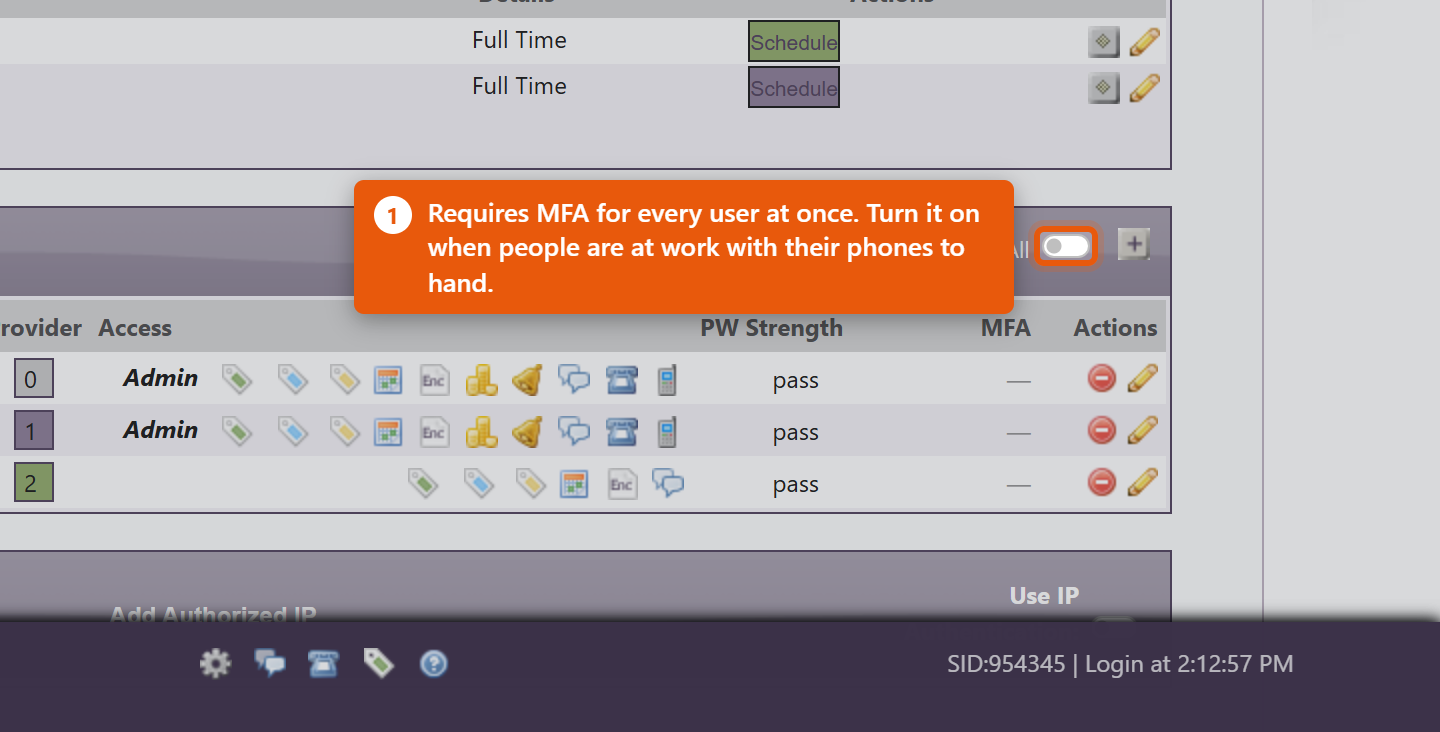 Requiring MFA does not enrol anyone. It means that the next time that person signs in, they must finish setting up a method before they can carry on. Turn it on when the people affected are at work and able to reach their phones, not last thing on a Friday. Read the Users list at a glanceThe MFA column on the Users list shows where each person stands. Hover an icon to read it:
When someone loses their phoneA new or wiped phone no longer holds the enrolment, and the old codes are gone. An administrator clears it so the user can start again: open Edit User, and under MFA Status: beside Authenticator App: click Reset TOTP. The user is then Not enrolled and sets the app up again from their own Account page. Only an administrator can do this, and it is deliberate - being able to clear your own second factor would defeat the point of having one. |
|
|||||||||||||
| 61 |
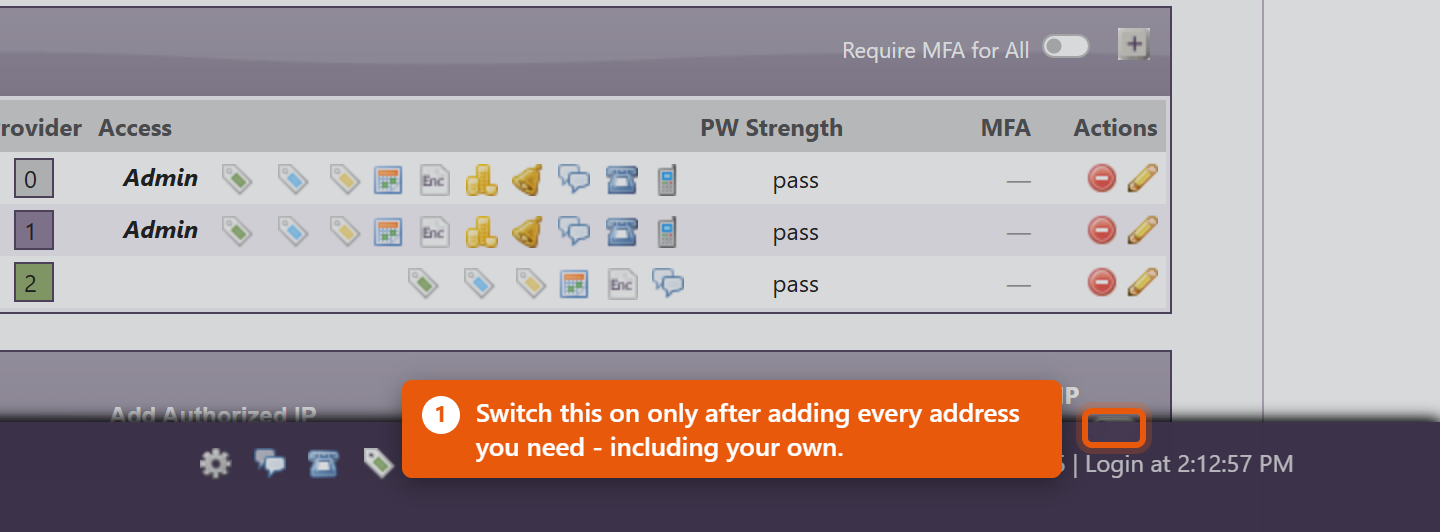
Restricting Access by IP AddressRestricting Access by IP AddressIP authentication limits sign-in to the internet connections you name - typically the clinic itself, and the home connections of anyone who works remotely. Someone with a valid username, password and MFA code still cannot get in from anywhere else. This is a strong control and it locks out the innocent as readily as the malicious. Read the warning at the end before switching it on. Turn it on
 Add an address
The listEach row shows IP, Status, User / Description, Requested, Authorized and Actions. When someone tries to sign in from an address that is not on the list, they are refused and the attempt is recorded as a request. Review these: if it is your own colleague working from a new place, click Authorize on that row and they can sign in. If you do not recognise it, leave it - an unauthorised row does nothing. Before you switch this onMost practices do not have a fixed address. Unless you pay your internet provider for a static IP, the clinic address can change on its own - after a power cut, a router restart, or an engineer visit - and when it changes, everybody is locked out at once, including you. Nobody can reach the Admin page to correct it, because the Admin page is behind the same check. So:
For most practices, requiring multi-factor authentication gives most of the protection with none of the lockout risk. Consider that first, and add IP restriction only where the extra strictness is genuinely needed. |
|
|||||||||||||
| 78 |
Bulk Messaging and Your SMS NumberBulk Messaging and Your SMS NumberBulk messaging sends an email or a text to a group of patients at once, chosen by the tags on their records. Two things need setting up first: the hours campaigns are allowed to send in, and - if you want to text - a phone number for the practice. The send windowCampaigns are not sent the moment you press the button. They are queued, and a background process works through them. The window decides when that is allowed to happen, and it is set in BackOfficePro admin under Only send during these hours, with a From and a to, plus Skip weekends. Set it to hours a patient would not mind hearing from you - most practices use something like 9am to 6pm and skip weekends. A text arriving at 3am does more damage to a practice's standing than the campaign was ever going to earn. Understand what the window does to a send: press Send now outside the window and the campaign is accepted and queued, and nothing goes out until the window opens. Progress sits at zero in the meantime, which looks exactly like a fault. It is not. Getting an SMS numberTexting needs a phone number that belongs to the practice. In SMS Messaging Settings, Request an SMS number provisions one, and you will see New Number Provisioned and then Your SMS number once it is live. This is the number patients see, and replies come back to it, so treat it as a published clinic number rather than an internal detail. Release this number gives it up - do that only if you are certain, because a released number goes back to the pool and cannot be reclaimed. Tags decide who gets itAn audience is built from patient tags, so bulk messaging is only as good as the tagging underneath it. Tags are managed in BackOfficePro. Keep them meaningful and few. Tags describing something durable - a programme a patient is on, a condition you run recalls for - are useful for years. Tags describing a one-off event stop being true almost immediately and quietly ruin later audiences. Before the first campaign
One legal point worth being clear about: patients who have asked not to receive marketing must not be in a marketing audience, whatever their tags say. The software will send what you ask it to send. |
|
|||||||||||||
| 18 |
Managing Clinic Rooms and ResourcesManaging Clinic Rooms and ResourcesAdd a Room or Resource
Edit or delete a Room or Resource
|
|
|||||||||||||
| 19 |
Create HolidayCreate HolidayCreate Holidays
|
|
|||||||||||||
| 64 |
Setting Up Sales TaxSetting Up Sales TaxSales tax in OfficePro is built from three pieces. Set them up in this order and the rest follows.
Everything below lives on the Admin page, under Sales Tax Setup Information. 1. Add each jurisdiction
Add one row per authority. Do not add a single combined row for "sales tax" at the total rate - you will not be able to break the figure down by authority when you file, which is the reason for keeping them apart. 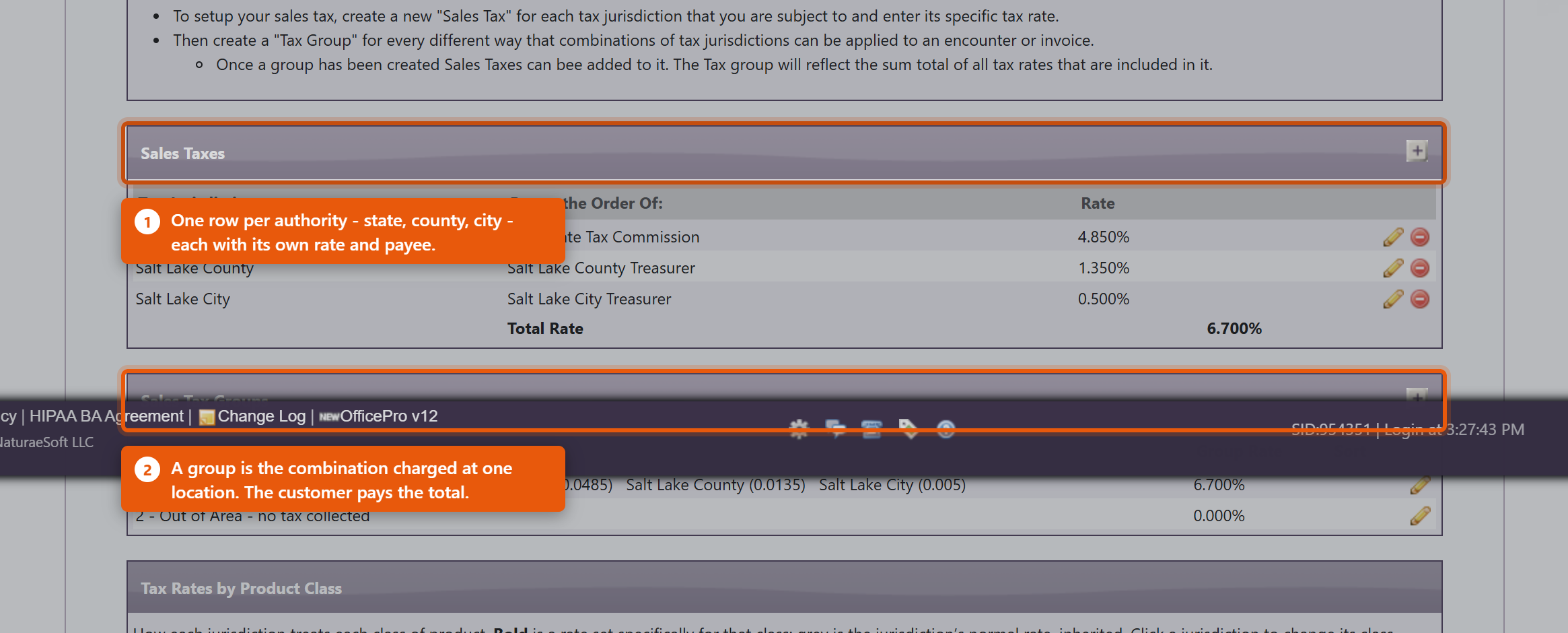 2. Build the groups
The Group Rate column shows the combined figure. Two things to know about it:
A group with no jurisdictions is a real, useful setting, not an unfinished one. It means "no tax here", and it is how you handle orders shipped somewhere you have no obligation to collect. Most practices want exactly one of these. 3. Say where each group appliesUnder Ship-To Regions, click Add Ship-To Region and pair a Destination with the tax group it should use. The Everywhere else row is the catch-all for any destination you have not named - point it at your no-tax group unless you genuinely collect tax nationwide. When an order is placed, the destination decides the group, the group decides the rate, and the rate is worked out and saved onto that line. Changing rates later does not rewrite historyThis is the question every administrator asks first, so to be plain: editing a rate does not change what past orders charged. Each line stores the rate applied when it was created. Put the new rate in on the day it takes effect and past sales, refunds against them and your filed returns all keep the figures they had. The one thing to be careful of is the reverse: because only one rate is held per jurisdiction, a report that recalculates tax from today's configuration rather than reading what each line stored will misstate a closed period. Read the sales tax report, which uses the stored figures. Before you rely on it
Rates and rules are set by your tax authority and change without telling you. OfficePro charges what you configure; confirming what to configure is your accountant's job, not the software's. |
|
|||||||||||||
| 65 |
Sales Tax by Product ClassSales Tax by Product ClassMany states tax some goods at a lower rate than others - groceries and supplements are the usual example - and some exempt them entirely. A product class is how you tell OfficePro which of your products those rules apply to, so the right rate is charged without anyone remembering to intervene. The classes are Standard, Grocery and Exempt. Every product carries one; anything you have not classified is Standard. Set a jurisdiction's class rates
The distinction that matters mostAn empty box and a zero mean different things, and getting them the wrong way round is the most expensive mistake available on this screen.
So if your state exempts groceries and you leave Grocery empty, every grocery item is charged the full standard rate and nothing warns you - the configuration is valid, it just says something you did not mean. Enter 0. Clearing a box that had a rate restores inheritance, which is why the value disappears rather than becoming zero. "Exempt" applies to one jurisdiction, not to the whole billThis is the part that catches people out. Class rates are set per jurisdiction, so putting 0 against Exempt on your state does nothing about your county and your city. They carry on charging their normal rate on the same product. Using the example above - state 4.85%, county 1.35%, city 0.5%, with Exempt set to 0 on the state only:
So a product marked exempt is still charged 1.85%, and the practice believes it is charging nothing. If something is genuinely exempt everywhere you collect, set 0 against that class on every jurisdiction in the group, not just the state. The grid shows this if you know what to look for: a rate in bold was set for that class, and a grey one is the jurisdiction's normal rate being inherited. Grey in the Exempt column means that jurisdiction is still charging. 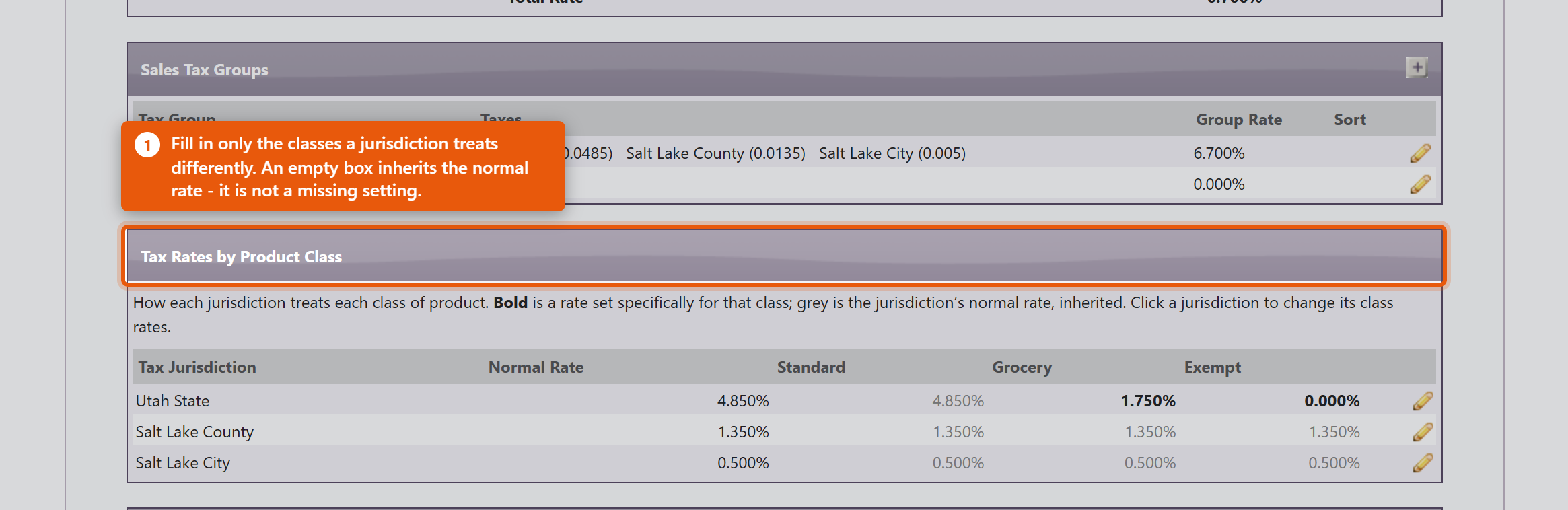 Rates are decimalsSame as everywhere else in this area: 1.75% is 0.0175. The box tells you what percentage it read back, and refuses anything at or above 1 because a rate of 100% or more is always a typo. A worked exampleA Utah practice charging state 4.85%, county 1.35% and city 0.5%, where the state taxes food at 1.75% but the county and city tax it the same as anything else:
A standard product is then charged 4.85 + 1.35 + 0.5 = 6.7%, and a grocery product 1.75 + 1.35 + 0.5 = 3.6%. Each jurisdiction contributes its own view of the class, which is why the classes are set per jurisdiction rather than once for the whole group. Classify the productsA class rate does nothing until products are assigned to that class. Set Product Tax Classes on the product itself. Reduced rates and exemptions are worth getting right on the products you sell most - that is where the money is. Check itWhat Each Tax Group Actually Charges on the Admin page shows the resulting rate for every group and class together. Read it after any change: it is the quickest way to catch a rate that has been entered as a percentage, or a class left inheriting when it should be exempt. 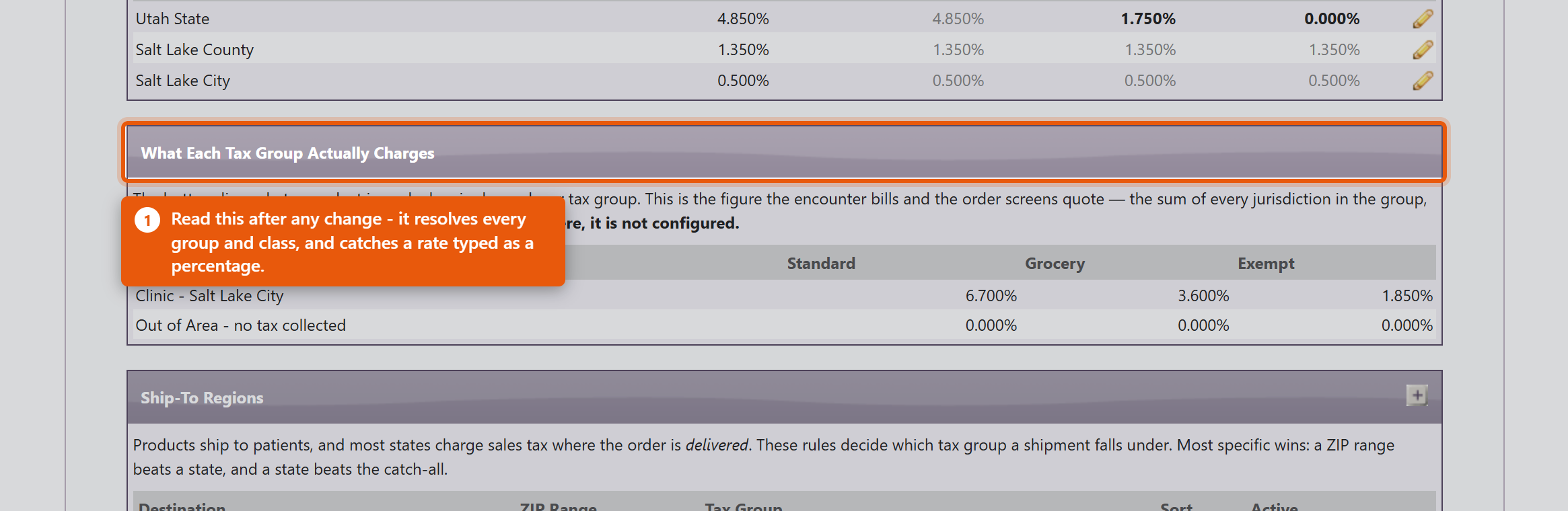 A practice that has configured no class rates at all is charged the plain jurisdiction rates on everything, exactly as before this feature existed. Nothing changes until you use it. |
|
|||||||||||||
| 47 |
Managing Email Settings in OfficeProManaging Email Settings in OfficeProOfficePro enables your practice to send emails such as forms, reminders, and teasers to your patients. To effectively configure this feature, you need to set up your company's email server. Setting Up Your Email ServerAccess Email Settings:
Enter Email Server Information:
Test Your Email Settings:
HIPAA Privacy Statement
Using Gmail with OfficeProIf you're using Gmail, follow these settings:
Additional Gmail Security SettingsIf you're having trouble connecting your Gmail account, ensure your password and other account details are correct. You may need to complete one of the following steps: Allow Less Secure Apps:
Create an Application-Specific Password:
By following these steps, you can successfully manage your email settings within OfficePro, ensuring effective communication with your patients while adhering to HIPAA regulations. If you encounter any issues, please reach out to NaturaeSoft support for assistance. |
|
|||||||||||||
| 9 |
How do access the OfficePro service?How do access the OfficePro service?To access your OfficePro account. Please log in under https://secure.naturaesoft.com. We also have an additional version of OfficePro available at https://OfficePro.NaturaeSoft.com Each of our services has multiple access points so that you and your staff can access several instances of our software within the same facility. Version 1: Secure
Version 2: OfficePro Beta Version: for testing of new features * The beta version is accessible to all customers, please let NaturaeSoft know of any issues you experience in the beta version of the service. We always work on new features and would appreciate your input and assistance. |
|
|||||||||||||
| 54 |
Logging into the OfficeProLogging into the OfficeProAccessing the Login Page- Open your preferred web browser. Log in at the Practice Level Authorize your IPCreation Date: Mar 20, 2026 Created By: Tucker Meager # OfficePro Practice Level LoginTo Log in to the OfficePro Service you can access one of our main service URLS: https://OfficePro.NaturaeSoft.com https://Secure.NaturaeSoft.com https://beta.NaturaeSoft.com - beta use only Practice Level Login Input your Practice Name and PracticePass provided to you in your login email. IP Restrictions Your administrator may have enabled IP restrictions preventing access from un authorized networks. If you are accessing the service from a new location you will be prompted to request authorization from your administrator. Please provide a name and click request access. An email will sent to the account administrator for approval. Once approved you will automatically be redirected tot eh user login page. 1. Enter "Your Practice Name" to identify what practice's servic you are logging in to use.
2. Enter the "Practice Pass" that you were provided for your account.
3. Click on Log On to Practice
4. Click on Request Access for your IP address.
5. Click on Your Network (IP) is Pending Authorization…
# Your Administrators MailYour account admin will receive the email and have to click on Authorize Access to IP: {Your IP} to enable the network for access. 6. Your account admin will receive the email and have to click on Authorize Access to IP: {Your IP} to enable the network for access.
# OfficePro User Level LoginOnce the IP Is Authorized you will be redirected automatically to the User login process. 7. Enter your username and password as provided by your account admin.
ℹ️ Troubleshooting Login IssuesIf you forget your password, please ask your administrator to reset your password for access.Ensure that your internet connection is stable.Check for any browser updates or try a different browser if you encounter issues. ℹ️ Security TipsAlways log out after your session to protect your information.Use a strong, unique password for your account. # Congratulations! You are now logged into OfficePro!Practice Level Login-Input your Practice Name and PracticePass provided to you in your login email. IP RestrictionsYour administrator may have enabled IP restrictions preventing access from un authorized networks. If you are accessing the service from a new location you will be prompted to request authorization from your administrator. Please provide a name and click request access. An email will sent to the account administrator for approval. Once approved you will automatically be redirected tot eh user login page. User Level LoginOnce you have logged in at the practice level a cookie will be saved allowing you to go directly to the user login page. To login you will need you User Name and Password provided to you by your administrator. Entering Your Credentials- Input your username in the designated field. Troubleshooting Login Issues- If you forget your password, please ask your administrator to reset your password for access. Security Tips- Always log out after your session to protect your information. |
|
|||||||||||||
| 11 |
What are the steps I should take when I have a support need? Support Escalation GuideWhat are the steps I should take when I have a support need? Support Escalation GuideNaturaeSoft Support Options and Escalation GuideAt NaturaeSoft, we offer multiple support channels to ensure your issues are resolved efficiently. This guide outlines our support process and the escalation procedure in case of emergencies or unresolved issues. 1. Knowledge Base (KB)Before contacting support, please review our Knowledge Base for known issues, FAQs, and common solutions experienced by our customers.
If you cannot find a solution in the KB, proceed to the next step. 2. Submitting a Support TicketIf the Knowledge Base does not address your issue, you can create a support ticket through the following methods: Via the Support Portal:
Via Email:If your email is registered with NaturaeSoft:
3. Live Chat SupportOur live support chat is available for real-time troubleshooting and immediate assistance.
4. Online Support MeetingsFor more complex issues, schedule an online support meeting with our technical team.
5. Emergency EscalationIf you experience a system-down emergency, please use the following escalation procedure:
6. Final Escalation ProcedureIf your issue remains unresolved after following the steps above, or you haven't received a response within 48 hours, you can escalate the case: Escalation Trigger:
Escalation Process:
Resolution Timeline:
We hope this updated guide helps you navigate our support services and provides clear escalation steps in case of emergencies or unresolved issues. |
|
|||||||||||||
| 63 |
Questions About Signing In and Account SecurityQuestions About Signing In and Account SecurityDo we have to use multi-factor authentication? It is optional until an administrator requires it, either for one person from Edit User or for everyone with Require MFA for All Users. It is strongly recommended: a password on its own is one guessed or reused credential away from exposing patient records. Which is better, the app or text messages? The Authenticator App. Its codes are generated on the device and never sent anywhere, so there is nothing to intercept, and it works with no phone signal. SMS Text Message is a reasonable second choice where an app is not practical. What happens the first time MFA is required? The user signs in as usual and is then asked to finish setting up a method before going any further. Nothing is lost and no data is affected - but turn the requirement on when people are at work with their phones to hand, not at the end of a Friday. I have a new phone. How do I get back in? An administrator clears the old enrolment: Edit User, then Reset TOTP beside Authenticator App:. You then set the app up again from your own Account page. You cannot clear your own second factor, and that is deliberate. My code keeps being rejected and I have not changed phones. The phone clock has drifted. The codes are based on the time, so a phone a minute out produces codes that are refused. Set the phone to get date and time automatically. How many wrong passwords lock an account? Five. The account then locks for 15 minutes. Waiting clears it, or an administrator can release it immediately with Unlock Account from the Users list or from Edit User. Can I unlock my own account? No - an administrator has to, or you wait the 15 minutes. If nobody else in the practice is an administrator, that is worth fixing before you need it. Someone has left. What should we do with their account? Remove their access the same day. Do not simply change the password and leave the account in place, and do not hand it to their replacement - the record of who did what depends on each person having their own login. Why can one user not see Reports or the patient list? Those are separate permissions on the user record, not part of signing in. Open Edit User and check the access boxes. Access that was never explicitly granted counts as not granted, so a brand-new account can sign in perfectly and still see very little until its permissions are set. We are all locked out and we use IP authentication. Your internet address has most likely changed. Nobody inside the practice can correct it, because the Admin page sits behind the same check. Contact NaturaeSoft support. Is a shared login ever acceptable? No. It removes any meaningful audit trail, and when one person changes the password everybody else is locked out at once. |
|
|||||||||||||
| 67 |
Questions About Sales TaxQuestions About Sales TaxIf I change a tax rate, does it change past sales? No. The rate is worked out when a line is created and stored on that line. Past orders, and any refunds against them, keep the rate they were charged. Enter a new rate on the day it takes effect. Why is 4.85% entered as 0.0485? Rates are stored as decimals throughout. The screen shows you the percentage it read back, and refuses anything at or above 1, because a rate of 100% or more is always a typo. What is the difference between an empty class rate and a zero? Empty means taxed at this jurisdiction's normal rate. Zero means not taxed at all. If your state exempts groceries and you leave the Grocery box empty, groceries are charged the full standard rate and nothing warns you. Enter 0. I set a class to 0 but it is still being taxed. Class rates are per jurisdiction. Setting Exempt to 0 on your state leaves the county and the city charging their normal rate, so the product is taxed at their combined rate rather than nothing. Set 0 against that class on every jurisdiction in the group. In the grid, a grey figure is an inherited normal rate - grey under Exempt means that jurisdiction is still charging. A tax group has no jurisdictions in it. Is that broken? No - that is how you say "no tax here", and most practices want exactly one such group for orders shipped outside the area they collect for. It is only wrong if it happened to a group that should be charging tax. The Group Rate does not match what was charged. Group Rate is a stored summary, refreshed when somebody opens the group and saves it. What a customer pays is always calculated from the jurisdictions in the group. So the charge is right and the display is stale - open the group and save it. Why do I add state, county and city separately instead of one combined rate? So the total can be broken down by authority when you file, and so each authority carries its own Pay to the Order Of:. A single combined row charges the right total and leaves you unable to report it. An order was not taxed at all. Check the destination against Ship-To Regions. Anything not matching a named region falls to Everywhere else, which for most practices points at a no-tax group. That is correct for out-of-area orders and wrong if the address was local. Do I have to use product classes? No. A practice that sets no class rates is charged the plain jurisdiction rates on everything, exactly as before the feature existed. Use them only if something you sell is taxed differently. Where do I see what my settings actually charge? What Each Tax Group Actually Charges on the Admin page resolves every group and class combination for you. Read it after any change - it catches a percentage typed as a decimal faster than anything else. Can OfficePro tell me the right rate for my area? No. It charges what you configure. Rates and rules are set by your tax authority and change without notice; confirming what to configure is a question for your accountant. |
|
|||||||||||||
| 70 |
Questions About Gift CardsQuestions About Gift CardsDo I need to switch gift cards on? No. The tools are already on the encounter, on the patient record, and under Gift Cards on the Admin page. There is no settings screen and nothing to enable. Why did our revenue not go up when a card was redeemed? Because it went up when the card was sold. Selling a $100 card records $100 of revenue that day; redeeming it later spends money you have already been paid. Counting it again would record the same $100 twice. Is a redemption a payment or a discount? Neither, strictly. It settles revenue already recorded when the card was bought. It is not a discount - nobody paid less - and not new money, because the money arrived earlier. Who gets credited, the seller or the provider? Selling a card is credited to the clinic. The provider is credited for the services they actually deliver when it is redeemed. Earlier versions credited the redemption against the treating provider, which understated their production; that was corrected in August 2026. Can a card be spent in parts? Yes. Take any amount up to the balance and the rest stays on the card. Balance After shows what will remain before you commit. Can more money be added to an existing card? Yes - use Sell / load a gift card with the existing Card UID and the amount to add. Does a card have to be used by the person who bought it? No. Record the Purchaser and Recipient where they differ, but the balance can be spent by whoever presents the card. What if a card is lost? Cancel it. Anyone holding the UID can spend the balance, so a card reported lost should be cancelled rather than monitored. Confirm who bought it first, and record the reason in the Note. Do gift cards expire? OfficePro does not expire them - a balance stays until spent or cancelled. Whether you may expire them is a matter of law where you practise, and in many places unredeemed balances cannot simply be written off. Ask your accountant before assuming an old card is yours to keep. How do I see what we owe on unspent cards? The Gift Cards section on the Admin page lists every card with its Balance and Status. Outstanding balances are money you hold and have not yet earned, so most practices treat the total as a liability. A card was sold but never paid for. Selling adds the card to a visit as a charge; it is only funded when that visit is settled. Find the originating encounter and take the payment, or cancel the card. |
|
|||||||||||||
| 72 |
Questions About ReportsQuestions About ReportsA report I used to run has gone. What happened? The reports section was rebuilt in August 2026 and around 250 old pages were retired, most of them duplicates or reports nothing had opened in years. Look for the current equivalent in the list on the left, and update any bookmark you kept. Why does my colleague see reports I do not? The list reflects each account's permissions - a group only appears when you have access to something inside it. Compare the two accounts under Edit User on the Admin page. What is the difference between the three Master Reports? Depth, not content. Summary gives period totals, Standard gives encounter totals, Detailed gives every line. Start at Summary and go deeper only when a figure needs explaining. Why do some reports have no date range? Because they describe how things stand now rather than what happened between two dates. Outstanding balances, credits, subscription health and the duplicate-finding reports are all point-in-time, so a period would not mean anything. Which reports can I export? Sales Tax, Sales Tax - Line Detail, Discounts Given, Unbilled Services, Subscription Health and Provider Productivity export to CSV. Any report can be printed to PDF. An export always matches what is on screen, so set the period first. Why can a provider only see their own numbers? Providers are restricted to their own figures by design. Choosing a different provider requires financial or administrator access. Where is the Sales Tax line detail report? I cannot find it in the list. It is reachable only by drilling into it from the Sales Tax report, which is why it is not in the navigation. Open Sales Tax and click through. Two reports give me different totals for the same period. They are usually counting different things - billable versus collected, or services versus products. Rather than comparing totals, drill into one until you reach the encounters behind it; that shows which is answering your question. My report is empty. Check the period first. Most reports open on the current month, so early in the month they can be legitimately near-empty. Widen it and see whether the figures appear. Is it recorded that I ran a report? Yes - successful report views are logged once each. This is normal for a system holding patient data and is what lets a practice show who looked at what. Can I get a report that does not exist? Ask. The registry makes adding one considerably easier than it used to be, and a report several practices want is worth building properly rather than everyone exporting to a spreadsheet. |
|
|||||||||||||
| 12 |
What are my support options? NaturaeSoft Support ResourcesWhat are my support options? NaturaeSoft Support Resources
We hope this guide helps comfort you and directs you to the proper resources with our support services if you experience an issue with the service in the future. |
|
|||||||||||||
| 23 |
How do I send an Email to all of my patients?How do I send an Email to all of my patients?Problem: You want to send an email to all of your patients but can't find how to do this in OfficePro. Background: The OfficePro suite is designed for practice management and not really marketing. So all emails that OfficePro sends to your patients are patient-specific. There is no function for sending an email to all of your patients. But of course, you can still send emails to your patients using your email client or marketing service such as Constant Contact. OfficePro can provide you with a list of email addresses of your patients for sending. Solution: Option 1 To access a list of email addresses in OfficePro you can do one of the following. On the OfficePro Admin Home page on the left hand column. You will see an email box. If you click on the bar, the following email options will appear: If you click the view Email List option from the email menu you will get a list of all of your patient's email addresses. You can then click the Email All Patients link at the top right. If you do not have very many addresses the link will trigger your browser to open the default mail client with the email addresses already populated into the BCC field of the email draft. If you have a large number of emails on file then the system will prompt you with a selection box you can use to copy and paste all of the emails on file into the BCC box of a new email in your email client. Option 2 You can also use the Export Patient function to export a CSV of all of your patients. Then simply filter the CSV using your favorite spreadsheet software (excel, numbers, sheets, etc...). This way you can come up with a targeted list for your email. For more on exporting the patient list see the following tutorial about the Add Ons, Export, and Logs tabs of the Admin General settings page. http://www.naturaesoft.com/configuration.html#AddOns NOTE: Always use the BCC box otherwise your patient's email addresses will be shared with the other recipients of the email. Ignoring this could lead to a HIPAA violation, so be very careful about emailing your patients. |
|
|||||||||||||
| 1 |
Logging in to OfficeProLogging in to OfficeProThere are several URLs that you can use to access the OfficePro service. Each URL is associated with a different version of the service so that you can access the service from multiple locations for redundancy and failover. There are 2 layers of authentication when login to the OfficePro service. First, you must authenticate at the practice level and then again at the user level. Service URLsBeta Service URL
Practice Level AuthenticationWhen you first access the service you will be asked to authenticate at the practice level. Each practice will use its practice name (as specified by NatuaSoft when configuring your account) and a unique practice pass. To obtain your practice and practice pass ask your account administrator or look for your welcome email from NaturaeSoft. You can also request that your practice login credentials be sent to the emails on file with your account by contacting support through the chat widget or by emailing support@naturaesoft.com. 
|
|
|||||||||||||
| 68 |
Selling and Redeeming Gift CardsSelling and Redeeming Gift CardsA gift card holds a balance the practice has already been paid for. You sell one, the customer pays for it like anything else, and the balance is then spent against future visits - by whoever holds the card. There is nothing to switch on. The tools are on the encounter, on the patient record, and on the Admin page under Gift Cards. Sell or load a card
The card is added to the visit as a line to be paid for, and the customer settles it with the encounter like any other charge. It is not funded until that payment is taken. The same screen loads more value onto a card that already exists - enter the existing Card UID and the amount to add. Redeem against a visit
The amount comes off the visit and off the card together. Anything left stays on the card for next time. Check a balanceUse Check Gift Card Balance to read a card without touching a visit - the right tool when someone rings up to ask what is left. Gift Card Store Value on the patient record shows the cards linked to that patient, and View full transaction history shows every load and redemption with the balance after each. 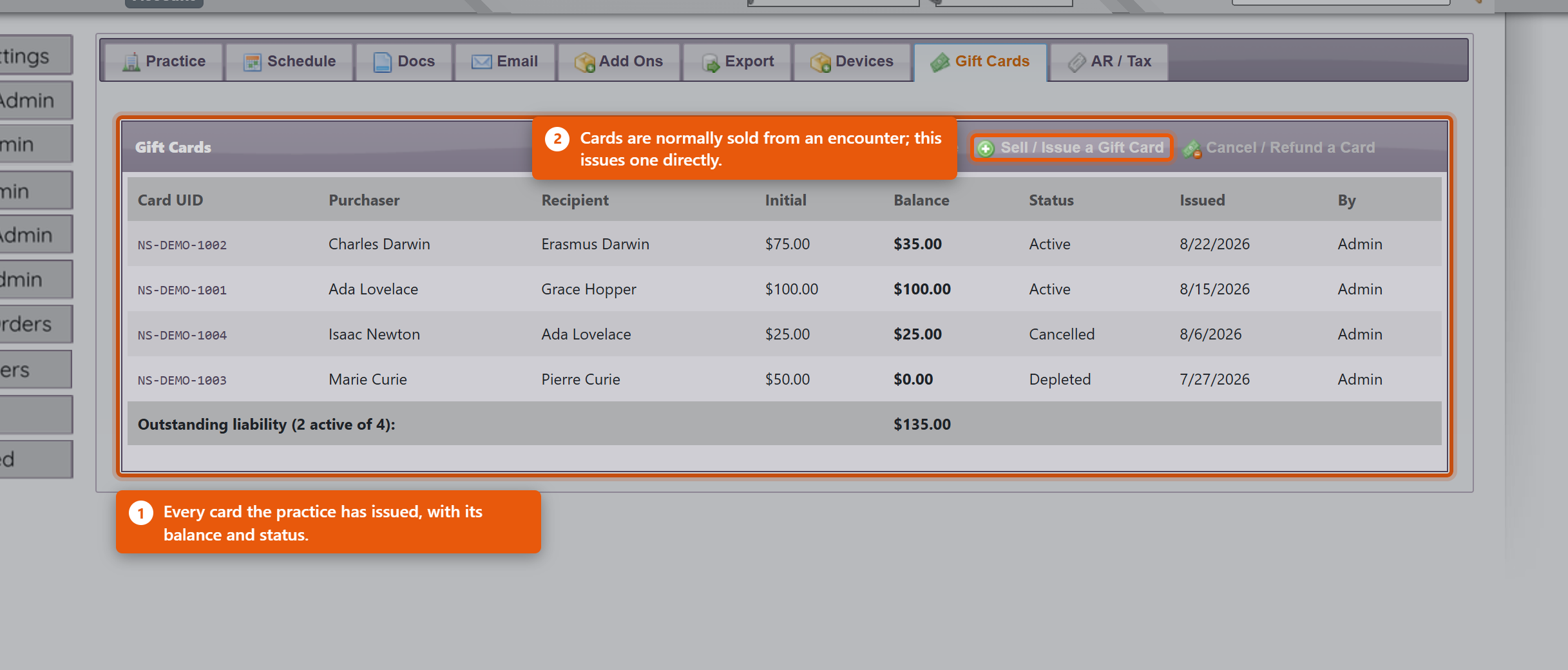 Where the money appears in your reportsThis surprises people, so it is worth understanding once. The revenue is recorded when the card is sold, not when it is spent. Selling a $100 card puts $100 of revenue in the day it was bought. When that card is later redeemed against a visit, the redemption settles revenue you have already recorded rather than adding more. So a redemption is not a discount and not a new payment - it is the customer spending money you were already paid. If it added to revenue again, the same $100 would be counted twice: once when bought, once when used. What this means day to day:
Practical points
|
|
|||||||||||||
| 3 |
Adding a VisitAdding a VisitThe OfficePro service is visit-centric in that everything revolves around visits. There are several ways to add a visit to your schedule. 
Depending on where you click to add a visit, some of the details of the Add Visit form will be filled out for you. For example, if you click on the Add a Visit link from the patient detail page the patient will already be specified on the form. If you double click on an empty space in your calendar's graphical views the Add Visit form will have the date and time of the visit already set and if you are logged in as a provider the visits will be assigned to you as the provider.  The Add Visit FormIn order to add a visit you will need to specify its details including the Patient, Provider, CC (chief complaint or chief concern), Visit Type, Date, Time, Duration, and Visit Notes. You can also specify if you want to alert the patient about the visit via email and text once the visit is saved. Note: When updating the visit type the visit duration is automatically updated to the default duration set for that visit type. Rooms & Resources TabIf your practice has multiple rooms or other resources set up, you can assigned them to the visit. From the Add window you can only specify one room for the visit. To add more rooms click the Add and Edit Visit button once the details have been set and you can assign further resources to this visit from the Edit Visit window. OfficePro offers several convenient ways to add visits to your schedule, allowing flexibility from various screens. Methods for Adding a Visit
If you haven’t selected a date from the schedule, you will be prompted to choose one from the pop-up calendar. If the calendar or Add Visit window does not appear, ensure your pop-up blocker is disabled. Completing the Add Visit WindowOnce the Add Visit window appears, you can fill out the essential appointment details.
Next, follow these steps:
Rooms and Resources TabIn the Rooms and Resources tab, you can adjust how the visit is displayed on both the provider’s and room’s schedules.
If you need to add additional rooms or resources to the visit, you can do so in the Edit Visit window after saving the appointment. Finalizing the VisitOnce all the necessary details are entered, click Add Visit.
Post-Visit ActionsOnce the visit is added, it will appear on your schedule. From here, you can:
For more details on configuring visit types, providers, rooms, and resources, refer to the first three Configuration videos. To learn about scheduling recurring visits, please see the Knowledge Base article titled “How to Schedule a Recurring Visit.” |
|
|||||||||||||
| 4 |
Editing VisitsEditing VisitsYou can edit any visit by double-clicking on the visit in any graphical view and from the top right corner of the resulting Visit Details page you will see an edit button  The Edit Visit WindowFrom the Edit Visit window you can change the visits Provider, Reason, Type, Date, Time, Duration, Visit Notes and choose to alert the patient with an email and SMS upon save of the visit details.
|
|
|||||||||||||
| 25 |
Scheduling a Series of Recurring VisitsScheduling a Series of Recurring VisitsIf you need to schedule recurring visits for a patient, you can do this in one simple step by using the Add Recurring Visit feature. Follow the steps below to set up a series of visits efficiently. Accessing the Add Recurring Visit Feature
Entering Basic Appointment InformationThe fields in the Add Series of Visits window are similar to those in the regular Add Visit window.
Next, select the provider and room for the visits from the respective drop-down menus. Setting the Date and Time RangeInstead of selecting a single date, you’ll set a Date Range:
The Start Time field shows available time slots in five-minute increments. Times outside the range of 6:00 AM to 10:00 PM are greyed out and cannot be selected. The visit duration is determined by the Visit Type you select (e.g., a consultation may default to 15 minutes). You can adjust the duration manually as needed. Additional Fields and Settings
Select the weekdays for the recurring visits by checking the boxes for the desired days (e.g., Monday, Wednesday, Friday). If the starting date doesn’t match the selected weekdays, the first appointment will occur on the next available day. For instance, if your date range is the month of June and you select Tuesdays, the first appointment will fall on the first Tuesday in June. To add additional rooms or resources, you can do so later in the Edit Visit window after the appointment series has been saved. Finalizing the Recurring VisitsOnce you’ve entered all the necessary information, click Add Series to save the appointments.
Post-Setup ActionsAfter the series of visits is added, each visit will appear on your schedule. You can:
For more information on setting up visit types, providers, rooms, and resources, refer to the Configuration video tutorials. |
|
|||||||||||||
| 26 |
Adding a Meeting to the OfficePro ScheduleAdding a Meeting to the OfficePro ScheduleScheduling a meeting in OfficePro is very similar to scheduling a visit. Follow these steps to easily add a meeting to your schedule. Adding a Meeting
Selecting a DateChoose the desired date from the pop-up calendar to open the Add Meeting window. Meeting DetailsIn the Meeting Details tab, you can:
Rooms & ResourcesIn the Rooms & Resources tab, you can:
Once all details are entered, click Add Meeting to save and add it to the schedule. Uses for MeetingsMeetings are useful for blocking out time on providers’ schedules for various reasons, such as:
To schedule a recurring meeting, click the link icon next to Meeting in the Add menu. Blocking Out Whole DaysFor full-day or multi-day events, use the Holiday feature, which can be set up in the Schedule Settings tab of Admin General Settings. For more detailed information on setting up meeting types, watch the configuration video on Schedule Settings. |
|
|||||||||||||
| 32 |
Managing Payments, Discounts and Write-OffsManaging Payments, Discounts and Write-OffsMoney is taken against an encounter, in the Payments & Discounts area. Everything a patient owes, pays, or is forgiven is recorded there, and everything is recorded against a code so it can be reported on later. Taking a paymentEnter the payment type into the payment search box - either its code or its name, so both CA and Cash find the same thing. Then enter the Amount. The usual types are Cash, Check, Credit Card Payment, ACH Payment and Insurance Payment. Depending on the type you will be asked for a Check Number, an Approval Code or an Auth Number - fill these in. They are what lets you match a payment to a bank statement or a card settlement three months later, and reconstructing them afterwards is painful. Receiving Agent records who took the money, and Payment Note is free text for anything unusual about it. Discounts and write-offsDiscounts go in the same way, through the Discounts & Adjustments search box. Choose from Common Discount Percentages saves working out the arithmetic for a standard percentage off. Practices typically have Doctor Discount, Family Discount, Senior Discount, Trade, Insurance Adjustment and Write Off. They behave identically in the software - the difference is entirely in what they tell you afterwards. That difference matters more than it looks. A Senior Discount is a pricing decision you chose to make; a Write Off is revenue you failed to collect; an Insurance Adjustment is the difference between what you charged and what the payer allows. All three reduce the balance by the same amount and mean completely different things about how the practice is doing. Using Write Off as a catch-all makes the Discounts Given report useless. The available codes are fixed for the practice. If you need one that does not exist, contact NaturaeSoft support rather than pressing an existing code into service - the code is what the reporting is built on. Payments have to be allocatedThis is the part that most often causes confusion. Taking a payment and applying it to a visit are two separate things. A payment can sit unallocated - the patient has paid, but the money has not yet been attached to what it was for. Use Allocate Payment to spread a payment across visits. The screen shows the payment's Available amount, a list of Visits with Outstanding Balances, and what each visit's balance Becomes once you apply the amount you have entered. Unallocated: shows what is left over. A single payment can be split across several visits, and one visit can be settled by several payments. That is normal - a patient paying off an account in instalments produces exactly that. Unallocated Payments lists money taken but not yet applied. Work through it regularly. An unallocated payment makes the patient look like they still owe money they have already handed over, which is how a practice ends up chasing someone who has paid. Credits and refundsA patient can end up in credit - they overpaid, or a return put value back on their account. Credit can be left to cover a future visit or given back with Process Patient Refund. Decide which before allocating anything. If you intend to refund a credit, do not allocate it against a payment first - allocate it and it has been spent, and the refund becomes a separate piece of work. Returns work differently, and it is worth knowing whyReturning a product does not create an ordinary credit. It records a credit of $0.00 and puts the returned value on the return visit as a negative amount. That negative is not a side effect - it is the credit. So if you are looking at a return in the allocation screen and see a negative row, leave it alone. Removing it would delete the credit and leave the return visit unpaid at the same time. OfficePro blocks that and explains why if you try. To take a credit back so it can go somewhere else, untick the visit you applied it to. If the return itself was the mistake, reverse the return rather than its credit. Good habits
|
|
|||||||||||||
| 8 |
Creating a DepositCreating a DepositA deposit groups the payments you are banking together so that what OfficePro shows matches what appears on your bank statement. Without it you have a list of individual payments and a bank line for the total, and no way to tie one to the other. Create a deposit
The list can be narrowed by period - Today, This week, Last Week, This Month and so on - which is the quickest way to find the payments for the day you are banking. Group payments the way the bank will see them. Cash and cheques banked together belong on one deposit; card settlements arrive separately and belong on their own, or the totals will never line up. 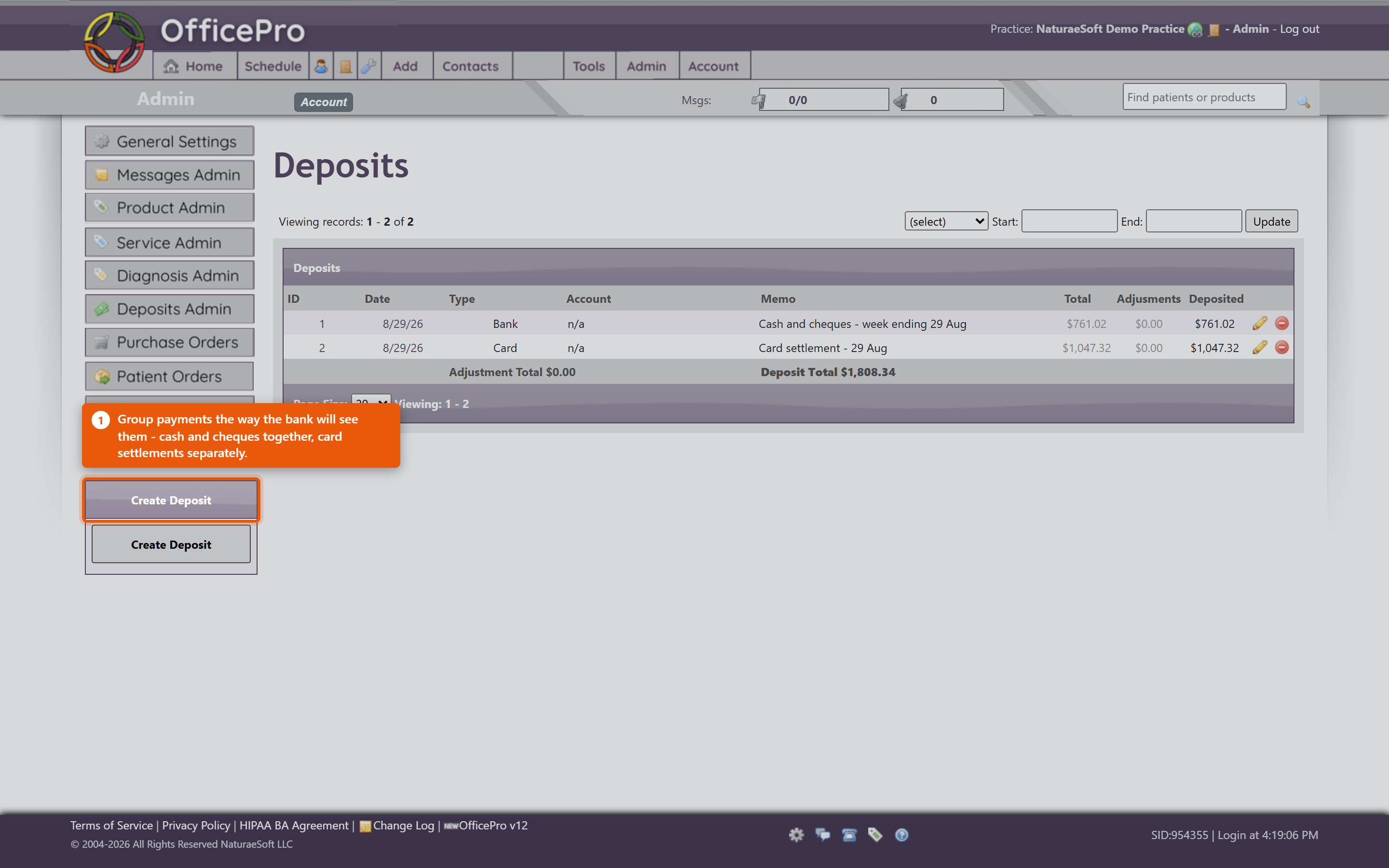 When the total does not matchUse Deposit Adjustment and enter the Adjustment Amount - for a bank fee, a rounding difference, or a cheque returned unpaid. Record what it was for. An unexplained adjustment is indistinguishable from an error when someone reviews it later. Remove Payment takes a payment back out if it was included by mistake; it returns to the list of unbanked payments rather than being deleted. Print the slipProduce the deposit slip for the bank, with Payee and Memo as needed. You will see Deposit Slip Created Successfully when it is generated. Take the printed slip to the bank with the money. Auto Create DepositsAuto Create Deposits builds deposits from unbanked payments rather than ticking them by hand. It saves time for a practice banking on a regular rhythm - but check what it produced before printing, because it groups by its own rules and not by what is physically in your hand. Habits that keep it reconciled
Deposits cover money leaving your hands for the bank. Whether each payment is attached to the right visit is separate - see Managing Payments, Discounts and Write-Offs. A payment can be correctly banked and still not allocated to a visit, which is why a patient can appear to owe money they have already paid. |
|
|||||||||||||
| 79 |
Sending a Bulk MessageSending a Bulk MessageOpen Bulk Messaging in BackOfficePro. A campaign is built in four parts - who it goes to, how it is sent, what it says, and when. 1. AudienceChoose the Tags that describe who should receive this. Match decides how several tags combine:
The Recipients count updates as you choose. Read it before going further. It is the one number that tells you whether the audience is what you meant - a campaign intended for a dozen people showing four hundred recipients is a mistake you want to catch here rather than afterwards. No deliverable recipients. means nobody in that audience has a usable address or number, so there is nothing to send. 2. ChannelsChoose Email, SMS, or both. Sending both means a patient with an address and a mobile gets two messages, which is right for something important and irritating for anything routine. Texting needs a provisioned SMS number - see Bulk Messaging and Your SMS Number. 3. What it saysEmail Message takes a Subject and a Body, and Preview email shows it as the patient will receive it, in your practice branding. SMS Message is plain text and should be short - texts are read on a lock screen. Merge fields personalise each message. {FirstName} is the common one, and the placeholder on screen shows the shape: Hi {FirstName}, .... A merge field spelled wrongly does not error - it goes out literally, to everyone. This is the single most common way a bulk message embarrasses a practice. 4. Test, then scheduleSend Test Email and Send Test SMS send one to you. Do this every time, even for a small change. It is the only step that catches a broken merge field, a subject line left as a placeholder, or a text that reads badly on a phone. Then choose When to send, or Send now. Either way the campaign is queued and sent within your practice's send window - so "now" can mean "when the window next opens". Watching it goRecent Campaigns lists what you have sent, and Campaign Detail shows Progress as the queue drains. A campaign sitting at zero is usually waiting for the send window rather than failing. Start Another begins a new campaign. Habits worth having
|
|
|||||||||||||
| 29 |
Using OfficePro ReportsUsing OfficePro ReportsReports live under Reports in OfficePro. The list on the left is the whole set - if a report is not there, it is not hidden further in, it is either retired or not available to your account. There is a Find a report... box at the top of that list; typing two or three letters is usually quicker than reading it. 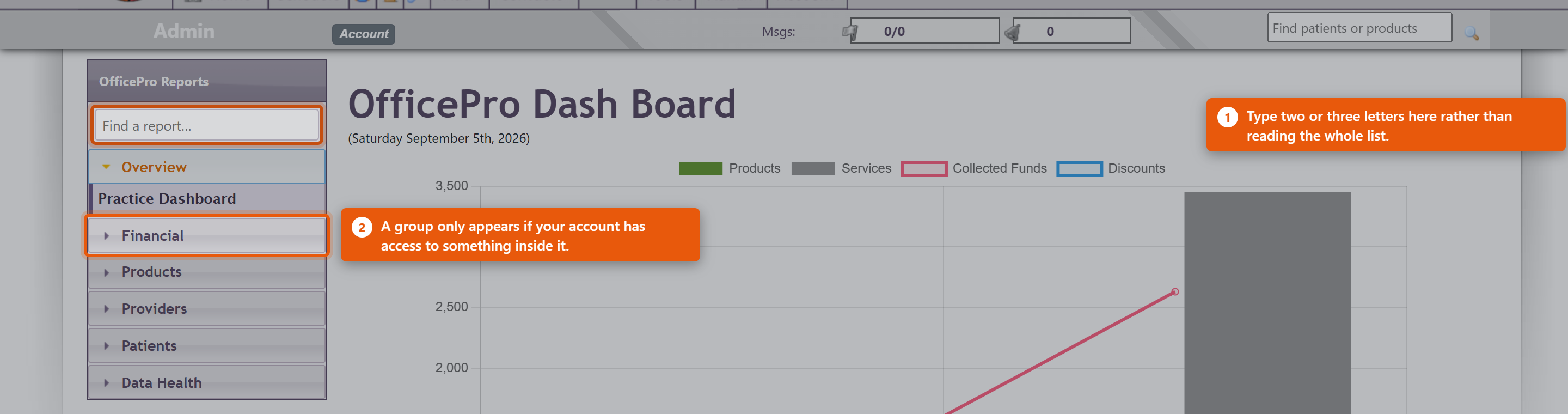 How reports are grouped
You will not see every group. A group only appears when your account has access to something inside it, so two people at the same practice can see different lists. That is the permission working, not a fault. The three Master ReportsThese are the same figures at three depths, and picking the right one saves a lot of scrolling:
Start at Summary and go deeper only when a number needs explaining. Choosing the periodMost reports open on the current month. The period bar at the top offers today, yesterday, this week, last week, this month, last month, this quarter, last quarter, this year and last year, plus Custom for any two dates. Some reports have no period bar at all, and that is deliberate. Patients with a Balance Due, Patients with a Credit, Subscription Health and the duplicate-finding reports describe how things stand right now rather than what happened between two dates. A date range would not mean anything on them. Getting the numbers outWhere a report can be exported, the action sits at the top of the report. Sales Tax, Sales Tax - Line Detail, Discounts Given, Unbilled Services, Subscription Health and Provider Productivity export to CSV, which opens in Excel or Numbers. Any report can be printed to PDF. Export before you change the period if you want both - the export always reflects what is on screen. Following a number to its sourceSeveral reports drill through. Clicking a figure on the Practice Dashboard opens the report behind it; the Master Reports step from Summary to Standard to Detailed; and Sales Tax opens Sales Tax - Line Detail, which lists every taxed line making up the total. That detail report is reachable only by drilling into it, which is why you will not find it in the list on the left. This is the fastest way to answer "why is that number what it is" - keep clicking until you reach the encounter. What providers seeA provider opening a provider report sees their own figures. Only accounts with financial or administrator access can select a different provider. So a provider reporting that they cannot see a colleague's numbers is describing the system working as intended. If a report you used to run is not listedThe reports section was rebuilt in August 2026 and a large number of old pages were retired, most of them duplicates or reports nothing had opened in years. An old bookmark may no longer work. Look for the current equivalent in the list, or see A Report Is Missing or Will Not Open, which explains what each refusal message means. |
|
|||||||||||||
| 28 |
Sending Email & SMS Visit Reminders in OfficeProSending Email & SMS Visit Reminders in OfficeProYou can easily send email reminders to patients who have upcoming visits scheduled for the next day or any day within the next two weeks. Follow these steps to ensure your patients are reminded of their appointments. How to Send Email RemindersFrom the Home screen, click Email Visit Reminders in the Messages and Reminders box. The Visit Reminders window displays a list of upcoming visits that haven’t had reminders sent yet. You can select:
Use the checkboxes to exclude any visits for which you do not want to send reminders. When you're ready, click Send Reminders to email reminders for all the selected visits. Handling Missing Email AddressesAfter sending the reminders, OfficePro will display a list of successfully sent emails, followed by a list of patients who could not receive reminders because no email address was on file. Next to these patients' visits, their phone numbers will be listed, allowing you to follow up with a phone call. Once you've made the calls, click Mark Reminded next to each phone call entry to note that the patient was reminded by phone. The next time you open the Visit Reminders window, visits that have already received a reminder or were marked as reminded by phone will not be checked by default. This prevents duplicate reminders from being sent unless you manually check the visit to include it in the next batch. Quick Access to Next Day RemindersIf you just need to send reminders for the next day, you can do so from the top menu on any page. Look for the bell icon in the messages area near the upper-right corner of the screen.
Click the bell icon to open a small Email Reminders window, which only shows the visits scheduled for the next day. As with the main Visit Reminders window, only unchecked visits will appear, and you can use the checkboxes to exclude specific visits as needed. Click Send Email Reminders to send reminders for the selected visits. Any patients without email addresses on file will appear in a phone list, so you can follow up with a phone call. Customizing Your Email RemindersYou can view or modify the text of your email reminders in the Email Settings tab, located in Admin -> General Settings. For more detailed instructions on customizing your email settings, refer to the Configuration video on Email Settings, or check out the Knowledge Base articles on Email Settings and Using Gmail With OfficePro. |
|
|||||||||||||
| 27 |
Close-of-Day Business Activities in OfficeProClose-of-Day Business Activities in OfficeProOfficePro allows you to complete all your end-of-day tasks with ease, including creating and posting deposits, generating daily reports, and reviewing visits for missing transactions. Follow these steps to make sure everything is in order before closing out your day. Accessing Close-of-Day FunctionsTo begin, click Home from the top menu on any page. The Home view provides quick access to essential financial and scheduling functions. Creating a DepositOfficePro makes it easy to create a deposit from payments received throughout the day:
The Create Deposit window will display a list of all payments received since your last deposit. By default, all transactions will be included, but you can customize your deposit by selecting specific payments, such as separating cash and checks. Once your selections are made, click Create Deposit at the bottom of the list to generate a formatted, printable deposit slip. Each payment you include will no longer appear for future deposits, making it easy to create separate deposits for different payment types. End-of-Day ReportThe End of Day Report gives you a detailed summary of the day’s activities, including visits, payments, claims, and deposits. To view the report, click End of Day Report in the Financials box. At the top of the report, you’ll see a summary of the day’s visits and financial transactions, including:
Below the summary, the report breaks down the day’s details:
Reviewing the Day’s VisitsBefore the day’s transactions lock at midnight, it’s crucial to review visits for missing or incorrect transactions. This allows you to make any necessary corrections before the day’s records are locked. There are two ways to review visits from the Home screen: Visit List: Access a chronological schedule view by clicking Visit List in the Scheduling box. Payments and charges associated with each visit will appear next to the Encounter, Billing, and charting icons.
End of Day Report: For a quick overview of transactions, use the Standard level of detail to view each visit’s charges, allocations, and balances. Visits with zero charges will stand out, making it easy to identify those needing attention. Final Review Before ClosingPerforming a quick review at the end of the day ensures all transactions are correct and complete. This way, you can make any needed corrections before the day’s data is locked and uneditable (except by an Administrator). For additional information on using reports in OfficePro, refer to the Knowledge Base article on Reports. |
|
|||||||||||||
| 5 |
Using the Patient Encounter Form in OfficeProUsing the Patient Encounter Form in OfficeProThe Patient Encounter form allows front-desk users to manage various tasks related to patient visits, including adding services and products to create a patient receipt, applying payments and discounts, managing visit-related documents, scheduling follow-up appointments, and, if applicable, creating an insurance claim. Accessing the Encounter FormYou can access the Encounter form in several ways:
Overview of the Encounter WindowThe Encounter window displays the following:
Adding Services to the Encounter
Adding Products to the Encounter
Creating an Encounter ReceiptYou can save the encounter at any time, creating a permanent PDF document of the visit, by clicking Create Encounter Receipt from any tab in the Encounter form. Additional ResourcesFor more information about managing products and services, please refer to the Knowledge Base articles on Product Administration and Service Administration. |
|
|||||||||||||
| 22 |
Tracking Patient Cancellations and No-Shows in OfficeProTracking Patient Cancellations and No-Shows in OfficeProTo effectively manage and track patients who have canceled or missed their appointments, you can utilize the following methods: 1. Setting Patient AlertsYou can set alerts for patients who cancel or do not show up for their appointments:
2. Color-Coding Canceled AppointmentsYou can visually distinguish canceled appointments and no-shows on the schedule and reports:
3. Combining Both ApproachesFor comprehensive tracking, consider combining the alert system and color-coding:
|
|
|||||||||||||
| 24 |
Patient AdministrationPatient AdministrationPatient Administration OverviewThe Patient Administration section enables you to manage your patient list, add and edit patient details, and apply filters to access frequently used subsets of the patient database. Accessing the Patient ListTo access your patient list, navigate to Connect in the top menu of any page and select Patients. Alternatively, you can search for a specific patient using the search box located in the upper right-hand corner of any page. Main Patient List ViewThe main patient list displays all patients in alphabetical order. For each patient, the list includes:
Active patients appear at the top of the list, while inactive patients are displayed at the bottom. You can sort the list by either first or last name or filter the list by the first letter of the patient's name. To view patient prospects, click Show Prospects. You can add visits and encounters directly from this list by hovering over the patient's name. More details on adding visits and encounters will be provided in a later video. On the left-hand side, additional filters are available to view specific patient lists, such as:
Adding a New PatientTo add a new patient, click the + icon at the top of the list or select Add A Patient from the left-hand menu.
Editing a PatientTo edit a patient’s information, click the pencil icon at the end of the patient’s row. The Edit Patient window includes all the same fields as the Add Patient window, along with additional options for managing billing cases in the Insurance tab. Billing cases will be covered in a separate video. Patient Detail SheetClicking on a patient’s name from the main patient list opens the Patient Detail Sheet, where you can access the patient’s complete information and perform various patient-related actions. At the top of the window, you’ll see:
The contact information is displayed below this, along with tabs that allow access to:
If the patient has an outstanding balance, an Accounts Receivable (AR) History tab will also appear. Unscheduled notes and patient alerts are located below these sections. Additional ActionsThe left-hand menu in the Patient Detail Sheet provides links to additional patient-related tasks, including:
Other features on the left-hand menu include a list of the patient’s current problems and medications, the ability to create family groups for more convenient payment processing, and options to print address or chart labels using a connected Label Writer. For practices processing credit card transactions through BluePay, you can store patient credit cards and process payments directly from this page. |
|
|||||||||||||
| 33 |
Managing Documents in the Encounter Documents TabManaging Documents in the Encounter Documents TabThe Encounter Documents tab is designed to help you view and manage all documents related to a patient visit, including the ability to create and upload various documents. Follow these steps to utilize this feature effectively: Accessing the Encounter Documents Tab
Viewing Documents
Creating Additional DocumentsYou can create several visit-related documents directly from this tab:
Uploading Additional DocumentsUpload Documents: You can upload documents related to the visit, such as signed releases or copies of the patient’s ID. Upload Process:
Uploaded documents can be accessed through the Encounter window or the patient detail page. Any notes added will be visible in both locations. Managing Uploaded Documents
Sending Documents via Email
Managing Document Types
|
|
|||||||||||||
| 34 |
Encounter Follow Up StepsEncounter Follow Up StepsAfter a patient visit, the Follow-up tab in the Encounter form allows you to take important actions to ensure continuity of care, such as scheduling a return visit, sending internal messages, or setting future reminders for yourself or other team members. Here's how you can manage follow-ups effectively: Sending Internal MessagesTo communicate with another user in your practice:
Once sent, the message will show up in the selected user’s notifications, helping streamline internal communication, especially in fast-paced environments where follow-ups are critical, like holistic clinics or integrative health centers. Setting Task RemindersReminders can be set for any future date, ensuring nothing slips through the cracks:
The reminder will only appear in the recipient’s notifications when the due date arrives, making this feature particularly useful for multi-provider practices where different roles collaborate on patient care. Scheduling a Follow-up VisitTo book a follow-up appointment:
For more information on scheduling follow-ups, the Knowledge Base article on Adding a Visit will guide you further. By using these follow-up features, you can keep patient care on track, ensuring timely communication and smooth scheduling, which are crucial in holistic or integrative health settings. |
|
|||||||||||||
| 52 |
Using the SMS Messaging Features in OfficeProUsing the SMS Messaging Features in OfficeProOfficePro offers integrated SMS communication so you can efficiently stay in touch with your patients directly through the platform. This guide explains how to access and use the SMS features to manage conversations and respond to patient messages with ease. ? Accessing the SMS Conversations WindowYou can open the SMS Conversations window in one of two ways: From the Footer: Click on the Comments icon located in the footer of the OfficePro service. From the Tools Menu: Click on the Tools Menu in the top navigation. Select SMS Admin. Both options will bring you to the central SMS Conversations interface. ? Managing ConversationsOnce you're in the SMS Conversations window: You’ll see a list of all ongoing conversations sorted by most recent activity. Each conversation represents a phone number, and OfficePro will show each patient record associated with that number. This is especially useful when family members or shared lines are used — all linked patient records will be clearly visible. ?️ Communicating with PatientsTo continue or start a conversation: Click on any conversation in the list to open the message thread. You can view the full message history and send replies directly from the window. All sent and received messages are securely logged and time-stamped for your records. ✅ Helpful TipsMessages are stored per phone number — always verify the correct patient from the list when messaging a shared number. You can use SMS to confirm appointments, send reminders, or follow up with patients — just like email, but faster and more direct. |
|
|||||||||||||
| 62 |
Why a User Cannot Log InWhy a User Cannot Log InProblem A member of staff cannot sign in. The password is refused, the account says it is locked, or they are asked for a code they cannot produce. Background Signing in has two steps, and they fail differently. First the practice is identified, then the person is. Several separate controls sit on the second step - the password, the account lock, multi-factor authentication and, if the practice uses it, IP restriction. Working out which one has stopped them is most of the job. Resolution Work through these in order.
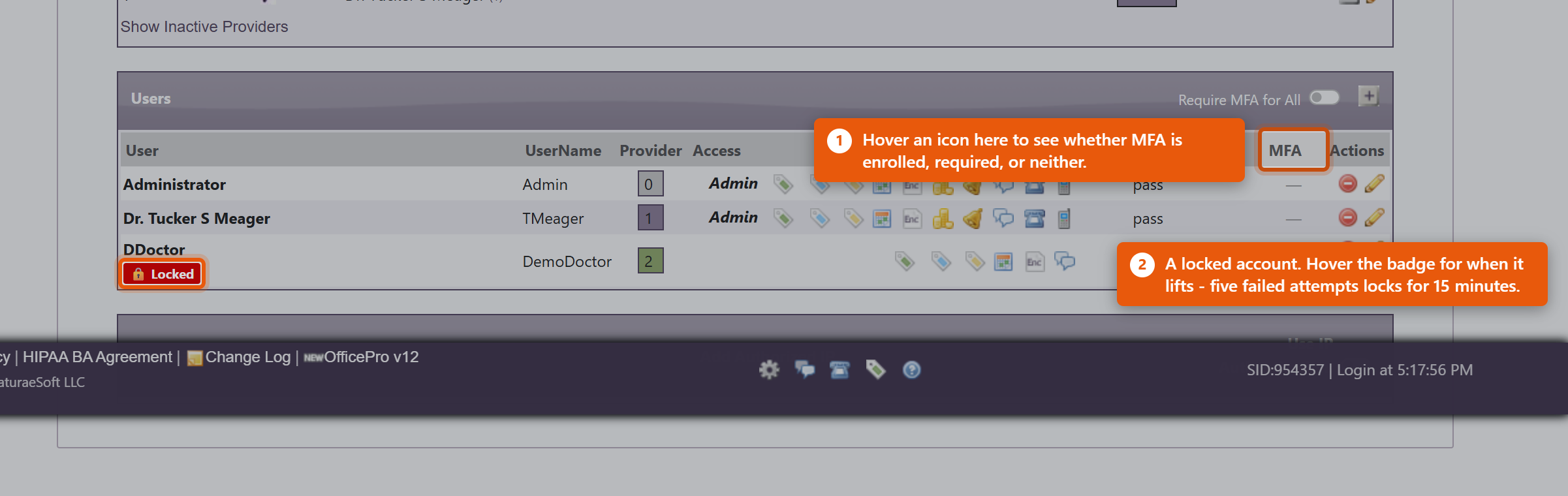 If the whole practice is locked out and IP authentication is on, the practice address has most likely changed - after a power cut or a router restart. Nobody inside can correct it, because the Admin page sits behind the same check. Contact NaturaeSoft support. A note on shared logins. If the answer keeps being that several people use one account, fix that instead. Each person needs their own login: shared accounts make the audit trail meaningless, and one person changing the password locks out everyone else. |
|
|||||||||||||
| 66 |
Sales Tax on an Order Looks WrongSales Tax on an Order Looks WrongProblem A line was taxed at a rate nobody expected - too much, too little, or nothing at all - or two similar orders came out taxed differently. Background The rate on a line is not read live from your settings. When the line is created, OfficePro works out the rate from the order's tax group and the product's class, and saves that figure onto the line. The line keeps it from then on. That is deliberate - it is what stops a rate change from silently rewriting last quarter's takings - but it means an old line can legitimately carry a rate that no longer matches your current settings. Two orders taxed differently is often two orders raised either side of a change, not a fault. Resolution Work from the line outwards.
If the Group Rate column disagrees with what was chargedThe Group Rate shown against a group is a stored summary, refreshed only when somebody opens that group and saves it. Charges are always calculated from the jurisdictions in the group, so if the two disagree, the charge is right and the summary is stale. Open the group and save it to bring the display back in line. Correcting a line that really is wrongFix the configuration first, or the next order repeats the error. Existing lines keep their stored rate, so any already-wrong line has to be corrected on the encounter itself. If the period is closed or the return is filed, talk to your accountant before altering it - the fix for a filed period is usually an adjustment, not an edit. |
|
|||||||||||||
| 69 |
A Gift Card Will Not RedeemA Gift Card Will Not RedeemProblem A card is refused at the point of redemption, shows a balance the customer disputes, or reads as zero when it should hold value. Background A card carries three things that can each stop a redemption: its Status, its Balance, and whether the sale that funded it was ever actually paid. Selling a card adds it to a visit as a charge - if that visit was never settled, the card exists but was never paid for. Resolution
Refunding or cancelling a cardUse Cancel / Refund Gift Card and then Cancel Card. Cancelling stops the card being spent; refunding returns the money to the purchaser. Record why in the Note - a cancelled card with no explanation is impossible to account for later. Cancel a card that was sold in error, or one reported lost after you have confirmed who bought it. Because anyone holding the UID can spend the balance, a card reported lost should be cancelled promptly rather than watched. The balance looks wrong in the accounts, not on the cardIf the card itself is right but your figures look wrong, this is usually not a fault. Gift card revenue is recorded when the card is sold, not when it is spent - so a day of heavy redemption shows activity without matching takings, because that money came in when the cards were bought. See Selling and Redeeming Gift Cards. |
|
|||||||||||||
| 71 |
A Report Is Missing or Will Not OpenA Report Is Missing or Will Not OpenProblem A report you used to run is not in the list, a saved link no longer works, or opening one returns a message instead of figures. Background The reports section was rebuilt in August 2026. A registry now decides which reports exist and who may see each one, and roughly 250 old pages were retired down to a registered set. A report can therefore be absent for four quite different reasons, and OfficePro tells you which - read the message rather than the fact that it failed, because the fix is different each time. Resolution "That report does not exist. It may have been renamed or retired." The report is gone, and this is almost always an old bookmark or a link in a document. Most retired reports were duplicates of one that survived, so look for the current equivalent in the list on the left and bookmark that instead. Search the Find a report... box for a word from the old title - the replacement is often named slightly differently. "Your account does not have access to this report." The report exists and your user account is not permitted to open it. Most financial reports need financial access; the Data Error Review needs administrator access. An administrator can grant it from Edit User on the Admin page. Note that an access box left blank counts as not granted, so a newer account can reach the reports list and still see very little in it. "This report belongs to a module this practice does not currently license." The report is part of a module the practice does not subscribe to - the product and refill reports need ProductPro, the Billing Report needs BillPro. No permission change will open it; the practice would need to add the module. Contact NaturaeSoft if you think you already have it. "This report is not included in your plan." The report exists and is licensed but sits outside your current plan. Again, not a permission - contact NaturaeSoft to discuss the plan. The report opens but is emptyCheck the period before anything else. Most reports open on the current month, so early in the month they can be legitimately near-empty. Widen it to last month or this year and see whether the figures appear. If a report has no period bar, it is a point-in-time report - Patients with a Balance Due, Subscription Health and the duplicate-finding reports describe how things stand now. Empty means there is genuinely nothing to show, which is usually good news. A provider cannot see other providersThat is intended. A provider is restricted to their own figures; selecting a different provider requires financial or administrator access. Two people see different report listsAlso intended. A group only appears when the account has access to something within it, so the list reflects permissions. Compare the two accounts under Edit User. The numbers look wrong rather than missingFollow the figure to its source rather than comparing totals between reports. Click through from the Practice Dashboard, step down through the Master Reports from Summary to Detailed, or open Sales Tax - Line Detail from the Sales Tax report to see every line behind the total. Two reports disagreeing usually means they are counting different things over different periods, and the drill-down is what shows you which. |
|
|||||||||||||
| 73 |
A Payment Is Not Allocated CorrectlyA Payment Is Not Allocated CorrectlyProblem A patient who has paid still shows a balance, a payment shows as over allocated, or a credit has disappeared. Background Taking a payment and applying it to a visit are separate steps. Money can be correctly recorded and still not attached to anything, in which case the patient looks like they owe it. Most allocation problems are this, not a lost payment. Resolution
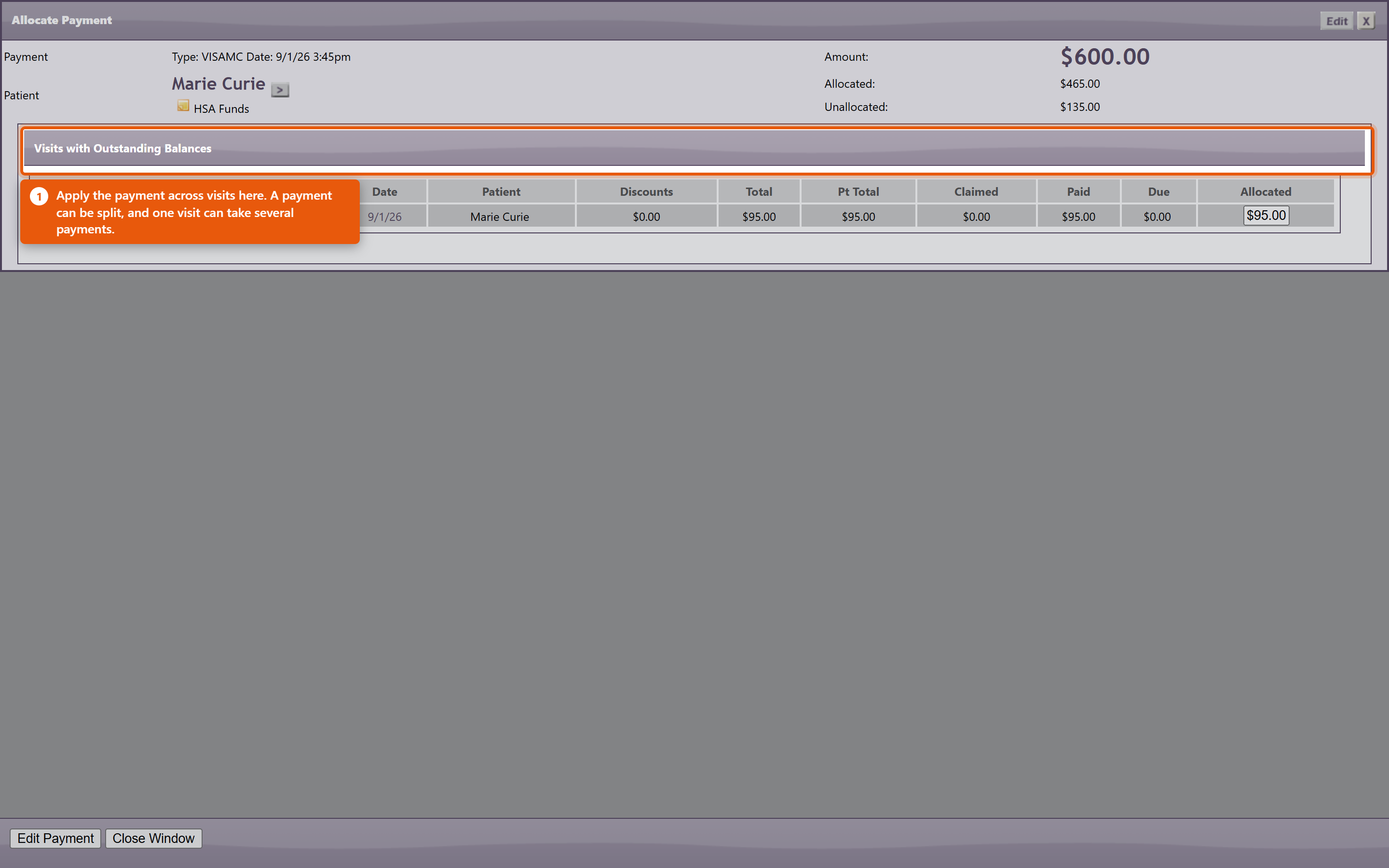 The patient says they paid and there is no record at allSearch the patient's payments before assuming it was missed - a payment entered against the wrong patient or the wrong visit is far more common than one that was never entered. Check the same day's takings for an amount that matches. If it was taken by card, the approval or auth number on the terminal receipt is what ties it to the entry, which is why recording it at the time matters. Preventing most of this
|
|
|||||||||||||
| 80 |
A Bulk Message Has Not Gone OutA Bulk Message Has Not Gone OutProblem A campaign was sent and nothing has arrived, progress is stuck at zero, or it reached far fewer people than expected. Background Campaigns are queued rather than sent as you press the button, and a background process drains that queue only during the practice's send window. So a campaign that has not gone out is usually waiting rather than broken - and the screen looks identical either way. Resolution
It went to the wrong peopleNothing can be recalled once sent. Work out which tag produced the audience before sending anything else, or the correction repeats the mistake. Then fix the tagging rather than remembering to work around it next time. A patient asks to stop receiving theseAct on it immediately and remove them from the tags that put them in marketing audiences. This is a legal obligation in most places, not a courtesy, and the software will send exactly what it is told to. Nothing sends at all, for any campaignCheck that bulk sending is enabled for the practice at all, and that the window is not set to a range that never occurs. A window with a start later than its end is the usual culprit. |
|
|||||||||||||
| 10 |
Problems connecting to OfficePro, browser keeps spinning...Problems connecting to OfficePro, browser keeps spinning...You are not able to connect with OfficePro.NaturaeSoft.com or Secure.NaturaeSoft.com.BackgroundThere are many reasons why you may not be able to connect to NaturaeSoft services. It could be the browser, the computer, the firewall, the router, the ISP, or NaturaeSofts, firewall or servers. In order to better address the issue trouble shooting needs to be done to determine the underlying cause of the error. SolutionWhen the servers go down the NaturaeSoft support team is allerted to this through a monitoring service and our teams goes swiftly to work to identify and treat the issue to get your services back running as fast as possible. In most circumstances issues with connectivity to the service are local and do not have to do with NaturaeSoft server / service performance. In most cases of the issue being server related NaturaeSoft's team of engineers can get the the services back up within 15-30 minutes. Most of the time that a NaturaeSoft service does go down it still may be available through an alternative domain. You can access the NaturaeSoft service through either : or In order to troubleshoot the issues with connecting to our servers please follow the path outlined below:
In the event that you cannot connect to the service please try the following things in order:
If the page has an error on it then...
If the page has no error on it, but is just spinning or says cant connect then... (
If you still cannot connect then....
If you can reach another site but still cannot connect to either URL then....
If support confirms our services are down, then...
If NaturaeSoft Servers are up and their status looks good Then (
)
If you still cannot connect
If you still cannot connect
|
|
|||||||||||||
| 21 |
File Uploading LimitationsFile Uploading LimitationsThe OfficePro service allows for the upload of files but there are limitations about the upload service, that you will need to keep in mind. The NaturaeSoft service has 2 limitations. First, we limit all files to 10MB or less, also we only allow 10 minutes per upload of each file this means that you will need to have a certain speed of the internet to achieve the upload of your files upload time depends on two things:
Once you have this info, use the table below to approximate your upload time.
|
|
|||||||||||||
| 36 |
Merging Patient'sMerging Patient'sAccessing the Merge Function:
Selecting the Duplicate Patient:
Reviewing the Merge Preview:
Finding Duplicates in Reports:
Important Note:
|
|
|||||||||||||
| 46 |
Troubleshooting Connectivity Issues with NaturaeSoft ServicesTroubleshooting Connectivity Issues with NaturaeSoft ServicesProblem: You are unable to connect with OfficePro.NaturaeSoft.com or Secure.NaturaeSoft.com. BackgroundThere are several potential reasons for connectivity issues with NaturaeSoft services, including problems with your browser, computer, firewall, router, ISP, or NaturaeSoft’s servers. To effectively address the issue, we need to conduct a systematic troubleshooting process to identify the underlying cause. SolutionWhen our servers experience downtime, the NaturaeSoft support team is alerted through a monitoring service. Our engineers work swiftly to identify and resolve the issue, usually restoring services within 15-30 minutes. Most connectivity issues are often local rather than server-related. Steps to Troubleshoot Connectivity IssuesRefresh the Page:
If the Page Displays an Error:
If the Page is Just Spinning or Indicates It Cannot Connect:
If You Still Cannot Connect:
Check NaturaeSoft Server Status:
If NaturaeSoft Servers Are Up:
If You Still Cannot Connect:
If You Still Cannot Connect:
ConclusionBy following these steps, you can systematically troubleshoot connectivity issues with NaturaeSoft services. If problems persist, please reach out to our support team for further assistance. Thank you for your patience and understanding. |
|
|||||||||||||
| 96 |
Setting Up Online SchedulingSetting Up Online SchedulingOnline scheduling lets patients book themselves in from your website. It takes two settings that people routinely mistake for one, so do both before you tell anyone the feature is live. The two switchesOnline Scheduling Enabled on the ApptPro Admin page turns the feature on for the practice. That alone books nothing. Each appointment type then has its own Offer Online toggle. Only types you switch on there can be booked, and until at least one is on, the booking page loads and offers a patient nothing at all. This is the most common way online scheduling appears broken, and it is silent - there is no warning that the practice switch is on with nothing behind it. Turn on the types in the same sitting as the practice switch. Choosing what to offerThe visit type list shows each type with its Duration: and Estimated Price:, which is what a patient is committing to. Check both read sensibly before offering a type - a wrong duration books the wrong amount of your day, every time. Give every offered type an online description. It is the only explanation a patient gets of what they are booking, and a type offered without one is a slot with no context. Start with two or three straightforward types. New patient appointments, anything needing triage, and anything expensive are better booked by a person, at least at first. Portal featuresUnder Portal Features you choose what else patients can do - Ask the Doctor, Documents, History, Products, Providers, Uploads. Each is independent of scheduling. Turn on only what you will actually service. Ask the Doctor in particular creates messages somebody has to answer, and an unanswered patient message is worse than a feature you never offered. Terms and disclaimerPortal Disclaimer and Terms and Portal Terms and Conditions for Patients are what patients agree to. Write them before you go live, and have whoever advises you on such things read them - this is the one part of the setup that is not easily undone after patients have accepted it. AppearancePortal Style carries Main Colors and an Accent, a Header Font and Content Font, a Header Image and the Dimensions it embeds at. Match your website closely enough that a patient does not think they have been sent somewhere else. Before you publish the link
Use Save your portal settings as you go. |
 |
|||||||||||||
| 99 |
Questions About Online SchedulingQuestions About Online SchedulingWe turned scheduling on and patients still cannot book. Why?Because there are two switches. Online Scheduling Enabled turns it on for the practice; each appointment type also needs Offer Online. With no type switched on, the page loads and offers nothing. Can we offer some appointment types and not others?Yes, and you should. Offer the straightforward ones and keep new patients, triage and anything expensive with a person. Can a patient book with a specific practitioner?Yes - send a Provider Link. A General Link lets them choose. Can we send a link that books one exact appointment type?Yes, that is what Visit Type Links are for, and they are the most useful kind - the patient cannot pick the wrong thing. Do we need a web developer?Not for a link - Copy link works in an email or a text. For a button on your website, Copy the button code gives your web person the HTML. Can the booking page live on our own site?Yes. Embed the Portal with the Portal Include Code keeps patients on your domain. Check it on a phone. What else can patients do in the portal?Whatever you switch on under Portal Features - Ask the Doctor, Documents, History, Products, Providers, Uploads. Each is independent of scheduling. Should we turn on Ask the Doctor?Only if somebody owns answering it. It generates real patient messages, and an unanswered one is worse than not offering it. Why does a patient see no available times?The type is offered but nothing fits - no open hours, a full schedule, or an appointment duration longer than any gap you have. Can we control what a patient sees about an appointment?Yes. Each type carries an online description, plus its Duration: and Estimated Price:. Fill the description in - without it, patients are guessing. Can we make the portal match our website?Yes - Portal Style covers Main Colors, an Accent, Header Font and Content Font, a Header Image and the embed Dimensions. Do patients have to accept terms?They see your Portal Disclaimer and Terms and Portal Terms and Conditions for Patients. Write these before going live. How do we test it without a real patient?Book one yourself from a phone, check it lands on the right schedule at the right length, then cancel it. |
|
|||||||||||||
| 97 |
Sharing Your Scheduling Links and ButtonsSharing Your Scheduling Links and ButtonsOnce online scheduling is on, patients reach it through a link you publish. Embed Links and Buttons generates those for you - the point being that you can send a patient somewhere more specific than your front page. Three kinds of link
All Visit Types offers everything you have switched on. Getting the link outCopy link gives you the address for an email, a text or a social post. Copy the button code gives you HTML for a proper Schedule an appointment button on your website - hand that to whoever maintains it. Test the Button before you publish. It takes seconds and it is the difference between a link that works and one your patients quietly give up on. Build your own link is there when you want a combination the standard ones do not cover. Embedding the portalRather than sending patients away, Embed the Portal puts it inside a page on your own site using the Portal Include Code. It keeps patients on your domain, which is worth something. Check it on a phone as well as a desktop - an embed sized for a wide screen is where this usually goes wrong. Where to put them
Keeping them workingLinks point at visit types and providers. If you stop offering a type online, or a practitioner leaves, the links pointing at them stop being useful - and nothing tells you where you published them. Keep a short list of where each link went; it takes a minute now and saves an afternoon later. Re-test your main link whenever your website is rebuilt. |
|
|||||||||||||
| 48 |
Using Telehealth in OfficeProUsing Telehealth in OfficeProOfficePro has integrated telehealth conferencing, so virtual consultations are set up from inside the platform rather than through a separate meeting tool. The link is created with the visit and sent to the patient. Setting Up a Telehealth Visit: Create a New Visit:
Choose a Telehealth Visit Type:
Automatic Patient Notifications:
Additional Tips:
|
|
|||||||||||||
| 98 |
Patients Cannot Book OnlinePatients Cannot Book OnlineWork these in order. The first one accounts for most reports and looks identical to a broken feature. 1. No visit type is offered onlineOnline Scheduling Enabled turns the feature on for the practice. It does not make any appointment bookable - each type needs its own Offer Online toggle. With the practice switch on and no type switched on, the booking page loads and offers nothing. This is genuinely common: of the practices with online scheduling switched on and appointment types set up, a substantial minority have no type offered online at all - including one with more than thirty active types and none of them bookable. Open the visit type list and confirm at least one shows Offer Online switched on. 2. No appointments are availableThe types are offered but nothing is bookable. Patients see an empty calendar, which reads as broken.
3. The link is wrong or out of dateUse Test the Button and Test your Portal URL. A link published before a website rebuild, or pointing at a visit type you no longer offer online, fails in a way patients never report - they just stop. 4. It works for you and not for themTest as a patient would: a phone, on mobile data rather than your clinic wifi, in a private window. Most "it does not work" reports are an embed that has not been checked on a small screen. The wrong appointments are being bookedUsually the offered types rather than the booking system:
Narrow what you offer rather than accepting bookings you have to move. A patient booked with the wrong providerA General Link lets them choose. If you want them with a particular practitioner, send a Provider Link instead - and check which link is on the page they actually used. Portal messages are going unansweredAsk the Doctor creates messages somebody has to answer. If nobody owns that, switch the feature off rather than leaving patients writing into silence - an unanswered message damages more than a missing feature. The portal looks wrong on our siteCheck the Dimensions under Portal Style, and check it on a phone. Colours and fonts are there too, so it can be made to match your site rather than sitting awkwardly inside it. What to have ready for supportThe exact link the patient used, what they saw, the device and browser, and whether any visit type shows Offer Online switched on. That last one resolves it more often than anything else. |
|
|||||||||||||
| 51 |
Granting Microphone & Speaker Access in Your ApptPro Telehealth SessionGranting Microphone & Speaker Access in Your ApptPro Telehealth SessionWelcome to ApptPro, the secure and easy-to-use telehealth platform built into your NaturaeSoft OfficePro system. If you’re joining an online session and your microphone or speakers aren’t working, it’s often due to permission settings in your browser. Follow the steps below to make sure your provider can see and hear you clearly. Why Permissions MatterApptPro uses Whereby to power your video calls. When you enter a meeting room for the first time, your browser will ask for access to your microphone and speakers. If access is not granted, you may not be heard or hear others during the session. ✅ How to Allow Mic & Speaker Access by BrowserGoogle Chrome
Mozilla Firefox
Microsoft Edge
Safari (Mac Only)
Changing Devices Mid-CallIf you need to switch to a different mic or speaker during a session:
Tips if You Still Have Issues
Still Not Working?If you've followed the steps above and still can’t connect your mic or hear sound, please contact NaturaeSoft Support at support@naturaesoft.com or through your OfficePro support chat. |
|
|||||||||||||
| 88 |
Setting Up Electronic Claims and ERAsSetting Up Electronic Claims and ERAsBillPro submits your claims electronically and brings the payers' remittances back in. Both halves are enrolments handled through a clearinghouse, and neither happens the day you ask for it - so start earlier than feels necessary. How it fits togetherOfficePro builds the claim, the clearinghouse delivers it to the payer, and the payer sends back an electronic remittance advice - an ERA - saying what it paid and what it did not. The BillPro Account Center describes this as BillPro - Electronic Claims Submission, Powered by ClaimMD. Enrol each tax IDEnrolment is per business entity, not per practice. BillPro Enrolled Businesses : lists your Enrolled Entities with an Account #, Group and TaxID. If you bill under more than one tax ID - a second location, a separate professional corporation - each needs its own enrolment. Claims for an unenrolled tax ID have nowhere to go. Enrol for ERAs separatelyThis is the step people miss. Being able to send claims does not mean you will receive remittances. ERA enrolment is a separate agreement with each payer, and the big payers are the slow ones - allow weeks, not days. Until a payer's ERA enrolment completes, its payments arrive as paper cheques and have to be posted by hand. That is workable, but it is not what you are paying for, so track which payers are done. Enrolment forms are generated from OfficePro - the Claim Enrollment Link under Connecting to ClaimMD produces the link to complete. Check your billing details before the first claimThese appear on every claim and a mistake in them rejects everything at once rather than one claim at a time:
Send one real claim to one payer and follow it all the way to an ERA before you switch the practice over. A test of the whole path is worth more than checking each setting twice. Where you will work day to dayThe BillPro Billing Center is the hub. From there:
|
 |
|||||||||||||
| 91 |
Questions About Claims and ERAsQuestions About Claims and ERAsDoes Accepted mean we have been paid?No. It means the payer took the claim in for processing. Payment is a separate event, and an accepted claim can still be denied. Claim Balance is what tells you where the money stands. What does Processing cover?Everything that is neither accepted nor rejected - including claims that have never been sent. If something has been in Processing for weeks, check first that it was actually submitted. Why does a claim disappear from the aged views?Those views only list claims with a balance outstanding, so a claim paid in full drops out. Clear the age filter or search for it directly. Is the claim age counted from the visit?No, from the date the claim was submitted. A claim sent late looks young even when the date of service is months old. What is the difference between enrolling for claims and enrolling for ERAs?Sending claims and receiving remittances are separate agreements, and ERA enrolment is per payer. You can be submitting successfully for months and still get paper cheques from a payer whose ERA enrolment has not completed. Do we need to enrol each tax ID separately?Yes. Enrolment is per business entity - each appears under Enrolled Entities with its own Account # and TaxID. Claims for an unenrolled tax ID have nowhere to go. How often should we check for ERAs?Pick a regular day. Remittances wait until you fetch them, and unposted ERAs make every patient balance wrong in the meantime. What if the ERA total does not match the deposit?Stop and look before posting. Usually a second remittance belongs to the same cheque. The Check Number on each ERA is what ties them together. Can we post an ERA twice by accident?Processed remittances move to PROCESSED ERAs with a Processed On date, so you can see what has been done. ReProcess exists for fixing a posting that went wrong - it is not part of the routine. The insurer paid less than we billed. Is that a rejection?Usually not. Contractual adjustments are the difference between your fee and the contracted rate, and they show under Adjustments / Discounts. What remains after the payment and the adjustment is the patient's or the secondary insurer's. How do we bill the secondary insurer?Create SECONDARY Claim Document on the claim. It carries the primary's payment and adjustments across, which is what the secondary payer needs. A patient's details were wrong. Do we fix the claim or the patient?The patient. Then Re-Create Claim Document so the claim is rebuilt from the corrected record. Fixing only the claim leaves the next one to reject the same way. Every claim to one payer is rejecting. What now?Treat it as one problem, not many. A whole payer rejecting points at enrolment or the payer ID rather than the individual claims. What are Manual Cases?Claims built by hand rather than generated from a visit, listed under Manual Cases with Show Complete and Show Incomplete. Where do we see what the clearinghouse said about a submission?BillPro Processing Reports in the billing centre - that is the clearinghouse's response to your batches, as distinct from the payer's response to a claim. |
|
|||||||||||||
| 89 |
Receiving and Posting ERAsReceiving and Posting ERAsAn ERA is the payer's explanation of a payment: which claims it covers, what was allowed, what was adjusted and what is left. Posting it applies all of that to the right claims at once, which is the whole point of billing electronically. Bringing them inFrom the BillPro Billing Center, Check ERAs fetches whatever the clearinghouse is holding. The count beside it tells you how many are waiting, so an unchanging number means nothing new has arrived - not that something is broken. Do this on a regular day of the week. ERAs sit until you fetch them, and a fortnight of unposted remittances makes every patient balance you look at wrong. Reading the listNew arrivals appear under ERAs Received, each showing:
Reconcile the Amount against the actual deposit before you post. A remittance total that does not match the money received is the one thing worth stopping for - it usually means a second ERA belongs to the same cheque. PostingProcess applies one remittance: payments and adjustments land on the claims it names, and the claim balances move accordingly. Once posted it moves to PROCESSED ERAs with a Processed On date. Process ERAs does the same for the batch, which is what you will normally use. ReProcess runs a remittance that has already been processed again. Reach for it when a posting went wrong, not as a matter of routine. Checking the resultOpen a claim from the remittance and look at Claim Detail:
Claim Balance is the number that matters. It is calculated from the claim's services and payments, and it is what the aged views work from. What is left after the insurer paysA balance remaining after an ERA is posted is usually the patient's - a deductible, co-insurance, or a non-covered service. It is not automatically a problem with the claim. If the balance belongs to a secondary insurer instead, use Create SECONDARY Claim Document on the claim. That produces a Secondary Claim Document carrying the primary's payment and adjustments, which is what a secondary payer needs to see. Payments that did not come as an ERAPaper cheques, and payers whose ERA enrolment has not completed, are posted with Process Payer Payment from the billing centre. The result is the same; you are keying what the ERA would have told us. |
|
|||||||||||||
| 35 |
Encounter Billing Tab OverviewEncounter Billing Tab OverviewHere's a concise summary of the Encounter Billing tab process for creating an insurance claim using the OfficePro Suite: Accessing the Billing Tab:
Billing Case Details:
Creating a Claim:
Viewing the Claim:
Additional Resources:
|
|
|||||||||||||
| 44 |
How to Edit and Resubmit an Insurance ClaimHow to Edit and Resubmit an Insurance ClaimEditing and resubmitting an insurance claim is a straightforward process in OfficePro. Follow these steps to ensure your claim is accurate and submitted successfully. Step 1: Locate the ClaimYou can find the claim in OfficePro using one of the following methods: By Patient:
By Visit:
Using BillPro:
Step 2: Open the Claim Details
Step 3: Edit Claim InformationClick on either the ID or CPT field to open the Edit Service window. Navigate to the Billing Details tab. Make Necessary Edits:
After making your changes, click Save Encounter Service. Step 4: Re-create and Resubmit the Claim
ConclusionBy following these steps, you can efficiently edit and resubmit an insurance claim in OfficePro, ensuring that your claims are accurate and compliant with the requirements of the insurance companies. If you have any questions or encounter any issues during this process, feel free to reach out for further assistance! |
|
|||||||||||||
| 90 |
A Claim Is Rejected or Stuck in ProcessingA Claim Is Rejected or Stuck in ProcessingStart on the claims list and set the status filter, which has three values: Processing, Rejected and Accepted. Every claim is in exactly one of them, so between the three you are seeing your whole book. What the three actually mean
A claim was rejectedOpen it. The rejection text is recorded on the claim, and it is specific - a payer will name the field it did not like. Read it before changing anything, because most rejections are one wrong value rather than a broken claim. The usual causes, roughly in order:
Correct the underlying record rather than the claim where you can - a wrong member ID will reject the next claim too. Then use Re-Create Claim Document so the claim is rebuilt from the corrected data, and send it again. If every claim to one payer rejects the same way, stop fixing them one at a time. That is an enrolment or a payer ID problem, and it will keep happening. A claim has been Processing for weeksFirst check whether it was actually sent. A claim that was created and never submitted sits in Processing indefinitely and no one is waiting on it but you. Then use the age filter. Current is the first 30 days since submission; the older buckets are where genuine problems live. Anything past 30 days with a balance deserves a call to the payer - quote the claim and, if you have one, the ERA ID. Note the age is counted from the date the claim was sent, not the date of service. A claim submitted late looks young here even when the visit is months old. I cannot find a claim in any aged viewThe aged views only show claims with a balance outstanding. A claim paid in full drops out of all of them - so a claim that seems to have vanished has usually been settled. Clear the age filter, or search for it directly, before concluding anything is missing. The claims list is emptyNo records found nearly always means the filters, not the data. Status, age range and date range all apply at once, and Current plus a narrow date range excludes most of a practice's claims. Use Clear and start again with one filter. The insurer paid but the claim still shows a balance
Judge the claim by Claim Balance on the claim itself. It is calculated from the services and the payments actually recorded, and it is what the aged views use. Nothing arrives when I check for ERAsAlmost always ERA enrolment for that payer has not completed. Sending claims and receiving remittances are separate enrolments, and payers can take weeks over the second one. Until it is live, that payer's payments arrive on paper and are posted with Process Payer Payment. What to have ready before contacting supportThe claim, the payer, the date of service, the rejection text as written, and the ERA ID if a remittance is involved. The rejection text is the part that shortens the conversation most - a paraphrase usually loses the field name that identifies the cause. |
|
|||||||||||||
| 7 |
Configuring your ChartPro ServiceConfiguring your ChartPro ServiceChartPro is set up once and then largely left alone. The work is deciding what your chart notes should contain and in what order, which is done from ChartPro Administration. How a note is put togetherThree things stack up:
The Sections panel shows the five tabs with their segments beneath. Each segment has a short code and a number setting its position, and an Edit to open it. Add a Segment to this section adds a new one. 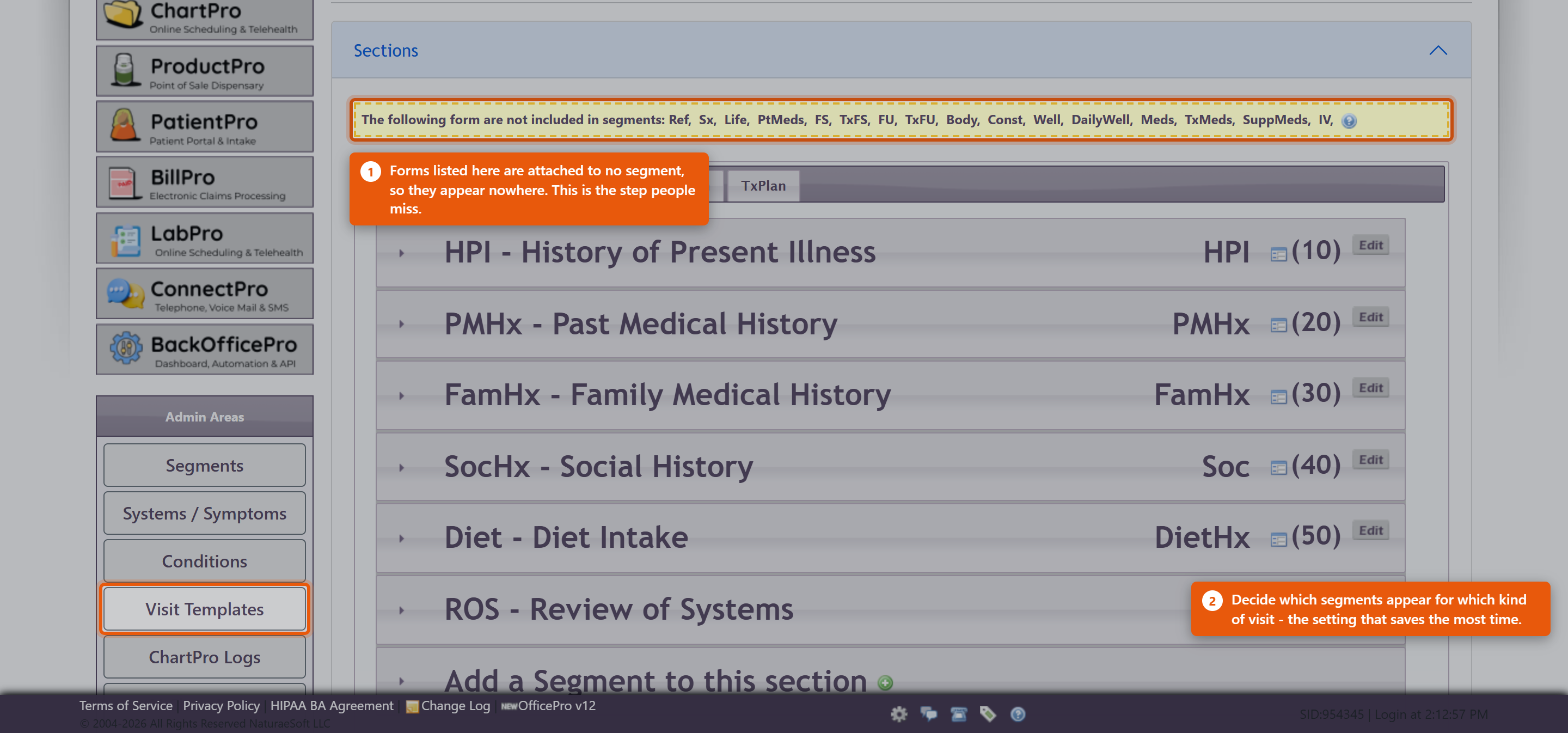 Setting up a segmentEdit Segment Details holds the name and description. Two settings matter more than they look:
Add to Templates puts the segment into your visit templates. The other admin areas
Getting startedDo not redesign everything before seeing patients. The supplied sections and segments are a working note for most practices.
A note designed in the abstract is almost always longer than the one you end up wanting. Practices giving IV therapyThe IV form is attached in exactly this way, and it is a common reason the IV panel appears to be missing. Enabling IV therapy in ProductPro settings is only the first step - the form still has to be attached to a segment here. See Setting Up IV Therapy Products. |
 |
|||||||||||||
| 100 |
Introducing ChartPro AI to Your PracticeIntroducing ChartPro AI to Your PracticeChartPro AI listens to a consultation and drafts the chart note from it. The provider then reads the draft and decides whether it goes into the record. There is nothing to install and no switch to turn on - it is available to every ChartPro practice, and it is marked BETA on screen. What there is to do is decide how your practice will use it, before a provider uses it in front of a patient. Decide about consent firstThis records a conversation with a patient. What you must tell them, and whether you need their agreement, depends on where you practise and is not something this article can answer for you. Settle it with whoever advises you on such matters, write down what your providers should say, and do that before the first recording - not after a patient asks what the phone on the desk is doing. The draft is a draftThe note is generated from a transcript of a spoken conversation. It can mishear, and it can be confidently wrong about a number or a name. The provider signing the note owns everything in it, exactly as if they had typed it. Make that explicit when you introduce it. The failure worth guarding against is not a bad draft - it is a good-looking draft accepted without being read. Start with a few willing providersIt suits some consultations far better than others. A structured follow-up transcribes well; a long, discursive intake with three people in the room is harder. Let a couple of providers try it on their own patients for a fortnight and report back before you roll it out. Watch the usage counterThe Auto Chart button shows each provider's use for the current calendar month against 40 - as a badge on the button and a bar on the recorder. It turns amber as it approaches and changes again past it. Going over does not stop anything. The counter is an indicator, not a gate: dictation keeps working. It is there so a provider can see their own pace, and so you can see who has actually adopted it. Review what it is writingReview past ChartPro AI encounters opens ChartPro AI - Encounter Review, which lists every encounter with its Date, Encounter # and Note Quality, and shows both the Transcript and the ChartPro AI Note side by side. Look through it a few times in the first month. Reading a transcript against the note it produced is the fastest way to calibrate how much your providers should trust it, and it is the only place you can see that. Ask your providers to rate notesEvery note can be rated, and almost none are - across all practices using it, a handful of ratings against hundreds of encounters. A rating on a note that came out wrong is worth far more than one on a note that came out fine, so ask specifically for those. |
|
|||||||||||||
| 37 |
Managing ChartPro Note SegmentsManaging ChartPro Note SegmentsAccess the ChartPro Admin Page:
View Existing Segments:
Add a New Segment:
Configure the New Segment: When adding a segment, you will need to fill in the following fields:
Save Changes:
Adjusting Segment Order
ConclusionThis process allows you to customize the charting experience in OfficePro by managing segments within the ChartPro admin page. Tailoring the segments to fit your practice's specific needs can enhance the efficiency and effectiveness of your documentation. |
|
|||||||||||||
| 103 |
Questions About ChartPro AIQuestions About ChartPro AIWhat does it actually do?It records the consultation, transcribes it, and drafts a chart note from the transcript. You read the draft and decide whether to keep it. Do we have to turn it on?No. It is there for every ChartPro practice, marked BETA, and there is no per-practice switch. What you do need is a decision about how your providers will use it. Is the note automatically added to the chart?No. Nothing is written until you accept the draft in AI Note Preview. Cancel discards it. Who is responsible for what it writes?The provider who accepts and signs it, exactly as with a typed note. Read the draft before accepting it - a draft that reads well is not the same as a draft that is right. Do we need to tell patients?You are recording a conversation with them, so treat that as you would any recording. What is required varies by where you practise - settle it with whoever advises you, and agree the words your providers will use before the first recording. What is the 40 on the button?Your notes for the current calendar month, per provider, shown against 40. The bar changes as you approach and pass it. What happens if we go over?Nothing stops. It is an indicator, not a cap - dictation keeps working and the count resets next month. Can we see what it wrote before?Yes. Review past ChartPro AI encounters opens ChartPro AI - Encounter Review, which lists them by Date and Encounter # and shows the Transcript beside the ChartPro AI Note. How do we tell whether it misheard or invented something?Read the transcript next to the note. If the transcript is wrong it is a recording problem; if the transcript is right and the note is not, report it. How do we get better results?Microphone nearer the patient, numbers and doses said clearly and in full, medicine names not abbreviated, the plan stated aloud at the end, and less background noise. Does rating a note do anything?Yes, and hardly anyone does it - a handful of ratings against hundreds of encounters. Rate the notes that came out badly and say why in the Comments; those are the ones worth reporting. Can we re-record?Yes - Go back and re-record from the preview, before you accept anything. It says no note was generated. Is it broken?Usually the audio had nothing usable in it. Check the transcript on the review screen first - that separates a microphone problem from an AI one. Which appointments suit it?Structured consultations transcribe well. A long discursive intake with several people in the room is harder. Try it on your own patients for a fortnight before deciding. |
|
|||||||||||||
| 20 |
Why can't I sign my chart note? The Sign and Document button is disabled.Why can't I sign my chart note? The Sign and Document button is disabled.Problem I am unable to sign my charts because the Sign and Document Chart Note button is disabled. Background Only when you are signed in to the Service as the Provider on record for the visit can you sign the chart. This means that you will not be able to sign the chart if:
Resolution
Further Assistance If you need more help with this issue please create a ticket contact support through live chat or by emailing Support@NaturaeSoft.com. |
|
|||||||||||||
| 6 |
Creating a Treatment PlanCreating a Treatment PlanA treatment plan is the document the patient takes away - what to do, what to take, and how. It is built from the encounter, and it prints as a clean patient-facing page rather than as a copy of your clinical note. Open the planOpen the plan from the encounter you are working in. It opens showing the document as the patient will receive it, with the patient's name, the date, you as provider, and a DRAFT watermark across it until it is finished. The list on the left, headed T:// TXPLAN, shows the sections the plan is made of. Which sections exist is set up once for the practice - see Configuring your ChartPro Service. 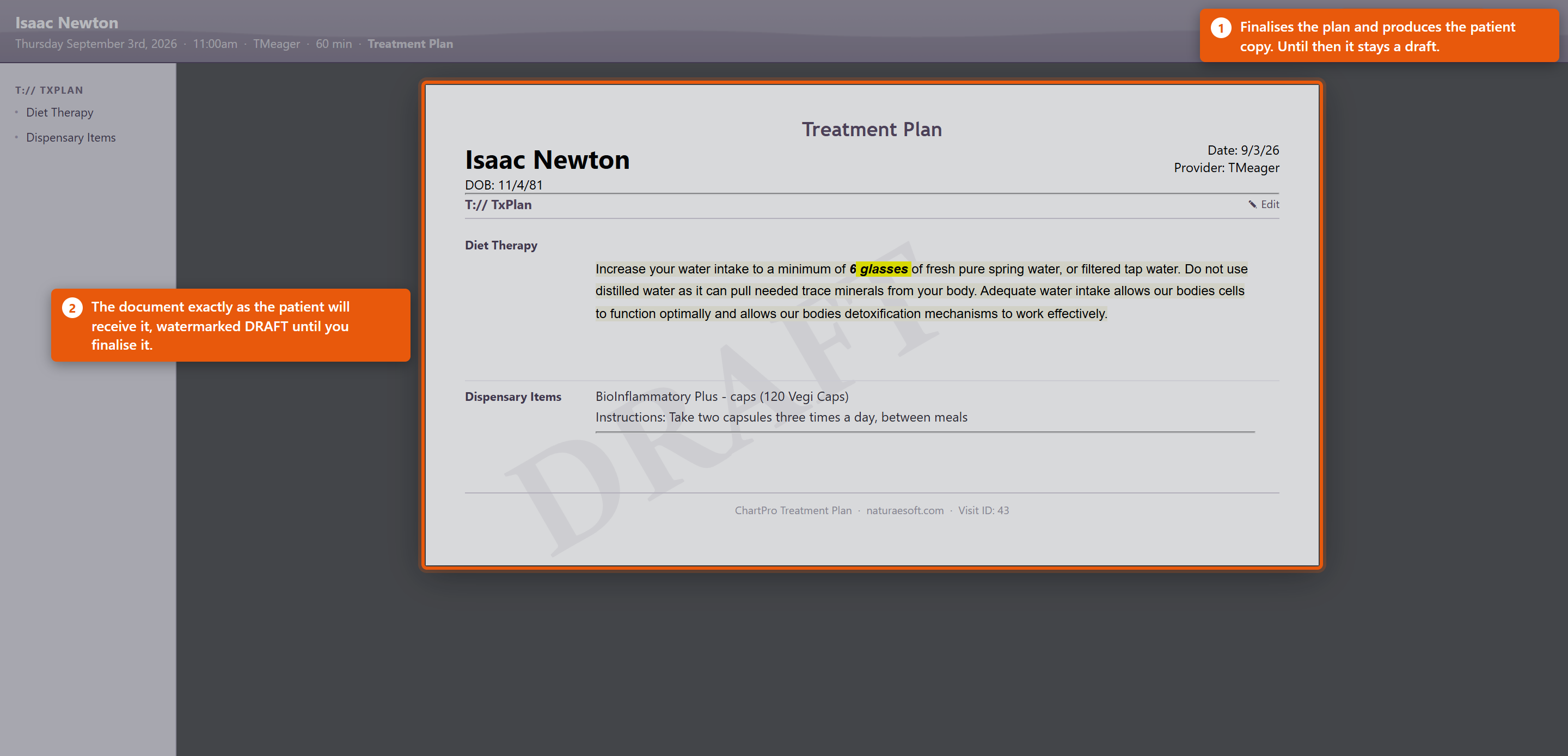 Fill it inEach section has an Edit pencil beside it. Click it, write the content, and it appears in the document straight away, so you are always looking at what the patient will see. Two kinds of section behave differently:
Finish itSave & Document finalises the plan and produces the patient copy. Close leaves it as a draft to come back to. A plan left in draft is not lost, but the patient has nothing - so finish it before the patient leaves rather than intending to come back to it. Making it useful
Dispensary items on the plan are the same products as in your catalogue, so the instructions can come from the product record rather than being typed each time. See Adding and Editing Products. |
|
|||||||||||||
| 101 |
Dictating a Note with Auto ChartDictating a Note with Auto ChartAuto Chart records a consultation, transcribes it and drafts the chart note. You read the draft and decide whether it goes in. Before you startOpen the note on the right visit - the AI is given that visit's Patient, Provider, Visit Type and Date of Service, and it uses them. Starting from the wrong visit produces a plausible note about the wrong context. Tell the patient what you are doing, in whatever words your practice has agreed. RecordingAuto Chart opens the listener and starts recording; you will hear a tone. The panel shows your use for the month against 40. Things that make the difference between a good draft and a poor one:
Reading the draftWhen it finishes you get AI Note Preview - Review the AI-generated chart note below. Read it properly. Check the numbers against what you remember, check nothing has been attributed to the patient that they did not say, and check nothing has been invented that sounds reasonable. A draft that reads well is not the same as a draft that is right, and once you accept it, it is your note.
Edit the note afterwards exactly as you would any other. The draft is a starting point, not a finished document. Rating a noteRate This Note asks about Transcription Accuracy, AI Note Quality and an Overall score from Poor to Excellent, with Comments, then Submit Rating. It genuinely is read - Your rating helps us improve ChartPro AI. Rate the ones that came out badly and say what was wrong in the comments. Almost nobody rates anything, so a specific complaint carries real weight. Looking back at what it wroteThe review link beside the button opens ChartPro AI - Encounter Review, listing your encounters by Date and Encounter # with their Note Quality, or Not rated. Opening one shows the Transcript next to the ChartPro AI Note. If you ever want to know whether it misheard something or invented it, this is where you find out. |
|
|||||||||||||
| 2 |
Creating your first Chart NoteCreating your first Chart NoteWelcome to ChartPro where you can easily and competently document your encounters with patients with ease. To get started, click on the [C] button in the visit icons area on any visit. The [C] button allows you to access the chart note for a particular visit. To learn more about visit icons and visit workflow click here.
Establish a Patient Visit:
Access the Chart Note:
Navigate to the ChartPro EMR Interface:
The ChartPro interface will load for this visit in a popup window and will put you right into the primary segment of the chart (usually, Subjective > HPI). The charting interface is organized in a compact but robust way to help you document your visits easily, accurately, rapidly, and effectively. To make the most of your charting experience familiarize yourself with the charting environment. Let's start with a description of the interface: Adding Content:
Incorporate Preformatted Content:
Complete Other Segments:
Save Your Note:
Additional Tips:
This guide should help you get started with creating chart notes effectively in OfficePro. |
|
|||||||||||||
| 102 |
Auto Chart Did Not Produce a NoteAuto Chart Did Not Produce a NoteWork through these in order. Most cases are the microphone or the room rather than the AI. The recorder will not startThe browser has to be allowed to use the microphone, and it asks once per site. If the permission was refused - or dismissed, which counts as refused - the recorder cannot start and will not ask again on its own. Clear that in the browser's site settings and reload. On a shared machine check you are in the profile you think you are. There is a companion article on granting microphone access for telehealth sessions; the browser side of it is the same problem. It recorded, but no note came backIf the review screen shows No AI note was generated for this encounter., the audio arrived and no note came out of it. Usually the recording had nothing usable in it - a microphone pointed at the wrong side of the room, or a session ended before anything was said. Open the encounter and read the Transcript. That tells you immediately whether the problem was the audio or the note: an empty or garbled transcript is a microphone problem, and a good transcript with no note is one to report. The note came back wrong or incompleteCheck the transcript first, for the same reason. If the transcript missed what was said, no amount of retrying will fix the note - change how you record:
If the transcript was good and the note was not, that is worth reporting: rate it and say what was wrong in the Comments. That feedback is read, and very little of it comes in. An error message on the review screen
The note went onto the wrong visitThe AI is given the visit you started from, so a note started on the wrong visit produces a note about the wrong context. Check the Patient, Visit Type and Date of Service in the preview before accepting it - that is what the header is for. If one has already been saved to the wrong chart, treat it as you would any misfiled note, and deal with it straight away. We are over 40 for the monthNothing happens. The counter is per provider per calendar month and it is an indicator, not a limit - the bar changes appearance and dictation carries on working. It resets at the start of the next month. The buttons are not there at allAuto Chart appears for ChartPro practices, on the chart note screen. If it is missing, check you are on a chart note rather than another screen, and that your practice has ChartPro. What to send supportThe Encounter # from the review screen, the date, the provider, and whether the transcript looked right. The encounter number is the one thing that makes an AI problem quick to look into. |
|
|||||||||||||
| 92 |
Setting Up LabProSetting Up LabProLabPro sends lab orders out and brings results back in electronically, so they land on the patient's chart instead of arriving as faxes to be scanned. Setting it up is mostly account work with the laboratory. The parts inside OfficePro are quick; the parts outside it are not, so start with the lab. Get an account with each labEvery laboratory you send to needs its own account, and each is recorded against a provider with the account number the lab issued. If two providers order under separate accounts at the same lab, both are recorded separately. Get the account numbers right before your first order. A requisition sent under the wrong account is a result that comes back to somebody else. Set up the demographic bridgeOrders are placed in LabCorp Link rather than in OfficePro. To stop your staff typing every patient twice, OfficePro exposes a demographic bridge that LabCorp Link calls when you search for a patient by MRN or patient ID. It returns the patient's details and your insurance company list. It authenticates by IP address, so the clinic's public IP has to be registered with us. That is worth arranging before your first order rather than discovering at the counter - and worth revisiting whenever your internet connection or office moves, because a changed IP silently stops the lookup working. Specimen collection arrangements - whether patients go to a draw centre or you draw in-clinic, and the supplies and courier that go with it - are agreed with the lab directly. Check how results will come backResults arrive electronically and attach themselves to the patient. That matching depends on the demographics you send matching what the lab returns, so before you rely on it:
Plan to check for unassigned results from the start. Some results will arrive that cannot be matched to a patient automatically - a name spelt differently, a date of birth keyed wrong at the lab. They do not appear on any chart and nothing chases them. Make reviewing them somebody's weekly job before the backlog exists rather than after. Fullscript labsLabs ordered through Fullscript come back separately, under Fullscript Labs. That needs Fullscript provider setup - each ordering practitioner mapped to a provider in OfficePro - or results arrive with nobody to route them to. Where you will workThe LabPro home page carries Process Labs for results waiting to be dealt with, LabPro Lab Reports for everything received, and Stats for this Week. |
 |
|||||||||||||
| 95 |
Questions About LabProQuestions About LabProWhy is a result not on the patient's chart?Most often it arrived without matching a patient and is sitting unassigned. Look in the practice-wide reports list and use Select Patient to Assign Lab Report. Check for these regularly - nothing prompts you about them. Why do results fail to match?The demographics the lab returns did not match your record closely enough - a differently spelt surname, a middle name, a date of birth keyed wrong at the lab. Fix your record as well as assigning the report, or the next result does the same thing. What does the ALERT badge mean?The lab flagged a critical value on that report. Work those first. Which flags are shown as critical?HH, LL, CH, CL, and > or < for values off the measurable scale. Everything else, including plain H and L, is shown bold without a highlight. So an un-highlighted result is normal?No. Plain H and L are abnormal results - they are simply not critical, and they are the great majority of flagged results. Always read the flag column and the reference range rather than relying on the highlight. What is the accession number?The laboratory's own reference for the specimen. Quote it whenever you contact them. Only part of a panel came back. Is something wrong?No. Labs report tests as they complete, so a panel can arrive in pieces. The status on each line says whether it is final. Where do we place lab orders?In LabCorp Link, not in OfficePro. Collection arrangements, priority and the requisition are all handled there, in the lab's own software. Then what does OfficePro do?Two things. It gives LabCorp Link your patient's demographics when you search for them by MRN or patient ID, so nothing is retyped; and it receives the results afterwards and puts them on the chart. Why search by MRN rather than the patient's name?Because the MRN is what ties the order to the record the result lands on. A patient keyed in by hand, or found by name, is the usual reason a result comes back matching nobody. Can we receive results for labs we did not order here?Yes. Results from a hospital or an outside laboratory appear the same way, and are attached to the patient the same way. Can we see whether a value is trending?Yes. Where a patient has had the same test before, the test name links to its history. Why are Fullscript labs separate?They come from a different source and are listed under Fullscript Labs. They also need each ordering practitioner mapped to a provider, under Fullscript provider setup. A result is on the wrong patient. What do we do?Reassign it straight away and check nothing was acted on while it was misfiled. This is a clinical risk, not a filing error. |
|
|||||||||||||
| 93 |
Ordering Labs and Reading ResultsOrdering Labs and Reading ResultsLab orders are placed in LabCorp Link; results come back into OfficePro and land on the patient's chart. This covers both ends, and the join between them. Placing an orderOrders are placed in LabCorp Link, not in OfficePro. You build the order in the lab's own software, using its test menu, its priorities and its requisition. What OfficePro provides is the demographic bridge, so nothing is retyped. In LabCorp Link's patient search, look the patient up by their MRN or patient ID from OfficePro. That pulls their demographics and your insurance company list straight across. Two things follow from that, and both matter:
The bridge is read-only and authenticates by the IP address you connect from, so it works from the clinic and not from elsewhere. If the patient lookup returns nothing, see the troubleshooting article before re-keying the patient by hand. Finding resultsTwo places, for two different jobs:
The accession number is the lab's own reference. It is what to quote when you ring them. Reading a reportEach result line shows the test, the result, its units, the reference range, a flag, where it was performed and its status. Where a patient has had the same test before, the test name is a link to its history - the fastest way to see whether a value is drifting or has always been where it is. What the flags mean, exactlyAny flagged result is shown in bold. Only some are marked Critical Result, with a highlight and a warning icon:
This distinction matters clinically. Plain H and L are the overwhelming majority of flagged results - across all practices they outnumber critical flags by more than two hundred to one. A result being un-highlighted means the lab did not call it critical, not that it is normal. Read the flag column, not the colour. A report the lab has marked as carrying a critical value shows an ALERT badge in the reports list. Those are worth working first. Results that arrive without an orderResults come back for labs you did not order through OfficePro too - a hospital, a specialist, a lab the patient went to directly. They appear the same way, and they still need attaching to the right patient if the lab's details did not match yours. |
|
|||||||||||||
| 94 |
A Lab Result Has Not ArrivedA Lab Result Has Not ArrivedAlmost always the result has arrived and is not attached to the patient. Check that before ringing the lab. 1. Look for it unassignedA result is matched to a patient on the demographics the lab returns. When those do not match your record - a hyphenated surname, a middle name included, a date of birth keyed differently at the lab - the report arrives with no patient attached. It is not on anyone's chart, and nothing tells anyone it is there. This is common. Practices using LabPro are carrying thousands of unassigned reports between them, and they accumulate quietly because nothing chases them. Look for the report in the practice-wide Lab Pro Reports list rather than on the patient. If it is there, use Select Patient to Assign Lab Report - Search for the patient and choose them, and the report attaches to their chart. If the mismatch was your record rather than the lab's, correct the patient too. Otherwise their next result arrives unassigned as well. 2. Check the date range on the listLab Pro Reports is filtered by period. A result older than the selected range is not missing, it is outside the window - Clear the filter or widen Show before concluding anything. 3. Check the order was actually placedOrders live in LabCorp Link, not in OfficePro, so confirm it there - that it was submitted, and under the right account. An order left unsubmitted has no result coming and nothing in OfficePro will show that. While you are there, check it was placed against the patient you found through the MRN search rather than one keyed by hand. A hand-keyed patient is the usual reason a result comes back and matches nobody. 4. Check with the lab, with the accessionIf it is genuinely not here, the lab can say whether the specimen arrived and was resulted. Have the accession number, the patient, the date of the draw and the tests ordered. Without the accession the call takes a great deal longer. Only some of the tests came backNormal. Labs report in batches as each test completes, and a panel with a longer-running test in it arrives in parts. The status on each line tells you whether it is final. Give the slower tests their stated turnaround before chasing. A result is on the wrong patientDeal with it immediately - a result on the wrong chart is a clinical risk, not an administrative tidy-up. Reassign it to the correct patient, and check whether anything was acted on in the meantime. If two patients have similar names, expect it to happen again and fix whichever record is ambiguous. An abnormal result was not highlightedWorking as designed, and worth understanding. Only HH, LL, CH, CL, > and < are shown as Critical Result. A plain H or L, or the generic A, is shown in bold with no highlight - and those are the vast majority of abnormal results. The absence of a highlight is not clinical reassurance. Read the flag and the reference range on every line. The patient lookup in LabCorp Link returns nothingThe demographic bridge authenticates by IP address. If it has stopped finding anyone, the most likely cause is that your clinic's IP has changed - a new connection, a new router, or working from somewhere else - and it needs re-registering with support. If it finds some patients and not others, that is a data problem rather than a connection one: check the patient is active in OfficePro and that you are searching the MRN it holds. Fullscript labs are not appearingThose come in separately, under Fullscript Labs, and they need Fullscript provider setup - each ordering practitioner mapped to a provider here. A result whose practitioner does not map has nobody to route to, and one that matched no patient sits in the same place as any other unassigned result. Nothing at all is coming inOne result missing is a matching problem. Nothing arriving for a day or more is a connection problem - raise it with support rather than working through individual patients, and say when the last result you did receive came in. Worth doing weeklyReview unassigned reports on a schedule. Every one is a result nobody has seen, and the list only grows. A few minutes weekly prevents the backlog that makes this article necessary. |
|
|||||||||||||
| 81 |
Setting Up a Check-In KioskSetting Up a Check-In KioskA kiosk is a tablet in your waiting room that lets patients check themselves in and out. It cuts queueing at the front desk and captures insurance and payment without anyone at reception retyping it. It is also a logged-in device left unattended in a public room, so the first thing to get right is the lock. Order the hardwareDevices are ordered through OfficePro. In device administration, New Device Order asks for an Order Type: and records who it was Ordered By: against your Practice: and Customer ID:. The list then shows each Device and Type with its Status / Action - Pending while it is being prepared, Active once it is in service, Owned where you bought it outright - along with Start Date, End Date, Monthly cost and any Commitment. Disable takes a device out of service. You can use your own tablet. The mounting hardware (a BouncePad or similar) matters more than people expect: a tablet that can be picked up will be picked up. Lock the kioskThis is the part not to skip. A kiosk sits logged in, showing patient names to whoever is in the room. The authenticator lock is what stops someone browsing your records while reception is busy.
Enrol at least two staff phones. A kiosk that only one person can unlock is a kiosk that is locked whenever that person is off. Card readers, if you use themNFC patient cards let someone check in by tapping a card instead of typing their name. The reader needs a small local helper: from the NFC Card Reader add-on, use Download NFC Bridge Installer and run Install.bat on that machine. The NFC Bridge runs locally on the machine with the reader attached, so it has to be installed on each one - it is not a practice-wide setting. Before you put it in the waiting room
|
 |
|||||||||||||
| 45 |
Setting Up the Online Patient PortalSetting Up the Online Patient PortalTo provide your patients access to their appointment schedules and visit documents, you need to configure the Patient Portal in OfficePro. Follow these steps to get started: Step 1: Create Visit Types
Step 2: Configure Portal Style and ContentAccess PatientPro:
Portal Style:
Embed the Portal:
Portal Location:
Providers Section:
Scheduling Section:
Embedding Links and Buttons:
After making your changes, click Save Portal Settings at the bottom of the page. Step 3: Preview Your Portal
Scheduling Tips
Step 4: Additional FeaturesReturn to Tools > PatientPro to access more portal settings. Enable Features:
ConclusionOnce your portal is configured and activated, your patients can begin accessing it for scheduling and document retrieval. Regularly check and update the settings as needed to enhance the patient experience. If you need to make any changes, return to Tools > PatientPro, and don’t forget to click Save Portal Settings to apply any modifications! |
|
|||||||||||||
| 49 |
How to Embed Your PortalHow to Embed Your PortalStep 1: Add the Embed Code to Your WebsiteCopy and paste the following code where you want the portal to appear on your website: html CopyEdit <script src="https://portal.naturaesoft.com/Get_Embed_JS" data-practicepass="YOUR_PRACTICE_PASS" data-container-id="portal-container"> </script> <!-- Target container for the portal iframe --> <div id="portal-container"></div> Important: Replace YOUR_PRACTICE_PASS with your assigned Practice Pass code. Make sure you include the <div id="portal-container"></div> on the page — the portal will load into this area. Step 2: Where to Place the CodeYou can place this code: On a specific page (e.g., yourdomain.com/portal) Inside any content editor that supports raw HTML (WordPress, Wix, Squarespace, etc.) In your website’s HTML templates (if you have developer access) We recommend placing it where you want the portal to appear (not in the <head>). Step 3: Portal Loading and Behavior✅ The portal will automatically load inside the container. Optional CustomizationsYou can also: Change the container's size by adjusting the surrounding <div> styles (CSS) Add margin or padding if you want extra space around the portal Contact us if you want a custom theme or branded portal appearance TroubleshootingIf you do not see the portal: Confirm that the data-practicepass attribute matches your Practice Pass exactly. Make sure you included the <div> with the correct id. Check for typos in the script tag or div id. Still need help? |
|
|||||||||||||
| 104 |
Questions Patients Ask About the PortalQuestions Patients Ask About the PortalThese are the questions that arrive by phone, usually to whoever answers, about a screen they may never have used themselves. Answers are written to be read down the line to a patient. A patient cannot log inBefore resetting anything, offer Get a Magic Login Link on the login page. It emails them a link that signs them in without a password, and it resolves most of these calls in under a minute. Forgot Password is still there if they would rather set a new one. Check first that they are using the email address you hold for them - a patient logging in with a different address is the second most common cause, and no reset will fix it. They say the portal does not recognise themLogging in asks for the email and then Select your date of birth. Both must match your record. If the date of birth on file is wrong, correct it in OfficePro and they will get straight in - the portal is only ever as right as the chart. How does a patient get an account?Create an Account on the login page opens Register as a Patient, asking for First Name, Last Name, Email, Phone and Date of Birth, and asking them to accept your Terms and Privacy Policy. They must register with details matching what you hold, or they end up as a second record rather than getting into their own. What can they see once they are in?Patient Portal Home shows whatever your practice has switched on - typically Appointments, Documents, Make a Payment, Ask a Question and Complete Intake Form. If a patient says something is missing, it is usually not enabled for your practice rather than broken. That is a practice-wide setting, not a per-patient one. Can they pay their bill online?Yes, if you have payments enabled. Pay your Account shows their Patient Balance with the Visits making it up, and they can Pay with Card on File or Pay with New Card. Can they save a card?Yes - Add a Card on File, and Update Card on File when it expires. A patient whose card keeps declining usually has an expired one saved. The balance shown does not match what we told themThe portal shows what is currently posted. If you have taken a payment that has not been posted yet, or an insurance remittance has not been applied, the figures will differ until it is. Check the account in OfficePro before telling the patient the portal is wrong. Can they see their records?Your Files lists the Documents you have shared with them, searchable and filterable by type. They can also use Upload New Document to send you something - insurance cards and outside results usually. Uploads land with you, not on their chart automatically. Somebody has to look. A patient sent a message and heard nothingAsk a Question lets them choose Who would you like to ask your question to? - a provider, or Front Desk. It arrives in your messages, and it stays there until someone answers. If nobody owns answering portal messages, turn the feature off. A patient writing into silence is worse than a practice that never offered it. On their side the reply appears under Message Inbox / Secure Messages, where they can Send Response or Ask another question. Answered threads can be marked complete and are hidden unless they choose Show Completed Messages - which is why a patient may say a message “disappeared”. Can they fill in their intake beforehand?Yes - Complete Intake appears on their home page and alongside a future appointment. It is worth asking them to, because an intake done at home is longer and more accurate than one done in the waiting room. Can they see upcoming appointments?Future Appointments lists them, with past visits under History. No upcoming appointments found means exactly that - it is not an error. Can they order products?If you have that enabled, yes, including the Full Script Dispensary where you use Fullscript. Subscription and refill questions are covered in the auto-order articles. Is the portal secure enough for medical information?It is the same service that holds their record, they sign in to reach it, and messages are handled as secure messages rather than ordinary email. That is the honest answer, and it is usually what the question is really asking. They are asking about booking onlineDifferent article - see the online scheduling questions, which cover links, availability and which appointment types can be booked. |
|
|||||||||||||
| 82 |
Checking Patients In and Out at the KioskChecking Patients In and Out at the KioskThe kiosk shows Kiosk Check-In and asks the patient which they are doing: Arriving for an appointment or Leaving after your visit. Staff mostly need to know what it asks for, so they can help when somebody gets stuck. Checking inThe patient identifies themselves with First Name, Last Name and Date of Birth. All three must match the record, and the kiosk says which one did not - Last name does not match. or DOB does not match. That is usually a genuine mismatch in your data rather than the patient being wrong: a married name never updated, or a date of birth entered as a typo years ago. Fix the record rather than working around it, or the same patient fails every visit. Where you take patient photos, the kiosk offers Capture, and Continue Without Photo for anyone who would rather not. Take the second option seriously - a patient who feels pressured into being photographed at a screen in a waiting room remembers it. Insurance can be added or confirmed during check-in. Insurance on file shows what you already hold; Add Insurance takes a new Insurance Company. If they already have cover on file, the kiosk asks what to do with it:
Getting this wrong causes claim problems weeks later, so it is worth a member of staff glancing at anything that changed. The kiosk finishes with Check-In Complete, and the patient appears on your check-in list. Checking outLeaving after your visit settles anything owed and offers the patient their paperwork. Where nothing is due it says No balance due. or No payment is due at this time. and moves on. The patient can ask for Email me a receipt, Email my encounter document or Email my treatment plan - which saves reception printing anything - and there is an Add a tip (optional) step where the practice uses it. Finish Check-Out completes it, and the kiosk shows Check-Out Complete. The quiet statesNo check-ins pending right now and No patients ready to check out mean exactly that - the kiosk is working and has nothing to do. They are not errors. Helping a patient who is stuck
|
|
|||||||||||||
| 83 |
The Kiosk Is Not WorkingThe Kiosk Is Not WorkingProblem The kiosk is locked and nobody can unlock it, patients cannot identify themselves, the card reader does nothing, or the screen sits empty. Background The kiosk is a tablet running the patient portal, held in a locked mode that only an authenticator code releases. Most problems are one of three things: the lock, the patient's own details not matching, or the local card-reader helper not running. Resolution
Insurance captured at the kiosk looks wrongCheck which option the patient chose. Add as Secondary, Keep Both Active and Deactivate Old do different things, and a patient guessing at that question can leave two active primaries or deactivate cover that was still valid. Correct it on the patient record; it will otherwise surface as a rejected claim weeks later. Preventing most of it
|
|
|||||||||||||
| 50 |
My Mic and Speakers aren't working in the telehealth meeting room.My Mic and Speakers aren't working in the telehealth meeting room.If you’re having trouble with your camera or microphone during a virtual meeting on the NaturaeSoft platform, don’t worry—here are a few troubleshooting steps that can usually resolve the issue quickly. ✅ Quick Fix: Check Device SelectionClick the room name button inside your meeting room, then go to the Device tab to confirm or change which camera and microphone you’d like to use. If your devices don’t appear, aren’t saving, or are blocked, follow the steps below. ? Step 1: Make Sure Everything is Updated? Update Your BrowserWe support the two most recent versions of the following browsers. Make sure your browser is up-to-date using the links below: Google Chrome Opera Microsoft Edge – updated automatically with Windows updates ? On iOS DevicesIf you’re using an iPhone or iPad and having issues with your microphone, make sure your device is updated to the latest version of iOS. ? Step 2: Undo a Blocked PermissionIf you accidentally selected "Block" when the browser asked to access your camera or microphone, follow these steps: Click the camera icon in your browser's address bar (usually on the right). Select "Allow" for camera and microphone access. Reload the page or click “Try Again.” Example Icons: Chrome: Camera icon on the right side of the address bar Firefox: Crossed-out camera icon on the left ? Step 3: Clear Cache and CookiesSometimes outdated permissions or cached settings cause problems. To reset: Clear your browser cache and cookies Restart your browser Restart your computer Instructions for clearing your cache: Chrome Opera ?️ Step 4: Check System Privacy SettingsmacOS (MacBooks and iMacs)Click the Apple logo → System Settings Go to Privacy & Security Click Camera, and ensure your browser has access Repeat for Microphone Restart your browser after changes WindowsEnsure your browser has permission to access your mic and camera: Camera Settings: chrome://settings/content/camera Microphone Settings: chrome://settings/content/microphone Make sure your video platform is listed under “Allow”. ? Still Not Working? Try This...? Firewall and Network RestrictionsStrict firewalls or corporate networks can block access. If you’re on a restricted network: Switch to a less strict network if possible Use Google Chrome or Opera for best compatibility (especially if Firefox is failing) ? Disable Browser ExtensionsSome browser extensions can interfere with audio/video devices. Try: Opening the platform in an Incognito or Private window If it works, disable extensions one-by-one to identify the issue If you’ve tried all of the above and are still experiencing problems, feel free to contact NaturaeSoft Support for personalized assistance. |
|
|||||||||||||
| 42 |
Adding and Editing ProductsAdding and Editing ProductsProducts are managed from Product Administration. Open the Admin menu and choose Product Admin from the list on the left. Finding a productTwo tools sit at the top of the page. Search Products takes part of a name or product code - type a few letters and click Go. Filter By Vendor narrows the list to one supplier, which is the quicker route when you are working through a delivery or reviewing one vendor's pricing. The Product List also offers Select by First Letter for browsing, and Clear to drop the current filter and start again. 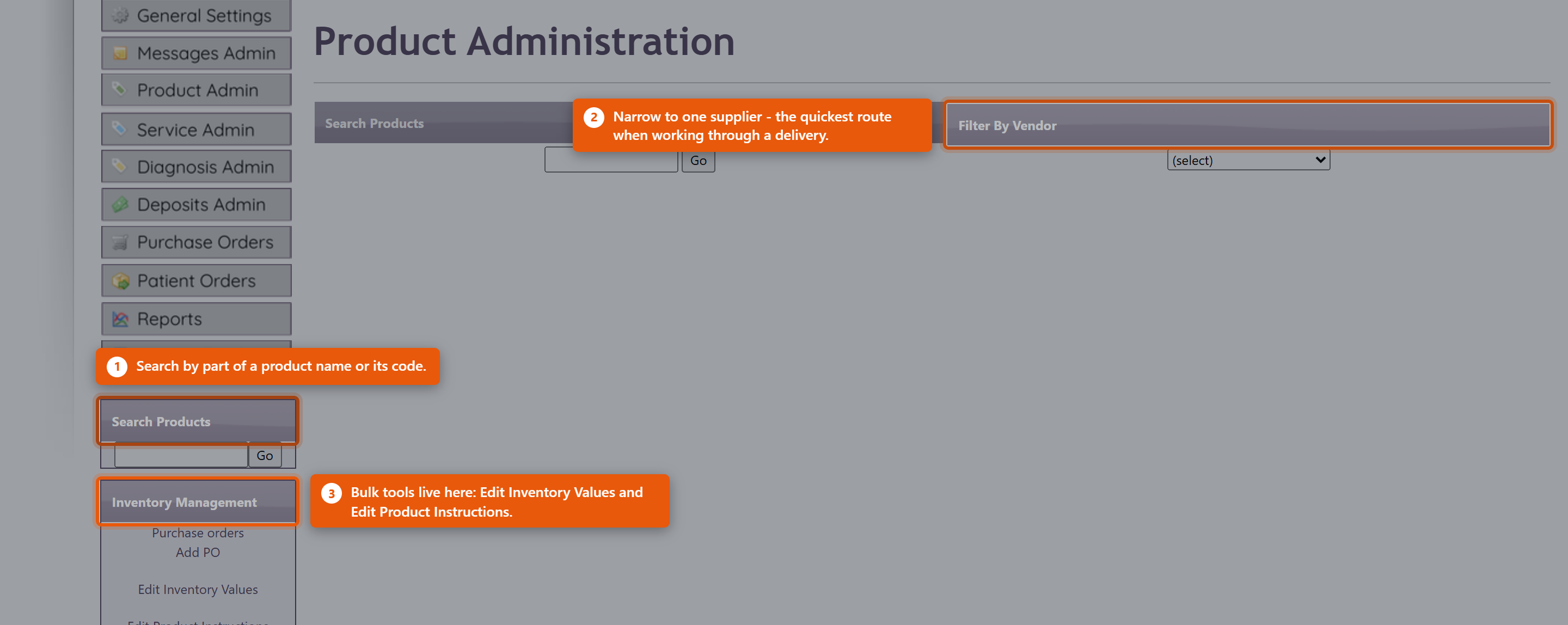 What a product record holdsOpening a product shows it in sections, and you do not need to complete all of them. Only the name, type and price are needed to sell something; the rest earns its keep in specific situations.
The clinical detailThe product record also carries Dosing Information, Recommended intake, Features and Benefits, Contra-indications and Inactive Ingredients. These are worth filling in for anything you dispense regularly. Contra-indications and Inactive Ingredients in particular are what a provider checks before recommending something to a patient with an allergy or an interacting medication - an empty field there is not neutral, it just means nobody can check. PricingThe Pricing section holds the Cost you pay and the Price you charge, and works out Margin and Markup from them. Average Cost is what the stock you are actually holding cost, which drifts from the current cost as you buy at different prices - it is the figure to use when valuing inventory. StockInventory Details shows On Hand and the Location the stock is kept in. Inventory Transactions lists every movement - what was purchased, received, sold and adjusted, and when. When a count is wrong, read the transactions before adjusting. The history usually shows what happened, and an adjustment made without understanding the cause hides the problem rather than fixing it. Set a Reorder Level on anything you keep in stock. The reorder tools use it to tell you what is running low, and a product with no reorder level simply never appears in those lists. Editing several products at onceThe Inventory Management panel on the left of Product Administration handles the jobs that span many products: Edit Inventory Values for counts and costs, and Edit Product Instructions for dosing text. Both are far quicker than opening products one at a time. Purchase orders and Add PO are in the same panel. Receive new stock through a purchase order rather than by adjusting counts - the PO records what you paid, which is what keeps Average Cost and your inventory value honest. Retiring a productMake a product you no longer sell inactive rather than deleting it. Deleting breaks the history of everything already sold; making it inactive takes it out of the lists while leaving past orders, invoices and reports intact. |
 |
|||||||||||||
| 30 |
Organising Your Product CatalogueOrganising Your Product CatalogueA catalogue of a few hundred products only stays usable if it is organised. Three things do most of that work: categories, vendors and keeping retired products out of the way. All of it lives under Product Admin on the Admin menu. CategoriesCategories group products for browsing - both for your own staff and for patients in the portal, where they are the main way anyone finds anything. Each category carries a sort order, so the ones you sell most can sit at the top rather than falling alphabetically. Keep them broad. A category holding two products is not helping anyone find anything, and a catalogue with forty categories is harder to navigate than one with eight. 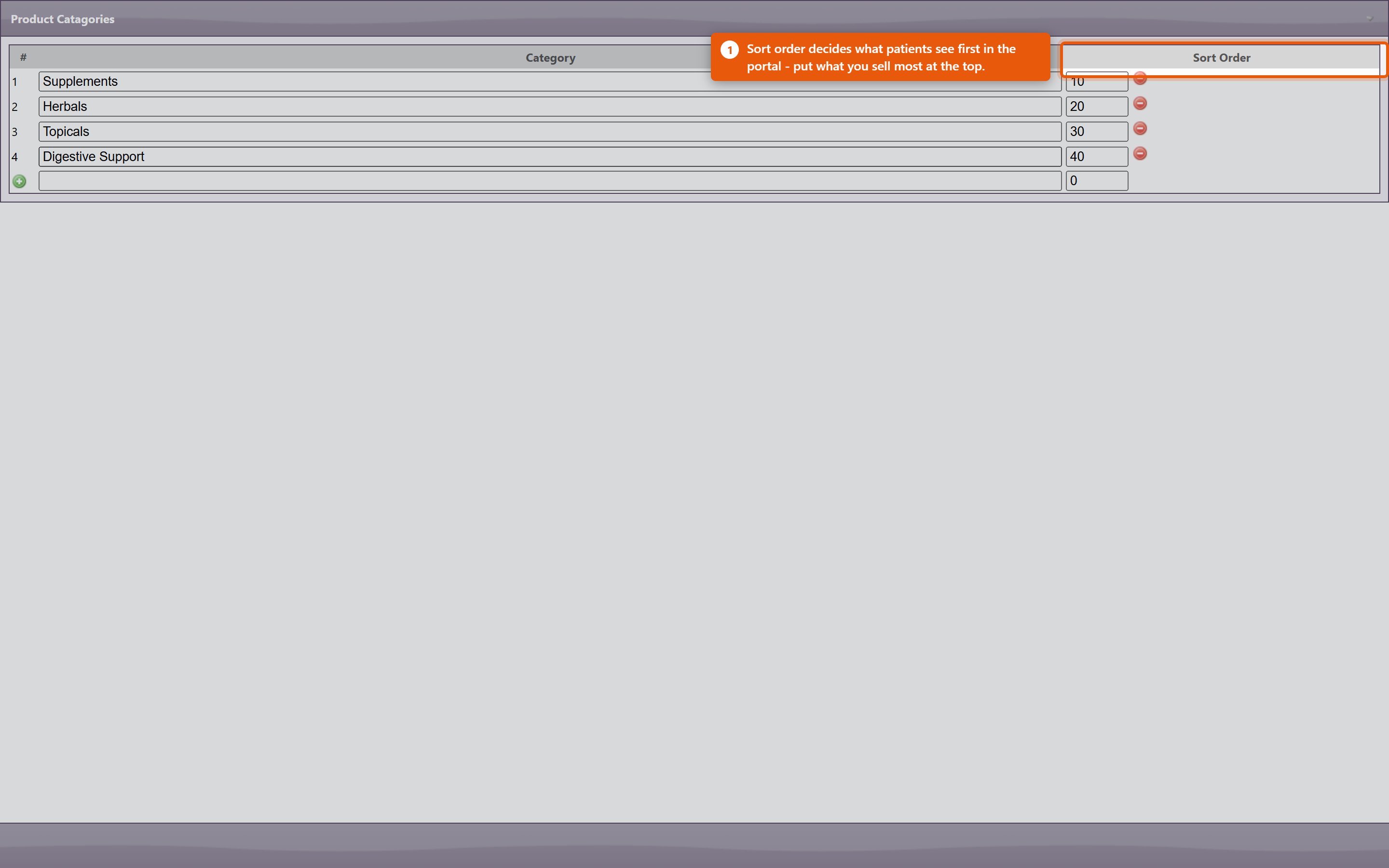 VendorsRecording the vendor on a product is what makes Filter By Vendor useful on the Product Administration page. That filter is how you work through a delivery, review one supplier's pricing, or find everything affected when a supplier discontinues a line. It also drives purchase orders: a product with no vendor cannot be ordered through the normal PO process. Finding things
Product codesProduct codes identify a product across orders, inventory and reports. Keep them consistent and do not reuse a code from a retired product - reports covering both periods will silently merge the two. DuplicatesDuplicates appear naturally: the same supplement gets added twice under slightly different names, or an import creates a second copy. They split your stock figures and your sales history, so the same product looks like two half-selling ones. The Duplicate Products report under Reports lists catalogue entries that look like duplicates. Work through it occasionally rather than waiting for the figures to confuse someone - and when you find a pair, make one inactive rather than deleting it, so the sales already recorded against it survive. Retired productsMake products you no longer sell inactive. They come out of the lists and out of the portal while everything already sold keeps its history. Deleting a product breaks that history, which is why it is almost never the right choice. Keeping it tidyA quarterly pass costs very little and prevents most catalogue problems:
|
|
|||||||||||||
| 74 |
Connecting Fullscript to OfficeProConnecting Fullscript to OfficeProConnecting Fullscript lets you pull their catalogue into your own product list and send patients a Fullscript plan without leaving OfficePro. It is set up once by an administrator, and then each prescribing provider is linked to their own Fullscript account. Fullscript needs ProductPro. Without that module none of these screens are reachable. 1. Connect the practice
When it has worked the section reads Your account is connected to Fullscript. Sign in with the account that owns your clinic's Fullscript dispensary, not a personal one - the connection determines whose catalogue and whose commissions you are working with. 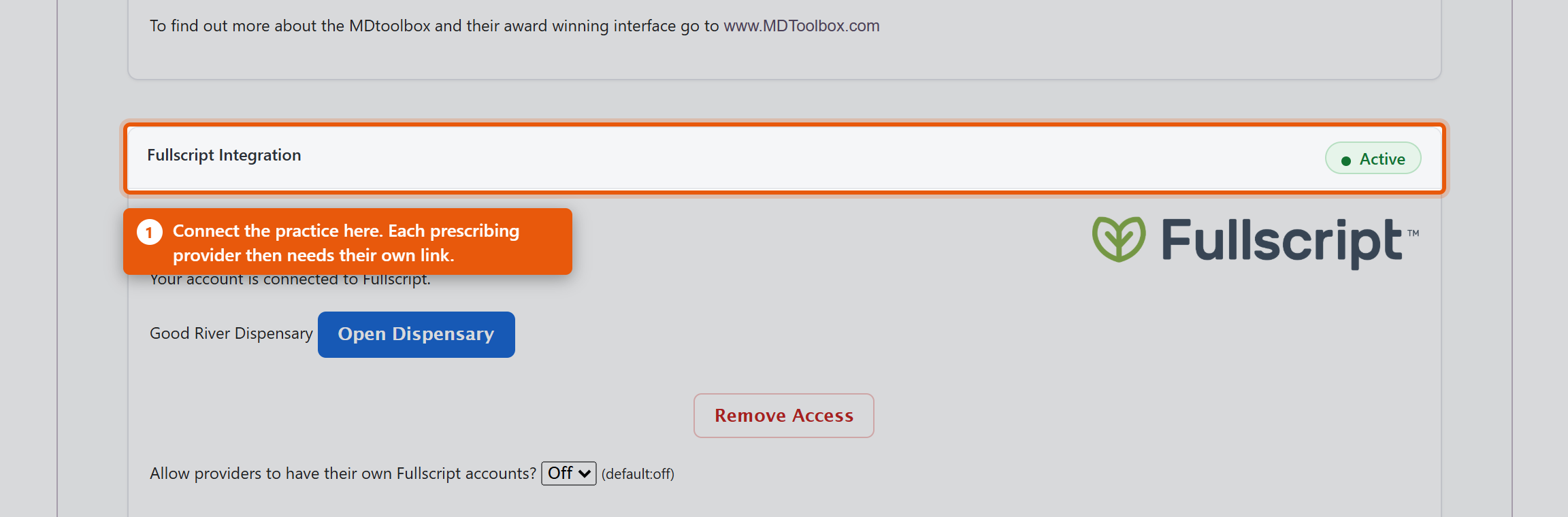 2. Link each providerConnecting the practice is not enough on its own. Fullscript plans are written by a named prescriber, so each provider needs their own link. Under Associate Providers with Fullscript you will see each OfficePro Provider against their Fullscript ID. Use Add to Fullscript for anyone not yet linked. A provider showing Assigned under another account has a Fullscript account already tied to a different dispensary - often their own from a previous practice. That has to be resolved with Fullscript directly; OfficePro cannot move it. 3. Decide how imported products should lookBefore importing anything, set the defaults in ProductPro settings. They apply only to products added from the Fullscript catalogue and never change products you already have.
DisconnectingRemove Access ends the connection, and the section then reads Your Fullscript access was removed. Products already imported stay in your catalogue - they are your products now - but they stop being refreshed from Fullscript and new plans cannot be written until you reconnect. Check it worked
|
|
|||||||||||||
| 84 |
Setting Up Auto-Orders and Subscribe & SaveSetting Up Auto-Orders and Subscribe & SaveAn auto-order is a standing arrangement to reorder a product for a patient on a fixed cycle. Each night OfficePro looks for plans that are due, creates the orders, and applies a recurring discount if you offer one. It bills patients on a schedule with nobody watching, so it is worth setting up deliberately rather than discovering how it behaves from a phone call. Before anything else: is it switched on?Auto-orders run for practices on BackOfficePro. This is part of your subscription, not a setting inside OfficePro - you cannot enable it yourself. If you are not on BackOfficePro you can still record auto-order plans, and nothing will ever generate from them. If you are unsure, ask support before you set expectations with a patient. Set your discountsIn ProductPro settings there are two:
Both are set in 5% steps up to 30%. Leave either at 0% to offer no discount. Work the ongoing percentage out before you set it. On a monthly subscription, 10% off is 10% off twelve times a year, on a product you have already discounted to a dispensary price. Set the shipping and the notification
When the orders appearThe job runs once a day, late in the evening Pacific time. Orders created overnight are waiting the next morning as Pending, alongside everything else in your patient orders queue - they are ordinary orders from that point on, and are picked, packed and completed the same way. It looks a short way ahead as well as behind, so a plan due in the next few days is picked up early rather than exactly on its date. A plan that is overdue produces one order, not one for every cycle it missed. Decide your refill policyEach product on a patient can carry a refill constraint:
For anything a provider wants to review before it keeps going out, set a refill count or an end date on the plan. An auto-order with no end runs until somebody stops it. A different feature with the same nameVendors have auto-orders too. On a vendor's contact record, Auto Order raises a purchase order to your supplier on a cycle - the record will say This vendor is set to auto order every so many days. It restocks your shelves; it has nothing to do with patient subscriptions and no patient is billed by it. Check it before you rely on it
|
|
|||||||||||||
| 31 |
Managing Product Inventory in OfficeProManaging Product Inventory in OfficeProTo effectively manage your product inventory, utilize the Product Admin area in OfficePro. Accessing Product Admin
1. Inventory ManagementThe Inventory Management view assists with conducting periodic physical inventory counts and offers ongoing access similar to the initial setup with the Add Starting Inventory list.
2. Reorder ListThe Reorder List highlights products that have reached an inventory level requiring reordering.
Additional ResourcesTo learn more about setting up your products in OfficePro, refer to the Knowledge Base articles on Adding and Editing Products, Product Lists, and Inventory Setup. |
|
|||||||||||||
| 43 |
Setting Up Your Inventory in OfficeProSetting Up Your Inventory in OfficeProAccurate inventory management is crucial for ensuring you have the right products available for patient encounters. Here’s how to set up and manage your inventory effectively. Importance of Inventory Setup
Adding Starting InventoryAccess the Add Starting Inventory Feature:
Initial Inventory Setup:
Entering Opening Counts:
Review and Save:
Ongoing Inventory ManagementAfter the initial two-month setup period, you can continue to manage your inventory using the Inventory Management view. This view allows for periodic adjustments and helps you maintain accurate stock levels over time. ConclusionSetting up your inventory accurately in OfficePro is essential for ensuring smooth operations and effective patient encounters. By utilizing the Add Starting Inventory feature and making sure your counts are correct, you’ll reduce the likelihood of stock discrepancies and enhance your practice's efficiency. If you have any questions or need further assistance with inventory management, feel free to ask! |
|
|||||||||||||
| 77 |
Questions About FullscriptQuestions About FullscriptDo we need ProductPro to use Fullscript? Yes. Every Fullscript screen sits behind that module. Does each provider need their own Fullscript account? Yes. Connecting the practice is one step; linking each prescriber is another. A plan is written by a named provider, so an unlinked provider can browse the catalogue and still not create one. A provider shows "Assigned under another account". What now? Their Fullscript account is tied to a different dispensary, often their own from a previous practice. OfficePro cannot move it - that has to be sorted out with Fullscript. What is the difference between adding and linking? Add Selected to My Catalog creates products you do not stock yet. Link Existing Products pairs products you already have with their Fullscript equivalent so the two are treated as one. Link first, then import - the other order leaves you merging duplicates. If I import the same product twice, do I get two? No. Each Fullscript variant is recorded against the product, so a second import updates it. Duplicates almost always mean a product was imported when it should have been linked. Are imported prices ours? No - they arrive at the Fullscript catalogue price. Review anything where you set your own margin. Why is the Type blank on imported products? Default Product Type is set to a value that is not in the supplied list. Only those values are valid; anything else renders an empty Type box. Import two or three and look at them before importing the rest. Should imported products be taxable? Leave Mark Imported Products Taxable on unless your practice genuinely does not charge sales tax on supplements. If some are taxed at a reduced rate, see Sales Tax by Product Class - and note that setting a class to 0 on one jurisdiction does not exempt it everywhere. What happens to our products if we disconnect? They stay. They are your products and you can still sell them. They stop refreshing from Fullscript, and new plans cannot be written until you reconnect. Can we import the whole catalogue? You can, and it is usually a mistake. A few hundred products nobody dispenses makes the catalogue harder to use for staff and patients alike. Import what you actually recommend. |
|
|||||||||||||
| 87 |
Questions About Auto-OrdersQuestions About Auto-OrdersWhen exactly do auto-orders run?Once a day, late in the evening Pacific time. Not hourly, and not when you save a plan. Orders set up during the day appear the following morning. Do I need BackOfficePro?Yes. Plans can be recorded without it, but nothing generates from them. It is part of your subscription rather than a setting you can switch on. What is the difference between the two discount settings?Subscribe and Save First Autoorder Discount is a welcome offer shown to patients in the portal when they start a subscription themselves. Subscribe and Save Subsequent Autoorder Discount is applied to every refill thereafter. Does a patient get the welcome discount if we set the plan up for them?No. The first-order discount is a portal offer. A plan set up in OfficePro on the patient's behalf is charged at the ongoing rate from the start. Worth knowing before a patient who saw the offer online asks about it. Where does the discount show up?As a discount on the order line. It is not an account credit, and there is no separate credit entry. If it looks missing, do not add a credit to compensate - see the troubleshooting article. Can different patients have different discounts?Yes. A plan can carry its own percentage, which is used instead of the practice default. Left unset, the practice default applies. How do I pause a subscription for a month?Move the plan's Next: date forward. The plan stays intact and simply resumes on that date. Setting Interval: to None stops it altogether. If I cancel an order that was generated, does the plan stop?No. Cancelling the order does not change the plan, and the next cycle will come round as scheduled. To skip a cycle, move the Next: date; to stop the plan, change the interval or set an end date. A plan has been due for months. Will we be billed for all of them?No. An overdue plan produces one order and its next date moves to the next future cycle. Why did one patient get two orders in one night?Because they had both pickup and shipped refills due. Each order is created for a single delivery method so the header matches what is in it. Is shipping charged on refills?Yes, on refills whose method is shipping, at your standard or premium rate. Pickup refills are not charged shipping. Which dosing appears on a refill?The dosing recorded on the plan. Not the product default, and not the last dispense. If the plan has none, the line goes out with none - change the plan, not the order. Does a refill create a visit or an encounter?It creates a patient order, waiting as Pending in the same queue as any other. From there it is picked, packed and completed exactly like an order taken at the desk. Are patients notified?This job does not text or email patients. The only notification is the internal summary to your Order Message User. If you want patients told, tell them when the plan is set up and when the order is completed. Can a patient cancel their own subscription?Ask them to contact you rather than assuming they can do it themselves. Staff can always stop a plan from Patient Auto Orders. How do I see what our subscriptions are worth?The Subscription Health report under Products shows active auto-orders, estimated monthly recurring revenue, and which plans are about to lapse. What is the auto-order on a vendor record?A completely separate feature that raises purchase orders to a supplier on a cycle. It restocks your shelves and never bills a patient. |
|
|||||||||||||
| 53 |
Patient Product OrdersPatient Product OrdersPatients can order products themselves from the PatientPro portal, and those orders arrive in OfficePro for your staff to fill. This covers both halves - what the patient does, and what you do with the order once it lands. What the patient seesYour products in the portal lists what has been prescribed or recommended for them, and Products Available Over the Counter lists anything you sell openly. They can search, filter by category, and reorder anything they have had before. Checkout is a short sequence under Online Check Out:
They then see Your Order Was Received, and the order appears under Order History with Order Details and Products in this Order: for each one. The charge is not settled at that point. The patient has authorised it; the money is taken when your staff process the order. This matters, because a patient who cancels before you process has not been charged. Working orders in OfficeProOrders arrive in Active Patient Orders. Opening one shows Steps to complete this order - the sequence for that order, which differs depending on whether it is being collected or delivered. 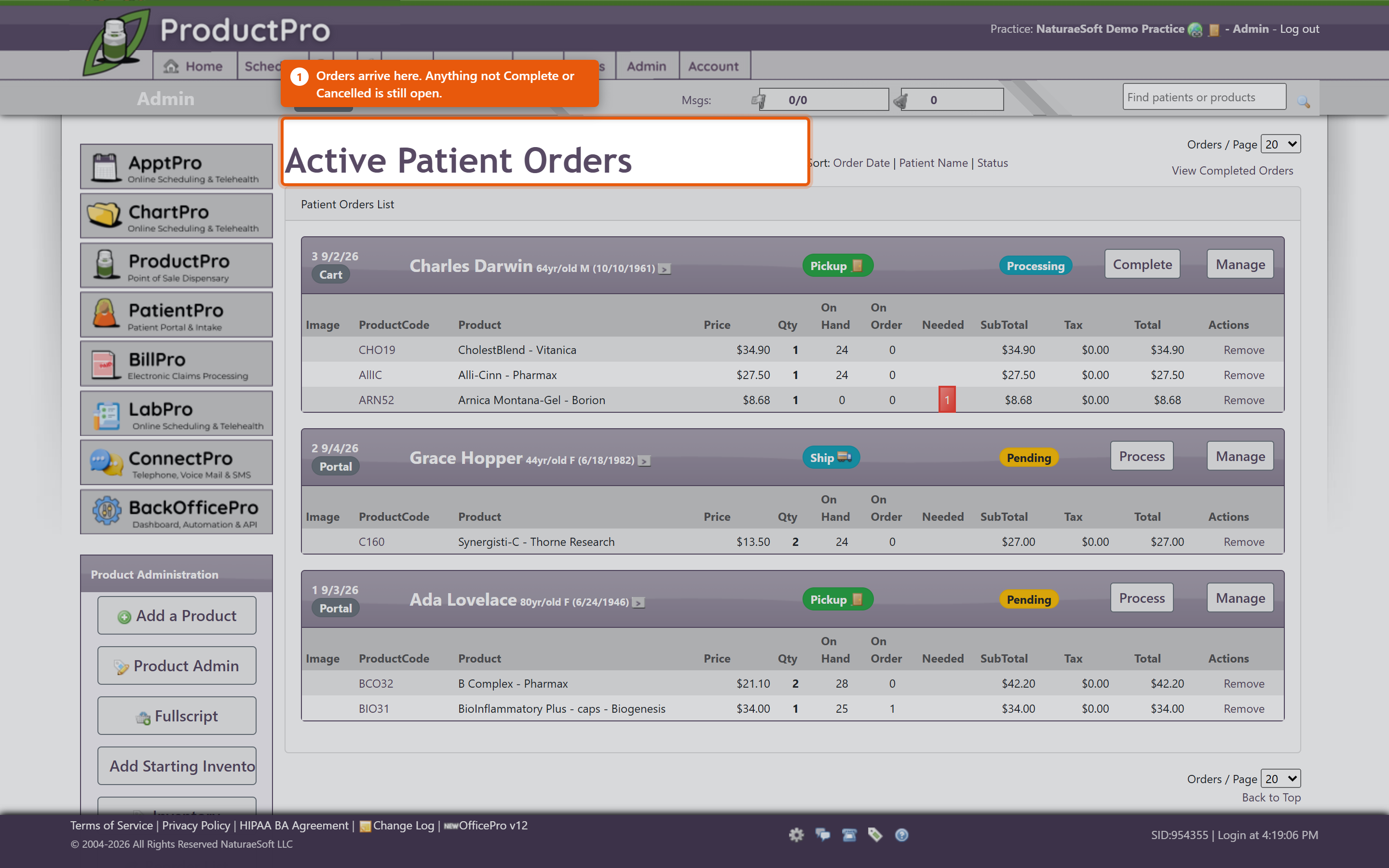 Each product line shows Needed against OnHand, so you can see immediately whether you can fill it. Where you cannot, Order Products puts what is short onto a purchase order. You do not have to fill an order all at once. Work the lines you can and leave the rest - the order stays open with the remainder outstanding, which is the right answer when one item is on back-order and the patient wants the rest now. 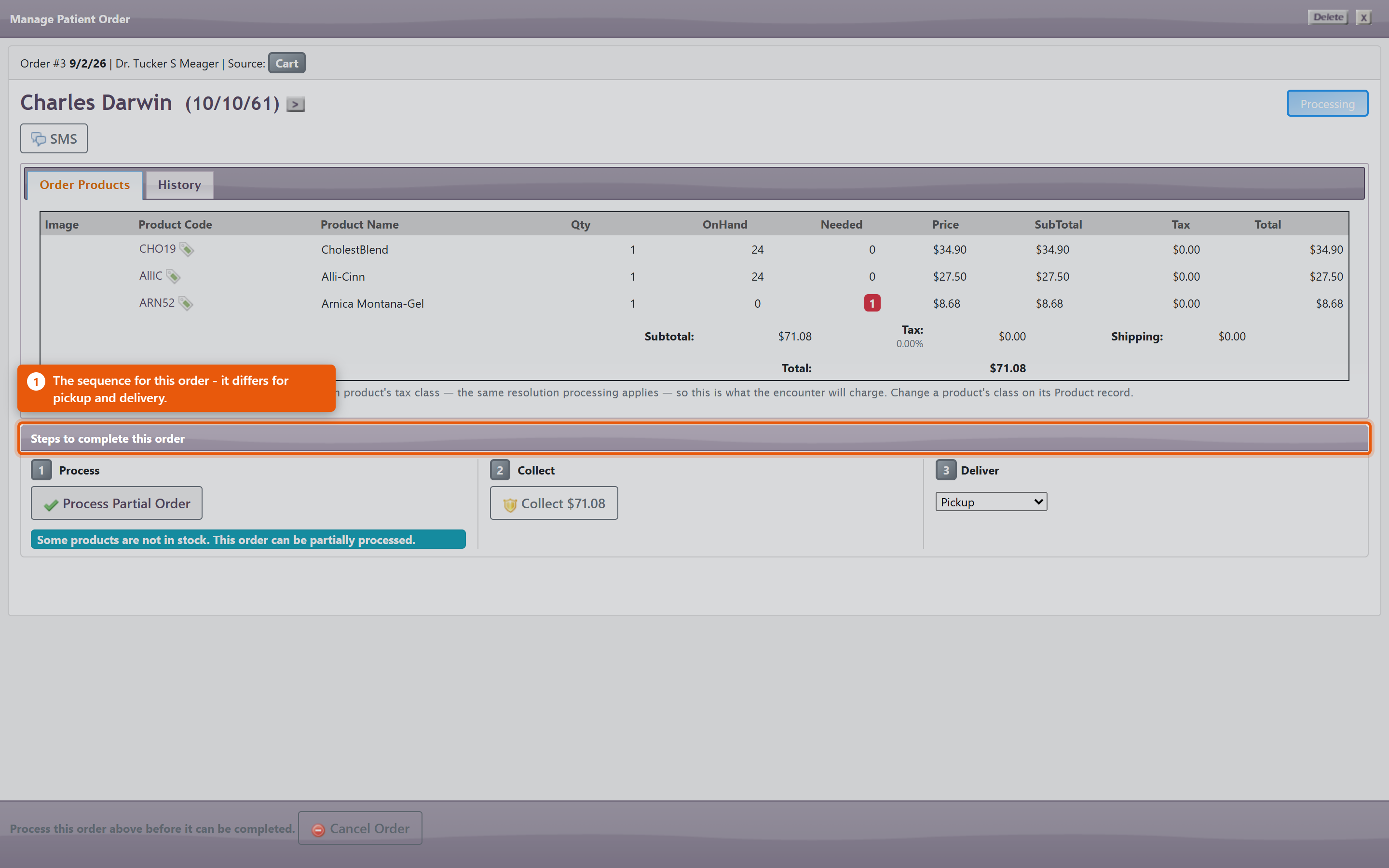 The actions you will use most:
Scheduled for completion by shows when the order is expected to be finished, which is what the patient has been told. Carts that never became ordersPatient Carts shows baskets patients filled and did not check out. These are worth a look - a cart abandoned at the payment step often means a card problem rather than a change of mind, and a phone call recovers the sale. What ordering does to the rest of the system
Keeping it working
|
|
|||||||||||||
| 75 |
Importing from the Fullscript CatalogImporting from the Fullscript CatalogOnce Fullscript is connected you can browse their catalogue from inside OfficePro and add products to your own. There are two things you will do here, and they are different: adding products you do not stock yet, and linking products you already have to their Fullscript equivalent. The screen has two tabs matching those two jobs: Browse & Import and Link Existing Products. Finding a productOpen Fullscript Catalog and use Search. Results show the Brand, Size, SKU and Price, and can be narrowed by Network. The catalogue hides what you already stock. The Show: filter starts on products I don't stock, which is sensible when you are looking for something new and misleading when you are not - search for a product you already carry and nothing comes back. Switch it to everything, including mine before concluding a product is unavailable, and remember the catalogue runs to more than one page. The NETWORK RANK column ranks products by how often they are recommended across the NaturaeSoft network. It is not your own prescribing history - Fullscript does not report per-practice popularity - so read it as a general signal rather than as a reflection of your patients. 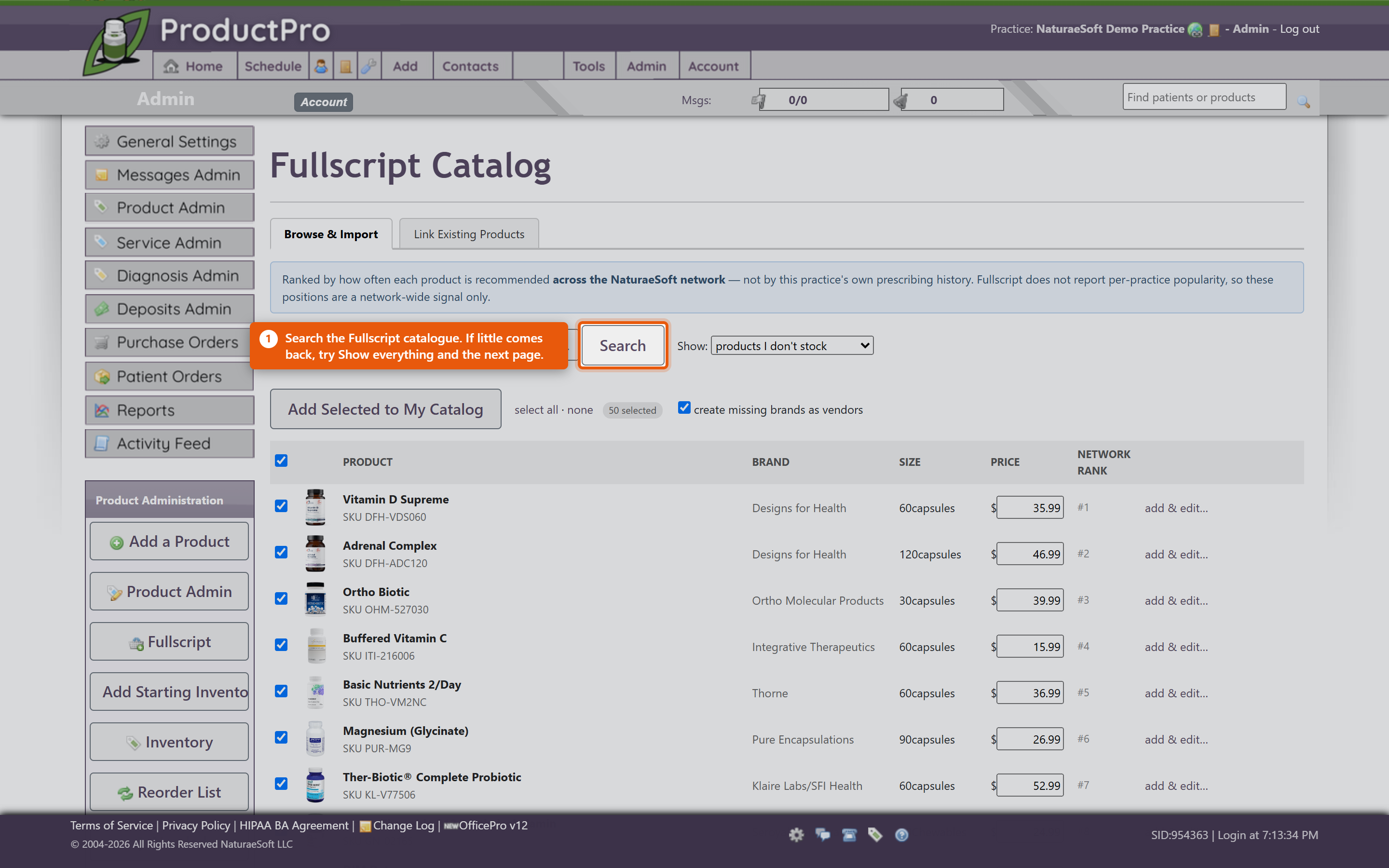 Adding new productsTick the products you want and click Add Selected to My Catalog. They arrive as ordinary OfficePro products carrying their name, brand, size and price, using the defaults set in ProductPro settings. Leave create missing brands as vendors ticked. It records each product's brand as a vendor as it imports, which is what makes Filter By Vendor useful afterwards and what lets those products go on a purchase order at all. Untick it and you get a catalogue of products with no supplier against any of them. Set Default Dosing attaches standard dosing instructions so they do not have to be typed on every plan. Worth doing for anything you dispense regularly - the instructions are what the patient actually follows. Importing the same product twice is safe. Each Fullscript variant is recorded against the product, and a second import of the same one updates rather than duplicating it. If a product code cannot be derived cleanly the row is refused rather than creating a clashing one. Linking products you already sellMost practices already stock some of what Fullscript carries. Link Existing Products matches your catalogue to theirs so the two are treated as the same product rather than two competing entries. The list pairs Your product and Your code against a proposed Fullscript match. Check the suggestions before accepting them - a match is proposed on name and brand, and two products with similar names can differ in strength or size, which matters clinically. When you are satisfied, use Link Confirmed Matches. Do this before importing in bulk. Linking first means you end up with one entry per product; importing first usually means finding and merging duplicates afterwards. What to watch
Writing a planWith products in place, a provider can create a Fullscript plan for a patient from the chart - see Fullscript Treatment Plans and Create Fullscript Plan. The plan is written under that provider's Fullscript account, which is why each provider has to be linked individually. |
|
|||||||||||||
| 85 |
Managing a Patient's Auto-Order PlanManaging a Patient's Auto-Order PlanAn auto-order plan lives on the patient, against a single product. Each plan has its own interval, quantity and delivery method, so one patient can have a monthly refill of one product and a quarterly refill of another. Setting one upOpen the product on the patient and use the AutoOrder section:
Both Interval: and Qty: have to be set for anything to happen. A plan with an interval and a quantity of zero looks configured on screen and will never generate an order. Put the dosing on the planThis is the step most easily missed. Refill lines take their directions from the plan, not from the product and not from the last dispense. If the plan has no dosing, the refill goes out with no directions on it - a bottle with a label and no instructions. Set the dosing at the same time you set the interval, and check it again if a provider changes the dose later. Changing the dose on a new dispense does not change what the plan sends next month. Seeing every plan at onceThe Auto Orders button on the ProductPro admin page opens Patient Auto Orders, which has two views:
Each row shows the Product Code and Product Name, the Interval (Days), Quantity and Method, the Start and Next dates, and - usefully - On Hand and On Order. Those last two are the early warning: a plan due next week for a product you have none of is a problem you can still fix this week. Delivery shows as a PICKUP, SHIP or PREMIUM badge. No orders found means nothing is due in that view, not that the feature is off. Changing a plan
When patients set their own upPatients ordering through the portal choose between three options, and it helps to know which one they picked:
They also choose Refill every and Delivery. Their plans appear in Patient Auto Orders alongside the ones you created, and you can edit them the same way. Watching the whole bookThe Subscription Health report under Products shows active auto-orders, estimated monthly recurring revenue, and which plans are about to lapse. Lapsing plans are worth a call - a patient whose subscription quietly ended usually did not decide to stop. |
|
|||||||||||||
| 38 |
Accepting Product ReturnsAccepting Product ReturnsProblemA patient presents a product for return. BackgroundThe approach to recording a product return in OfficePro varies based on the circumstances of the return:
The primary difference between these scenarios is the status of the returned product regarding inventory and how the return impacts current transactions. SolutionsScenario A: Return for Refund or Credit
Scenario B: Return with Current Visit
Scenario C: Non-acceptable Return
Important Alerts
|
|
|||||||||||||
| 40 |
Product Inventory Basics in OfficeProProduct Inventory Basics in OfficeProOverviewOfficePro serves as a point-of-sale system, streamlining the process of adding and managing your inventory. The system automatically adjusts stock levels based on sales and received inventory, minimizing the need for manual inventory adjustments. Adding Starting Inventory
Managing InventoryPeriodic Physical Inventory Counts:
Reorder List:
ConclusionNow that you have an understanding of how to set up and manage your product inventory in OfficePro, you can easily track your stock levels, sell products, and ensure timely reordering. This streamlined process helps maintain an efficient inventory system, supporting your practice's overall operations. If you have any questions about specific features or processes, feel free to ask! |
|
|||||||||||||
| 41 |
Purchase OrdersPurchase OrdersOverviewOfficePro enables you to create purchase orders for your product vendors and record product receipts. This process ensures accurate inventory management and efficient order tracking. Accessing Purchase OrdersOpening the Purchase Orders List:
Understanding the Purchase Orders List:
Completing Purchase Orders
Creating Purchase OrdersYou can add a purchase order in three different ways: Using the Add Menu:
Using the Lower Left Menu:
Using the Plus Sign:
Recording Product Receipts
ConclusionBy efficiently managing purchase orders and product receipts within OfficePro, you can maintain accurate inventory levels and streamline your ordering process. This functionality is essential for keeping your practice well-stocked and organized. If you have any questions about specific features or need further assistance, feel free to ask! |
|
|||||||||||||
| 76 |
Fullscript Products or Plans Are Not AppearingFullscript Products or Plans Are Not AppearingProblem The Fullscript catalogue returns nothing, a provider cannot create a plan, or imported products look wrong once they arrive. Background Fullscript has three separate requirements, and failing any one of them looks much the same from the outside: the practice must be connected, the individual provider must be linked, and the practice must have ProductPro. Working out which is missing is most of the job. Resolution
Products imported, but the Type box is blankDefault Product Type in ProductPro settings is set to something that is not one of the supplied values. Only the values in that list are valid; anything else renders an empty Type on the product form. Correct the setting, then fix the products already imported. The same product appears twiceRe-importing does not cause this - each Fullscript variant is recorded and a second import updates rather than duplicates. Two entries almost always mean the product existed in your catalogue already and was imported instead of linked. Use Link Existing Products before bulk importing, and make one of the pair inactive rather than deleting it, so the sales history against it survives. The Duplicate Products report under Reports finds these. Prices are not what you chargeImported products arrive at the Fullscript catalogue price. That is the starting point, not a decision about your pricing - review anything where you set your own margin. See Adding and Editing Products. Everything disappeared after disconnectingProducts already imported stay in your catalogue and are still yours to sell. What stops is the link to Fullscript: they no longer refresh, and new plans cannot be written until the practice reconnects. |
|
|||||||||||||
| 86 |
An Auto-Order Did Not GenerateAn Auto-Order Did Not GenerateWork down this list in order. The first three causes account for nearly everything, and all three look identical on screen - a plan that appears perfectly configured. 1. The practice is not on BackOfficeProThe nightly job only runs for practices subscribed to BackOfficePro. Without it, plans can be created and edited exactly as normal and nothing ever generates from them. There is no warning and no error. If no auto-order has ever generated for anyone, start here rather than examining the plan. Contact support to confirm. 2. The quantity is zeroA plan needs both an Interval: and a Qty: greater than zero. A plan with an interval and no quantity is skipped silently, and on screen it is indistinguishable from a working one. Check Quantity on the By Patient view. A blank or zero there is your answer. 3. It is not due yetThe job runs once a day, late in the evening Pacific time, and looks a few days ahead. An order will not appear the moment you save a plan, and it will not appear during the working day. Set a plan up on Tuesday afternoon and check on Wednesday morning. Check the Next date on the By Date view. If it is in the future, nothing is wrong. 4. The plan endedAn End: date in the past stops the plan. So does an Interval: that has been set back to None - which is easy to do by accident while editing something else on the same screen. Refill limits stop it too. A product set to Constrict Refills ( with none remaining, or Blocked - No refills, will not refill however the plan is configured. 5. Nobody was toldSometimes the order did generate and nobody saw it. The summary message after each run goes to the Order Message User in ProductPro settings; if that is still on -- Select User -- it goes to no one in particular. Before concluding an order is missing, look in your patient orders queue for a Pending order dated overnight. Other things that come upThe refill went out with no directionsDirections come from the plan, and only from the plan. A plan saved without dosing produces a line with nothing on it - the product default is deliberately not substituted, because a guessed dose is worse than an obvious blank. Fix the dosing on the plan itself, not on the order. Correcting the order sends this month out right and next month out wrong again. A pickup patient was charged shippingDelivery comes from the plan's Method:, not from the patient's usual preference. Check the Method column on the By Patient view and correct the plan, or every cycle repeats the charge. The discount is missing, or looks wrongThe ongoing Subscribe & Save discount appears as a discount on the order line. It is not a credit on the account, and there will not be a separate credit entry to find. Do not add an account credit to make up for it. The system used to apply the discount twice - once on the line and again as a credit - and that was corrected. Adding a credit by hand recreates the old fault one patient at a time, and it will not be obvious later that it was done manually. Also worth knowing: the welcome discount is a portal-only offer on a patient's first Subscribe & Save. Refills are discounted at the ongoing percentage, which is normally lower. A refill that costs more than the first order is working as intended. An overdue plan only produced one orderThat is deliberate. A plan that has been due for months generates a single order and its next date jumps to the next future cycle. There is no catch-up run, and you will not be billed for the months in between. Two orders arrived for the same patient on the same nightAlso expected, if that patient has both pickup and shipped plans due. Refills are grouped by delivery method so each order's header matches its contents. One order cannot be half collected and half posted. The product went out of stockOrders are created whether or not you have stock. The On Hand and On Order columns on Patient Auto Orders exist so you can see this coming - check the By Date view weekly rather than finding out while packing. My purchase orders to a supplier stoppedDifferent feature. Vendor auto-orders are configured on the vendor's contact record under Auto Order and raise a purchase order to your supplier. Nothing on the patient side affects them. |
|

 icon on the top right of the list.
 (edit) in the Clinic Rooms & Resources area; this will open the “Edit Clinic Resource” screen
 (delete)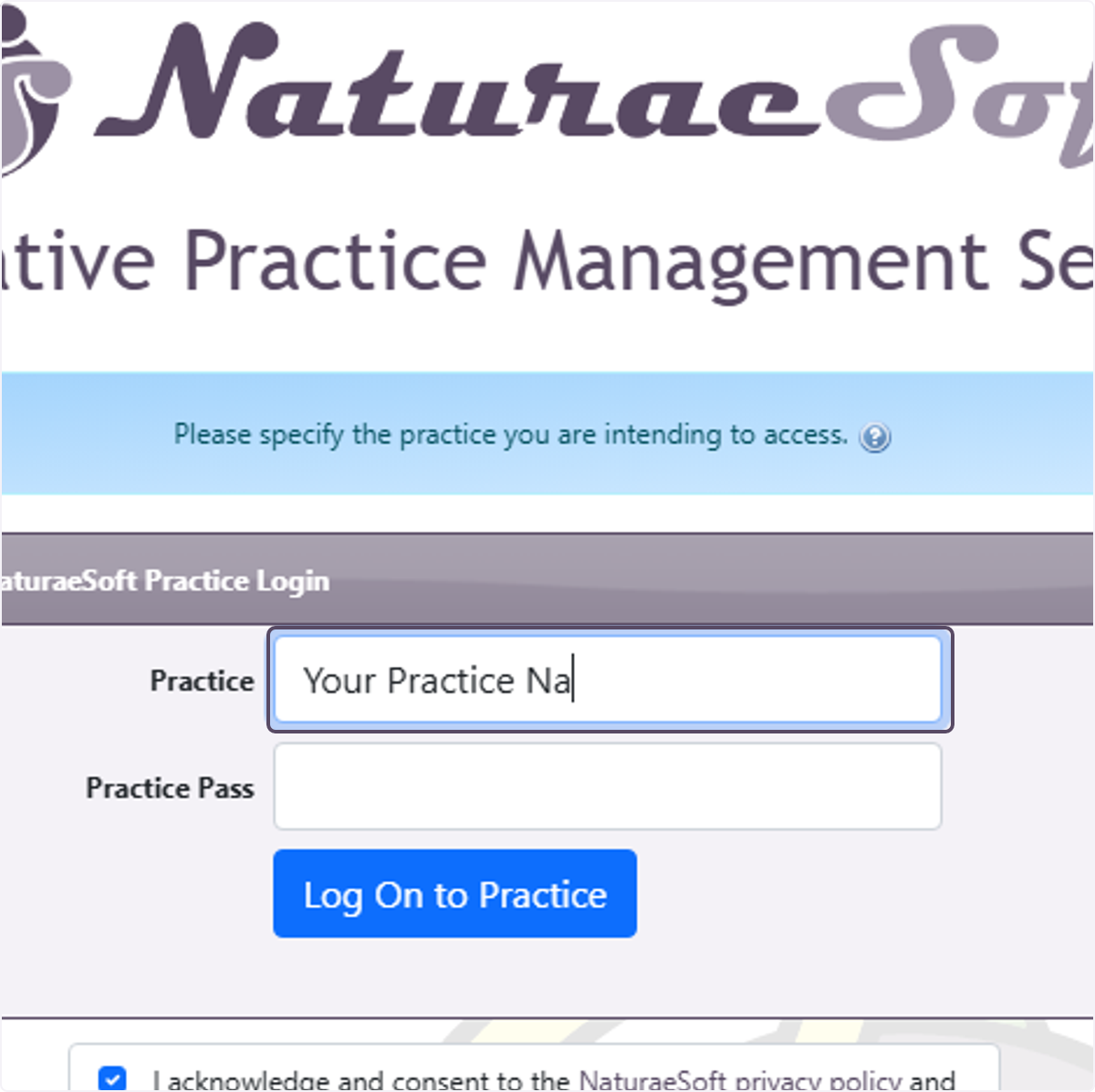
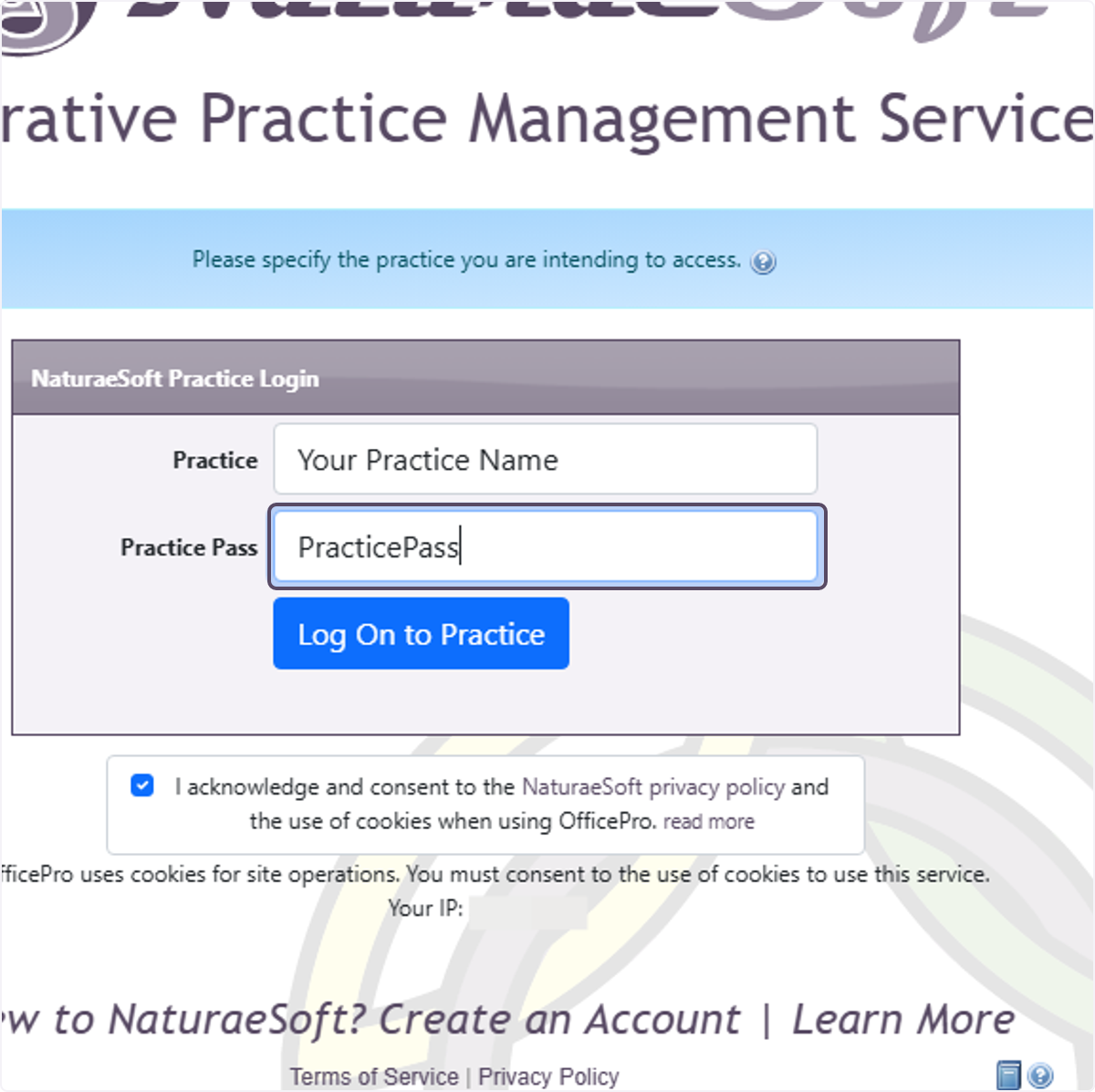
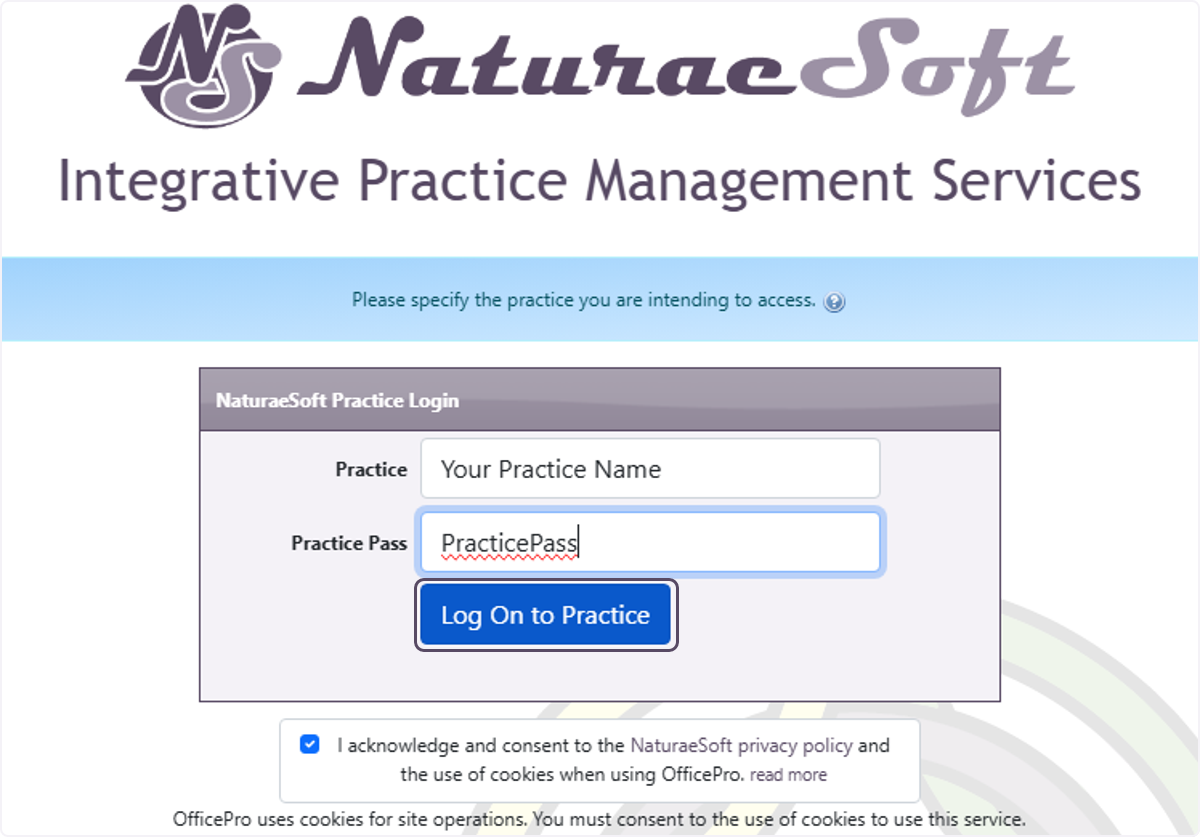
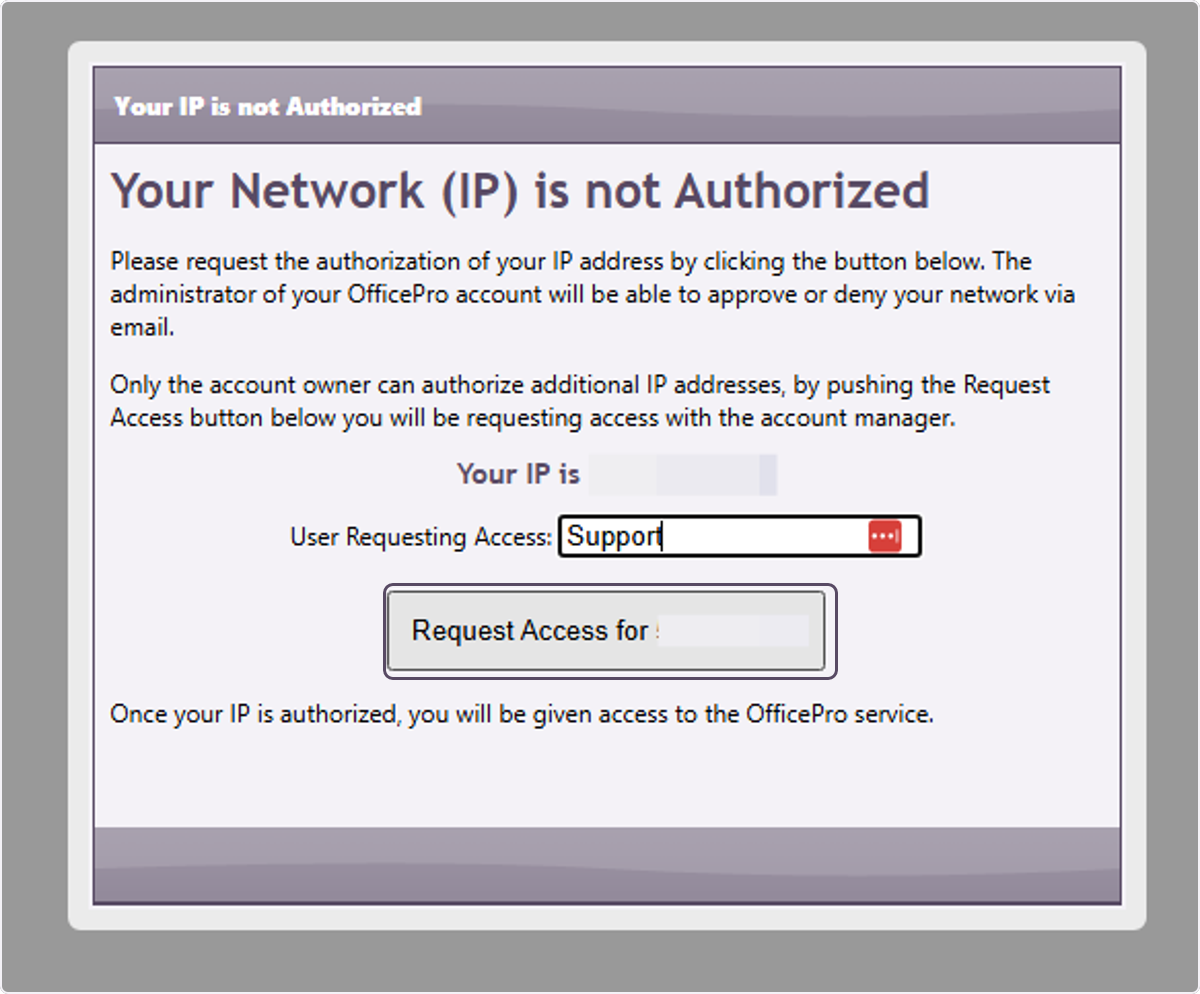
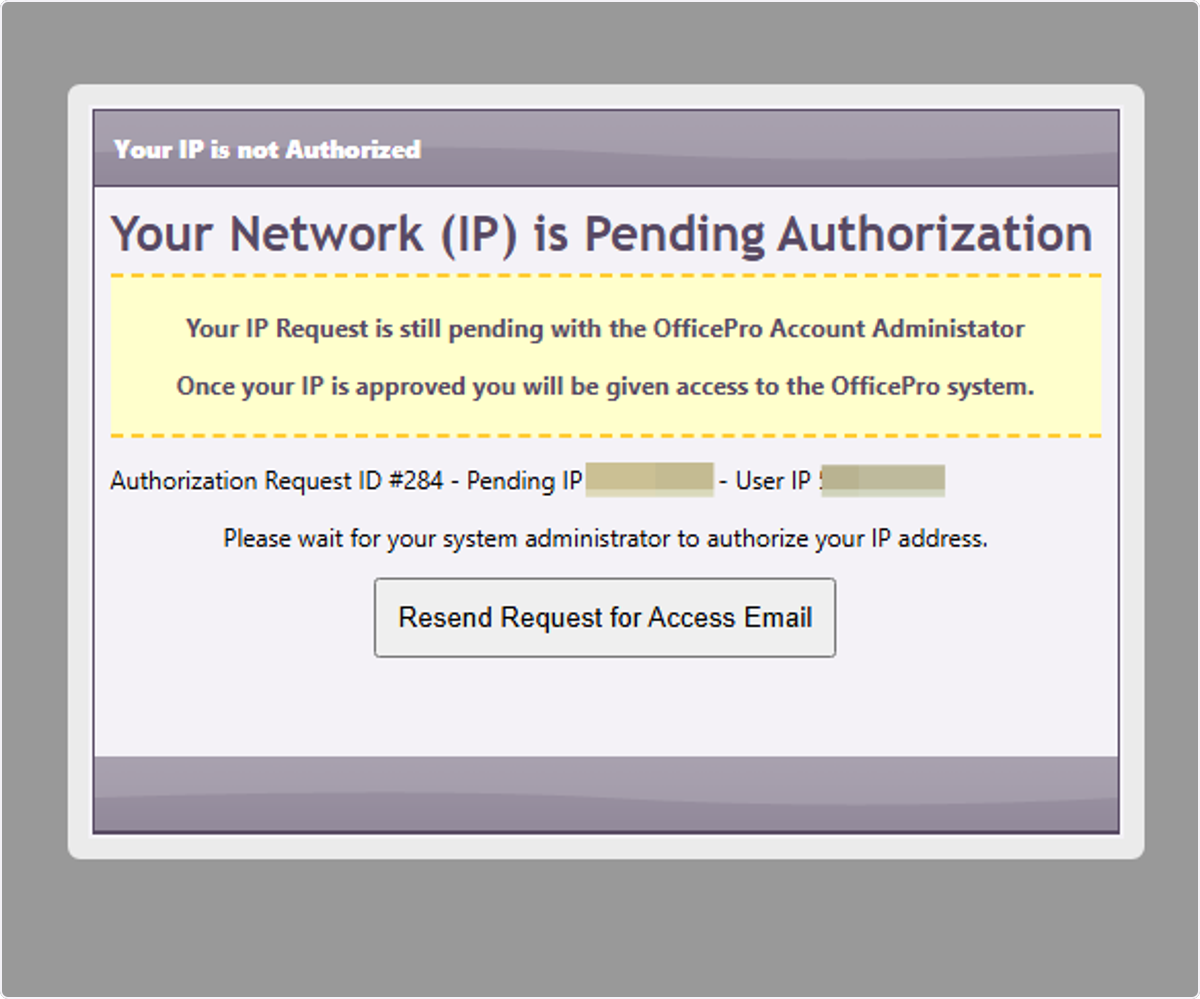
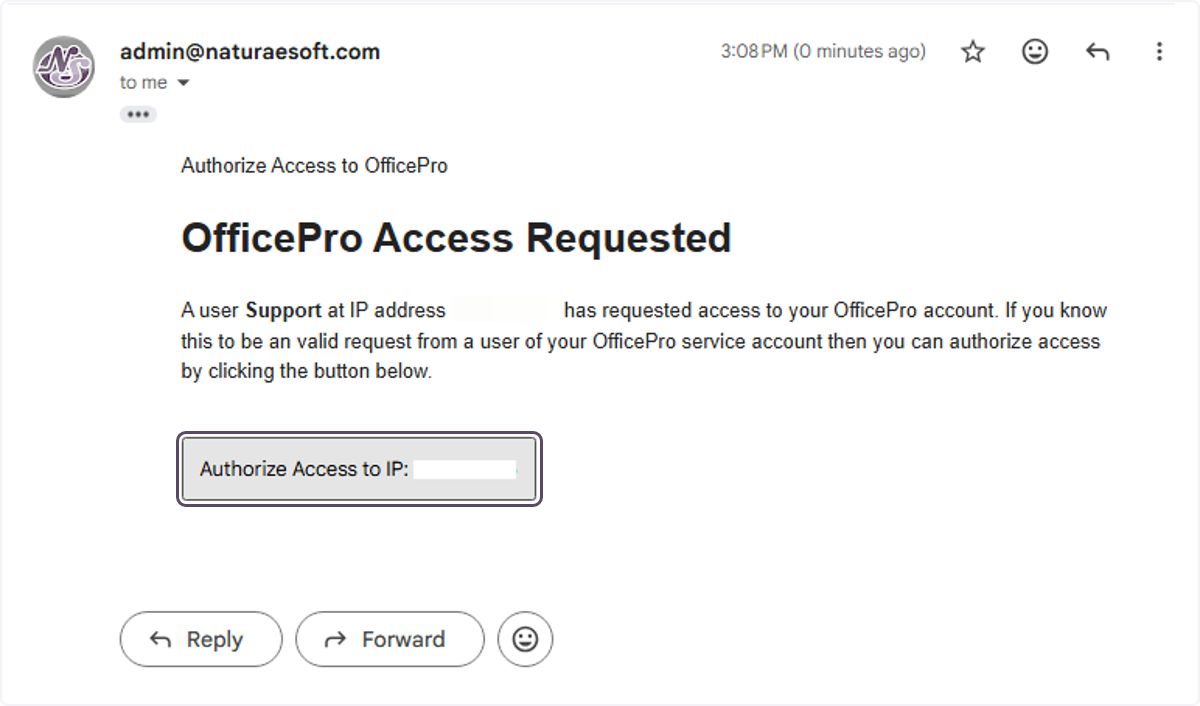
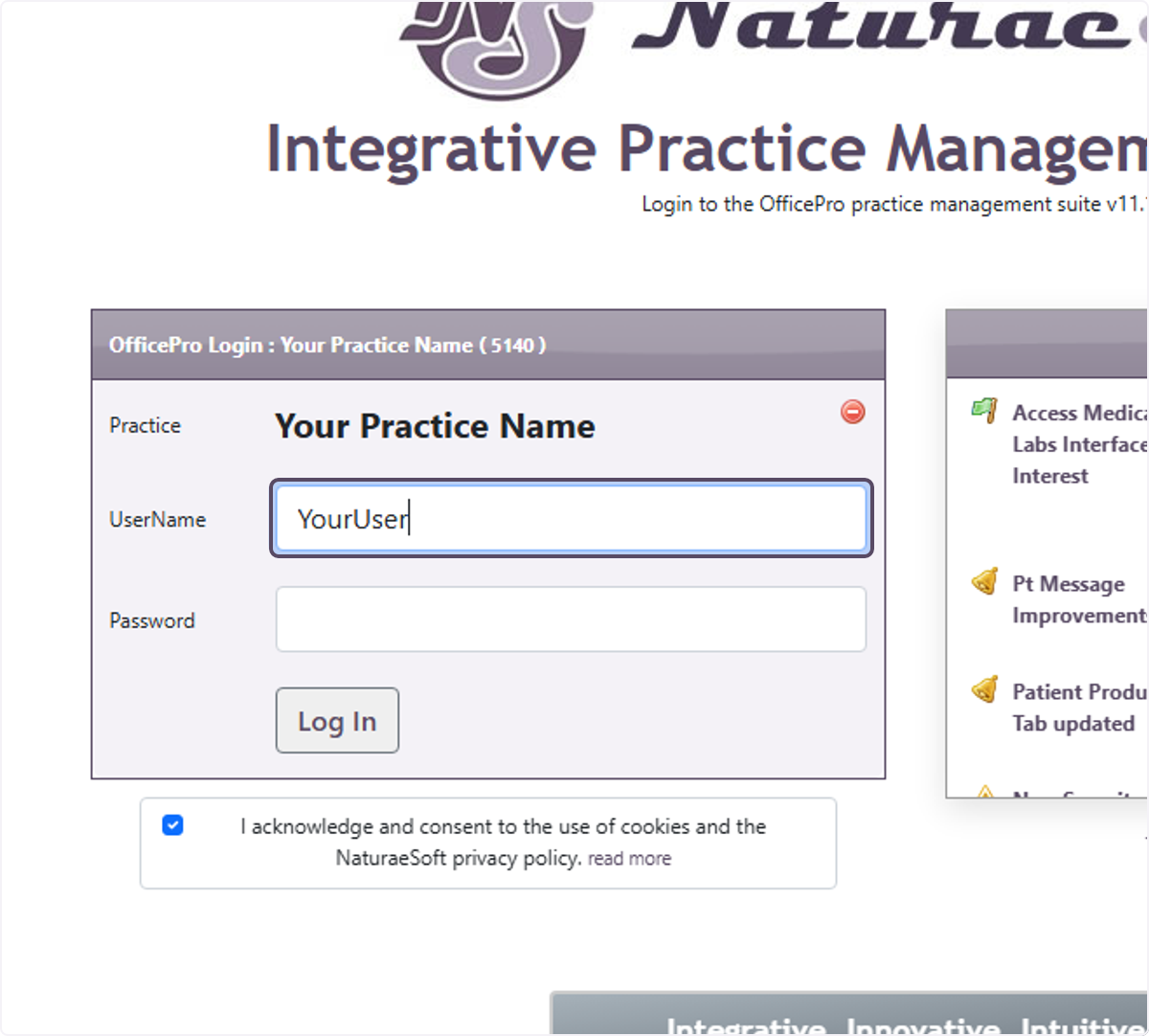
 . You can also click on the Edit Visit icon
  that is on the [E]ncounter form, the [C]hartnote and the [T]reatment plan.