NS - Knowledgebase
Find the answers you need. More articles every week.
| ID | Title | Module | Category |
|---|---|---|---|
| 53 |
Patient Product OrdersPatient Product OrdersPatients can order products themselves from the PatientPro portal, and those orders arrive in OfficePro for your staff to fill. This covers both halves - what the patient does, and what you do with the order once it lands. What the patient seesYour products in the portal lists what has been prescribed or recommended for them, and Products Available Over the Counter lists anything you sell openly. They can search, filter by category, and reorder anything they have had before. Checkout is a short sequence under Online Check Out:
They then see Your Order Was Received, and the order appears under Order History with Order Details and Products in this Order: for each one. The charge is not settled at that point. The patient has authorised it; the money is taken when your staff process the order. This matters, because a patient who cancels before you process has not been charged. Working orders in OfficeProOrders arrive in Active Patient Orders. Opening one shows Steps to complete this order - the sequence for that order, which differs depending on whether it is being collected or delivered. 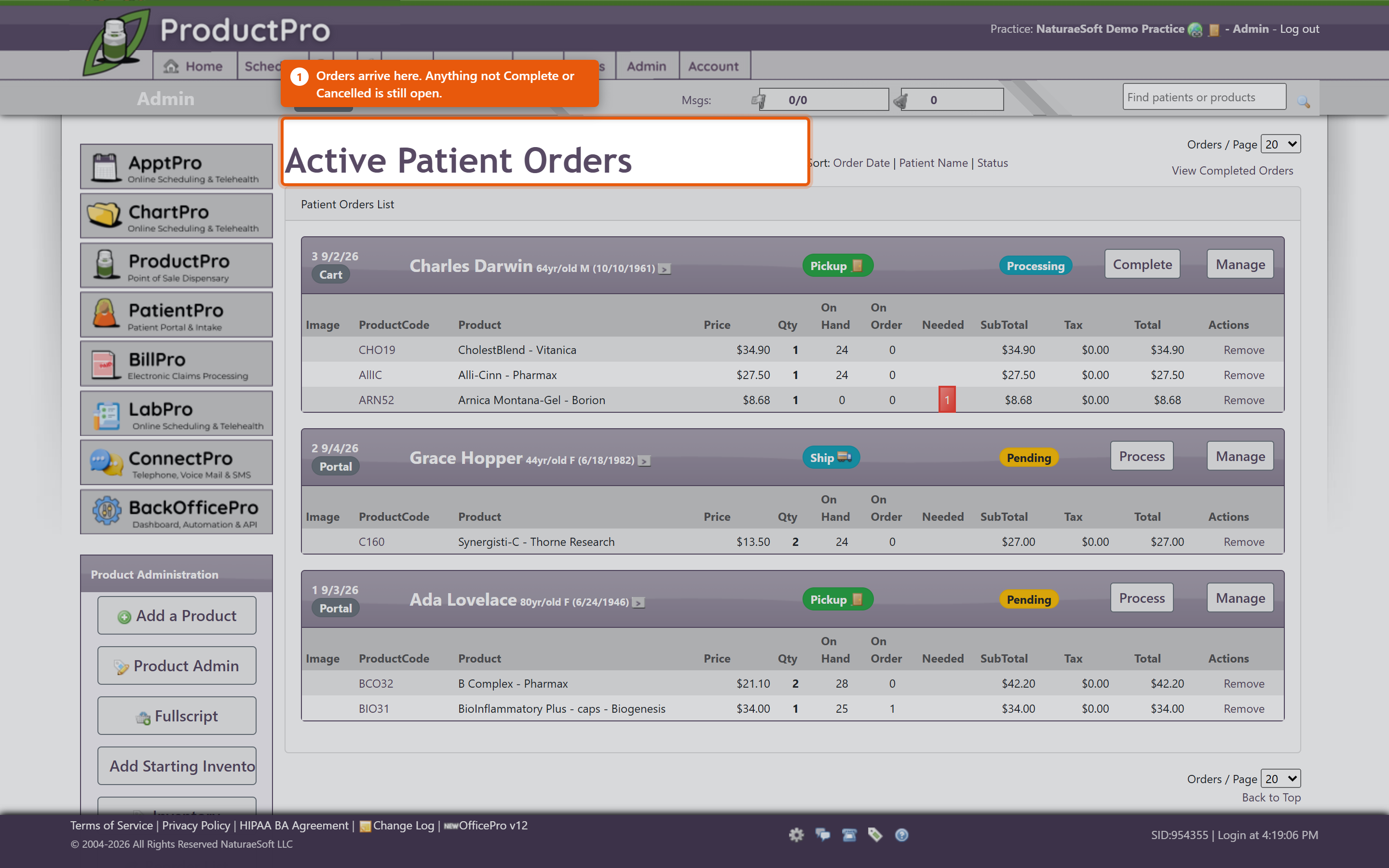 Each product line shows Needed against OnHand, so you can see immediately whether you can fill it. Where you cannot, Order Products puts what is short onto a purchase order. You do not have to fill an order all at once. Work the lines you can and leave the rest - the order stays open with the remainder outstanding, which is the right answer when one item is on back-order and the patient wants the rest now. 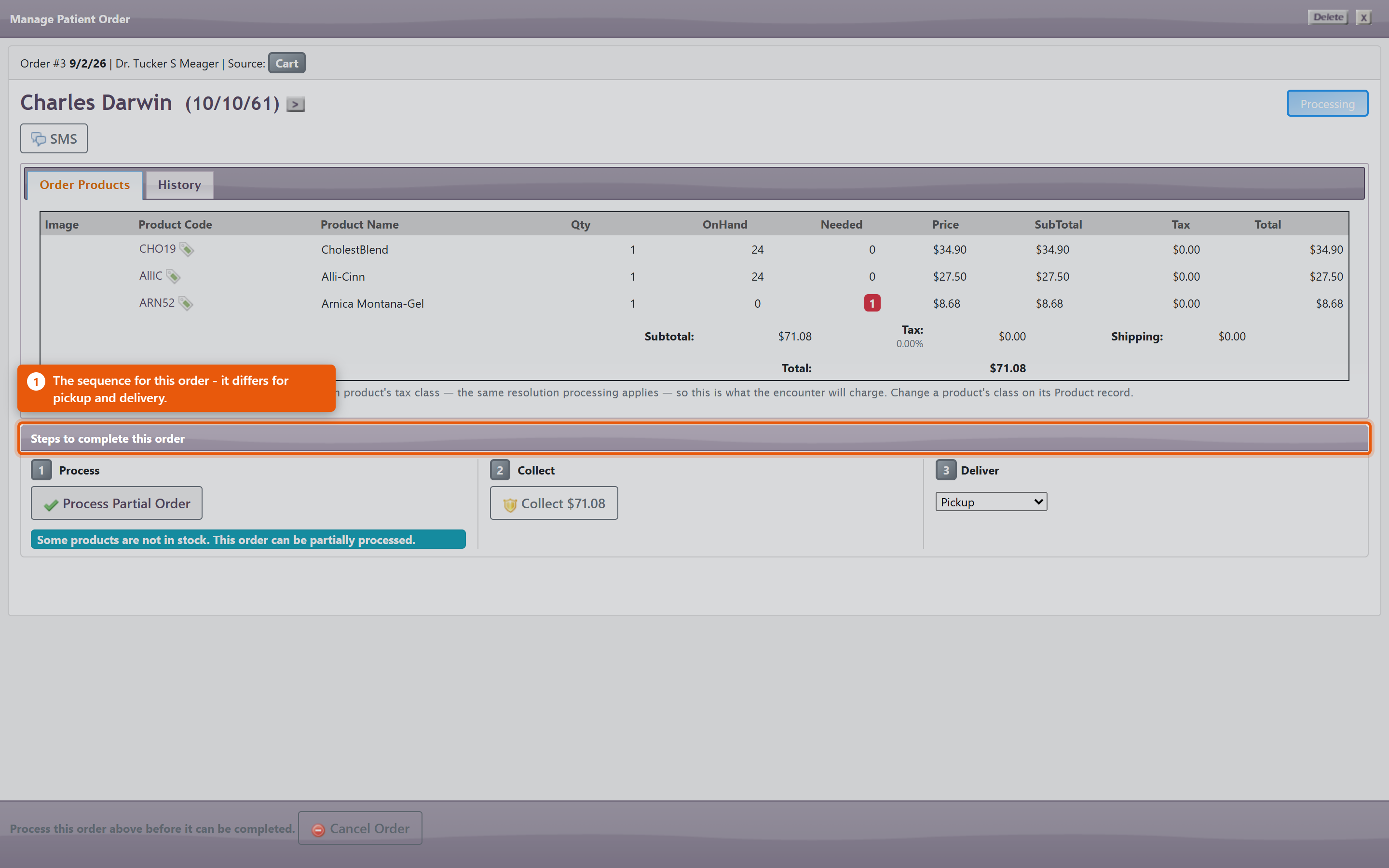 The actions you will use most:
Scheduled for completion by shows when the order is expected to be finished, which is what the patient has been told. Carts that never became ordersPatient Carts shows baskets patients filled and did not check out. These are worth a look - a cart abandoned at the payment step often means a card problem rather than a change of mind, and a phone call recovers the sale. What ordering does to the rest of the system
Keeping it working
|
 |
|
| 75 |
Importing from the Fullscript CatalogImporting from the Fullscript CatalogOnce Fullscript is connected you can browse their catalogue from inside OfficePro and add products to your own. There are two things you will do here, and they are different: adding products you do not stock yet, and linking products you already have to their Fullscript equivalent. The screen has two tabs matching those two jobs: Browse & Import and Link Existing Products. Finding a productOpen Fullscript Catalog and use Search. Results show the Brand, Size, SKU and Price, and can be narrowed by Network. The catalogue hides what you already stock. The Show: filter starts on products I don't stock, which is sensible when you are looking for something new and misleading when you are not - search for a product you already carry and nothing comes back. Switch it to everything, including mine before concluding a product is unavailable, and remember the catalogue runs to more than one page. The NETWORK RANK column ranks products by how often they are recommended across the NaturaeSoft network. It is not your own prescribing history - Fullscript does not report per-practice popularity - so read it as a general signal rather than as a reflection of your patients. 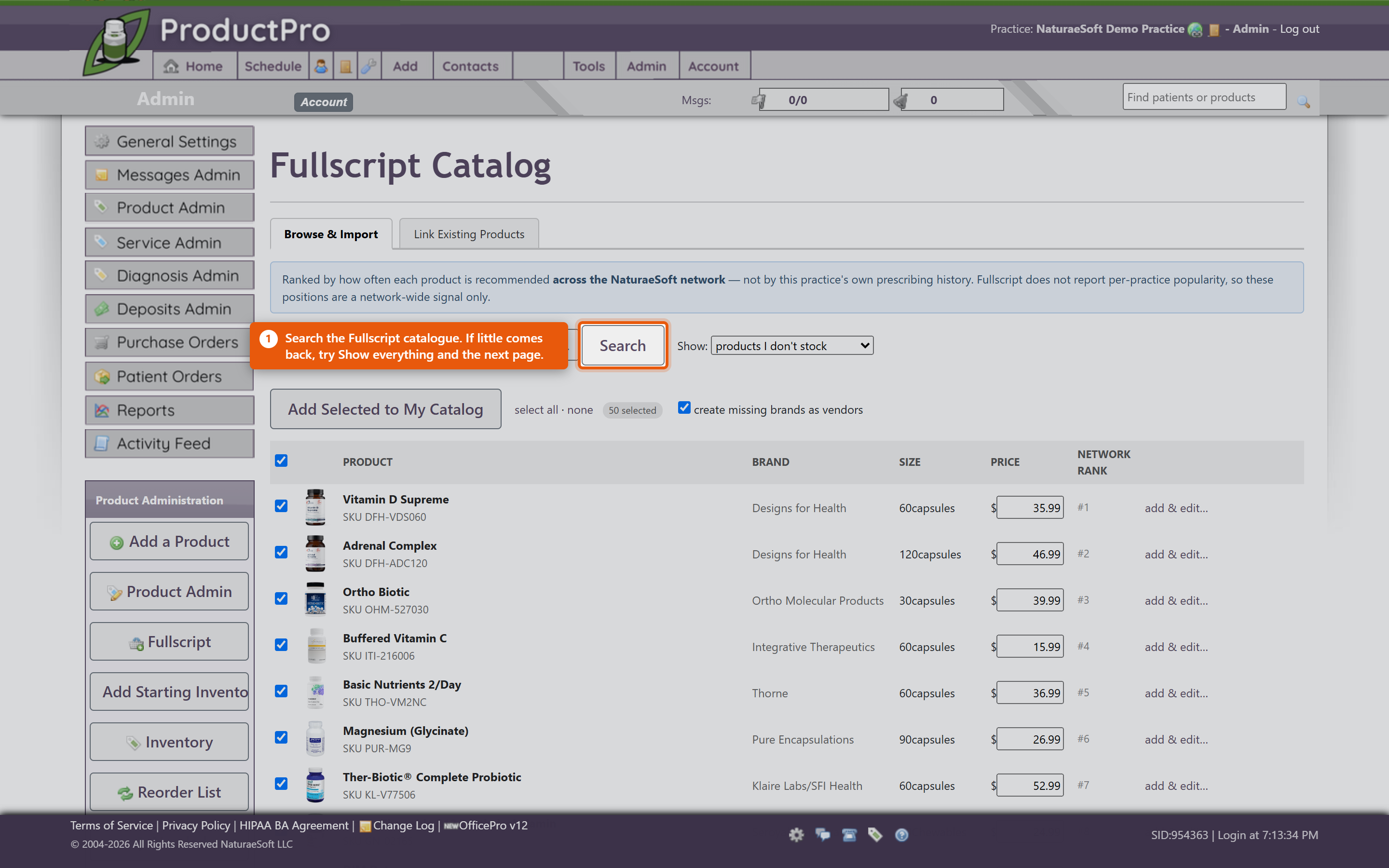 Adding new productsTick the products you want and click Add Selected to My Catalog. They arrive as ordinary OfficePro products carrying their name, brand, size and price, using the defaults set in ProductPro settings. Leave create missing brands as vendors ticked. It records each product's brand as a vendor as it imports, which is what makes Filter By Vendor useful afterwards and what lets those products go on a purchase order at all. Untick it and you get a catalogue of products with no supplier against any of them. Set Default Dosing attaches standard dosing instructions so they do not have to be typed on every plan. Worth doing for anything you dispense regularly - the instructions are what the patient actually follows. Importing the same product twice is safe. Each Fullscript variant is recorded against the product, and a second import of the same one updates rather than duplicating it. If a product code cannot be derived cleanly the row is refused rather than creating a clashing one. Linking products you already sellMost practices already stock some of what Fullscript carries. Link Existing Products matches your catalogue to theirs so the two are treated as the same product rather than two competing entries. The list pairs Your product and Your code against a proposed Fullscript match. Check the suggestions before accepting them - a match is proposed on name and brand, and two products with similar names can differ in strength or size, which matters clinically. When you are satisfied, use Link Confirmed Matches. Do this before importing in bulk. Linking first means you end up with one entry per product; importing first usually means finding and merging duplicates afterwards. What to watch
Writing a planWith products in place, a provider can create a Fullscript plan for a patient from the chart - see Fullscript Treatment Plans and Create Fullscript Plan. The plan is written under that provider's Fullscript account, which is why each provider has to be linked individually. |
|
|
| 85 |
Managing a Patient's Auto-Order PlanManaging a Patient's Auto-Order PlanAn auto-order plan lives on the patient, against a single product. Each plan has its own interval, quantity and delivery method, so one patient can have a monthly refill of one product and a quarterly refill of another. Setting one upOpen the product on the patient and use the AutoOrder section:
Both Interval: and Qty: have to be set for anything to happen. A plan with an interval and a quantity of zero looks configured on screen and will never generate an order. Put the dosing on the planThis is the step most easily missed. Refill lines take their directions from the plan, not from the product and not from the last dispense. If the plan has no dosing, the refill goes out with no directions on it - a bottle with a label and no instructions. Set the dosing at the same time you set the interval, and check it again if a provider changes the dose later. Changing the dose on a new dispense does not change what the plan sends next month. Seeing every plan at onceThe Auto Orders button on the ProductPro admin page opens Patient Auto Orders, which has two views:
Each row shows the Product Code and Product Name, the Interval (Days), Quantity and Method, the Start and Next dates, and - usefully - On Hand and On Order. Those last two are the early warning: a plan due next week for a product you have none of is a problem you can still fix this week. Delivery shows as a PICKUP, SHIP or PREMIUM badge. No orders found means nothing is due in that view, not that the feature is off. Changing a plan
When patients set their own upPatients ordering through the portal choose between three options, and it helps to know which one they picked:
They also choose Refill every and Delivery. Their plans appear in Patient Auto Orders alongside the ones you created, and you can edit them the same way. Watching the whole bookThe Subscription Health report under Products shows active auto-orders, estimated monthly recurring revenue, and which plans are about to lapse. Lapsing plans are worth a call - a patient whose subscription quietly ended usually did not decide to stop. |
|
|
| 38 |
Accepting Product ReturnsAccepting Product ReturnsProblemA patient presents a product for return. BackgroundThe approach to recording a product return in OfficePro varies based on the circumstances of the return:
The primary difference between these scenarios is the status of the returned product regarding inventory and how the return impacts current transactions. SolutionsScenario A: Return for Refund or Credit
Scenario B: Return with Current Visit
Scenario C: Non-acceptable Return
Important Alerts
|
|
|
| 40 |
Product Inventory Basics in OfficeProProduct Inventory Basics in OfficeProOverviewOfficePro serves as a point-of-sale system, streamlining the process of adding and managing your inventory. The system automatically adjusts stock levels based on sales and received inventory, minimizing the need for manual inventory adjustments. Adding Starting Inventory
Managing InventoryPeriodic Physical Inventory Counts:
Reorder List:
ConclusionNow that you have an understanding of how to set up and manage your product inventory in OfficePro, you can easily track your stock levels, sell products, and ensure timely reordering. This streamlined process helps maintain an efficient inventory system, supporting your practice's overall operations. If you have any questions about specific features or processes, feel free to ask! |
|
|
| 41 |
Purchase OrdersPurchase OrdersOverviewOfficePro enables you to create purchase orders for your product vendors and record product receipts. This process ensures accurate inventory management and efficient order tracking. Accessing Purchase OrdersOpening the Purchase Orders List:
Understanding the Purchase Orders List:
Completing Purchase Orders
Creating Purchase OrdersYou can add a purchase order in three different ways: Using the Add Menu:
Using the Lower Left Menu:
Using the Plus Sign:
Recording Product Receipts
ConclusionBy efficiently managing purchase orders and product receipts within OfficePro, you can maintain accurate inventory levels and streamline your ordering process. This functionality is essential for keeping your practice well-stocked and organized. If you have any questions about specific features or need further assistance, feel free to ask! |
|