NS - Knowledgebase
Find the answers you need. More articles every week.
| ID | Title | Module | Category |
|---|---|---|---|
| 9 |
How do access the OfficePro service?How do access the OfficePro service?To access your OfficePro account. Please log in under https://secure.naturaesoft.com. We also have an additional version of OfficePro available at https://OfficePro.NaturaeSoft.com Each of our services has multiple access points so that you and your staff can access several instances of our software within the same facility. Version 1: Secure
Version 2: OfficePro Beta Version: for testing of new features * The beta version is accessible to all customers, please let NaturaeSoft know of any issues you experience in the beta version of the service. We always work on new features and would appreciate your input and assistance. |
 |
|
| 54 |
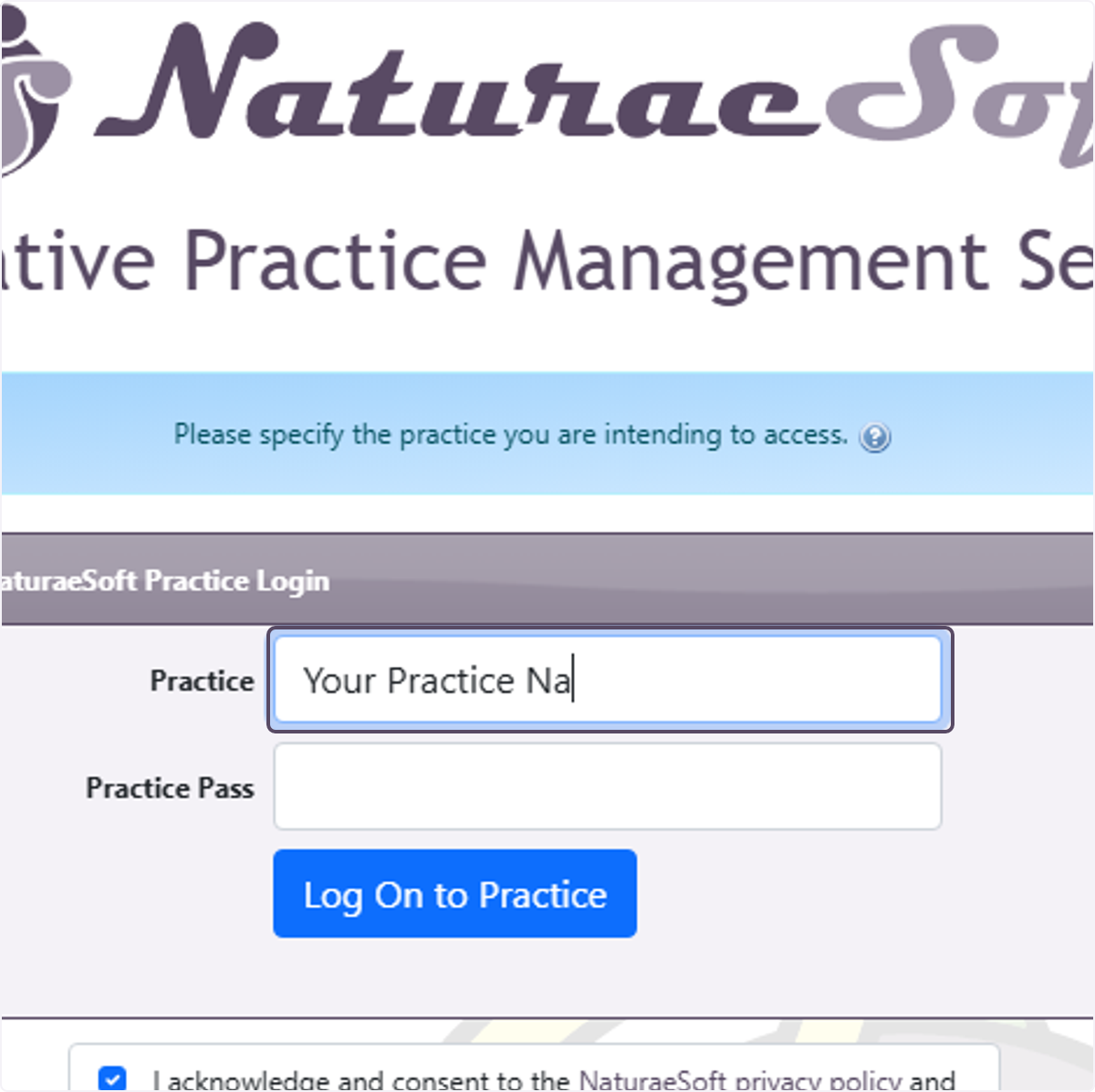
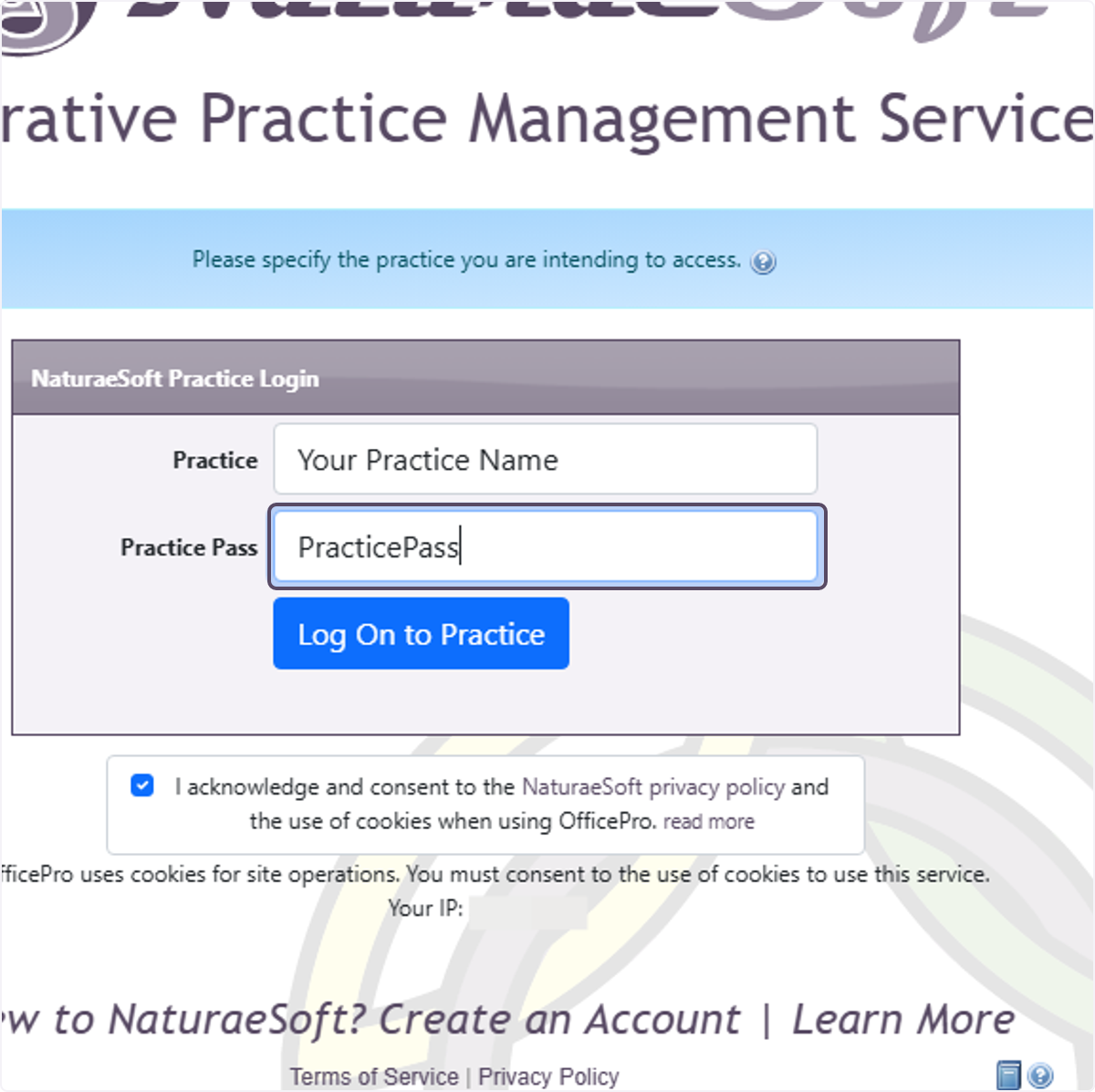
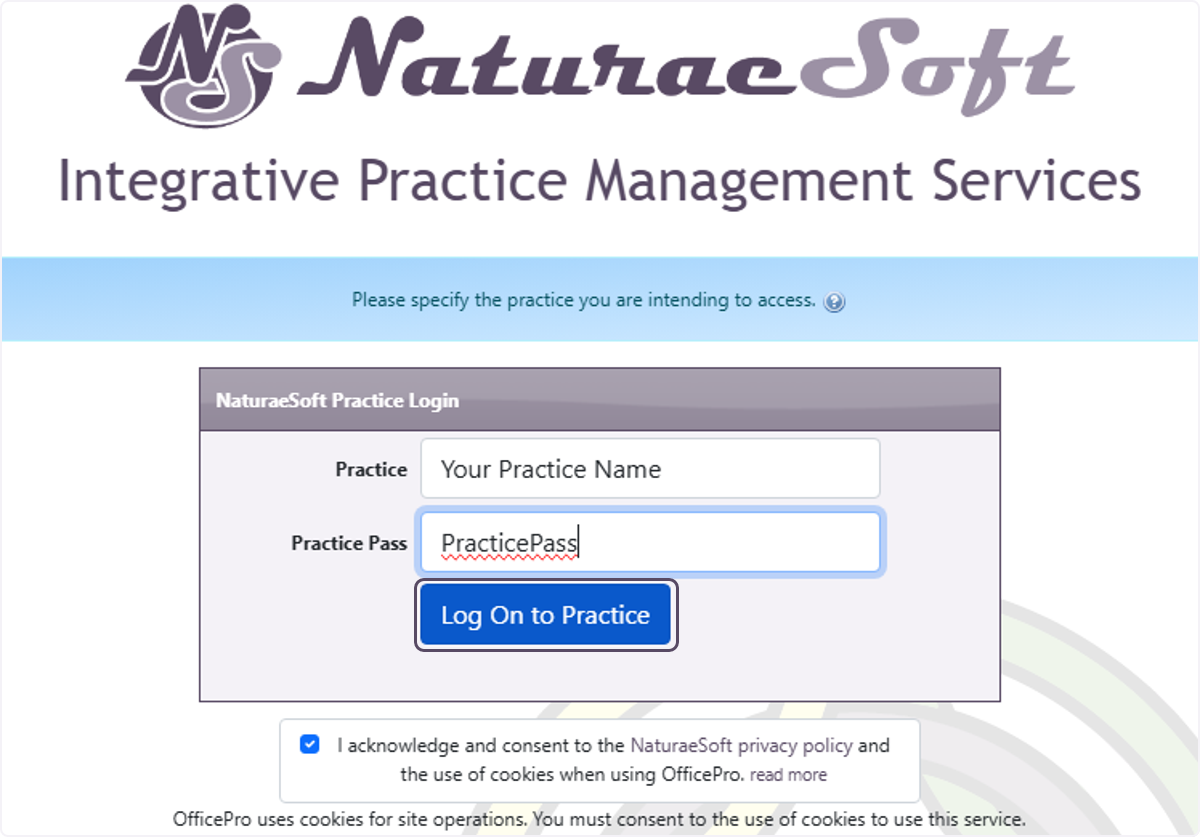
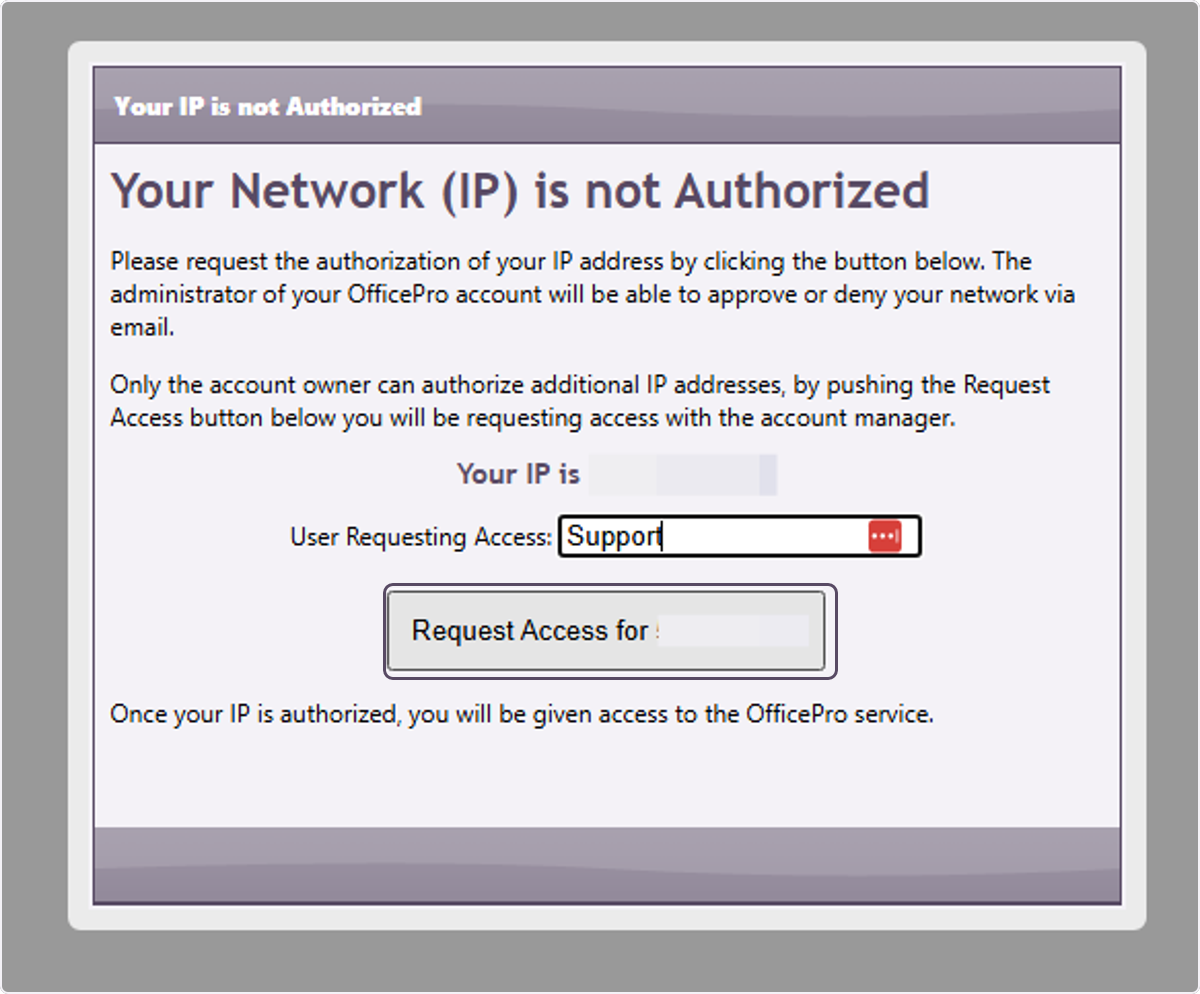
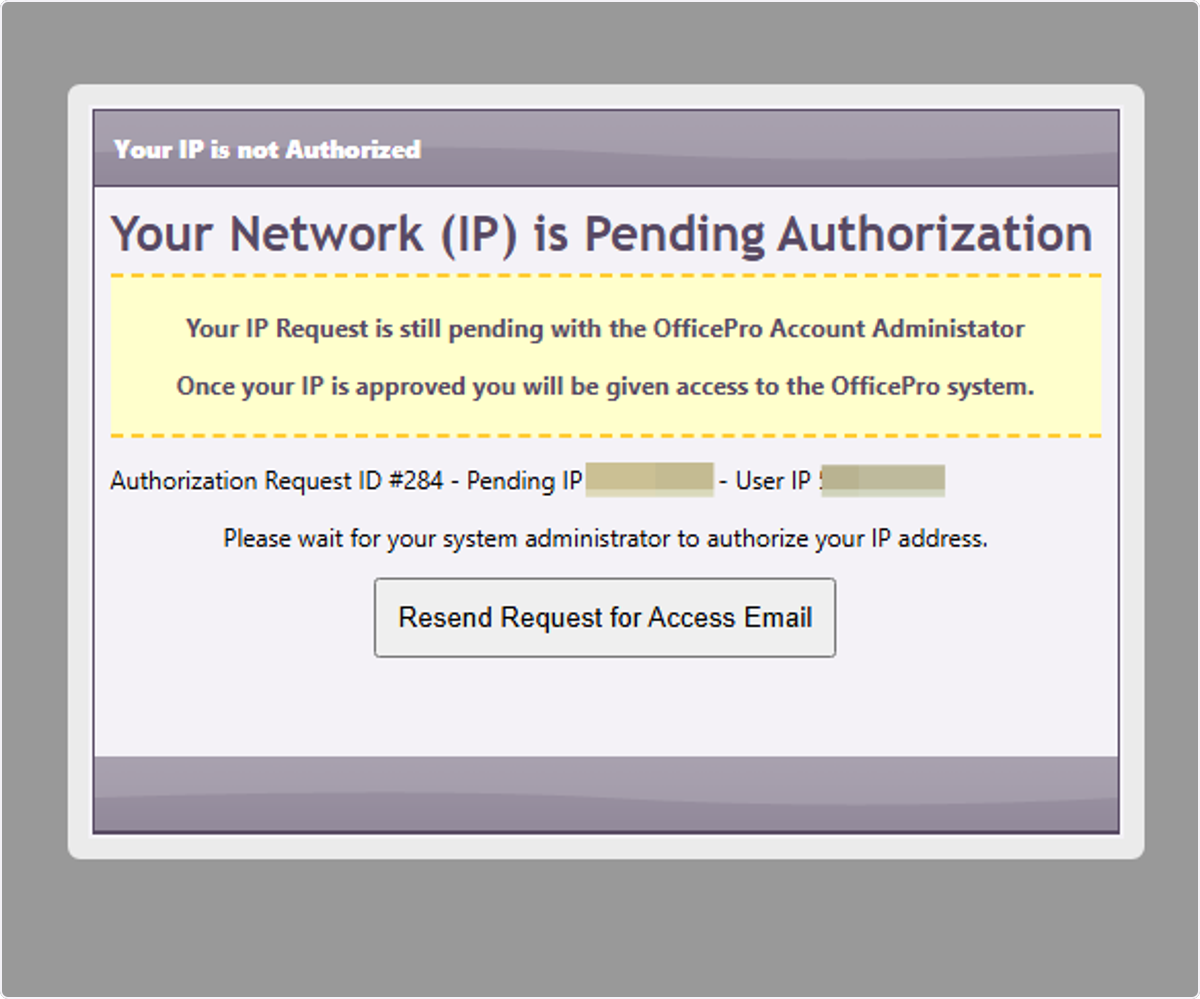
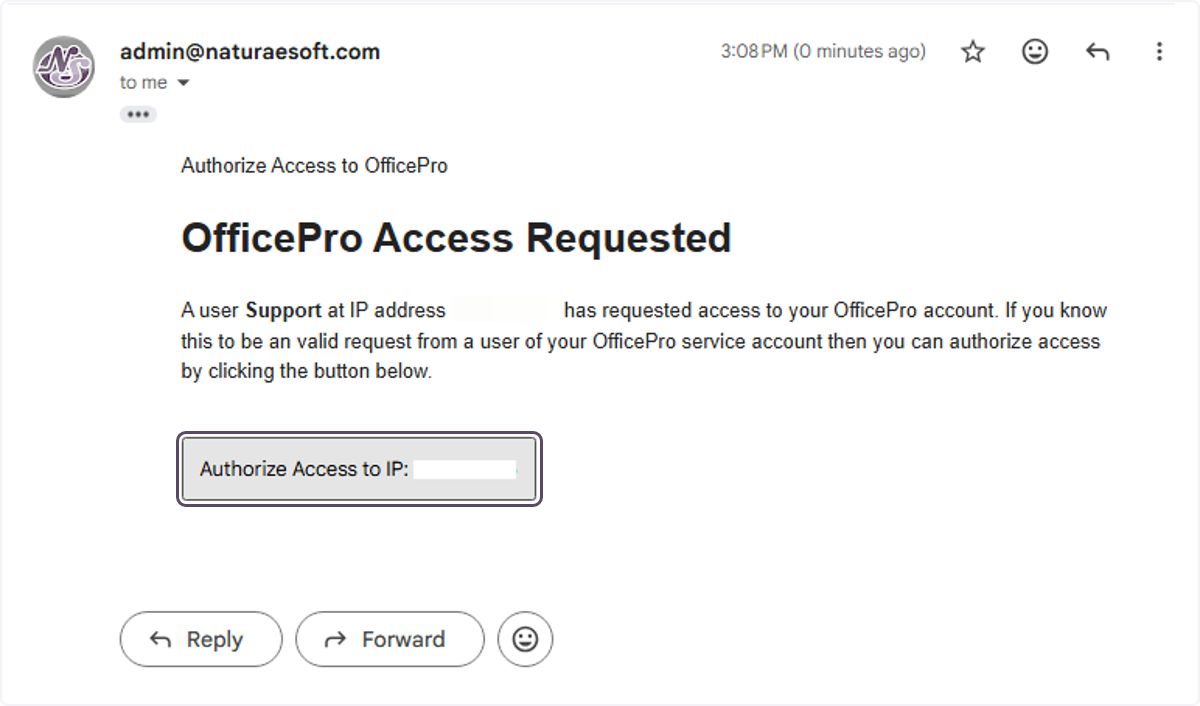
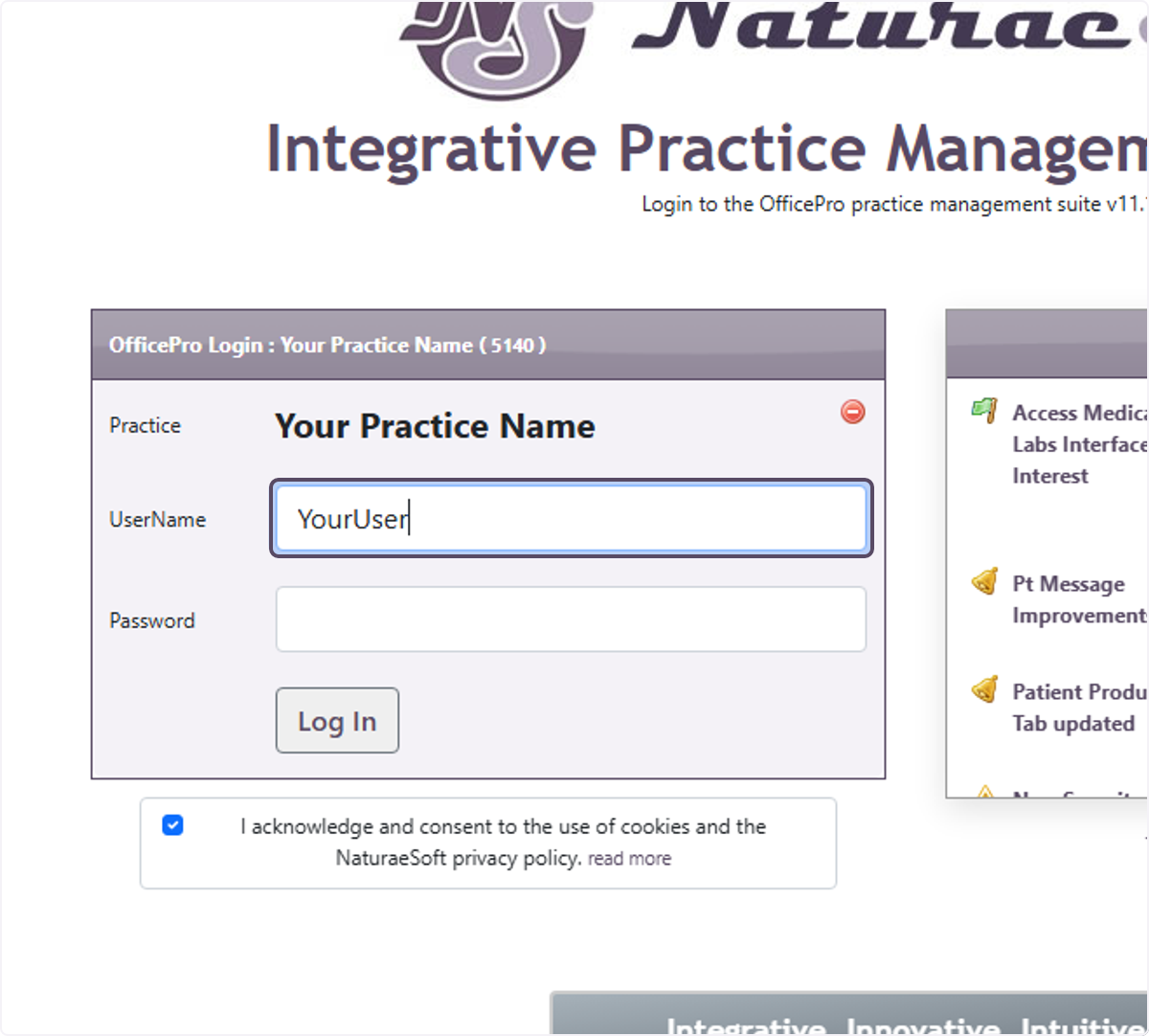
Logging into the OfficeProLogging into the OfficeProAccessing the Login Page- Open your preferred web browser. Log in at the Practice Level Authorize your IPCreation Date: Mar 20, 2026 Created By: Tucker Meager # OfficePro Practice Level LoginTo Log in to the OfficePro Service you can access one of our main service URLS: https://OfficePro.NaturaeSoft.com https://Secure.NaturaeSoft.com https://beta.NaturaeSoft.com - beta use only Practice Level Login Input your Practice Name and PracticePass provided to you in your login email. IP Restrictions Your administrator may have enabled IP restrictions preventing access from un authorized networks. If you are accessing the service from a new location you will be prompted to request authorization from your administrator. Please provide a name and click request access. An email will sent to the account administrator for approval. Once approved you will automatically be redirected tot eh user login page. 1. Enter "Your Practice Name" to identify what practice's servic you are logging in to use.
2. Enter the "Practice Pass" that you were provided for your account.
3. Click on Log On to Practice
4. Click on Request Access for your IP address.
5. Click on Your Network (IP) is Pending Authorization…
# Your Administrators MailYour account admin will receive the email and have to click on Authorize Access to IP: {Your IP} to enable the network for access. 6. Your account admin will receive the email and have to click on Authorize Access to IP: {Your IP} to enable the network for access.
# OfficePro User Level LoginOnce the IP Is Authorized you will be redirected automatically to the User login process. 7. Enter your username and password as provided by your account admin.
ℹ️ Troubleshooting Login IssuesIf you forget your password, please ask your administrator to reset your password for access.Ensure that your internet connection is stable.Check for any browser updates or try a different browser if you encounter issues. ℹ️ Security TipsAlways log out after your session to protect your information.Use a strong, unique password for your account. # Congratulations! You are now logged into OfficePro!Practice Level Login-Input your Practice Name and PracticePass provided to you in your login email. IP RestrictionsYour administrator may have enabled IP restrictions preventing access from un authorized networks. If you are accessing the service from a new location you will be prompted to request authorization from your administrator. Please provide a name and click request access. An email will sent to the account administrator for approval. Once approved you will automatically be redirected tot eh user login page. User Level LoginOnce you have logged in at the practice level a cookie will be saved allowing you to go directly to the user login page. To login you will need you User Name and Password provided to you by your administrator. Entering Your Credentials- Input your username in the designated field. Troubleshooting Login Issues- If you forget your password, please ask your administrator to reset your password for access. Security Tips- Always log out after your session to protect your information. |
|
|
| 11 |
What are the steps I should take when I have a support need? Support Escalation GuideWhat are the steps I should take when I have a support need? Support Escalation GuideNaturaeSoft Support Options and Escalation GuideAt NaturaeSoft, we offer multiple support channels to ensure your issues are resolved efficiently. This guide outlines our support process and the escalation procedure in case of emergencies or unresolved issues. 1. Knowledge Base (KB)Before contacting support, please review our Knowledge Base for known issues, FAQs, and common solutions experienced by our customers.
If you cannot find a solution in the KB, proceed to the next step. 2. Submitting a Support TicketIf the Knowledge Base does not address your issue, you can create a support ticket through the following methods: Via the Support Portal:
Via Email:If your email is registered with NaturaeSoft:
3. Live Chat SupportOur live support chat is available for real-time troubleshooting and immediate assistance.
4. Online Support MeetingsFor more complex issues, schedule an online support meeting with our technical team.
5. Emergency EscalationIf you experience a system-down emergency, please use the following escalation procedure:
6. Final Escalation ProcedureIf your issue remains unresolved after following the steps above, or you haven't received a response within 48 hours, you can escalate the case: Escalation Trigger:
Escalation Process:
Resolution Timeline:
We hope this updated guide helps you navigate our support services and provides clear escalation steps in case of emergencies or unresolved issues. |
|
|
| 63 |
Questions About Signing In and Account SecurityQuestions About Signing In and Account SecurityDo we have to use multi-factor authentication? It is optional until an administrator requires it, either for one person from Edit User or for everyone with Require MFA for All Users. It is strongly recommended: a password on its own is one guessed or reused credential away from exposing patient records. Which is better, the app or text messages? The Authenticator App. Its codes are generated on the device and never sent anywhere, so there is nothing to intercept, and it works with no phone signal. SMS Text Message is a reasonable second choice where an app is not practical. What happens the first time MFA is required? The user signs in as usual and is then asked to finish setting up a method before going any further. Nothing is lost and no data is affected - but turn the requirement on when people are at work with their phones to hand, not at the end of a Friday. I have a new phone. How do I get back in? An administrator clears the old enrolment: Edit User, then Reset TOTP beside Authenticator App:. You then set the app up again from your own Account page. You cannot clear your own second factor, and that is deliberate. My code keeps being rejected and I have not changed phones. The phone clock has drifted. The codes are based on the time, so a phone a minute out produces codes that are refused. Set the phone to get date and time automatically. How many wrong passwords lock an account? Five. The account then locks for 15 minutes. Waiting clears it, or an administrator can release it immediately with Unlock Account from the Users list or from Edit User. Can I unlock my own account? No - an administrator has to, or you wait the 15 minutes. If nobody else in the practice is an administrator, that is worth fixing before you need it. Someone has left. What should we do with their account? Remove their access the same day. Do not simply change the password and leave the account in place, and do not hand it to their replacement - the record of who did what depends on each person having their own login. Why can one user not see Reports or the patient list? Those are separate permissions on the user record, not part of signing in. Open Edit User and check the access boxes. Access that was never explicitly granted counts as not granted, so a brand-new account can sign in perfectly and still see very little until its permissions are set. We are all locked out and we use IP authentication. Your internet address has most likely changed. Nobody inside the practice can correct it, because the Admin page sits behind the same check. Contact NaturaeSoft support. Is a shared login ever acceptable? No. It removes any meaningful audit trail, and when one person changes the password everybody else is locked out at once. |
|
|
| 67 |
Questions About Sales TaxQuestions About Sales TaxIf I change a tax rate, does it change past sales? No. The rate is worked out when a line is created and stored on that line. Past orders, and any refunds against them, keep the rate they were charged. Enter a new rate on the day it takes effect. Why is 4.85% entered as 0.0485? Rates are stored as decimals throughout. The screen shows you the percentage it read back, and refuses anything at or above 1, because a rate of 100% or more is always a typo. What is the difference between an empty class rate and a zero? Empty means taxed at this jurisdiction's normal rate. Zero means not taxed at all. If your state exempts groceries and you leave the Grocery box empty, groceries are charged the full standard rate and nothing warns you. Enter 0. I set a class to 0 but it is still being taxed. Class rates are per jurisdiction. Setting Exempt to 0 on your state leaves the county and the city charging their normal rate, so the product is taxed at their combined rate rather than nothing. Set 0 against that class on every jurisdiction in the group. In the grid, a grey figure is an inherited normal rate - grey under Exempt means that jurisdiction is still charging. A tax group has no jurisdictions in it. Is that broken? No - that is how you say "no tax here", and most practices want exactly one such group for orders shipped outside the area they collect for. It is only wrong if it happened to a group that should be charging tax. The Group Rate does not match what was charged. Group Rate is a stored summary, refreshed when somebody opens the group and saves it. What a customer pays is always calculated from the jurisdictions in the group. So the charge is right and the display is stale - open the group and save it. Why do I add state, county and city separately instead of one combined rate? So the total can be broken down by authority when you file, and so each authority carries its own Pay to the Order Of:. A single combined row charges the right total and leaves you unable to report it. An order was not taxed at all. Check the destination against Ship-To Regions. Anything not matching a named region falls to Everywhere else, which for most practices points at a no-tax group. That is correct for out-of-area orders and wrong if the address was local. Do I have to use product classes? No. A practice that sets no class rates is charged the plain jurisdiction rates on everything, exactly as before the feature existed. Use them only if something you sell is taxed differently. Where do I see what my settings actually charge? What Each Tax Group Actually Charges on the Admin page resolves every group and class combination for you. Read it after any change - it catches a percentage typed as a decimal faster than anything else. Can OfficePro tell me the right rate for my area? No. It charges what you configure. Rates and rules are set by your tax authority and change without notice; confirming what to configure is a question for your accountant. |
|
|
| 70 |
Questions About Gift CardsQuestions About Gift CardsDo I need to switch gift cards on? No. The tools are already on the encounter, on the patient record, and under Gift Cards on the Admin page. There is no settings screen and nothing to enable. Why did our revenue not go up when a card was redeemed? Because it went up when the card was sold. Selling a $100 card records $100 of revenue that day; redeeming it later spends money you have already been paid. Counting it again would record the same $100 twice. Is a redemption a payment or a discount? Neither, strictly. It settles revenue already recorded when the card was bought. It is not a discount - nobody paid less - and not new money, because the money arrived earlier. Who gets credited, the seller or the provider? Selling a card is credited to the clinic. The provider is credited for the services they actually deliver when it is redeemed. Earlier versions credited the redemption against the treating provider, which understated their production; that was corrected in August 2026. Can a card be spent in parts? Yes. Take any amount up to the balance and the rest stays on the card. Balance After shows what will remain before you commit. Can more money be added to an existing card? Yes - use Sell / load a gift card with the existing Card UID and the amount to add. Does a card have to be used by the person who bought it? No. Record the Purchaser and Recipient where they differ, but the balance can be spent by whoever presents the card. What if a card is lost? Cancel it. Anyone holding the UID can spend the balance, so a card reported lost should be cancelled rather than monitored. Confirm who bought it first, and record the reason in the Note. Do gift cards expire? OfficePro does not expire them - a balance stays until spent or cancelled. Whether you may expire them is a matter of law where you practise, and in many places unredeemed balances cannot simply be written off. Ask your accountant before assuming an old card is yours to keep. How do I see what we owe on unspent cards? The Gift Cards section on the Admin page lists every card with its Balance and Status. Outstanding balances are money you hold and have not yet earned, so most practices treat the total as a liability. A card was sold but never paid for. Selling adds the card to a visit as a charge; it is only funded when that visit is settled. Find the originating encounter and take the payment, or cancel the card. |
|
|
| 72 |
Questions About ReportsQuestions About ReportsA report I used to run has gone. What happened? The reports section was rebuilt in August 2026 and around 250 old pages were retired, most of them duplicates or reports nothing had opened in years. Look for the current equivalent in the list on the left, and update any bookmark you kept. Why does my colleague see reports I do not? The list reflects each account's permissions - a group only appears when you have access to something inside it. Compare the two accounts under Edit User on the Admin page. What is the difference between the three Master Reports? Depth, not content. Summary gives period totals, Standard gives encounter totals, Detailed gives every line. Start at Summary and go deeper only when a figure needs explaining. Why do some reports have no date range? Because they describe how things stand now rather than what happened between two dates. Outstanding balances, credits, subscription health and the duplicate-finding reports are all point-in-time, so a period would not mean anything. Which reports can I export? Sales Tax, Sales Tax - Line Detail, Discounts Given, Unbilled Services, Subscription Health and Provider Productivity export to CSV. Any report can be printed to PDF. An export always matches what is on screen, so set the period first. Why can a provider only see their own numbers? Providers are restricted to their own figures by design. Choosing a different provider requires financial or administrator access. Where is the Sales Tax line detail report? I cannot find it in the list. It is reachable only by drilling into it from the Sales Tax report, which is why it is not in the navigation. Open Sales Tax and click through. Two reports give me different totals for the same period. They are usually counting different things - billable versus collected, or services versus products. Rather than comparing totals, drill into one until you reach the encounters behind it; that shows which is answering your question. My report is empty. Check the period first. Most reports open on the current month, so early in the month they can be legitimately near-empty. Widen it and see whether the figures appear. Is it recorded that I ran a report? Yes - successful report views are logged once each. This is normal for a system holding patient data and is what lets a practice show who looked at what. Can I get a report that does not exist? Ask. The registry makes adding one considerably easier than it used to be, and a report several practices want is worth building properly rather than everyone exporting to a spreadsheet. |
|
|
| 12 |
What are my support options? NaturaeSoft Support ResourcesWhat are my support options? NaturaeSoft Support Resources
We hope this guide helps comfort you and directs you to the proper resources with our support services if you experience an issue with the service in the future. |
|
|
| 23 |
How do I send an Email to all of my patients?How do I send an Email to all of my patients?Problem: You want to send an email to all of your patients but can't find how to do this in OfficePro. Background: The OfficePro suite is designed for practice management and not really marketing. So all emails that OfficePro sends to your patients are patient-specific. There is no function for sending an email to all of your patients. But of course, you can still send emails to your patients using your email client or marketing service such as Constant Contact. OfficePro can provide you with a list of email addresses of your patients for sending. Solution: Option 1 To access a list of email addresses in OfficePro you can do one of the following. On the OfficePro Admin Home page on the left hand column. You will see an email box. If you click on the bar, the following email options will appear: If you click the view Email List option from the email menu you will get a list of all of your patient's email addresses. You can then click the Email All Patients link at the top right. If you do not have very many addresses the link will trigger your browser to open the default mail client with the email addresses already populated into the BCC field of the email draft. If you have a large number of emails on file then the system will prompt you with a selection box you can use to copy and paste all of the emails on file into the BCC box of a new email in your email client. Option 2 You can also use the Export Patient function to export a CSV of all of your patients. Then simply filter the CSV using your favorite spreadsheet software (excel, numbers, sheets, etc...). This way you can come up with a targeted list for your email. For more on exporting the patient list see the following tutorial about the Add Ons, Export, and Logs tabs of the Admin General settings page. http://www.naturaesoft.com/configuration.html#AddOns NOTE: Always use the BCC box otherwise your patient's email addresses will be shared with the other recipients of the email. Ignoring this could lead to a HIPAA violation, so be very careful about emailing your patients. |
|
|
| 99 |
Questions About Online SchedulingQuestions About Online SchedulingWe turned scheduling on and patients still cannot book. Why?Because there are two switches. Online Scheduling Enabled turns it on for the practice; each appointment type also needs Offer Online. With no type switched on, the page loads and offers nothing. Can we offer some appointment types and not others?Yes, and you should. Offer the straightforward ones and keep new patients, triage and anything expensive with a person. Can a patient book with a specific practitioner?Yes - send a Provider Link. A General Link lets them choose. Can we send a link that books one exact appointment type?Yes, that is what Visit Type Links are for, and they are the most useful kind - the patient cannot pick the wrong thing. Do we need a web developer?Not for a link - Copy link works in an email or a text. For a button on your website, Copy the button code gives your web person the HTML. Can the booking page live on our own site?Yes. Embed the Portal with the Portal Include Code keeps patients on your domain. Check it on a phone. What else can patients do in the portal?Whatever you switch on under Portal Features - Ask the Doctor, Documents, History, Products, Providers, Uploads. Each is independent of scheduling. Should we turn on Ask the Doctor?Only if somebody owns answering it. It generates real patient messages, and an unanswered one is worse than not offering it. Why does a patient see no available times?The type is offered but nothing fits - no open hours, a full schedule, or an appointment duration longer than any gap you have. Can we control what a patient sees about an appointment?Yes. Each type carries an online description, plus its Duration: and Estimated Price:. Fill the description in - without it, patients are guessing. Can we make the portal match our website?Yes - Portal Style covers Main Colors, an Accent, Header Font and Content Font, a Header Image and the embed Dimensions. Do patients have to accept terms?They see your Portal Disclaimer and Terms and Portal Terms and Conditions for Patients. Write these before going live. How do we test it without a real patient?Book one yourself from a phone, check it lands on the right schedule at the right length, then cancel it. |
 |
|
| 91 |
Questions About Claims and ERAsQuestions About Claims and ERAsDoes Accepted mean we have been paid?No. It means the payer took the claim in for processing. Payment is a separate event, and an accepted claim can still be denied. Claim Balance is what tells you where the money stands. What does Processing cover?Everything that is neither accepted nor rejected - including claims that have never been sent. If something has been in Processing for weeks, check first that it was actually submitted. Why does a claim disappear from the aged views?Those views only list claims with a balance outstanding, so a claim paid in full drops out. Clear the age filter or search for it directly. Is the claim age counted from the visit?No, from the date the claim was submitted. A claim sent late looks young even when the date of service is months old. What is the difference between enrolling for claims and enrolling for ERAs?Sending claims and receiving remittances are separate agreements, and ERA enrolment is per payer. You can be submitting successfully for months and still get paper cheques from a payer whose ERA enrolment has not completed. Do we need to enrol each tax ID separately?Yes. Enrolment is per business entity - each appears under Enrolled Entities with its own Account # and TaxID. Claims for an unenrolled tax ID have nowhere to go. How often should we check for ERAs?Pick a regular day. Remittances wait until you fetch them, and unposted ERAs make every patient balance wrong in the meantime. What if the ERA total does not match the deposit?Stop and look before posting. Usually a second remittance belongs to the same cheque. The Check Number on each ERA is what ties them together. Can we post an ERA twice by accident?Processed remittances move to PROCESSED ERAs with a Processed On date, so you can see what has been done. ReProcess exists for fixing a posting that went wrong - it is not part of the routine. The insurer paid less than we billed. Is that a rejection?Usually not. Contractual adjustments are the difference between your fee and the contracted rate, and they show under Adjustments / Discounts. What remains after the payment and the adjustment is the patient's or the secondary insurer's. How do we bill the secondary insurer?Create SECONDARY Claim Document on the claim. It carries the primary's payment and adjustments across, which is what the secondary payer needs. A patient's details were wrong. Do we fix the claim or the patient?The patient. Then Re-Create Claim Document so the claim is rebuilt from the corrected record. Fixing only the claim leaves the next one to reject the same way. Every claim to one payer is rejecting. What now?Treat it as one problem, not many. A whole payer rejecting points at enrolment or the payer ID rather than the individual claims. What are Manual Cases?Claims built by hand rather than generated from a visit, listed under Manual Cases with Show Complete and Show Incomplete. Where do we see what the clearinghouse said about a submission?BillPro Processing Reports in the billing centre - that is the clearinghouse's response to your batches, as distinct from the payer's response to a claim. |
 |
|
| 103 |
Questions About ChartPro AIQuestions About ChartPro AIWhat does it actually do?It records the consultation, transcribes it, and drafts a chart note from the transcript. You read the draft and decide whether to keep it. Do we have to turn it on?No. It is there for every ChartPro practice, marked BETA, and there is no per-practice switch. What you do need is a decision about how your providers will use it. Is the note automatically added to the chart?No. Nothing is written until you accept the draft in AI Note Preview. Cancel discards it. Who is responsible for what it writes?The provider who accepts and signs it, exactly as with a typed note. Read the draft before accepting it - a draft that reads well is not the same as a draft that is right. Do we need to tell patients?You are recording a conversation with them, so treat that as you would any recording. What is required varies by where you practise - settle it with whoever advises you, and agree the words your providers will use before the first recording. What is the 40 on the button?Your notes for the current calendar month, per provider, shown against 40. The bar changes as you approach and pass it. What happens if we go over?Nothing stops. It is an indicator, not a cap - dictation keeps working and the count resets next month. Can we see what it wrote before?Yes. Review past ChartPro AI encounters opens ChartPro AI - Encounter Review, which lists them by Date and Encounter # and shows the Transcript beside the ChartPro AI Note. How do we tell whether it misheard or invented something?Read the transcript next to the note. If the transcript is wrong it is a recording problem; if the transcript is right and the note is not, report it. How do we get better results?Microphone nearer the patient, numbers and doses said clearly and in full, medicine names not abbreviated, the plan stated aloud at the end, and less background noise. Does rating a note do anything?Yes, and hardly anyone does it - a handful of ratings against hundreds of encounters. Rate the notes that came out badly and say why in the Comments; those are the ones worth reporting. Can we re-record?Yes - Go back and re-record from the preview, before you accept anything. It says no note was generated. Is it broken?Usually the audio had nothing usable in it. Check the transcript on the review screen first - that separates a microphone problem from an AI one. Which appointments suit it?Structured consultations transcribe well. A long discursive intake with several people in the room is harder. Try it on your own patients for a fortnight before deciding. |
 |
|
| 20 |
Why can't I sign my chart note? The Sign and Document button is disabled.Why can't I sign my chart note? The Sign and Document button is disabled.Problem I am unable to sign my charts because the Sign and Document Chart Note button is disabled. Background Only when you are signed in to the Service as the Provider on record for the visit can you sign the chart. This means that you will not be able to sign the chart if:
Resolution
Further Assistance If you need more help with this issue please create a ticket contact support through live chat or by emailing Support@NaturaeSoft.com. |
|
|
| 95 |
Questions About LabProQuestions About LabProWhy is a result not on the patient's chart?Most often it arrived without matching a patient and is sitting unassigned. Look in the practice-wide reports list and use Select Patient to Assign Lab Report. Check for these regularly - nothing prompts you about them. Why do results fail to match?The demographics the lab returns did not match your record closely enough - a differently spelt surname, a middle name, a date of birth keyed wrong at the lab. Fix your record as well as assigning the report, or the next result does the same thing. What does the ALERT badge mean?The lab flagged a critical value on that report. Work those first. Which flags are shown as critical?HH, LL, CH, CL, and > or < for values off the measurable scale. Everything else, including plain H and L, is shown bold without a highlight. So an un-highlighted result is normal?No. Plain H and L are abnormal results - they are simply not critical, and they are the great majority of flagged results. Always read the flag column and the reference range rather than relying on the highlight. What is the accession number?The laboratory's own reference for the specimen. Quote it whenever you contact them. Only part of a panel came back. Is something wrong?No. Labs report tests as they complete, so a panel can arrive in pieces. The status on each line says whether it is final. Where do we place lab orders?In LabCorp Link, not in OfficePro. Collection arrangements, priority and the requisition are all handled there, in the lab's own software. Then what does OfficePro do?Two things. It gives LabCorp Link your patient's demographics when you search for them by MRN or patient ID, so nothing is retyped; and it receives the results afterwards and puts them on the chart. Why search by MRN rather than the patient's name?Because the MRN is what ties the order to the record the result lands on. A patient keyed in by hand, or found by name, is the usual reason a result comes back matching nobody. Can we receive results for labs we did not order here?Yes. Results from a hospital or an outside laboratory appear the same way, and are attached to the patient the same way. Can we see whether a value is trending?Yes. Where a patient has had the same test before, the test name links to its history. Why are Fullscript labs separate?They come from a different source and are listed under Fullscript Labs. They also need each ordering practitioner mapped to a provider, under Fullscript provider setup. A result is on the wrong patient. What do we do?Reassign it straight away and check nothing was acted on while it was misfiled. This is a clinical risk, not a filing error. |
 |
|
| 104 |
Questions Patients Ask About the PortalQuestions Patients Ask About the PortalThese are the questions that arrive by phone, usually to whoever answers, about a screen they may never have used themselves. Answers are written to be read down the line to a patient. A patient cannot log inBefore resetting anything, offer Get a Magic Login Link on the login page. It emails them a link that signs them in without a password, and it resolves most of these calls in under a minute. Forgot Password is still there if they would rather set a new one. Check first that they are using the email address you hold for them - a patient logging in with a different address is the second most common cause, and no reset will fix it. They say the portal does not recognise themLogging in asks for the email and then Select your date of birth. Both must match your record. If the date of birth on file is wrong, correct it in OfficePro and they will get straight in - the portal is only ever as right as the chart. How does a patient get an account?Create an Account on the login page opens Register as a Patient, asking for First Name, Last Name, Email, Phone and Date of Birth, and asking them to accept your Terms and Privacy Policy. They must register with details matching what you hold, or they end up as a second record rather than getting into their own. What can they see once they are in?Patient Portal Home shows whatever your practice has switched on - typically Appointments, Documents, Make a Payment, Ask a Question and Complete Intake Form. If a patient says something is missing, it is usually not enabled for your practice rather than broken. That is a practice-wide setting, not a per-patient one. Can they pay their bill online?Yes, if you have payments enabled. Pay your Account shows their Patient Balance with the Visits making it up, and they can Pay with Card on File or Pay with New Card. Can they save a card?Yes - Add a Card on File, and Update Card on File when it expires. A patient whose card keeps declining usually has an expired one saved. The balance shown does not match what we told themThe portal shows what is currently posted. If you have taken a payment that has not been posted yet, or an insurance remittance has not been applied, the figures will differ until it is. Check the account in OfficePro before telling the patient the portal is wrong. Can they see their records?Your Files lists the Documents you have shared with them, searchable and filterable by type. They can also use Upload New Document to send you something - insurance cards and outside results usually. Uploads land with you, not on their chart automatically. Somebody has to look. A patient sent a message and heard nothingAsk a Question lets them choose Who would you like to ask your question to? - a provider, or Front Desk. It arrives in your messages, and it stays there until someone answers. If nobody owns answering portal messages, turn the feature off. A patient writing into silence is worse than a practice that never offered it. On their side the reply appears under Message Inbox / Secure Messages, where they can Send Response or Ask another question. Answered threads can be marked complete and are hidden unless they choose Show Completed Messages - which is why a patient may say a message “disappeared”. Can they fill in their intake beforehand?Yes - Complete Intake appears on their home page and alongside a future appointment. It is worth asking them to, because an intake done at home is longer and more accurate than one done in the waiting room. Can they see upcoming appointments?Future Appointments lists them, with past visits under History. No upcoming appointments found means exactly that - it is not an error. Can they order products?If you have that enabled, yes, including the Full Script Dispensary where you use Fullscript. Subscription and refill questions are covered in the auto-order articles. Is the portal secure enough for medical information?It is the same service that holds their record, they sign in to reach it, and messages are handled as secure messages rather than ordinary email. That is the honest answer, and it is usually what the question is really asking. They are asking about booking onlineDifferent article - see the online scheduling questions, which cover links, availability and which appointment types can be booked. |
 |
|
| 77 |
Questions About FullscriptQuestions About FullscriptDo we need ProductPro to use Fullscript? Yes. Every Fullscript screen sits behind that module. Does each provider need their own Fullscript account? Yes. Connecting the practice is one step; linking each prescriber is another. A plan is written by a named provider, so an unlinked provider can browse the catalogue and still not create one. A provider shows "Assigned under another account". What now? Their Fullscript account is tied to a different dispensary, often their own from a previous practice. OfficePro cannot move it - that has to be sorted out with Fullscript. What is the difference between adding and linking? Add Selected to My Catalog creates products you do not stock yet. Link Existing Products pairs products you already have with their Fullscript equivalent so the two are treated as one. Link first, then import - the other order leaves you merging duplicates. If I import the same product twice, do I get two? No. Each Fullscript variant is recorded against the product, so a second import updates it. Duplicates almost always mean a product was imported when it should have been linked. Are imported prices ours? No - they arrive at the Fullscript catalogue price. Review anything where you set your own margin. Why is the Type blank on imported products? Default Product Type is set to a value that is not in the supplied list. Only those values are valid; anything else renders an empty Type box. Import two or three and look at them before importing the rest. Should imported products be taxable? Leave Mark Imported Products Taxable on unless your practice genuinely does not charge sales tax on supplements. If some are taxed at a reduced rate, see Sales Tax by Product Class - and note that setting a class to 0 on one jurisdiction does not exempt it everywhere. What happens to our products if we disconnect? They stay. They are your products and you can still sell them. They stop refreshing from Fullscript, and new plans cannot be written until you reconnect. Can we import the whole catalogue? You can, and it is usually a mistake. A few hundred products nobody dispenses makes the catalogue harder to use for staff and patients alike. Import what you actually recommend. |
 |
|
| 87 |
Questions About Auto-OrdersQuestions About Auto-OrdersWhen exactly do auto-orders run?Once a day, late in the evening Pacific time. Not hourly, and not when you save a plan. Orders set up during the day appear the following morning. Do I need BackOfficePro?Yes. Plans can be recorded without it, but nothing generates from them. It is part of your subscription rather than a setting you can switch on. What is the difference between the two discount settings?Subscribe and Save First Autoorder Discount is a welcome offer shown to patients in the portal when they start a subscription themselves. Subscribe and Save Subsequent Autoorder Discount is applied to every refill thereafter. Does a patient get the welcome discount if we set the plan up for them?No. The first-order discount is a portal offer. A plan set up in OfficePro on the patient's behalf is charged at the ongoing rate from the start. Worth knowing before a patient who saw the offer online asks about it. Where does the discount show up?As a discount on the order line. It is not an account credit, and there is no separate credit entry. If it looks missing, do not add a credit to compensate - see the troubleshooting article. Can different patients have different discounts?Yes. A plan can carry its own percentage, which is used instead of the practice default. Left unset, the practice default applies. How do I pause a subscription for a month?Move the plan's Next: date forward. The plan stays intact and simply resumes on that date. Setting Interval: to None stops it altogether. If I cancel an order that was generated, does the plan stop?No. Cancelling the order does not change the plan, and the next cycle will come round as scheduled. To skip a cycle, move the Next: date; to stop the plan, change the interval or set an end date. A plan has been due for months. Will we be billed for all of them?No. An overdue plan produces one order and its next date moves to the next future cycle. Why did one patient get two orders in one night?Because they had both pickup and shipped refills due. Each order is created for a single delivery method so the header matches what is in it. Is shipping charged on refills?Yes, on refills whose method is shipping, at your standard or premium rate. Pickup refills are not charged shipping. Which dosing appears on a refill?The dosing recorded on the plan. Not the product default, and not the last dispense. If the plan has none, the line goes out with none - change the plan, not the order. Does a refill create a visit or an encounter?It creates a patient order, waiting as Pending in the same queue as any other. From there it is picked, packed and completed exactly like an order taken at the desk. Are patients notified?This job does not text or email patients. The only notification is the internal summary to your Order Message User. If you want patients told, tell them when the plan is set up and when the order is completed. Can a patient cancel their own subscription?Ask them to contact you rather than assuming they can do it themselves. Staff can always stop a plan from Patient Auto Orders. How do I see what our subscriptions are worth?The Subscription Health report under Products shows active auto-orders, estimated monthly recurring revenue, and which plans are about to lapse. What is the auto-order on a vendor record?A completely separate feature that raises purchase orders to a supplier on a cycle. It restocks your shelves and never bills a patient. |
|