NS - Knowledgebase
Find the answers you need. More articles every week.
| ID | Title | Module | Category |
|---|---|---|---|
| 42 |
Adding and Editing ProductsAdding and Editing ProductsProducts are managed from Product Administration. Open the Admin menu and choose Product Admin from the list on the left. Finding a productTwo tools sit at the top of the page. Search Products takes part of a name or product code - type a few letters and click Go. Filter By Vendor narrows the list to one supplier, which is the quicker route when you are working through a delivery or reviewing one vendor's pricing. The Product List also offers Select by First Letter for browsing, and Clear to drop the current filter and start again. 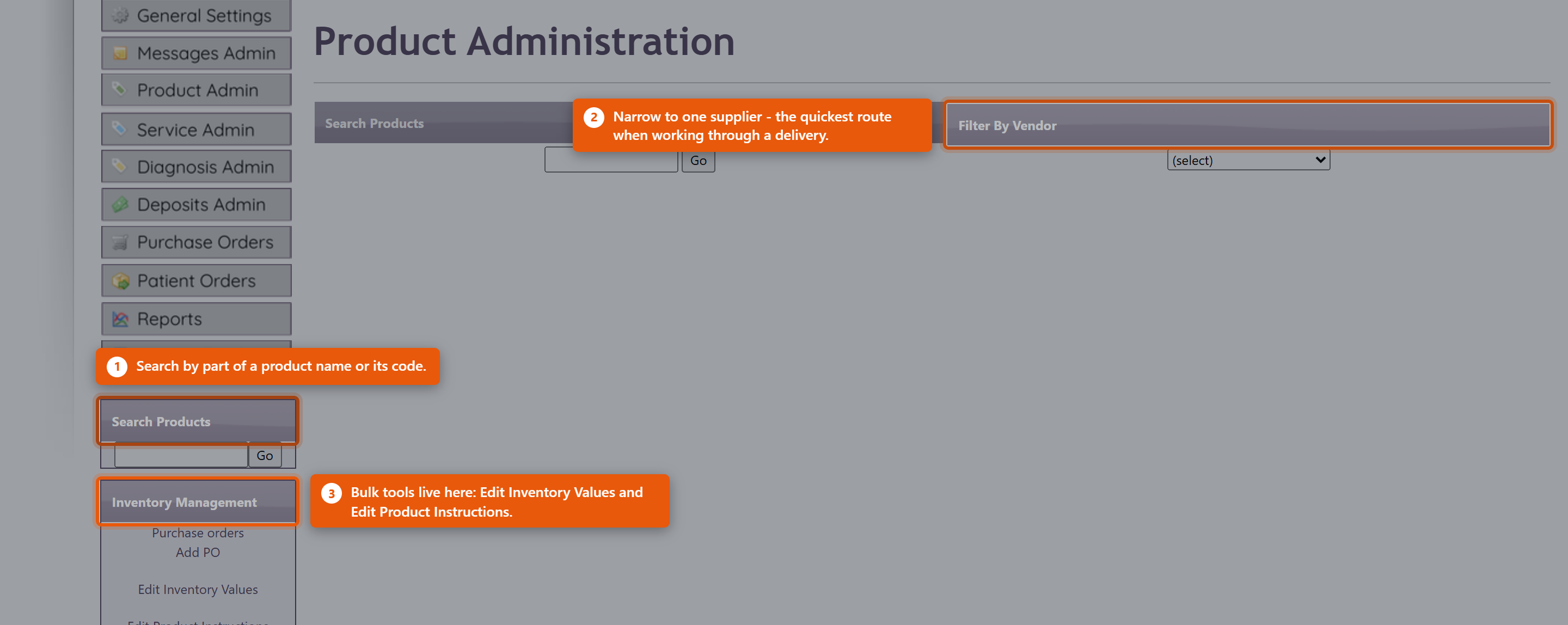 What a product record holdsOpening a product shows it in sections, and you do not need to complete all of them. Only the name, type and price are needed to sell something; the rest earns its keep in specific situations.
The clinical detailThe product record also carries Dosing Information, Recommended intake, Features and Benefits, Contra-indications and Inactive Ingredients. These are worth filling in for anything you dispense regularly. Contra-indications and Inactive Ingredients in particular are what a provider checks before recommending something to a patient with an allergy or an interacting medication - an empty field there is not neutral, it just means nobody can check. PricingThe Pricing section holds the Cost you pay and the Price you charge, and works out Margin and Markup from them. Average Cost is what the stock you are actually holding cost, which drifts from the current cost as you buy at different prices - it is the figure to use when valuing inventory. StockInventory Details shows On Hand and the Location the stock is kept in. Inventory Transactions lists every movement - what was purchased, received, sold and adjusted, and when. When a count is wrong, read the transactions before adjusting. The history usually shows what happened, and an adjustment made without understanding the cause hides the problem rather than fixing it. Set a Reorder Level on anything you keep in stock. The reorder tools use it to tell you what is running low, and a product with no reorder level simply never appears in those lists. Editing several products at onceThe Inventory Management panel on the left of Product Administration handles the jobs that span many products: Edit Inventory Values for counts and costs, and Edit Product Instructions for dosing text. Both are far quicker than opening products one at a time. Purchase orders and Add PO are in the same panel. Receive new stock through a purchase order rather than by adjusting counts - the PO records what you paid, which is what keeps Average Cost and your inventory value honest. Retiring a productMake a product you no longer sell inactive rather than deleting it. Deleting breaks the history of everything already sold; making it inactive takes it out of the lists while leaving past orders, invoices and reports intact. |
 |
|
| 30 |
Organising Your Product CatalogueOrganising Your Product CatalogueA catalogue of a few hundred products only stays usable if it is organised. Three things do most of that work: categories, vendors and keeping retired products out of the way. All of it lives under Product Admin on the Admin menu. CategoriesCategories group products for browsing - both for your own staff and for patients in the portal, where they are the main way anyone finds anything. Each category carries a sort order, so the ones you sell most can sit at the top rather than falling alphabetically. Keep them broad. A category holding two products is not helping anyone find anything, and a catalogue with forty categories is harder to navigate than one with eight. 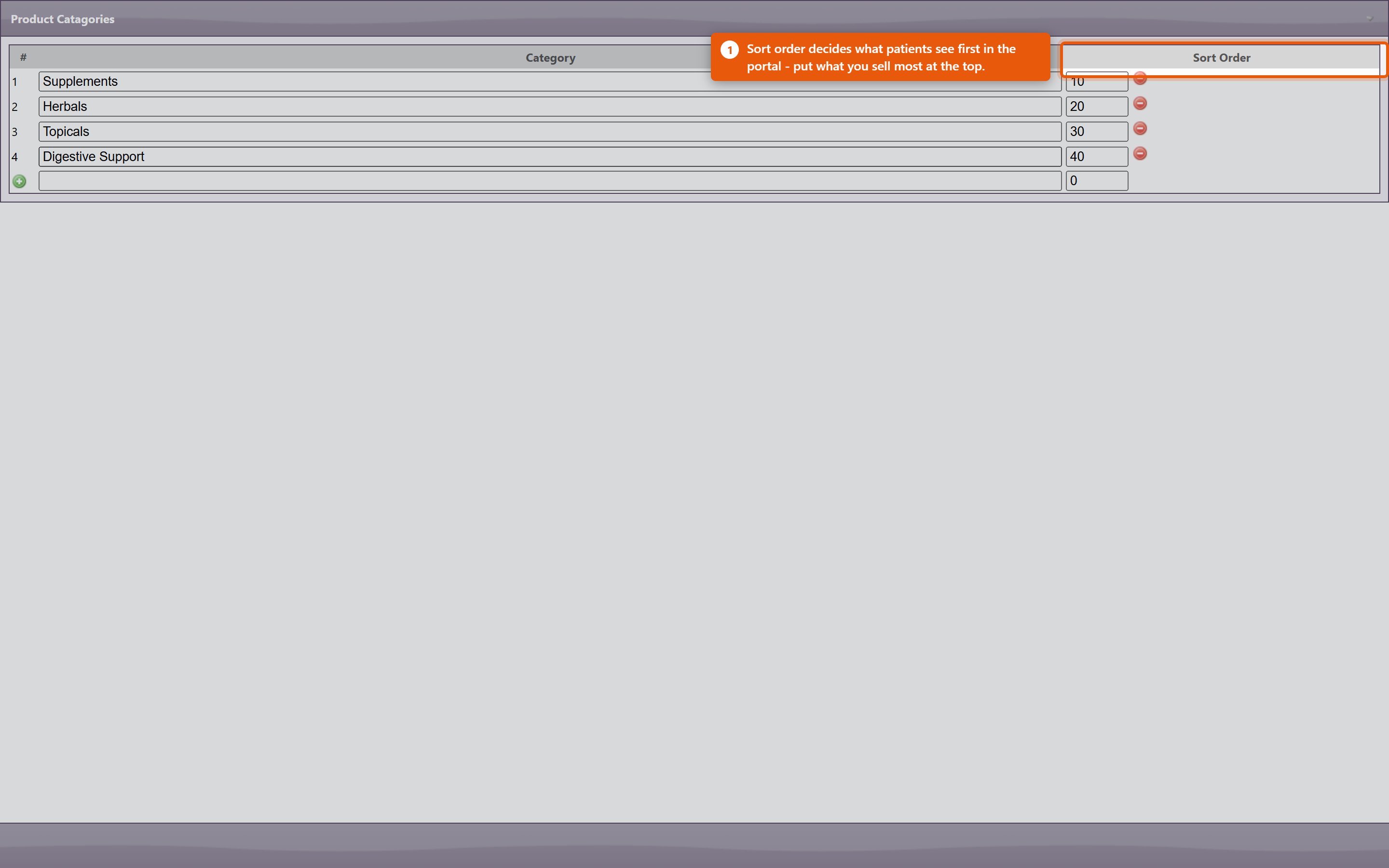 VendorsRecording the vendor on a product is what makes Filter By Vendor useful on the Product Administration page. That filter is how you work through a delivery, review one supplier's pricing, or find everything affected when a supplier discontinues a line. It also drives purchase orders: a product with no vendor cannot be ordered through the normal PO process. Finding things
Product codesProduct codes identify a product across orders, inventory and reports. Keep them consistent and do not reuse a code from a retired product - reports covering both periods will silently merge the two. DuplicatesDuplicates appear naturally: the same supplement gets added twice under slightly different names, or an import creates a second copy. They split your stock figures and your sales history, so the same product looks like two half-selling ones. The Duplicate Products report under Reports lists catalogue entries that look like duplicates. Work through it occasionally rather than waiting for the figures to confuse someone - and when you find a pair, make one inactive rather than deleting it, so the sales already recorded against it survive. Retired productsMake products you no longer sell inactive. They come out of the lists and out of the portal while everything already sold keeps its history. Deleting a product breaks that history, which is why it is almost never the right choice. Keeping it tidyA quarterly pass costs very little and prevents most catalogue problems:
|
|
|
| 74 |
Connecting Fullscript to OfficeProConnecting Fullscript to OfficeProConnecting Fullscript lets you pull their catalogue into your own product list and send patients a Fullscript plan without leaving OfficePro. It is set up once by an administrator, and then each prescribing provider is linked to their own Fullscript account. Fullscript needs ProductPro. Without that module none of these screens are reachable. 1. Connect the practice
When it has worked the section reads Your account is connected to Fullscript. Sign in with the account that owns your clinic's Fullscript dispensary, not a personal one - the connection determines whose catalogue and whose commissions you are working with. 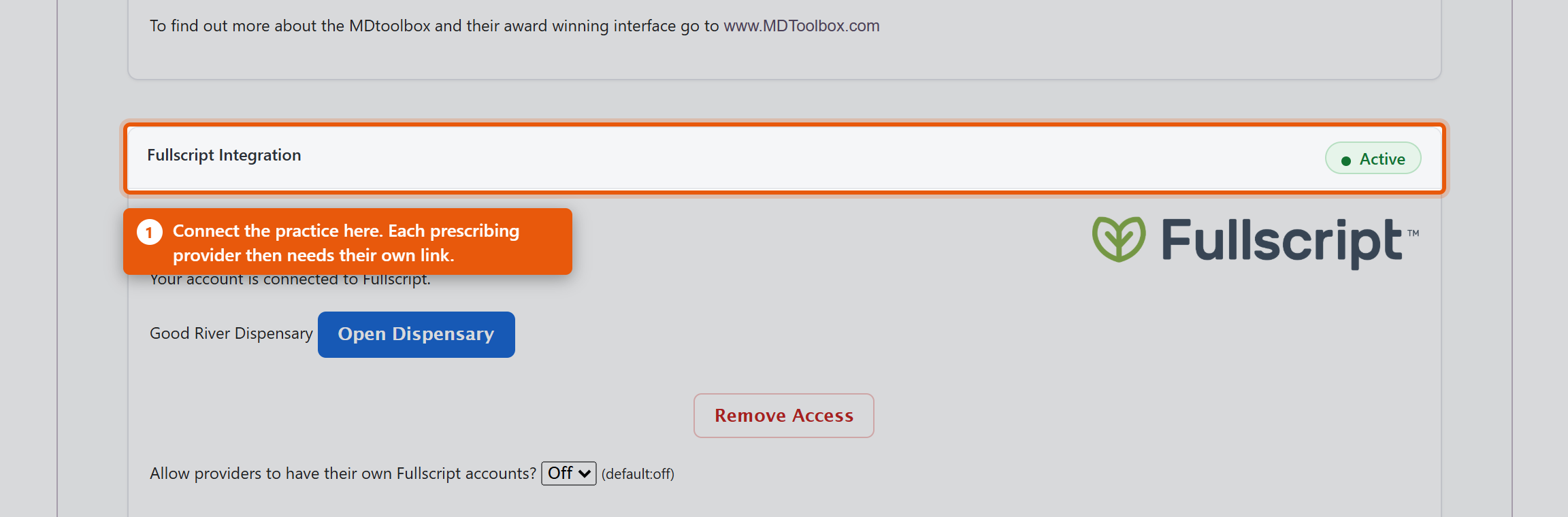 2. Link each providerConnecting the practice is not enough on its own. Fullscript plans are written by a named prescriber, so each provider needs their own link. Under Associate Providers with Fullscript you will see each OfficePro Provider against their Fullscript ID. Use Add to Fullscript for anyone not yet linked. A provider showing Assigned under another account has a Fullscript account already tied to a different dispensary - often their own from a previous practice. That has to be resolved with Fullscript directly; OfficePro cannot move it. 3. Decide how imported products should lookBefore importing anything, set the defaults in ProductPro settings. They apply only to products added from the Fullscript catalogue and never change products you already have.
DisconnectingRemove Access ends the connection, and the section then reads Your Fullscript access was removed. Products already imported stay in your catalogue - they are your products now - but they stop being refreshed from Fullscript and new plans cannot be written until you reconnect. Check it worked
|
|
|
| 84 |
Setting Up Auto-Orders and Subscribe & SaveSetting Up Auto-Orders and Subscribe & SaveAn auto-order is a standing arrangement to reorder a product for a patient on a fixed cycle. Each night OfficePro looks for plans that are due, creates the orders, and applies a recurring discount if you offer one. It bills patients on a schedule with nobody watching, so it is worth setting up deliberately rather than discovering how it behaves from a phone call. Before anything else: is it switched on?Auto-orders run for practices on BackOfficePro. This is part of your subscription, not a setting inside OfficePro - you cannot enable it yourself. If you are not on BackOfficePro you can still record auto-order plans, and nothing will ever generate from them. If you are unsure, ask support before you set expectations with a patient. Set your discountsIn ProductPro settings there are two:
Both are set in 5% steps up to 30%. Leave either at 0% to offer no discount. Work the ongoing percentage out before you set it. On a monthly subscription, 10% off is 10% off twelve times a year, on a product you have already discounted to a dispensary price. Set the shipping and the notification
When the orders appearThe job runs once a day, late in the evening Pacific time. Orders created overnight are waiting the next morning as Pending, alongside everything else in your patient orders queue - they are ordinary orders from that point on, and are picked, packed and completed the same way. It looks a short way ahead as well as behind, so a plan due in the next few days is picked up early rather than exactly on its date. A plan that is overdue produces one order, not one for every cycle it missed. Decide your refill policyEach product on a patient can carry a refill constraint:
For anything a provider wants to review before it keeps going out, set a refill count or an end date on the plan. An auto-order with no end runs until somebody stops it. A different feature with the same nameVendors have auto-orders too. On a vendor's contact record, Auto Order raises a purchase order to your supplier on a cycle - the record will say This vendor is set to auto order every so many days. It restocks your shelves; it has nothing to do with patient subscriptions and no patient is billed by it. Check it before you rely on it
|
|
|
| 31 |
Managing Product Inventory in OfficeProManaging Product Inventory in OfficeProTo effectively manage your product inventory, utilize the Product Admin area in OfficePro. Accessing Product Admin
1. Inventory ManagementThe Inventory Management view assists with conducting periodic physical inventory counts and offers ongoing access similar to the initial setup with the Add Starting Inventory list.
2. Reorder ListThe Reorder List highlights products that have reached an inventory level requiring reordering.
Additional ResourcesTo learn more about setting up your products in OfficePro, refer to the Knowledge Base articles on Adding and Editing Products, Product Lists, and Inventory Setup. |
|
|
| 43 |
Setting Up Your Inventory in OfficeProSetting Up Your Inventory in OfficeProAccurate inventory management is crucial for ensuring you have the right products available for patient encounters. Here’s how to set up and manage your inventory effectively. Importance of Inventory Setup
Adding Starting InventoryAccess the Add Starting Inventory Feature:
Initial Inventory Setup:
Entering Opening Counts:
Review and Save:
Ongoing Inventory ManagementAfter the initial two-month setup period, you can continue to manage your inventory using the Inventory Management view. This view allows for periodic adjustments and helps you maintain accurate stock levels over time. ConclusionSetting up your inventory accurately in OfficePro is essential for ensuring smooth operations and effective patient encounters. By utilizing the Add Starting Inventory feature and making sure your counts are correct, you’ll reduce the likelihood of stock discrepancies and enhance your practice's efficiency. If you have any questions or need further assistance with inventory management, feel free to ask! |
|
|
| 77 |
Questions About FullscriptQuestions About FullscriptDo we need ProductPro to use Fullscript? Yes. Every Fullscript screen sits behind that module. Does each provider need their own Fullscript account? Yes. Connecting the practice is one step; linking each prescriber is another. A plan is written by a named provider, so an unlinked provider can browse the catalogue and still not create one. A provider shows "Assigned under another account". What now? Their Fullscript account is tied to a different dispensary, often their own from a previous practice. OfficePro cannot move it - that has to be sorted out with Fullscript. What is the difference between adding and linking? Add Selected to My Catalog creates products you do not stock yet. Link Existing Products pairs products you already have with their Fullscript equivalent so the two are treated as one. Link first, then import - the other order leaves you merging duplicates. If I import the same product twice, do I get two? No. Each Fullscript variant is recorded against the product, so a second import updates it. Duplicates almost always mean a product was imported when it should have been linked. Are imported prices ours? No - they arrive at the Fullscript catalogue price. Review anything where you set your own margin. Why is the Type blank on imported products? Default Product Type is set to a value that is not in the supplied list. Only those values are valid; anything else renders an empty Type box. Import two or three and look at them before importing the rest. Should imported products be taxable? Leave Mark Imported Products Taxable on unless your practice genuinely does not charge sales tax on supplements. If some are taxed at a reduced rate, see Sales Tax by Product Class - and note that setting a class to 0 on one jurisdiction does not exempt it everywhere. What happens to our products if we disconnect? They stay. They are your products and you can still sell them. They stop refreshing from Fullscript, and new plans cannot be written until you reconnect. Can we import the whole catalogue? You can, and it is usually a mistake. A few hundred products nobody dispenses makes the catalogue harder to use for staff and patients alike. Import what you actually recommend. |
|
|
| 87 |
Questions About Auto-OrdersQuestions About Auto-OrdersWhen exactly do auto-orders run?Once a day, late in the evening Pacific time. Not hourly, and not when you save a plan. Orders set up during the day appear the following morning. Do I need BackOfficePro?Yes. Plans can be recorded without it, but nothing generates from them. It is part of your subscription rather than a setting you can switch on. What is the difference between the two discount settings?Subscribe and Save First Autoorder Discount is a welcome offer shown to patients in the portal when they start a subscription themselves. Subscribe and Save Subsequent Autoorder Discount is applied to every refill thereafter. Does a patient get the welcome discount if we set the plan up for them?No. The first-order discount is a portal offer. A plan set up in OfficePro on the patient's behalf is charged at the ongoing rate from the start. Worth knowing before a patient who saw the offer online asks about it. Where does the discount show up?As a discount on the order line. It is not an account credit, and there is no separate credit entry. If it looks missing, do not add a credit to compensate - see the troubleshooting article. Can different patients have different discounts?Yes. A plan can carry its own percentage, which is used instead of the practice default. Left unset, the practice default applies. How do I pause a subscription for a month?Move the plan's Next: date forward. The plan stays intact and simply resumes on that date. Setting Interval: to None stops it altogether. If I cancel an order that was generated, does the plan stop?No. Cancelling the order does not change the plan, and the next cycle will come round as scheduled. To skip a cycle, move the Next: date; to stop the plan, change the interval or set an end date. A plan has been due for months. Will we be billed for all of them?No. An overdue plan produces one order and its next date moves to the next future cycle. Why did one patient get two orders in one night?Because they had both pickup and shipped refills due. Each order is created for a single delivery method so the header matches what is in it. Is shipping charged on refills?Yes, on refills whose method is shipping, at your standard or premium rate. Pickup refills are not charged shipping. Which dosing appears on a refill?The dosing recorded on the plan. Not the product default, and not the last dispense. If the plan has none, the line goes out with none - change the plan, not the order. Does a refill create a visit or an encounter?It creates a patient order, waiting as Pending in the same queue as any other. From there it is picked, packed and completed exactly like an order taken at the desk. Are patients notified?This job does not text or email patients. The only notification is the internal summary to your Order Message User. If you want patients told, tell them when the plan is set up and when the order is completed. Can a patient cancel their own subscription?Ask them to contact you rather than assuming they can do it themselves. Staff can always stop a plan from Patient Auto Orders. How do I see what our subscriptions are worth?The Subscription Health report under Products shows active auto-orders, estimated monthly recurring revenue, and which plans are about to lapse. What is the auto-order on a vendor record?A completely separate feature that raises purchase orders to a supplier on a cycle. It restocks your shelves and never bills a patient. |
|
|
| 53 |
Patient Product OrdersPatient Product OrdersPatients can order products themselves from the PatientPro portal, and those orders arrive in OfficePro for your staff to fill. This covers both halves - what the patient does, and what you do with the order once it lands. What the patient seesYour products in the portal lists what has been prescribed or recommended for them, and Products Available Over the Counter lists anything you sell openly. They can search, filter by category, and reorder anything they have had before. Checkout is a short sequence under Online Check Out:
They then see Your Order Was Received, and the order appears under Order History with Order Details and Products in this Order: for each one. The charge is not settled at that point. The patient has authorised it; the money is taken when your staff process the order. This matters, because a patient who cancels before you process has not been charged. Working orders in OfficeProOrders arrive in Active Patient Orders. Opening one shows Steps to complete this order - the sequence for that order, which differs depending on whether it is being collected or delivered. 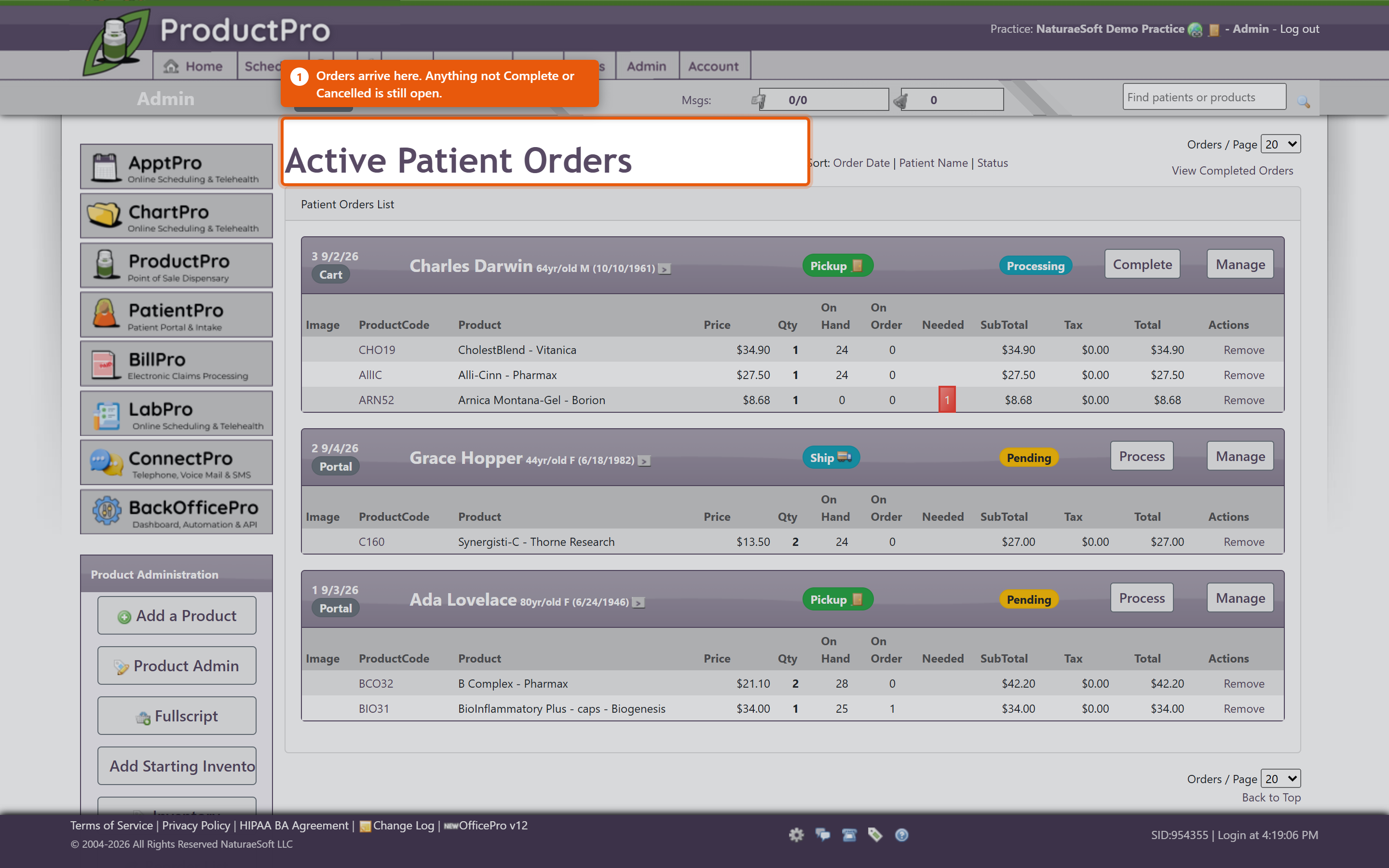 Each product line shows Needed against OnHand, so you can see immediately whether you can fill it. Where you cannot, Order Products puts what is short onto a purchase order. You do not have to fill an order all at once. Work the lines you can and leave the rest - the order stays open with the remainder outstanding, which is the right answer when one item is on back-order and the patient wants the rest now. 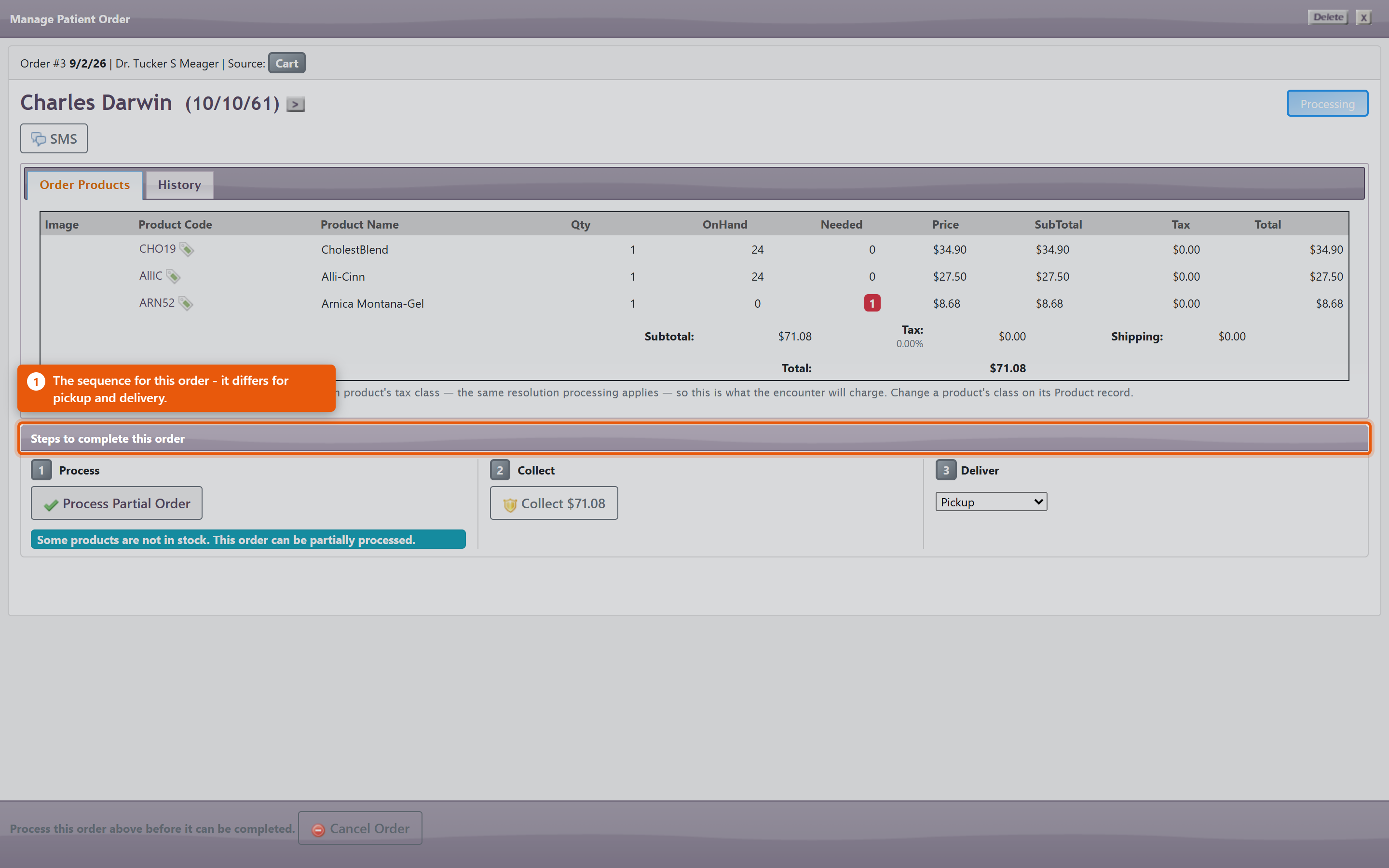 The actions you will use most:
Scheduled for completion by shows when the order is expected to be finished, which is what the patient has been told. Carts that never became ordersPatient Carts shows baskets patients filled and did not check out. These are worth a look - a cart abandoned at the payment step often means a card problem rather than a change of mind, and a phone call recovers the sale. What ordering does to the rest of the system
Keeping it working
|
|
|
| 75 |
Importing from the Fullscript CatalogImporting from the Fullscript CatalogOnce Fullscript is connected you can browse their catalogue from inside OfficePro and add products to your own. There are two things you will do here, and they are different: adding products you do not stock yet, and linking products you already have to their Fullscript equivalent. The screen has two tabs matching those two jobs: Browse & Import and Link Existing Products. Finding a productOpen Fullscript Catalog and use Search. Results show the Brand, Size, SKU and Price, and can be narrowed by Network. The catalogue hides what you already stock. The Show: filter starts on products I don't stock, which is sensible when you are looking for something new and misleading when you are not - search for a product you already carry and nothing comes back. Switch it to everything, including mine before concluding a product is unavailable, and remember the catalogue runs to more than one page. The NETWORK RANK column ranks products by how often they are recommended across the NaturaeSoft network. It is not your own prescribing history - Fullscript does not report per-practice popularity - so read it as a general signal rather than as a reflection of your patients. 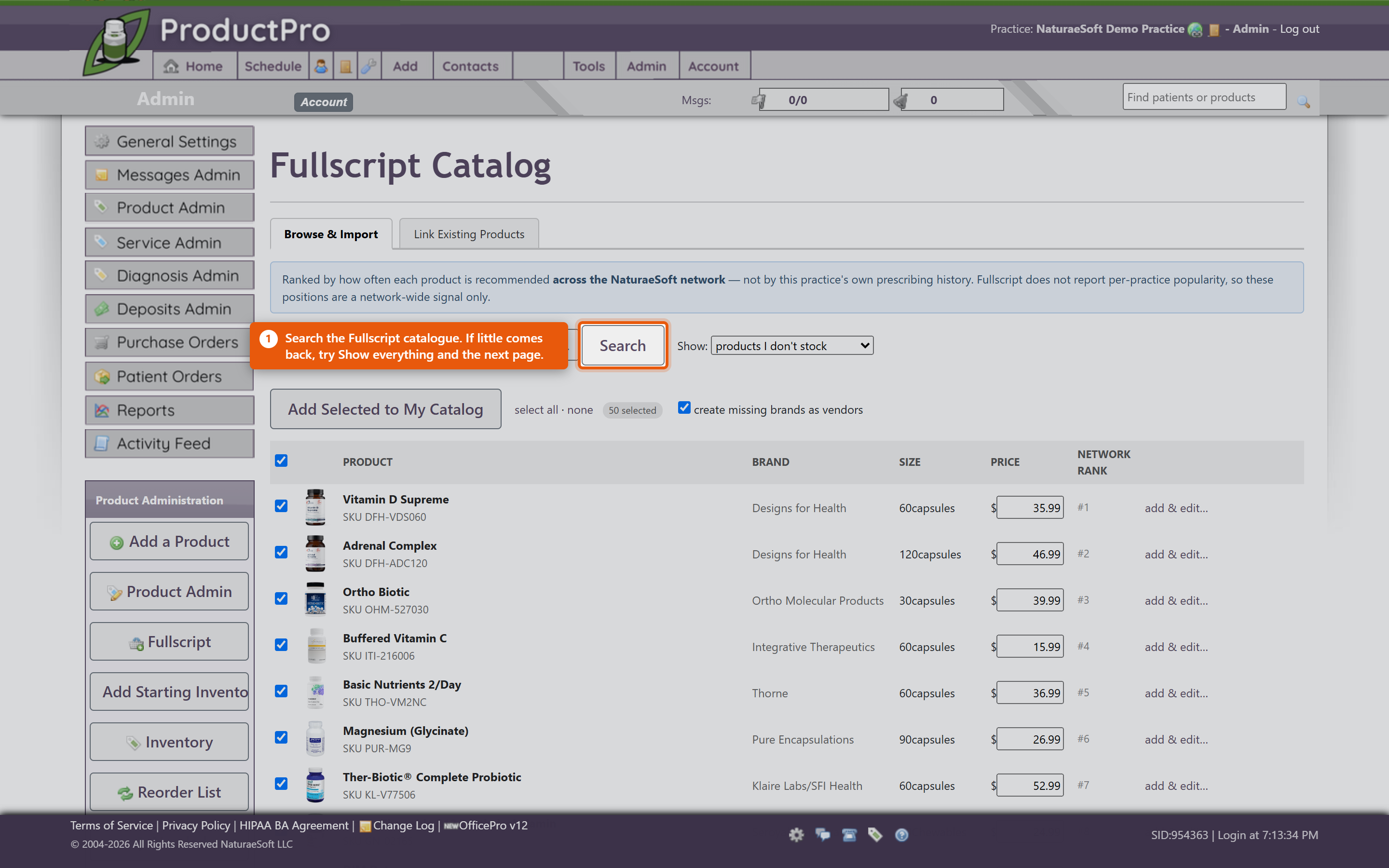 Adding new productsTick the products you want and click Add Selected to My Catalog. They arrive as ordinary OfficePro products carrying their name, brand, size and price, using the defaults set in ProductPro settings. Leave create missing brands as vendors ticked. It records each product's brand as a vendor as it imports, which is what makes Filter By Vendor useful afterwards and what lets those products go on a purchase order at all. Untick it and you get a catalogue of products with no supplier against any of them. Set Default Dosing attaches standard dosing instructions so they do not have to be typed on every plan. Worth doing for anything you dispense regularly - the instructions are what the patient actually follows. Importing the same product twice is safe. Each Fullscript variant is recorded against the product, and a second import of the same one updates rather than duplicating it. If a product code cannot be derived cleanly the row is refused rather than creating a clashing one. Linking products you already sellMost practices already stock some of what Fullscript carries. Link Existing Products matches your catalogue to theirs so the two are treated as the same product rather than two competing entries. The list pairs Your product and Your code against a proposed Fullscript match. Check the suggestions before accepting them - a match is proposed on name and brand, and two products with similar names can differ in strength or size, which matters clinically. When you are satisfied, use Link Confirmed Matches. Do this before importing in bulk. Linking first means you end up with one entry per product; importing first usually means finding and merging duplicates afterwards. What to watch
Writing a planWith products in place, a provider can create a Fullscript plan for a patient from the chart - see Fullscript Treatment Plans and Create Fullscript Plan. The plan is written under that provider's Fullscript account, which is why each provider has to be linked individually. |
|
|
| 85 |
Managing a Patient's Auto-Order PlanManaging a Patient's Auto-Order PlanAn auto-order plan lives on the patient, against a single product. Each plan has its own interval, quantity and delivery method, so one patient can have a monthly refill of one product and a quarterly refill of another. Setting one upOpen the product on the patient and use the AutoOrder section:
Both Interval: and Qty: have to be set for anything to happen. A plan with an interval and a quantity of zero looks configured on screen and will never generate an order. Put the dosing on the planThis is the step most easily missed. Refill lines take their directions from the plan, not from the product and not from the last dispense. If the plan has no dosing, the refill goes out with no directions on it - a bottle with a label and no instructions. Set the dosing at the same time you set the interval, and check it again if a provider changes the dose later. Changing the dose on a new dispense does not change what the plan sends next month. Seeing every plan at onceThe Auto Orders button on the ProductPro admin page opens Patient Auto Orders, which has two views:
Each row shows the Product Code and Product Name, the Interval (Days), Quantity and Method, the Start and Next dates, and - usefully - On Hand and On Order. Those last two are the early warning: a plan due next week for a product you have none of is a problem you can still fix this week. Delivery shows as a PICKUP, SHIP or PREMIUM badge. No orders found means nothing is due in that view, not that the feature is off. Changing a plan
When patients set their own upPatients ordering through the portal choose between three options, and it helps to know which one they picked:
They also choose Refill every and Delivery. Their plans appear in Patient Auto Orders alongside the ones you created, and you can edit them the same way. Watching the whole bookThe Subscription Health report under Products shows active auto-orders, estimated monthly recurring revenue, and which plans are about to lapse. Lapsing plans are worth a call - a patient whose subscription quietly ended usually did not decide to stop. |
|
|
| 38 |
Accepting Product ReturnsAccepting Product ReturnsProblemA patient presents a product for return. BackgroundThe approach to recording a product return in OfficePro varies based on the circumstances of the return:
The primary difference between these scenarios is the status of the returned product regarding inventory and how the return impacts current transactions. SolutionsScenario A: Return for Refund or Credit
Scenario B: Return with Current Visit
Scenario C: Non-acceptable Return
Important Alerts
|
|
|
| 40 |
Product Inventory Basics in OfficeProProduct Inventory Basics in OfficeProOverviewOfficePro serves as a point-of-sale system, streamlining the process of adding and managing your inventory. The system automatically adjusts stock levels based on sales and received inventory, minimizing the need for manual inventory adjustments. Adding Starting Inventory
Managing InventoryPeriodic Physical Inventory Counts:
Reorder List:
ConclusionNow that you have an understanding of how to set up and manage your product inventory in OfficePro, you can easily track your stock levels, sell products, and ensure timely reordering. This streamlined process helps maintain an efficient inventory system, supporting your practice's overall operations. If you have any questions about specific features or processes, feel free to ask! |
|
|
| 41 |
Purchase OrdersPurchase OrdersOverviewOfficePro enables you to create purchase orders for your product vendors and record product receipts. This process ensures accurate inventory management and efficient order tracking. Accessing Purchase OrdersOpening the Purchase Orders List:
Understanding the Purchase Orders List:
Completing Purchase Orders
Creating Purchase OrdersYou can add a purchase order in three different ways: Using the Add Menu:
Using the Lower Left Menu:
Using the Plus Sign:
Recording Product Receipts
ConclusionBy efficiently managing purchase orders and product receipts within OfficePro, you can maintain accurate inventory levels and streamline your ordering process. This functionality is essential for keeping your practice well-stocked and organized. If you have any questions about specific features or need further assistance, feel free to ask! |
|
|
| 76 |
Fullscript Products or Plans Are Not AppearingFullscript Products or Plans Are Not AppearingProblem The Fullscript catalogue returns nothing, a provider cannot create a plan, or imported products look wrong once they arrive. Background Fullscript has three separate requirements, and failing any one of them looks much the same from the outside: the practice must be connected, the individual provider must be linked, and the practice must have ProductPro. Working out which is missing is most of the job. Resolution
Products imported, but the Type box is blankDefault Product Type in ProductPro settings is set to something that is not one of the supplied values. Only the values in that list are valid; anything else renders an empty Type on the product form. Correct the setting, then fix the products already imported. The same product appears twiceRe-importing does not cause this - each Fullscript variant is recorded and a second import updates rather than duplicates. Two entries almost always mean the product existed in your catalogue already and was imported instead of linked. Use Link Existing Products before bulk importing, and make one of the pair inactive rather than deleting it, so the sales history against it survives. The Duplicate Products report under Reports finds these. Prices are not what you chargeImported products arrive at the Fullscript catalogue price. That is the starting point, not a decision about your pricing - review anything where you set your own margin. See Adding and Editing Products. Everything disappeared after disconnectingProducts already imported stay in your catalogue and are still yours to sell. What stops is the link to Fullscript: they no longer refresh, and new plans cannot be written until the practice reconnects. |
|
|
| 86 |
An Auto-Order Did Not GenerateAn Auto-Order Did Not GenerateWork down this list in order. The first three causes account for nearly everything, and all three look identical on screen - a plan that appears perfectly configured. 1. The practice is not on BackOfficeProThe nightly job only runs for practices subscribed to BackOfficePro. Without it, plans can be created and edited exactly as normal and nothing ever generates from them. There is no warning and no error. If no auto-order has ever generated for anyone, start here rather than examining the plan. Contact support to confirm. 2. The quantity is zeroA plan needs both an Interval: and a Qty: greater than zero. A plan with an interval and no quantity is skipped silently, and on screen it is indistinguishable from a working one. Check Quantity on the By Patient view. A blank or zero there is your answer. 3. It is not due yetThe job runs once a day, late in the evening Pacific time, and looks a few days ahead. An order will not appear the moment you save a plan, and it will not appear during the working day. Set a plan up on Tuesday afternoon and check on Wednesday morning. Check the Next date on the By Date view. If it is in the future, nothing is wrong. 4. The plan endedAn End: date in the past stops the plan. So does an Interval: that has been set back to None - which is easy to do by accident while editing something else on the same screen. Refill limits stop it too. A product set to Constrict Refills ( with none remaining, or Blocked - No refills, will not refill however the plan is configured. 5. Nobody was toldSometimes the order did generate and nobody saw it. The summary message after each run goes to the Order Message User in ProductPro settings; if that is still on -- Select User -- it goes to no one in particular. Before concluding an order is missing, look in your patient orders queue for a Pending order dated overnight. Other things that come upThe refill went out with no directionsDirections come from the plan, and only from the plan. A plan saved without dosing produces a line with nothing on it - the product default is deliberately not substituted, because a guessed dose is worse than an obvious blank. Fix the dosing on the plan itself, not on the order. Correcting the order sends this month out right and next month out wrong again. A pickup patient was charged shippingDelivery comes from the plan's Method:, not from the patient's usual preference. Check the Method column on the By Patient view and correct the plan, or every cycle repeats the charge. The discount is missing, or looks wrongThe ongoing Subscribe & Save discount appears as a discount on the order line. It is not a credit on the account, and there will not be a separate credit entry to find. Do not add an account credit to make up for it. The system used to apply the discount twice - once on the line and again as a credit - and that was corrected. Adding a credit by hand recreates the old fault one patient at a time, and it will not be obvious later that it was done manually. Also worth knowing: the welcome discount is a portal-only offer on a patient's first Subscribe & Save. Refills are discounted at the ongoing percentage, which is normally lower. A refill that costs more than the first order is working as intended. An overdue plan only produced one orderThat is deliberate. A plan that has been due for months generates a single order and its next date jumps to the next future cycle. There is no catch-up run, and you will not be billed for the months in between. Two orders arrived for the same patient on the same nightAlso expected, if that patient has both pickup and shipped plans due. Refills are grouped by delivery method so each order's header matches its contents. One order cannot be half collected and half posted. The product went out of stockOrders are created whether or not you have stock. The On Hand and On Order columns on Patient Auto Orders exist so you can see this coming - check the By Date view weekly rather than finding out while packing. My purchase orders to a supplier stoppedDifferent feature. Vendor auto-orders are configured on the vendor's contact record under Auto Order and raise a purchase order to your supplier. Nothing on the patient side affects them. |
|