Knowledgebase Article
Sales Tax by Product Class
Category: Configuration | Module: OfficePro | Created: 9/5/2026 | Last Updated: 9/5/2026
Many states tax some goods at a lower rate than others - groceries and supplements are the usual example - and some exempt them entirely. A product class is how you tell OfficePro which of your products those rules apply to, so the right rate is charged without anyone remembering to intervene.
The classes are Standard, Grocery and Exempt. Every product carries one; anything you have not classified is Standard.
Set a jurisdiction's class rates
- On the Admin page, find Tax Rates by Product Class.
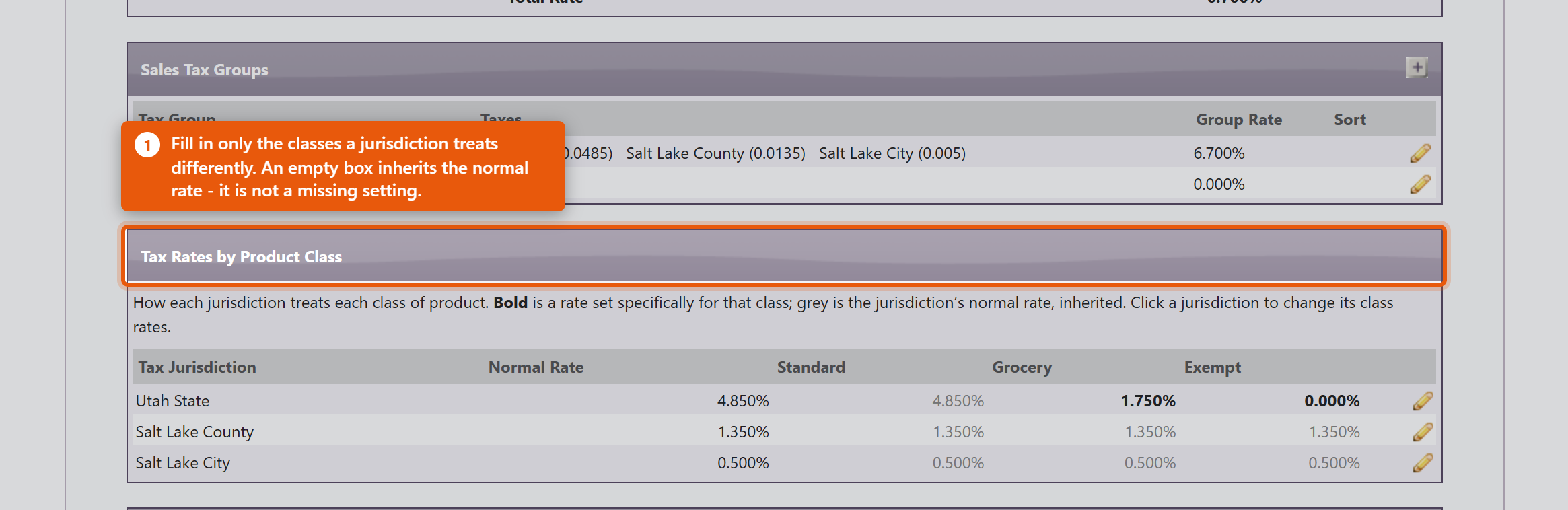
- The grid lists each Tax Jurisdiction with its Normal Rate and a column per class.
- Open a jurisdiction and fill in only the classes it treats differently.
The distinction that matters most
An empty box and a zero mean different things, and getting them the wrong way round is the most expensive mistake available on this screen.
- Empty means this jurisdiction taxes this class at its normal rate. The screen says Leave a box empty to inherit, and shows you the rate it will inherit. For most classes in most jurisdictions this is the correct answer, and an empty box is not a missing setting.
- 0 means this jurisdiction does not tax this class at all. That is a deliberate statement of exemption, and it is what you enter when your state genuinely does not tax food.
So if your state exempts groceries and you leave Grocery empty, every grocery item is charged the full standard rate and nothing warns you - the configuration is valid, it just says something you did not mean. Enter 0.
Clearing a box that had a rate restores inheritance, which is why the value disappears rather than becoming zero.
"Exempt" applies to one jurisdiction, not to the whole bill
This is the part that catches people out. Class rates are set per jurisdiction, so putting 0 against Exempt on your state does nothing about your county and your city. They carry on charging their normal rate on the same product.
Using the example above - state 4.85%, county 1.35%, city 0.5%, with Exempt set to 0 on the state only:
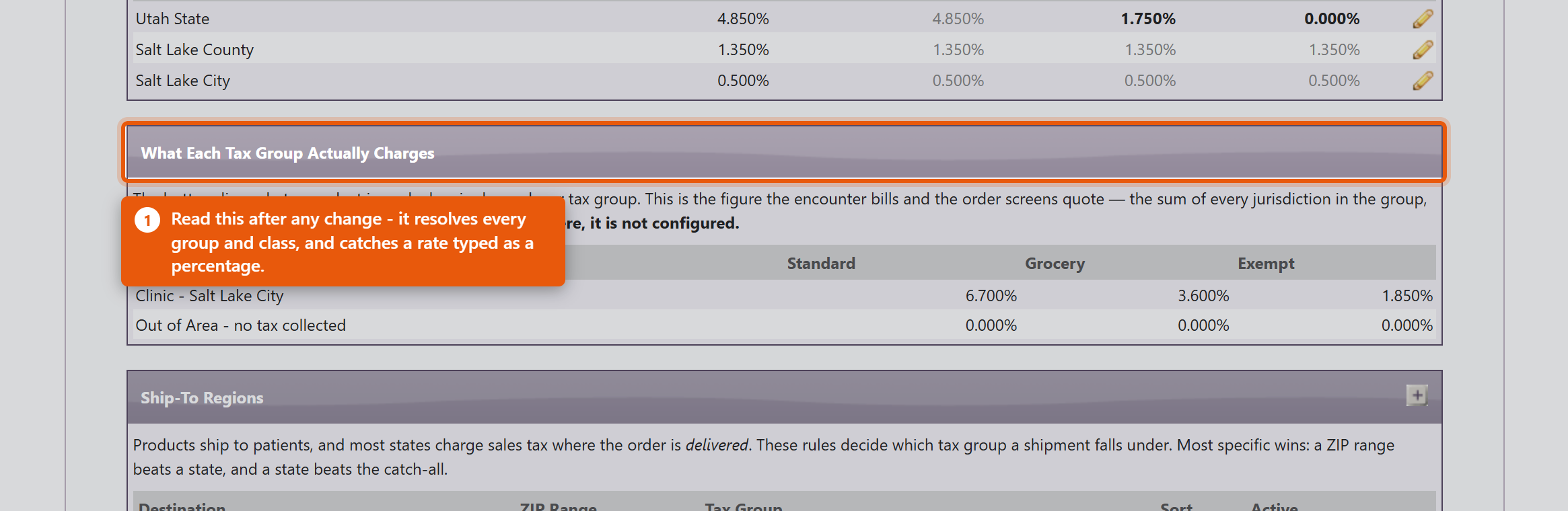
- Standard: 4.85 + 1.35 + 0.5 = 6.7%
- Grocery: 1.75 + 1.35 + 0.5 = 3.6%
- Exempt: 0 + 1.35 + 0.5 = 1.85%, not zero.
So a product marked exempt is still charged 1.85%, and the practice believes it is charging nothing. If something is genuinely exempt everywhere you collect, set 0 against that class on every jurisdiction in the group, not just the state.
The grid shows this if you know what to look for: a rate in bold was set for that class, and a grey one is the jurisdiction's normal rate being inherited. Grey in the Exempt column means that jurisdiction is still charging.
Rates are decimals
Same as everywhere else in this area: 1.75% is 0.0175. The box tells you what percentage it read back, and refuses anything at or above 1 because a rate of 100% or more is always a typo.
A worked example
A Utah practice charging state 4.85%, county 1.35% and city 0.5%, where the state taxes food at 1.75% but the county and city tax it the same as anything else:
- On the state jurisdiction, set Grocery to 0.0175.
- On the county and the city, leave Grocery empty - they treat it normally, and empty is exactly that statement.
A standard product is then charged 4.85 + 1.35 + 0.5 = 6.7%, and a grocery product 1.75 + 1.35 + 0.5 = 3.6%. Each jurisdiction contributes its own view of the class, which is why the classes are set per jurisdiction rather than once for the whole group.
Classify the products
A class rate does nothing until products are assigned to that class. Set Product Tax Classes on the product itself. Reduced rates and exemptions are worth getting right on the products you sell most - that is where the money is.
Check it
What Each Tax Group Actually Charges on the Admin page shows the resulting rate for every group and class together. Read it after any change: it is the quickest way to catch a rate that has been entered as a percentage, or a class left inheriting when it should be exempt.
A practice that has configured no class rates at all is charged the plain jurisdiction rates on everything, exactly as before this feature existed. Nothing changes until you use it.