Knowledgebase Article
Setting Up Multi-Factor Authentication
Category: Configuration | Module: OfficePro | Created: 9/5/2026 | Last Updated: 9/5/2026
Multi-factor authentication (MFA) asks for a second piece of proof after the password, so a stolen or guessed password is not enough on its own to reach patient records. OfficePro offers two methods, and each user sets up their own.
The two methods
- Authenticator App - a code that changes every 30 seconds in an app such as Google Authenticator or Authy. This is the more secure choice: the code never travels over the phone network, and it keeps working where there is no signal.
- SMS Text Message - a code texted to a mobile number. Easier to start with, but a text can be intercepted or redirected, so use it where an authenticator app is not practical.
A user can set up both. If both are enrolled, the authenticator app is offered first and the text message is available as a fallback.
Set up your own account
- Click Account at the top right of any page.
- Find Account Security Settings, then the Two-Factor Authentication section. Each method shows either Not Set Up or Enrolled.
- Next to Authenticator App, click Set Up.
- Scan the QR code with your authenticator app. If the camera will not scan it, type the code shown beside Manual key: into the app instead.
- The app now shows a six-digit code. Type it into Enter the 6-digit code shown in your app to confirm: and click Verify & Enable.
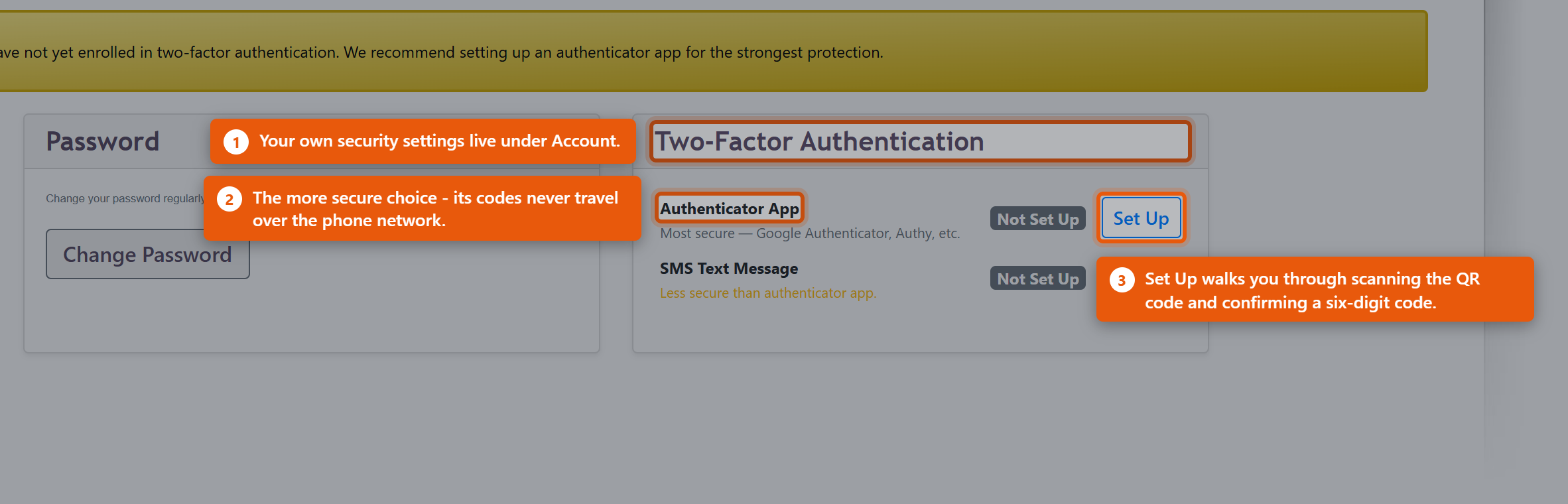
The method then reads Enrolled. To use a text message instead, click Set Up beside SMS Text Message, enter the number under Mobile Phone Number - Include country code (e.g. +1 for US) - and click Send Verification Code, then enter the code that arrives. If it does not arrive, Change number / Resend will send it again or let you correct the number.
To stop using a method, click Remove beside it.
Require it across the practice
Setting up MFA is voluntary until an administrator requires it. There are two ways to do that, both on the Admin page in the Users section.
- For everyone at once - switch on Require MFA for All Users at the top of the Users list. Every current user is marked as required.
- For one person - open the user with Edit User, find Require MFA: and click Enable. Disable lifts it again.
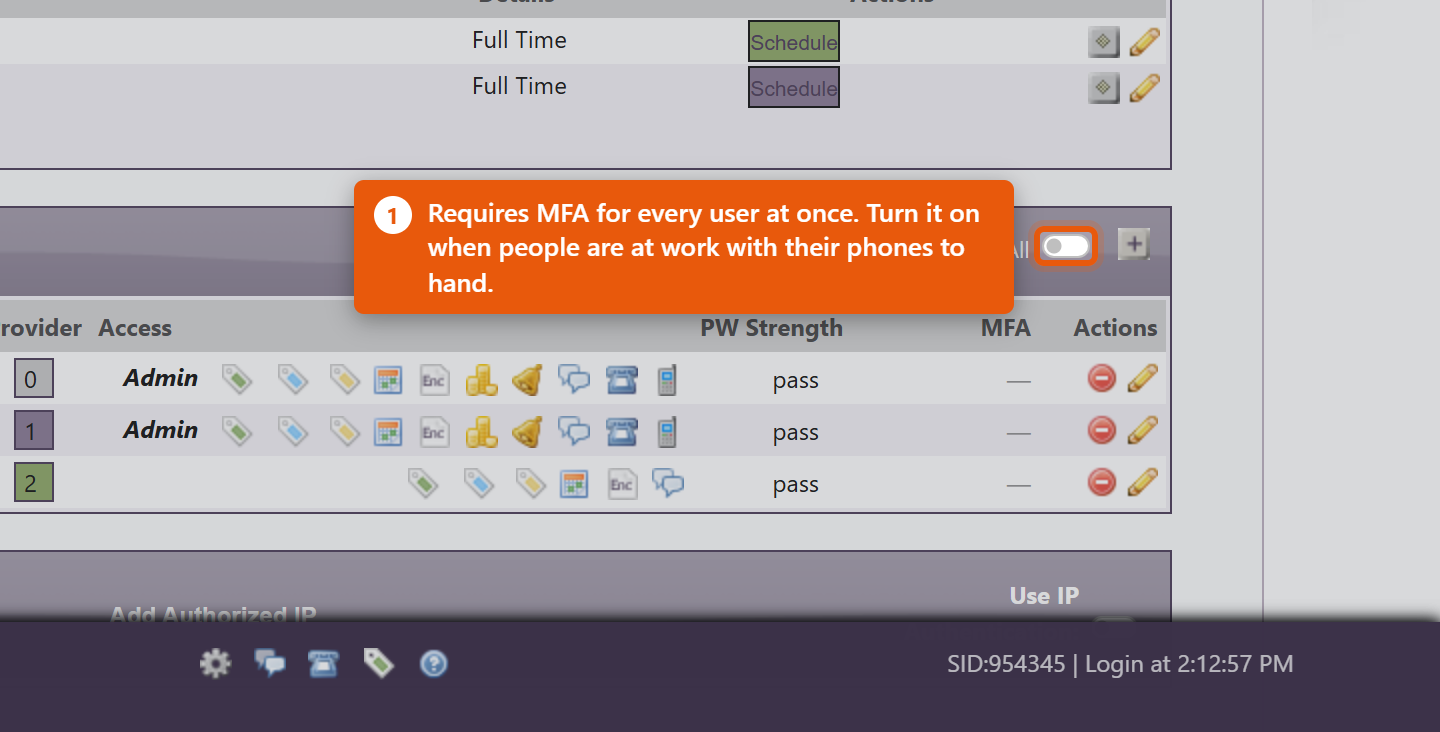
Requiring MFA does not enrol anyone. It means that the next time that person signs in, they must finish setting up a method before they can carry on. Turn it on when the people affected are at work and able to reach their phones, not last thing on a Friday.
Read the Users list at a glance
The MFA column on the Users list shows where each person stands. Hover an icon to read it:
- Authenticator App (TOTP) - enrolled with an app.
- SMS MFA Enabled - enrolled with text messages.
- MFA Required - Not Enrolled - required, but not yet set up. This person will be stopped at their next sign-in until they finish.
- MFA Optional - Not Enrolled - not required and not set up.
When someone loses their phone
A new or wiped phone no longer holds the enrolment, and the old codes are gone. An administrator clears it so the user can start again: open Edit User, and under MFA Status: beside Authenticator App: click Reset TOTP. The user is then Not enrolled and sets the app up again from their own Account page.
Only an administrator can do this, and it is deliberate - being able to clear your own second factor would defeat the point of having one.